
If you encounter any issue or error in SWIFT, you can easily raise a ticket through the Freshdesk portal. To do this, you can follow the steps provided within SWIFT itself.
Topics Covered
How to contact SWIFT support
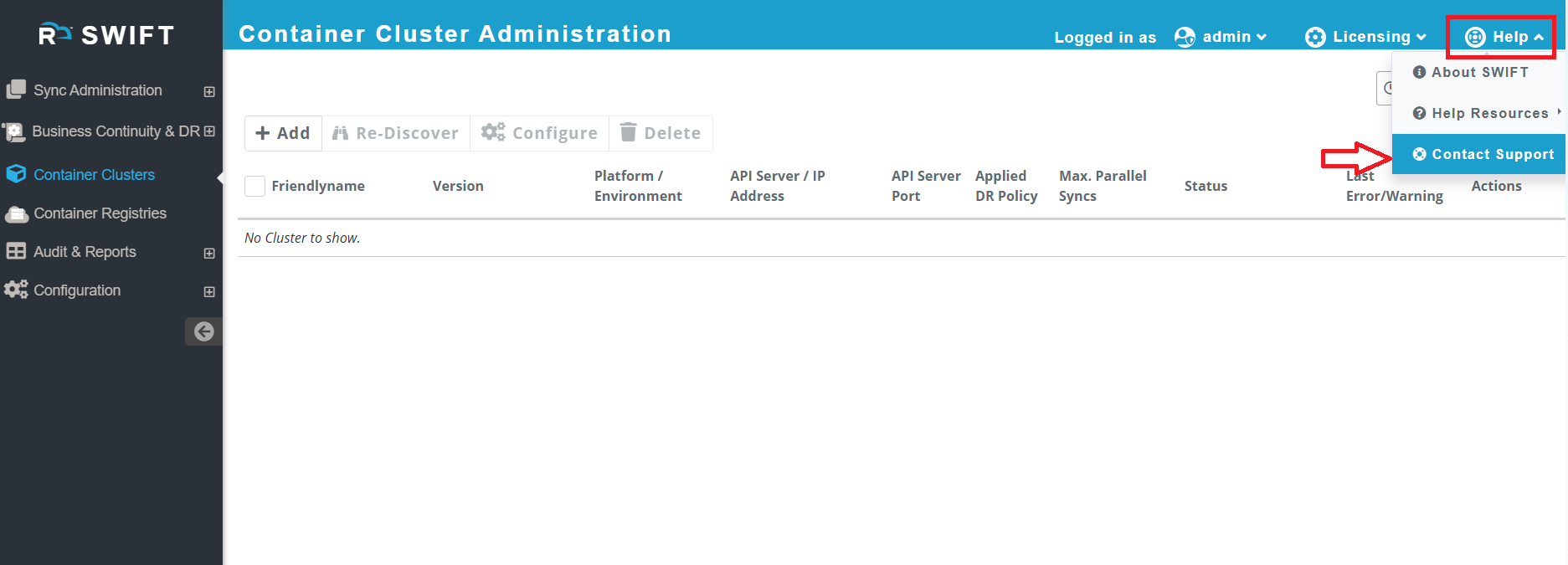
1.First, log in to SWIFT, then navigate to Help > Contact Support, as shown in the screenshot below.
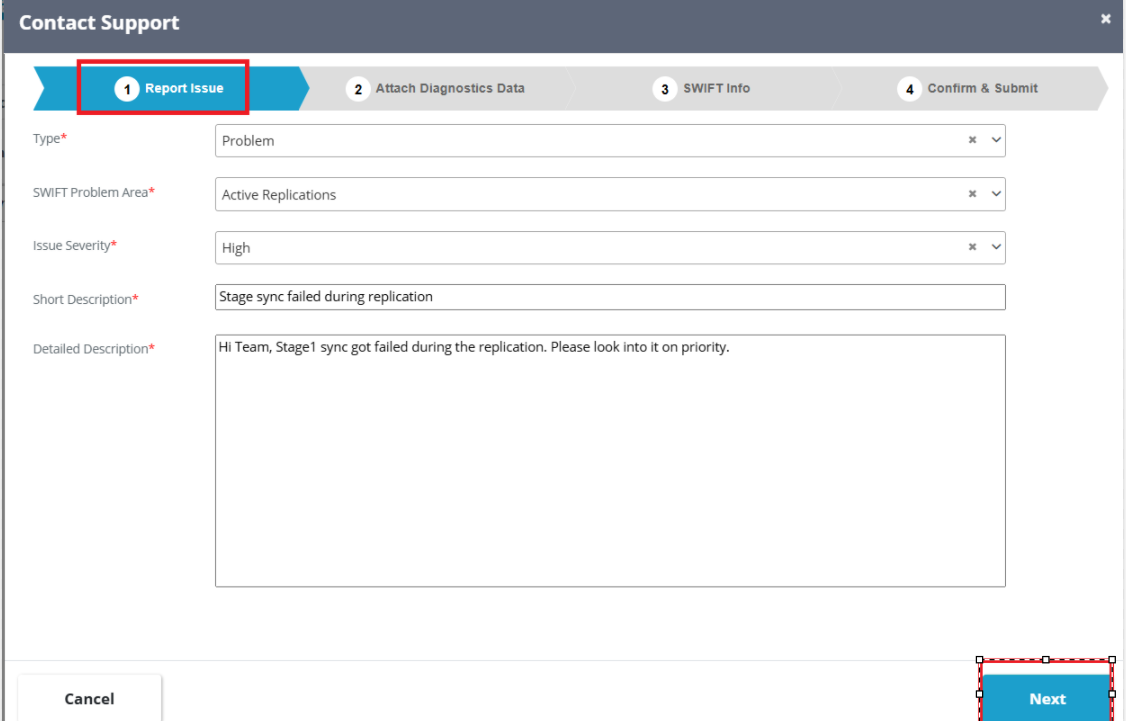
2. Once you click on 'Contact Support', you will see the screen below. You need to fill in the required details to create a support ticket.
a. Type: This field type refers to the category of the issue
b. SWIFT Problem area: Here you need to select area in SWIFT in which your getting an issue.
c. Issue Severity : As per the issue you can select severity for eg. Low, Medium, High or critical.
d. Short Description: Provide short description of your issue or any request.
e. Detailed Description: Provide detailed description of your issue or any request so that we can understand your issue quickly.
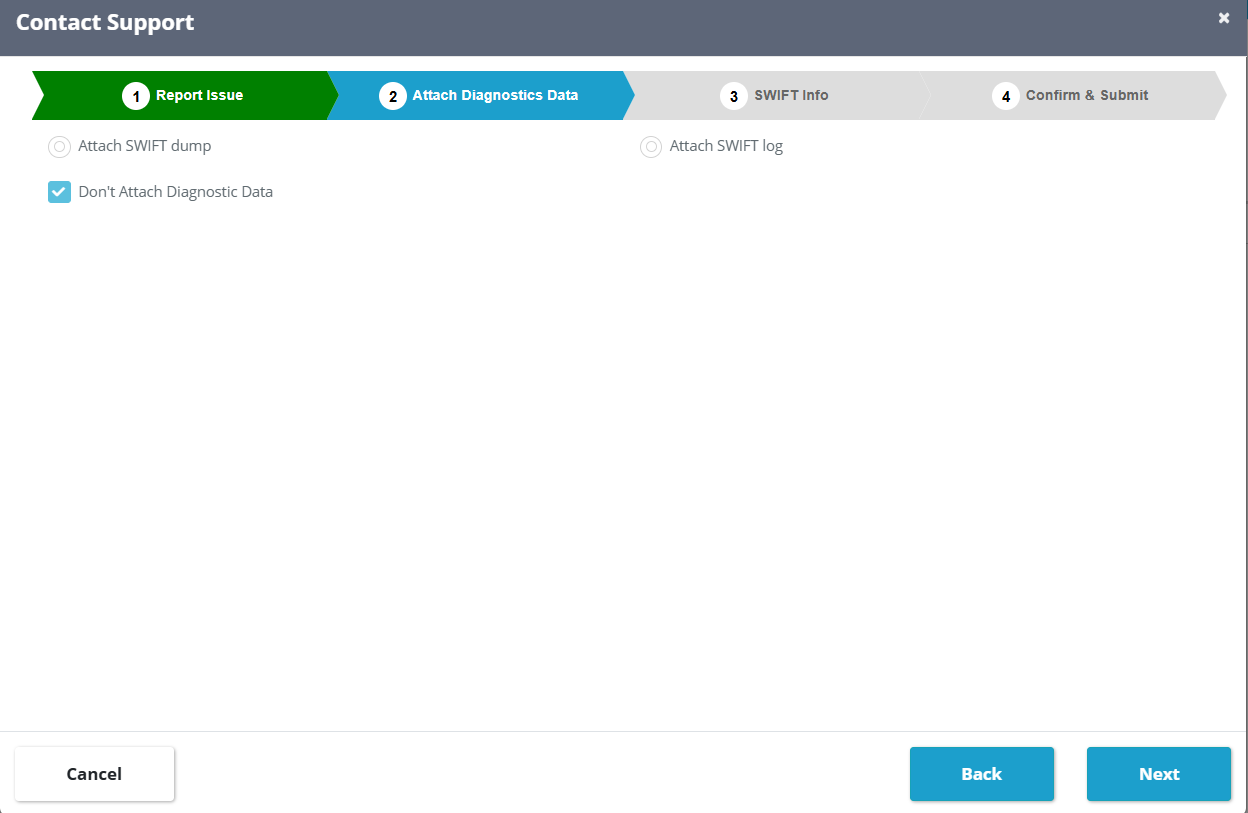
3. Once you click on 'Next', another window will appear where you need to attach the dump or SWIFT log. If you prefer not to attach any files, you can select the 'Don't attach diagnostic data' option below and click on 'Next' button. Please find the snippet below for your reference.
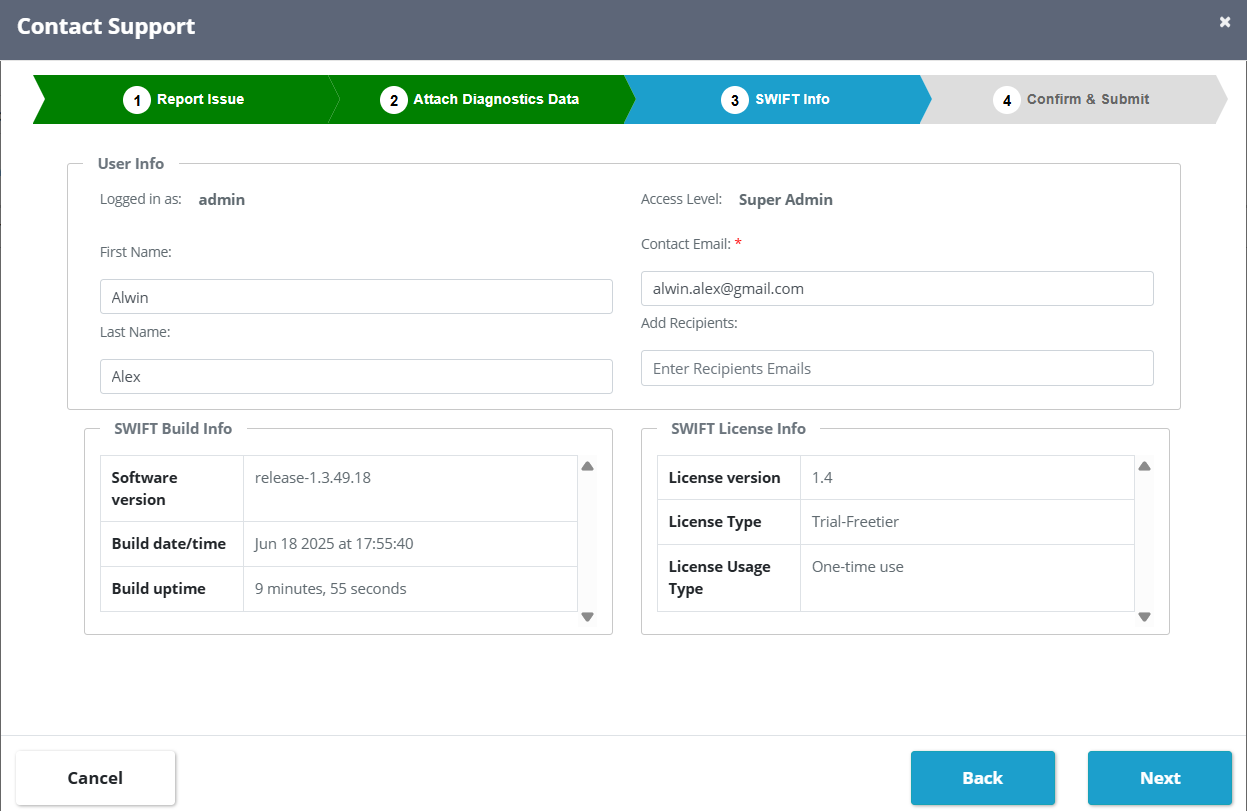
4. Now, you will see the SWIFT Info window, where you need to fill in your First Name, Last Name, and Email ID. You can also view details such as the software version, license version, and other types of information. And click on Next. Please refer to the snippet below.
5. Now, you will see a summary of the information you want to highlight to the SWIFT team. Submitting this will create a Freshdesk ticket.
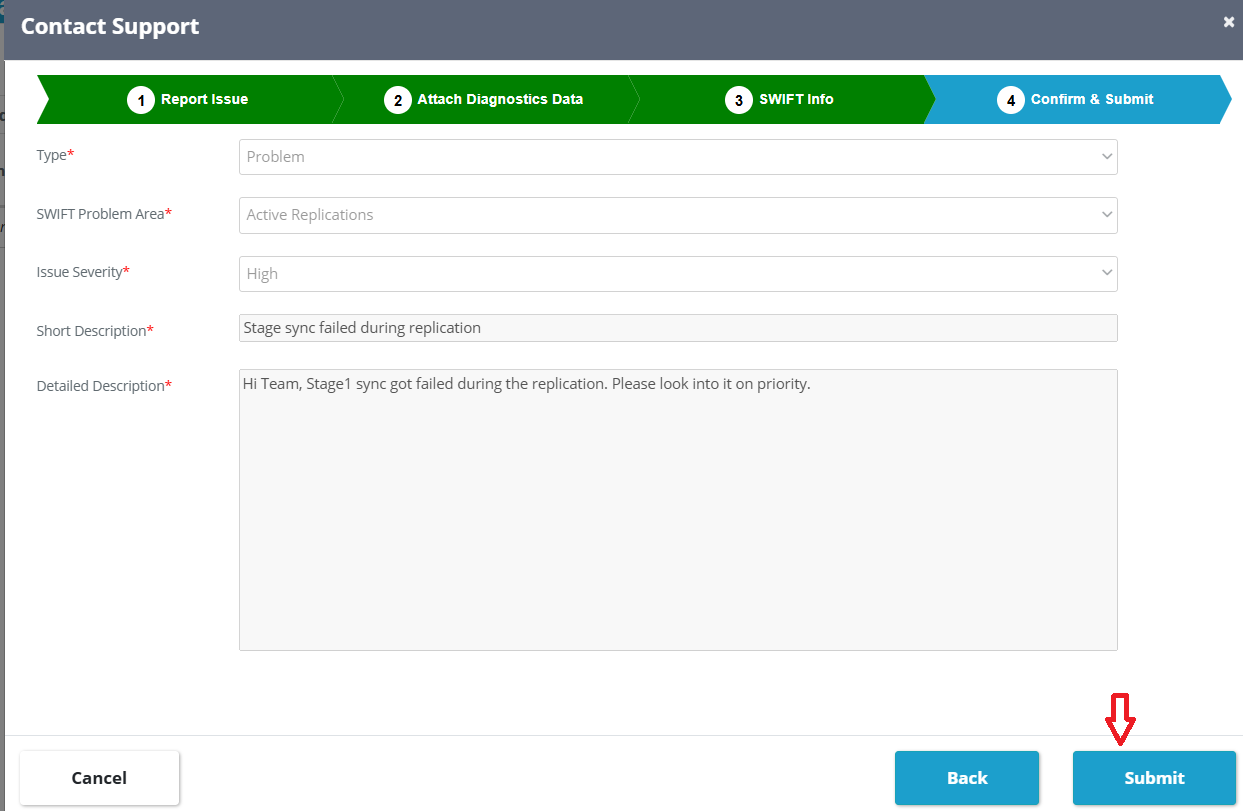
6. Once you submit it, a Freshdesk ticket will be created automatically, as shown in the snippet below.
After successful ticket submission, you will receive an email notification containing the ticket details and ticket access link. The same link can also be opened directly in a web browser to view ticket status and updates.
If the email is not visible in the inbox, customers are advised to check their Spam/Junk folder using the same email address that was used during ticket creation.
Please note that all ticket alerts and responses will be sent from the Freshdesk support email address.
To update or respond to a ticket, customers can use either of the following methods:
- Sign up/login to the Freshdesk portal and update the ticket directly.
- Reply to the ticket notification email received in their mailbox.
All support communication and responses will continue within the same email conversation thread for easier tracking.
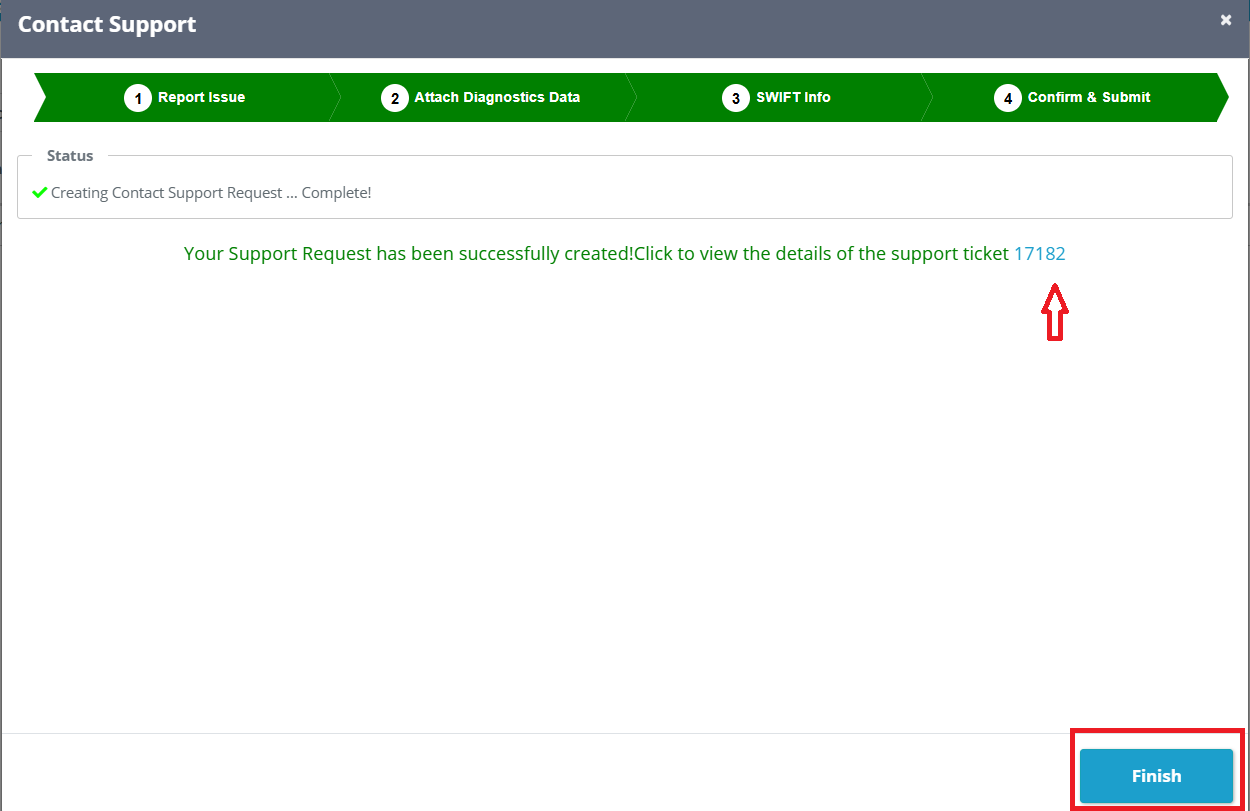
7. The ticket has been created. If you have an account, you can log in to Freshdesk and check the ticket. It will look similar to the example shown below.