
The Disaster Recovery (DR) Policy provides a structured approach to maintain business continuity during unexpected outages, disasters, or critical failures. DR Policy is simple configuration where it tells frequent sync.
The purpose of a DR policy is to define when and how your application data should be backed up (Stage 1) and/or restored to the target cluster (Stage 2) for disaster recovery.
Pre-requisite
Below are the details view of DR policy
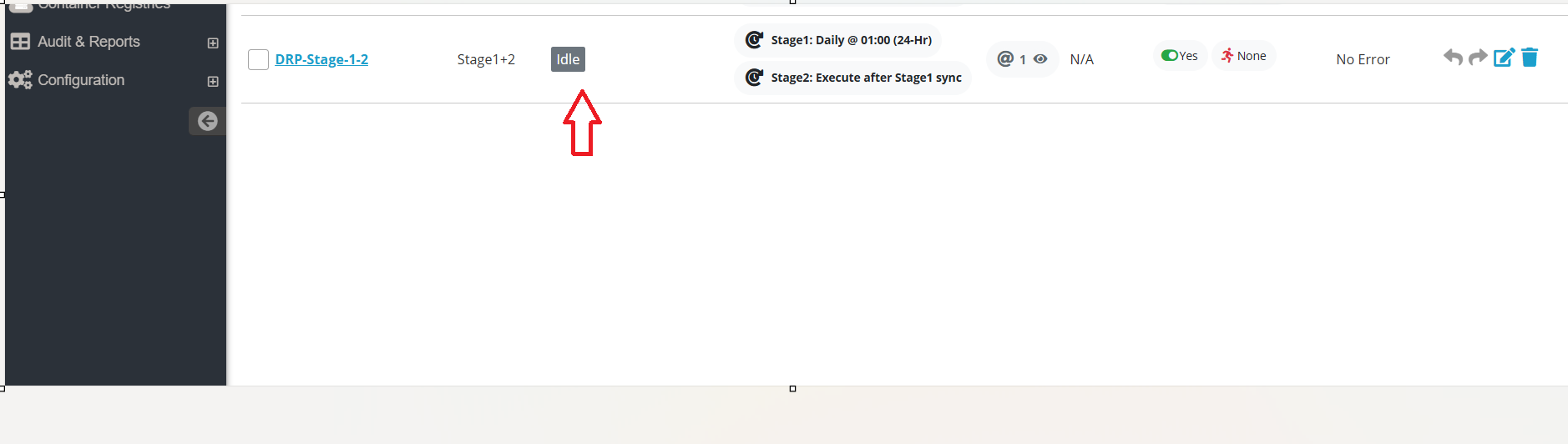
1. Once you create a DR policy, it will be in the IDLE state.
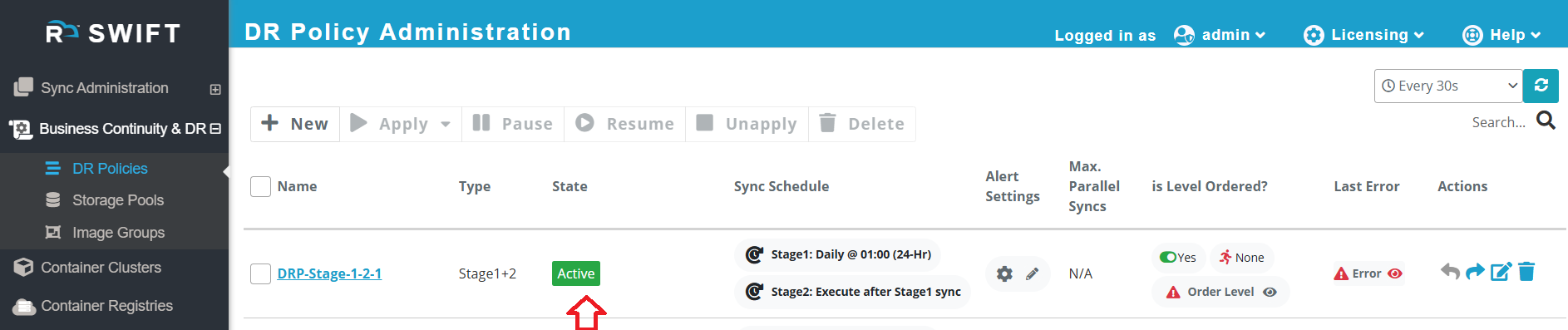
2.Once applied, it will look like the example below. The policy will move to the Active state and run according to the scheduled time.
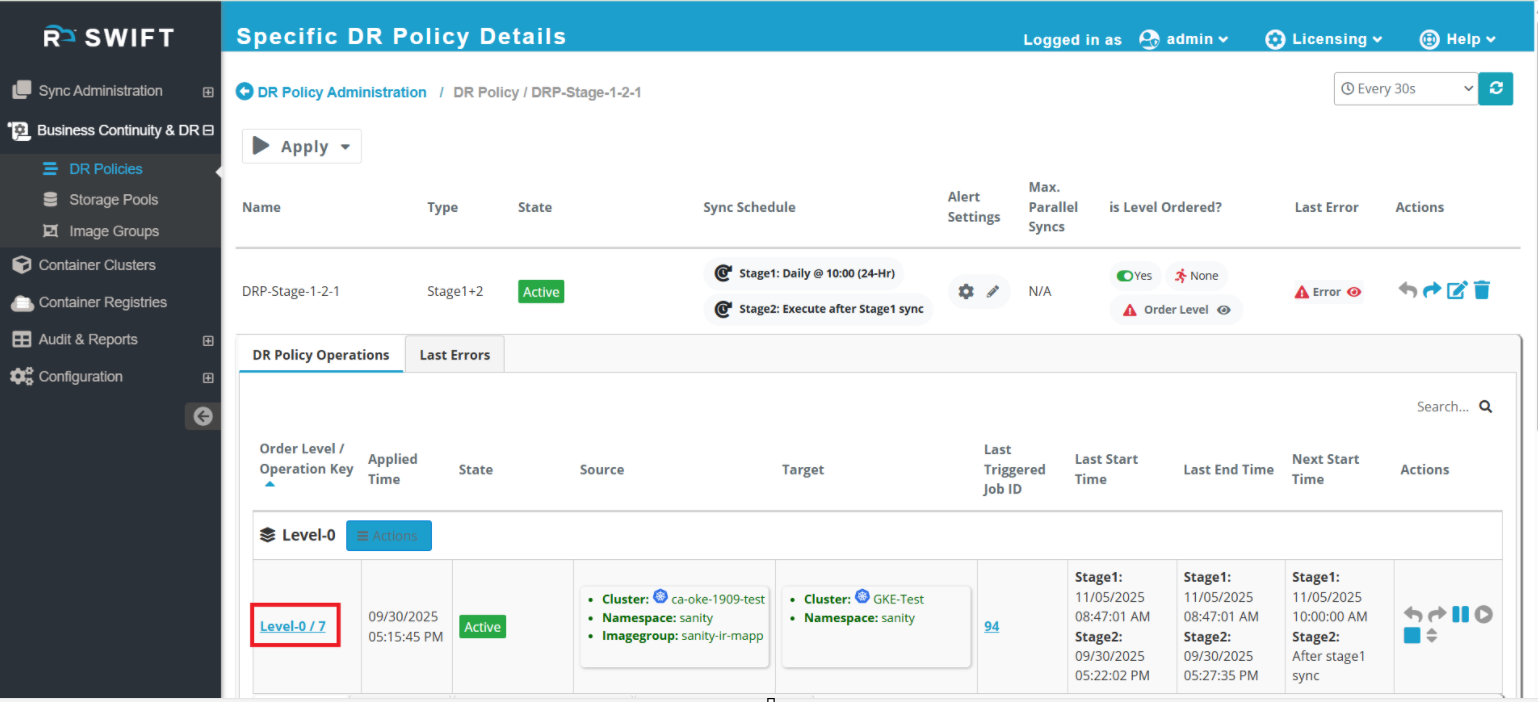
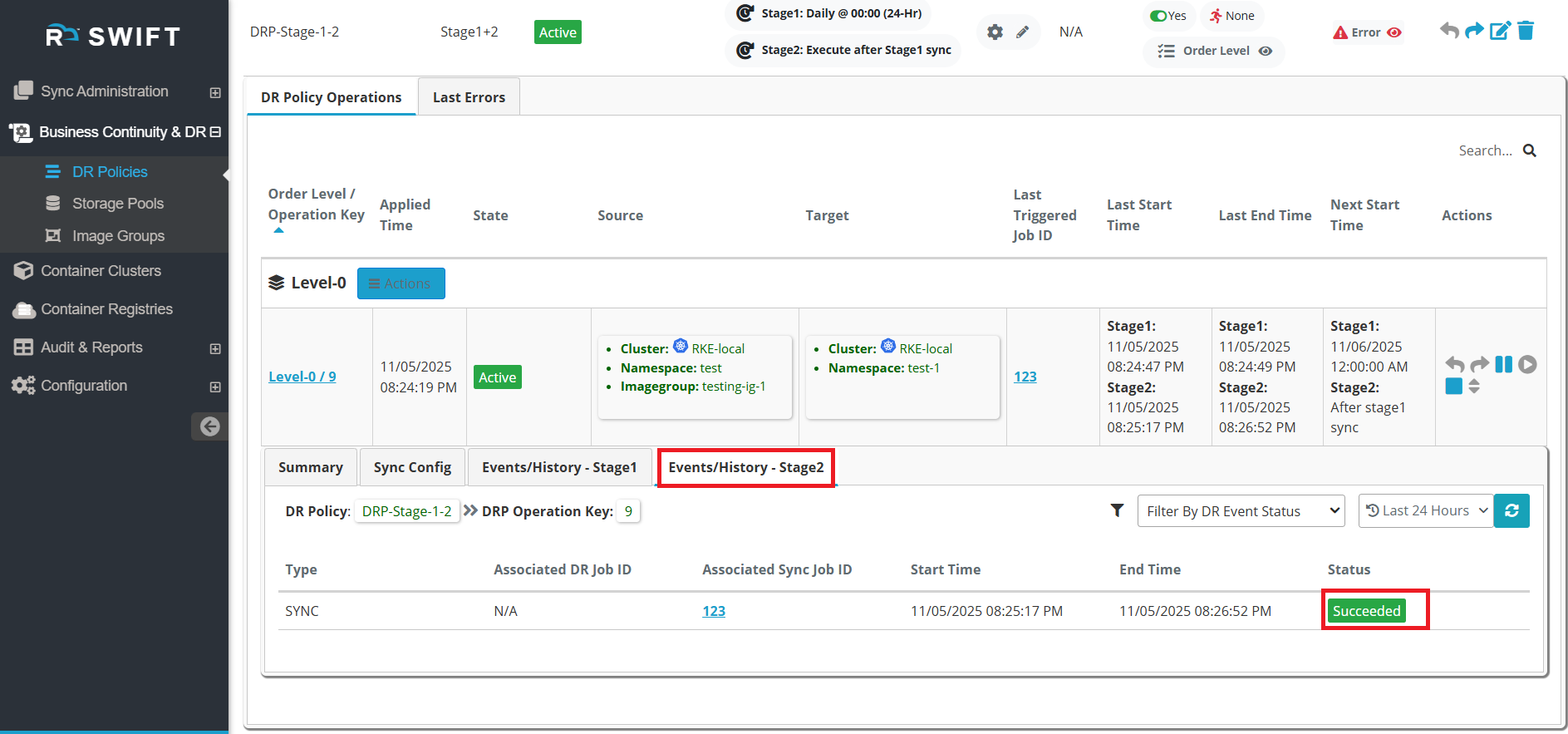
3.To view the DR Policy, go to Business Continuity & DR > DR Policies, then click on the created DR Policy. It will look like the example below, where you can see all DR policy operations organized by level.
| Fields | Fields Description |
| Order Level/Operation key | It shows Level and Operation number. order and operation meanings should be. |
| Applied time | It shows when you apply the DR Policy, it will captured exact time. |
| State | |
| Source | Here, you can see the source-side cluster, namespace, and image group names as provided during the policy apply. |
| Target | Here, you can see the target-side cluster, namespace as provided during the policy apply |
| Last triggered job id | It shows the Job ID triggered by the DR Policy. This is helpful in identifying which job has failed and allows you to quickly check the related logs when any issue occurs. |
| Start time | It will show when the DR Policy has started. It will show stage and stage2 as we have created a stage1+2 DR Policy. |
| End Time | It will show when the DR Policy has ended with sync. |
| Next Start time | Here, it shows the next scheduled DR Policy run. For example, if the DR Policy is set to run every 30 minutes, it will display the next run time as 30 minutes after the sync end time. |
| Action | Here, you will find different options — you can modify the DR Policy, perform Failover and Fallback, or Pause and Unapply the DR Policy as needed. |
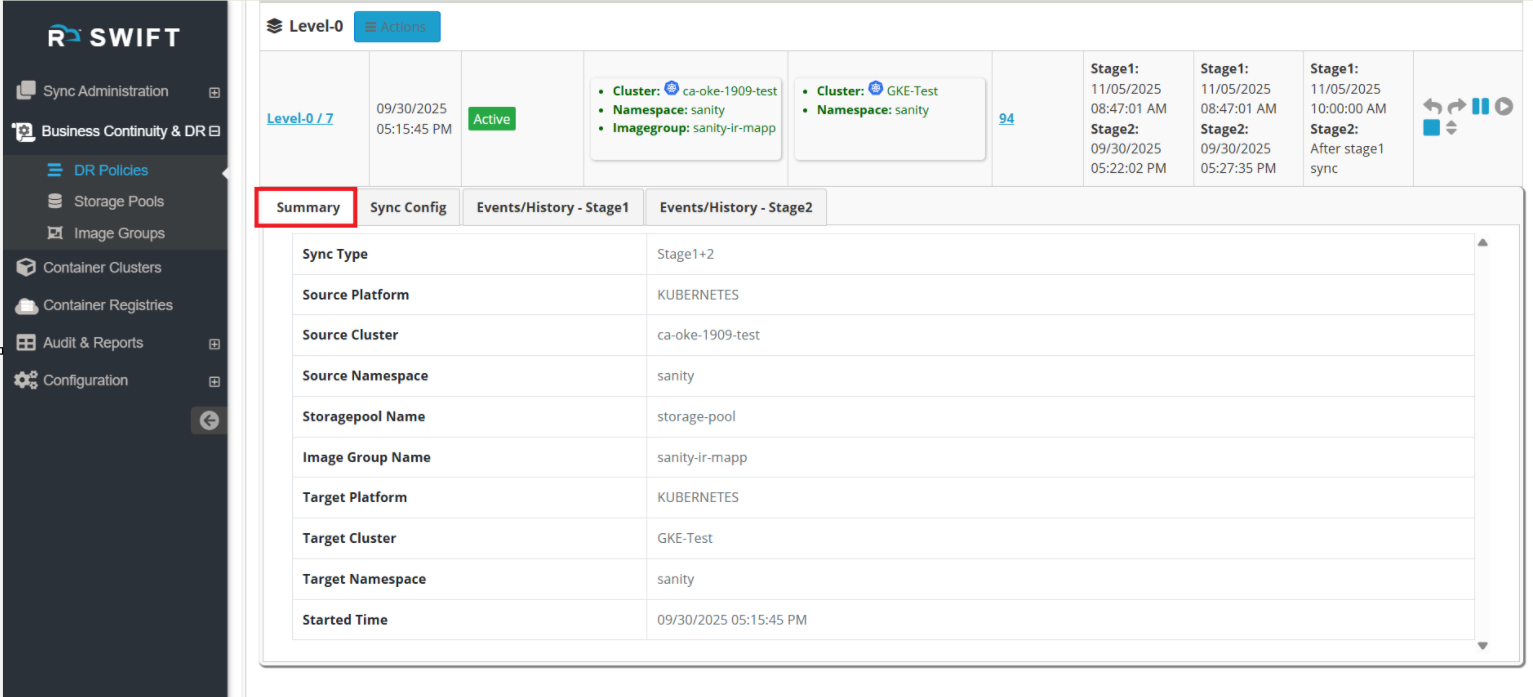
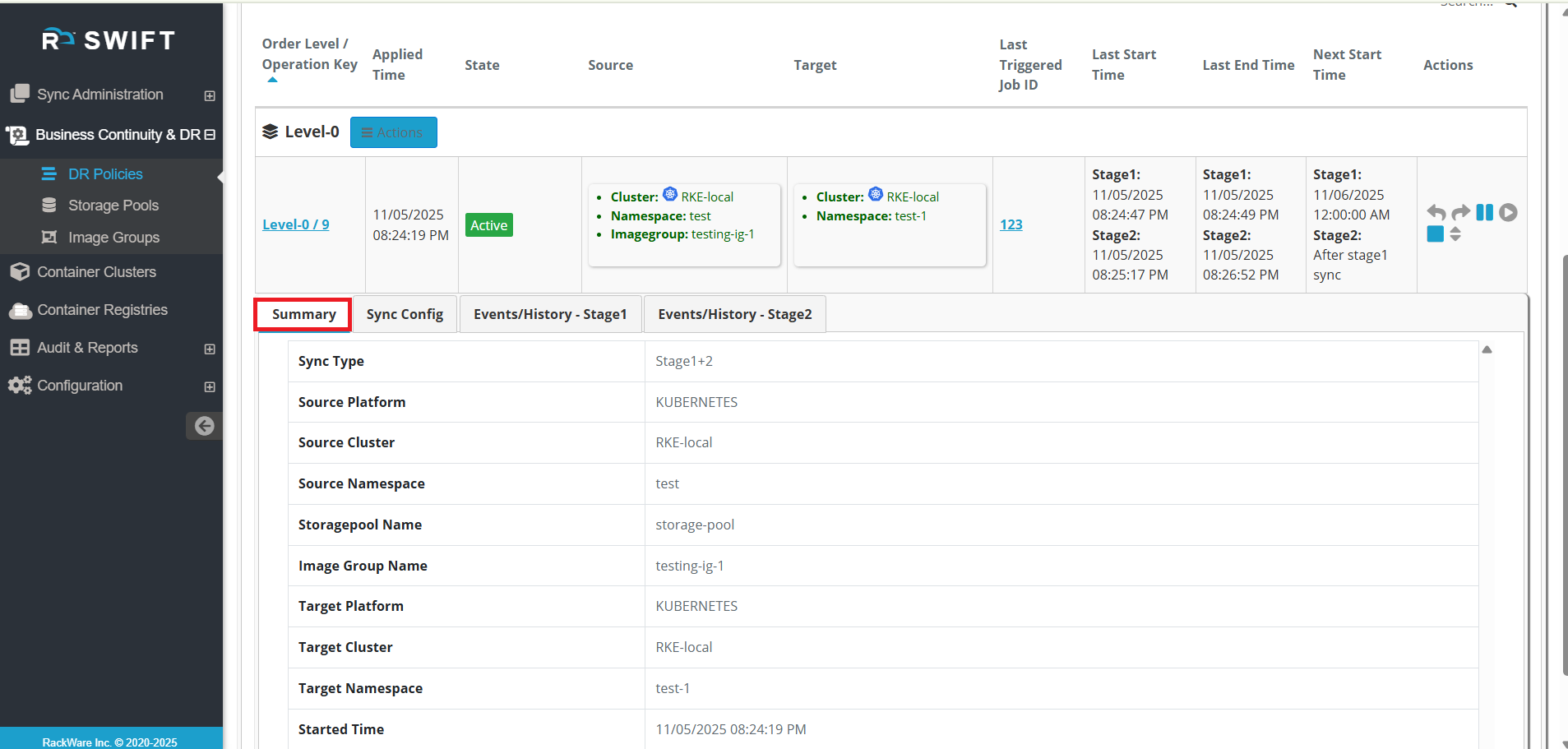
4. You can also view the summary of the sync for more details. Refer to the screenshot below for reference.
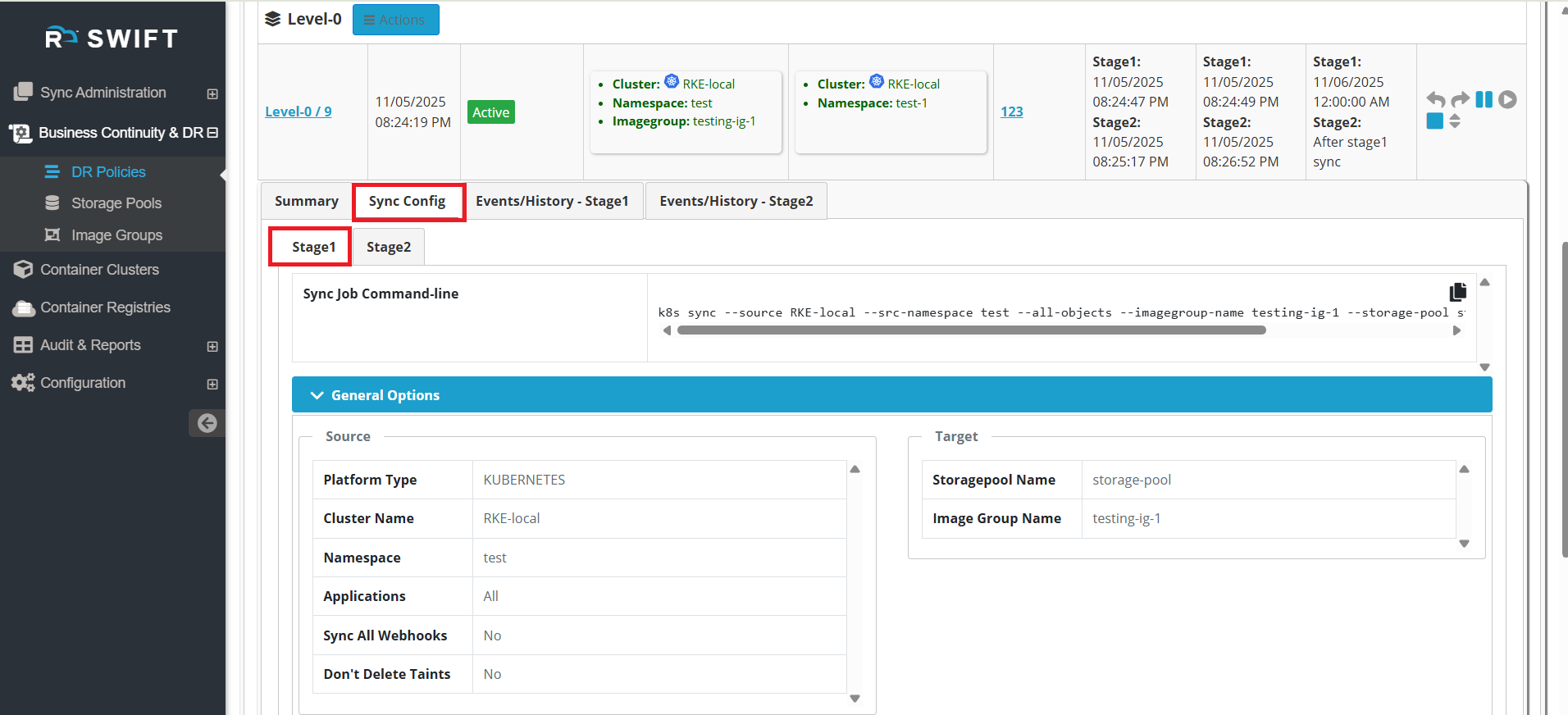
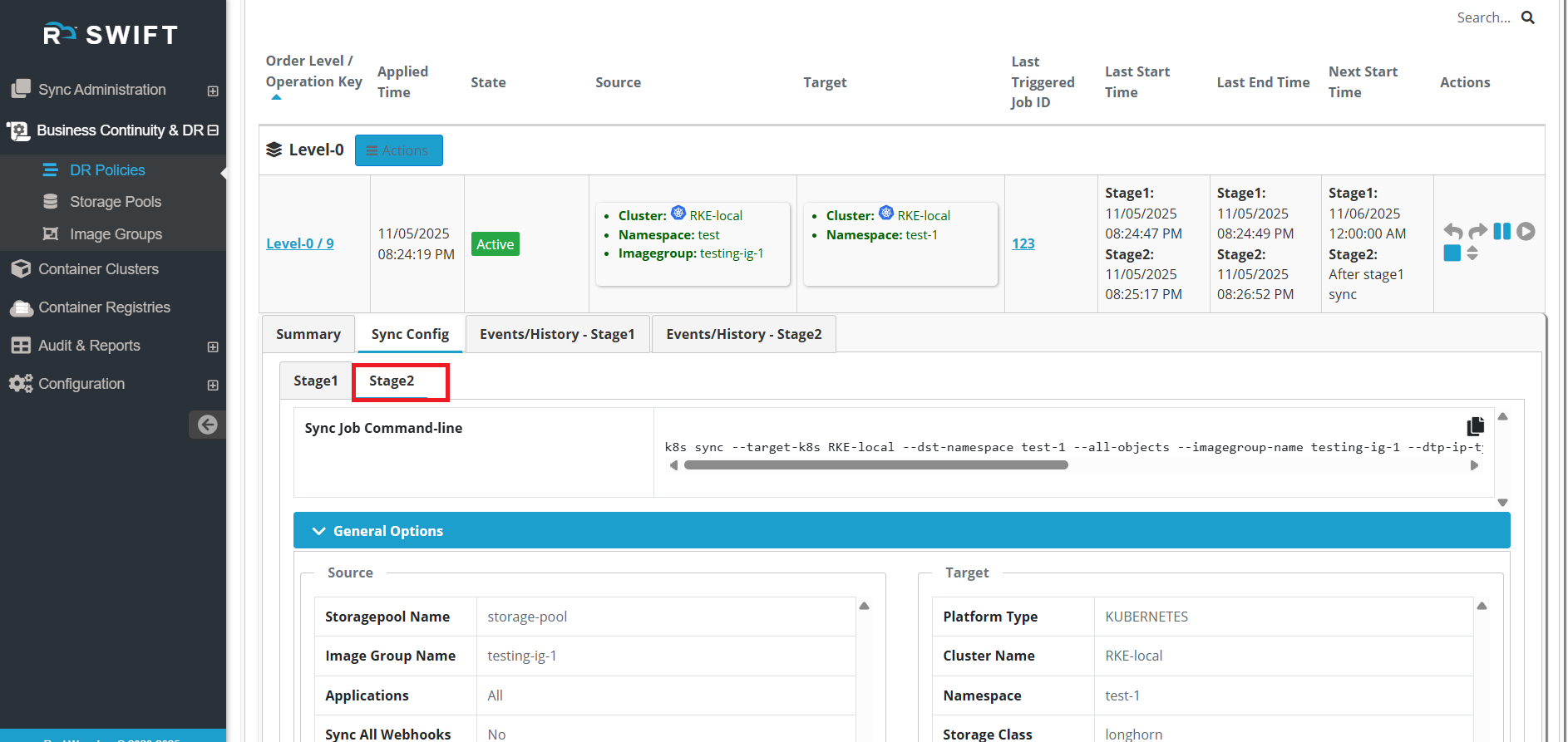
5. In the Sync Config tab, you can see Stage 1 and Stage 2. Here, you can view the job line commands along with the source and target details. Please refer to the Stage 1 and Stage 2 configurations shown below.
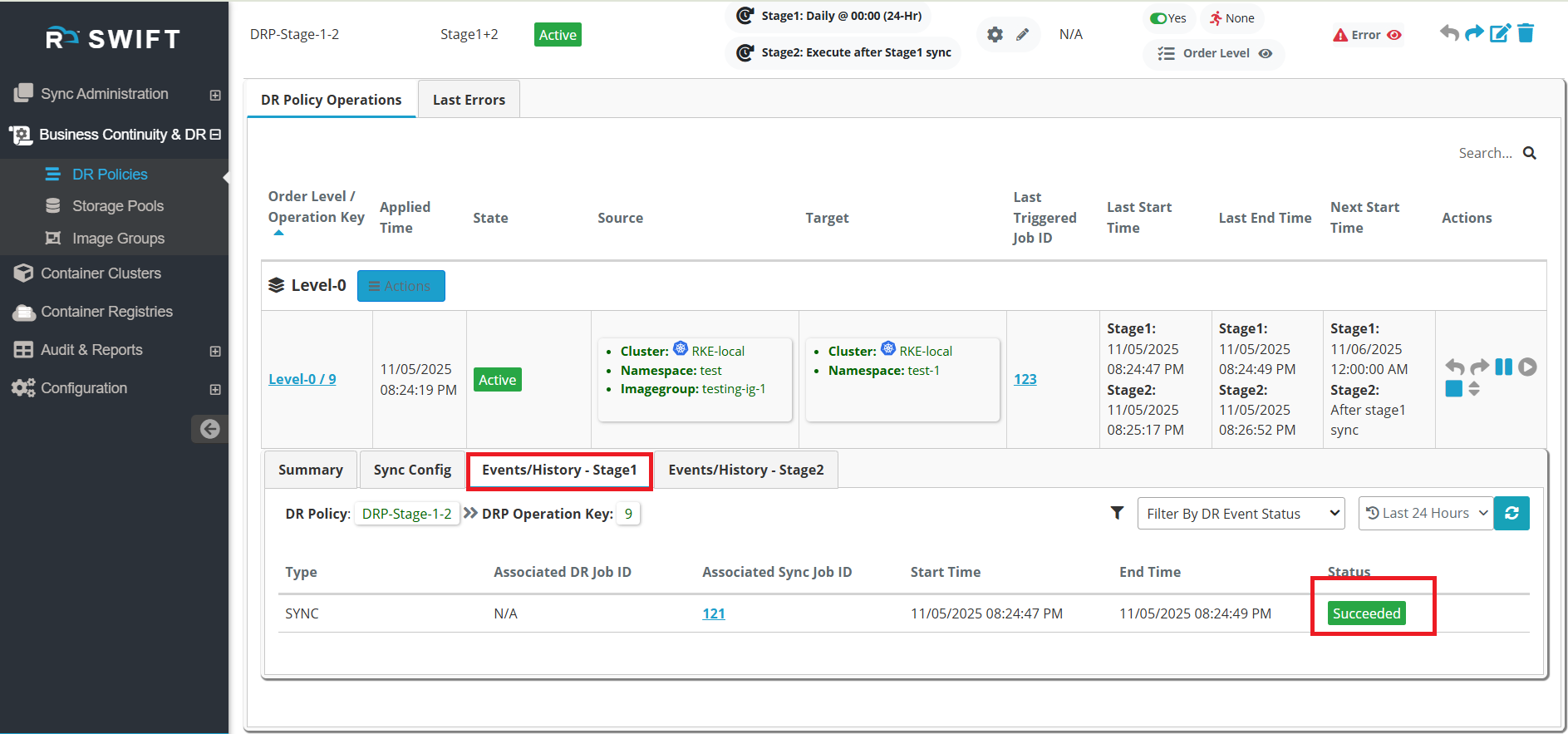
6. If you check the Event History (Stage 1) and Event History (Stage 2) tabs, you can view the event history of each Stage 1 and Stage 2 sync along with their status.
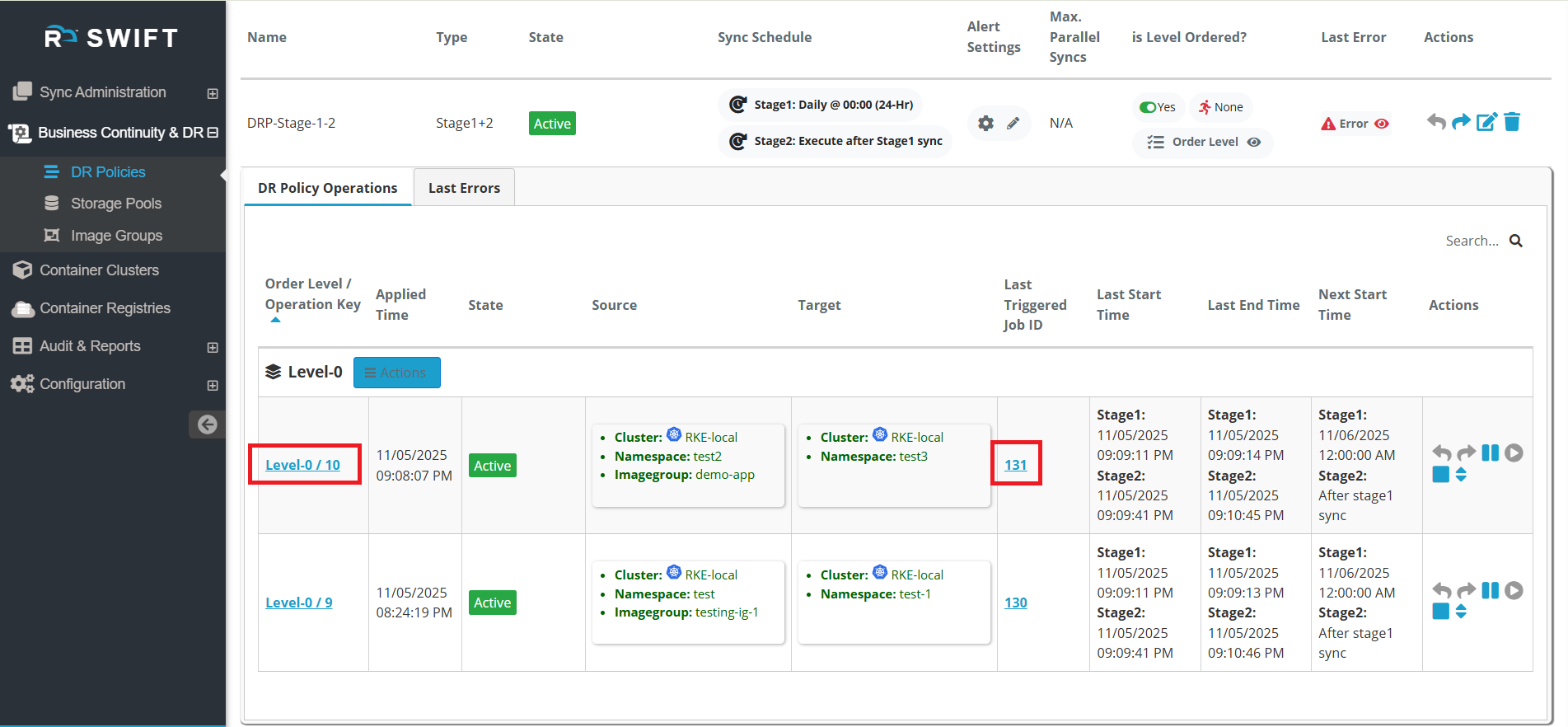
7. You can add multiple application syncs under the same order level, and all of them will run simultaneously. To do this, apply the DR Policy again and select the required namespaces for the application sync.
Explaine evthing remaining parts eg. failover ., fallback