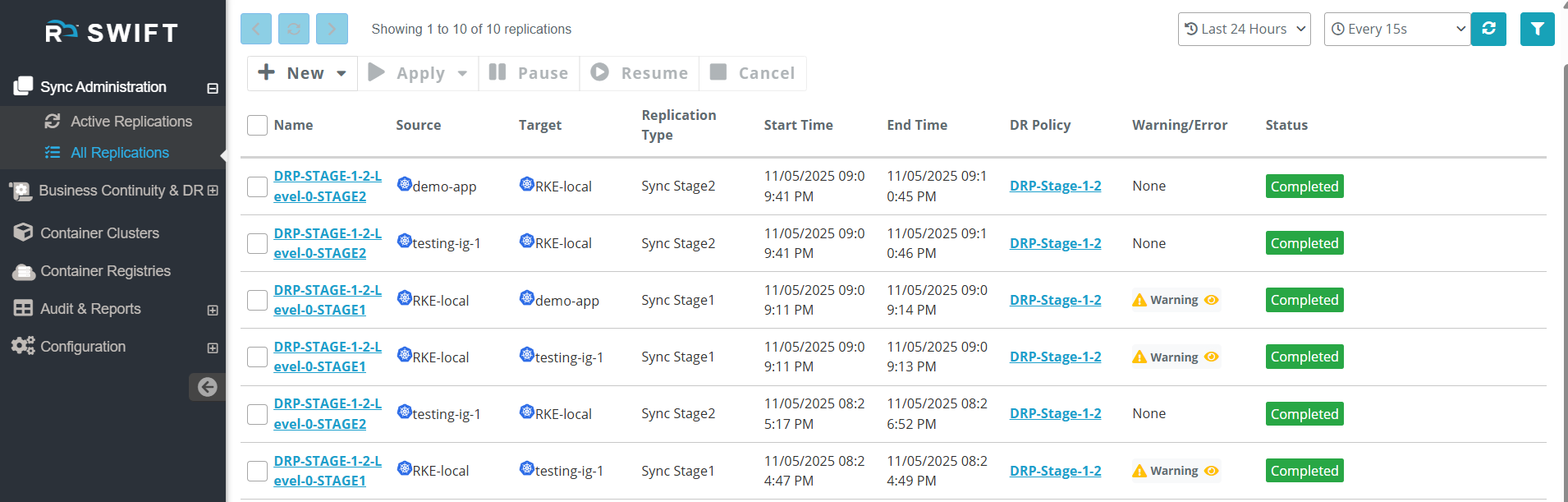
This feature allows you to apply DR policies without using any leveled order, meaning all namespaces under the policy will sync together without any specific sequence. at a time we can sync applications with multiple namespaces at once.
Pre-requisite
1. DR Policy must be created, refer How to create a DR Policy
Below are the steps on how to apply DR Policy with non leveled order
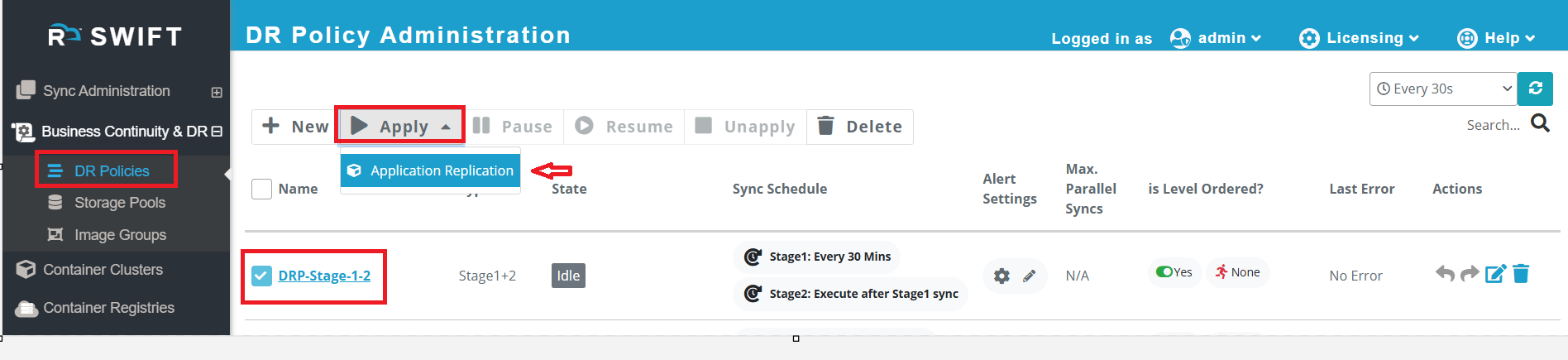
1. Go to Business Continuity & DR > DR Policies, click on the created DR Policy (DRP), then click Apply > Application Replication. You can check the state of DR Policy, it is in IDLE state.
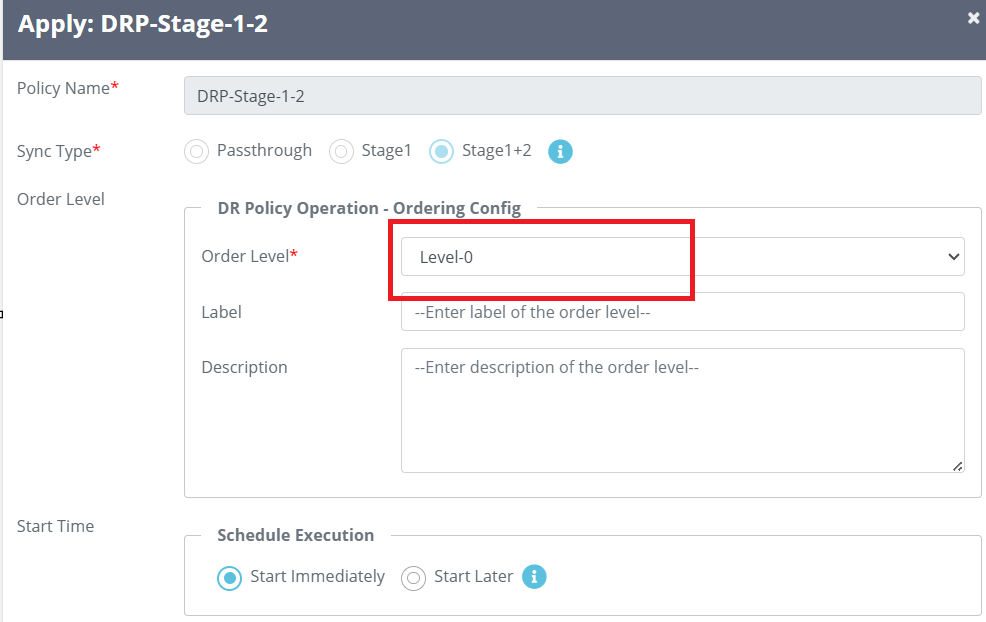
2. Once you click Apply, the Level-0 option will be displayed by default, which represents a non-leveled order for the DR policy. Select your source and target clusters, choose the namespace for sync, fill in the remaining options as per your environment, and then click Apply to start the sync using the DR Policy.
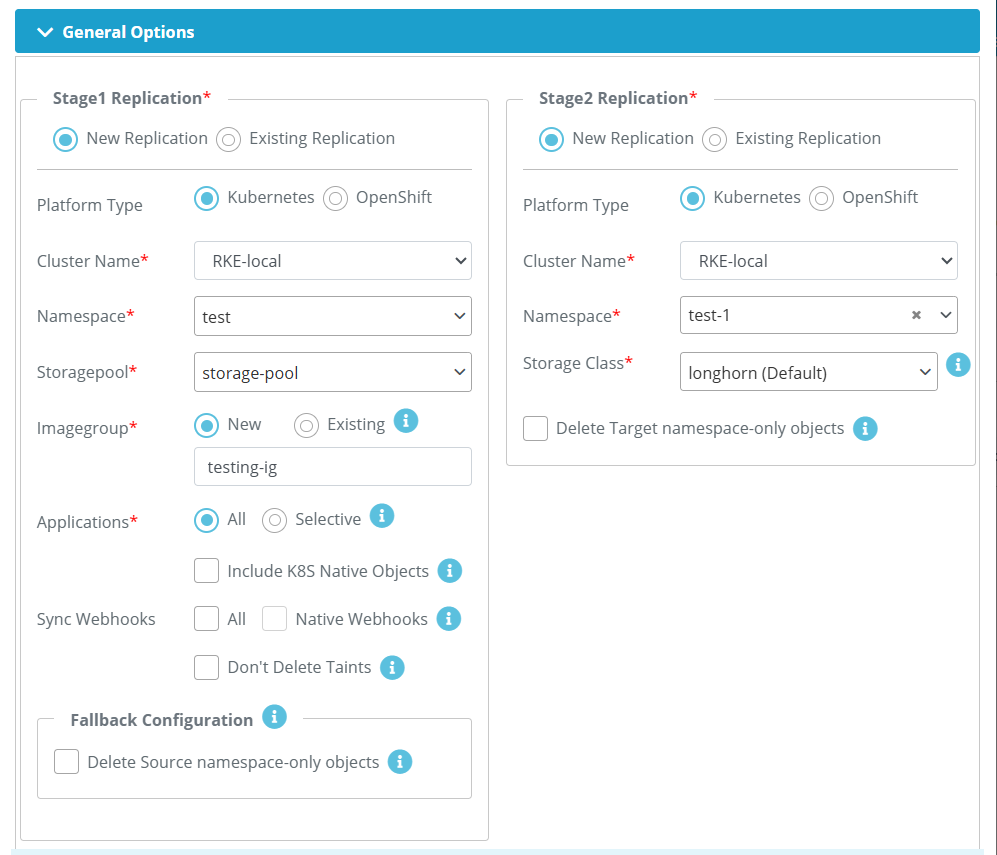
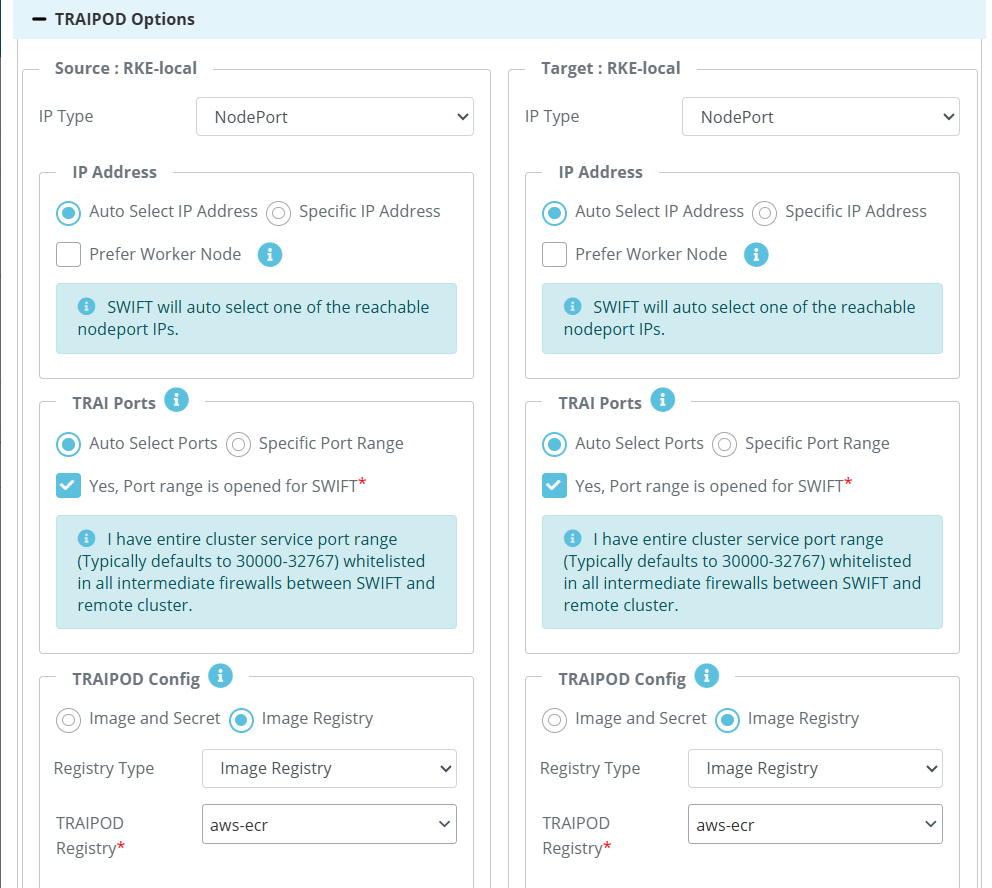
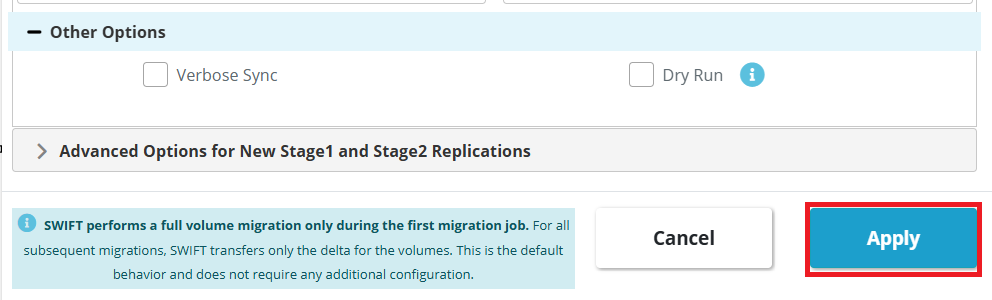
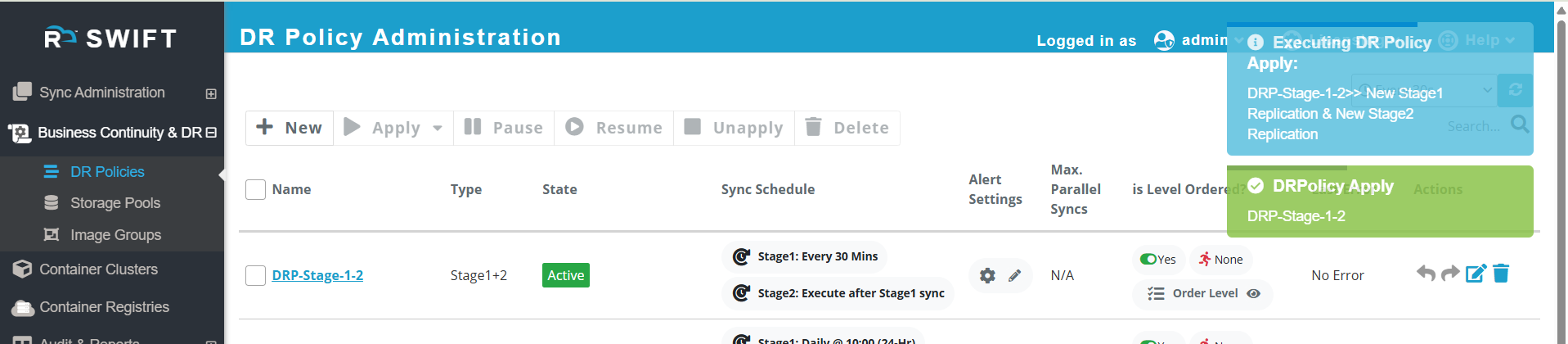
3. Once you click the Apply button, the Stage 1+2 sync will start automatically, as the DR policy was created with a Stage 1+2 sync configuration. Then it DR Policy will be in Active state.
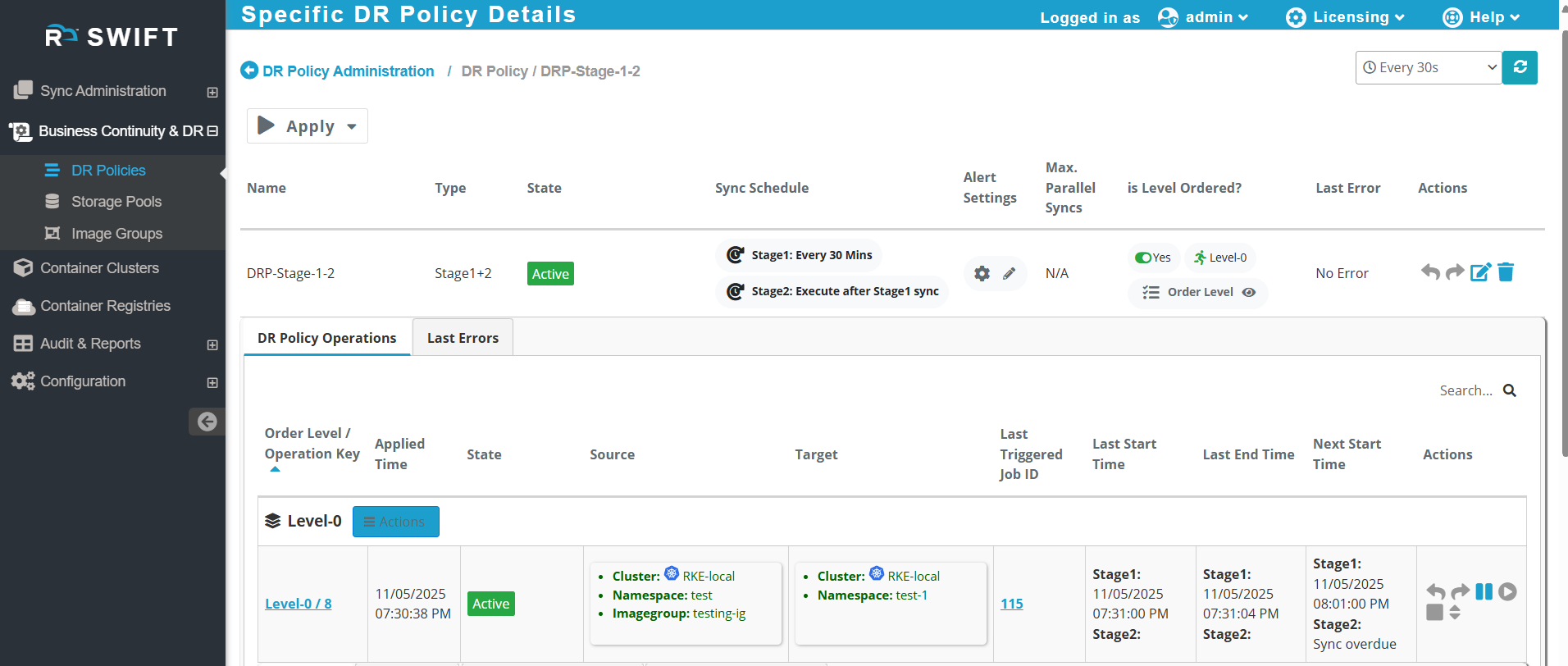
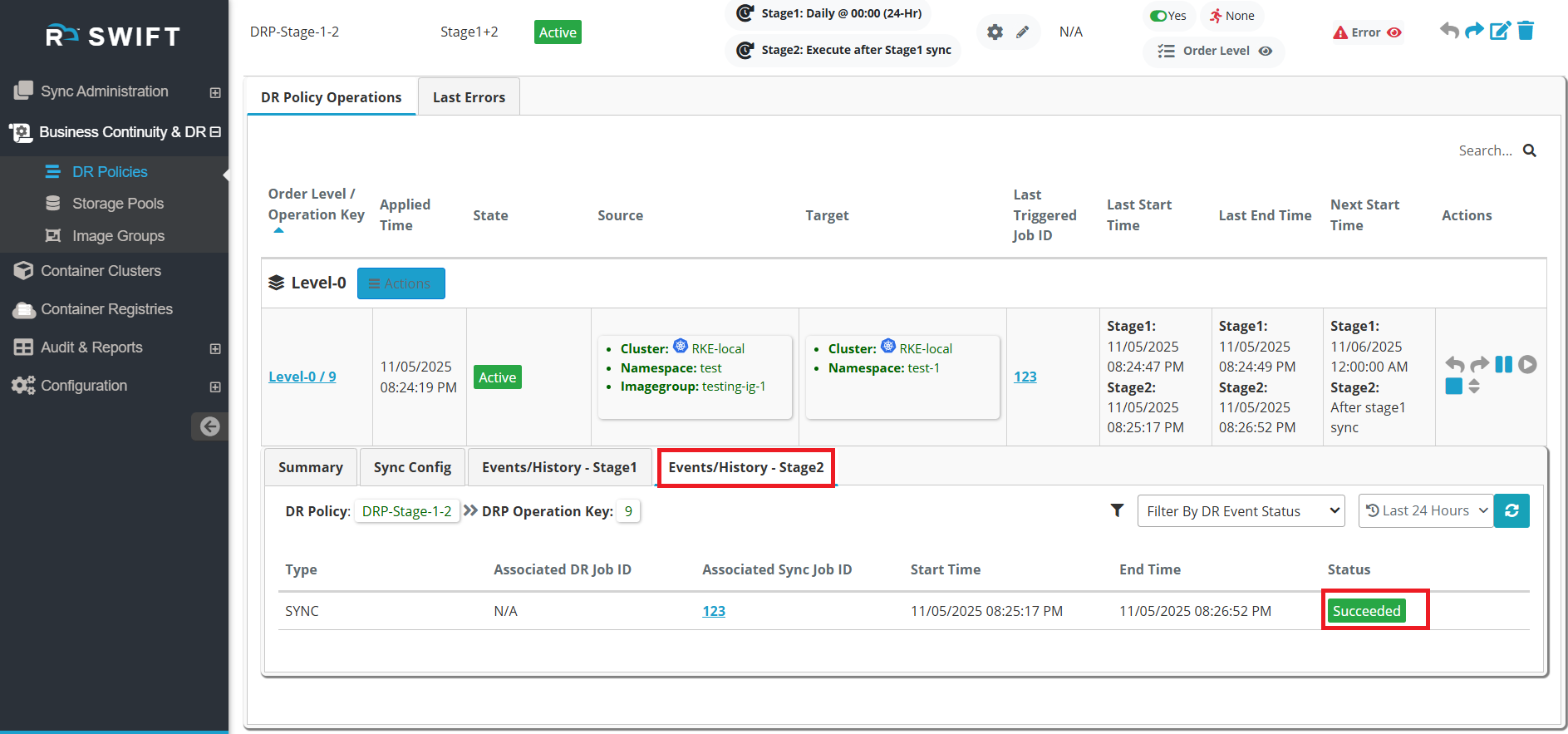
4. When you click on the DR Policy, you will be able to view the sync operation and monitor its progress.
5. You can also view the summary of the sync for more details. Refer to the screenshot below for reference. 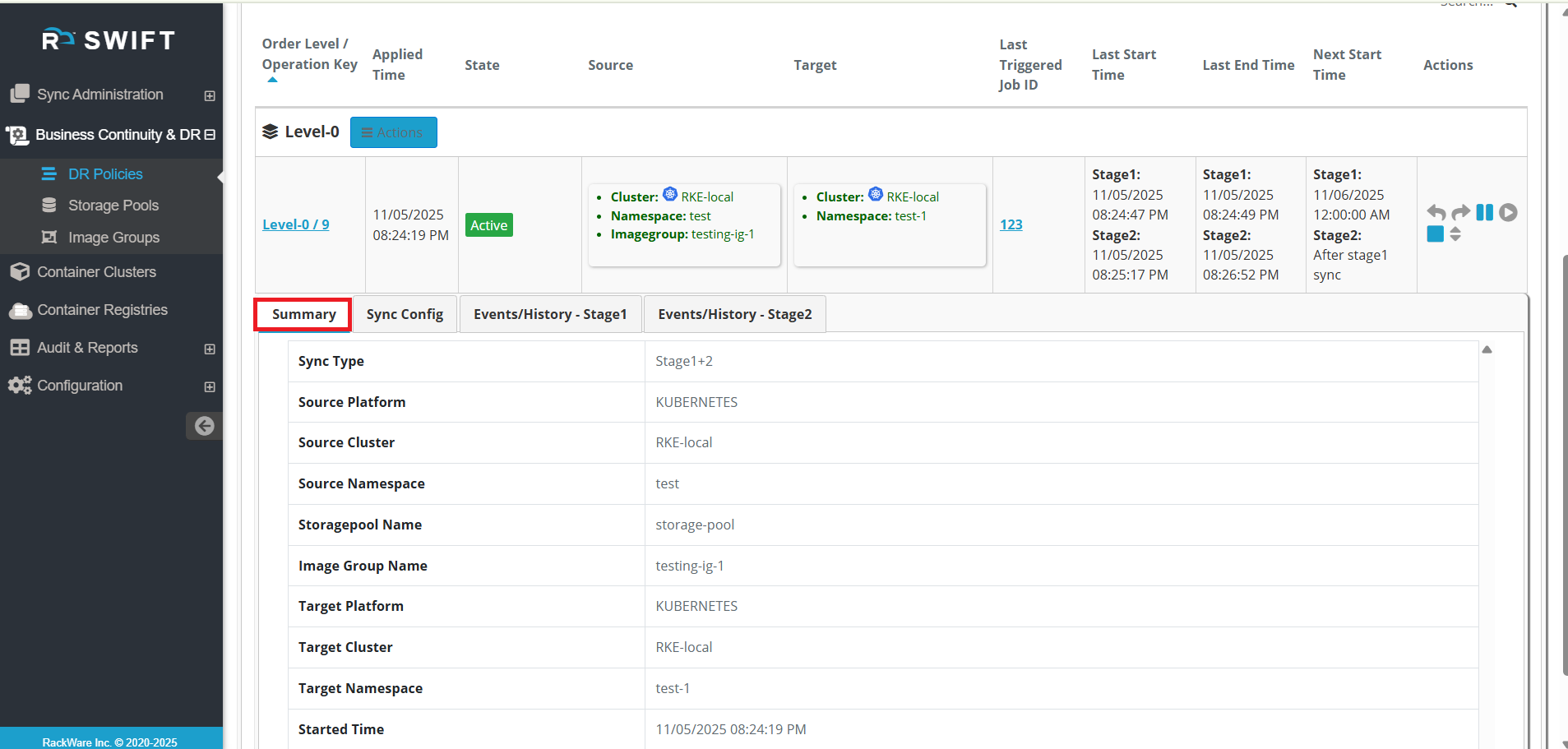
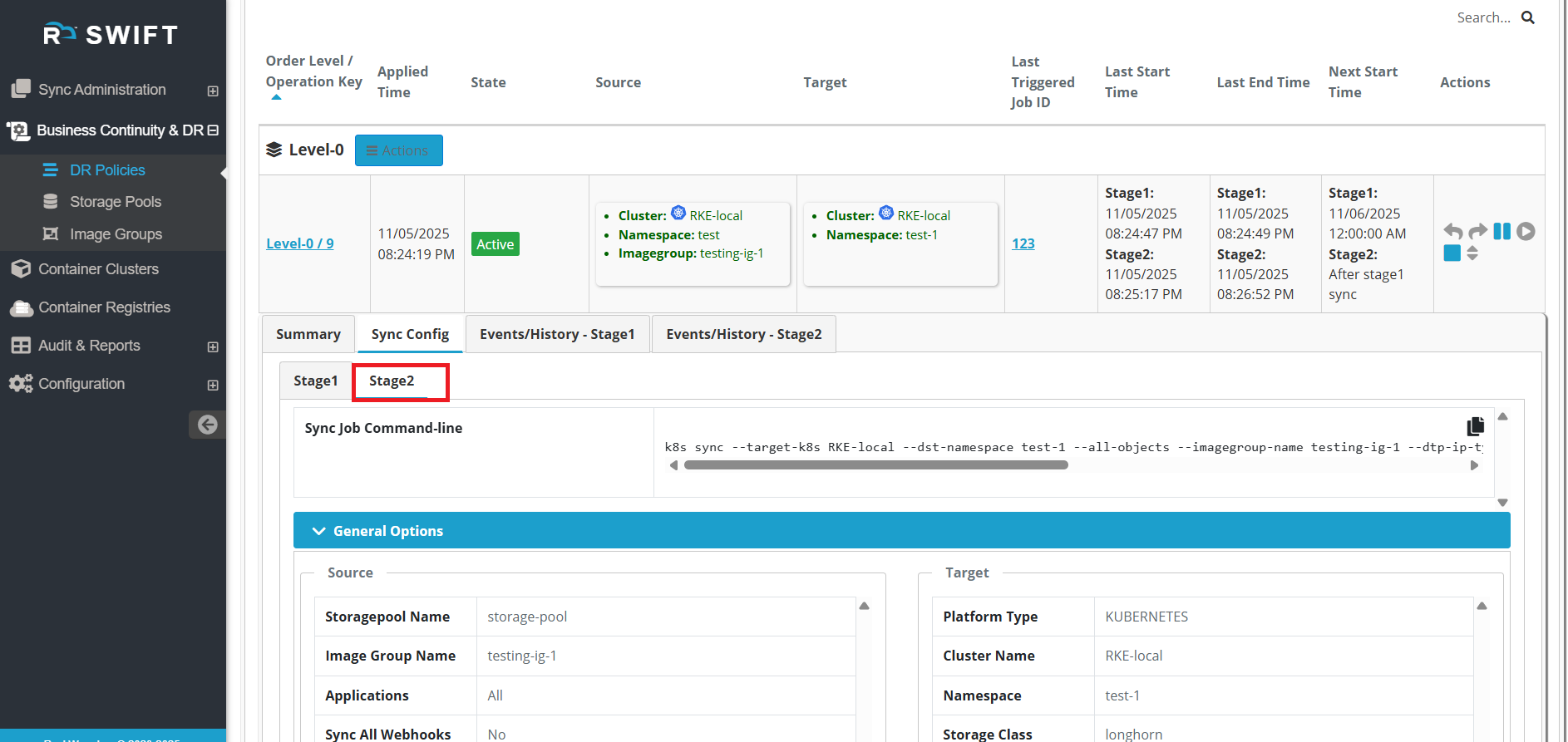
6. In the Sync Config tab, you can see Stage 1 and Stage 2. Here, you can view the job line commands along with the source and target details. Please refer to the Stage 1 and Stage 2 configurations shown below. 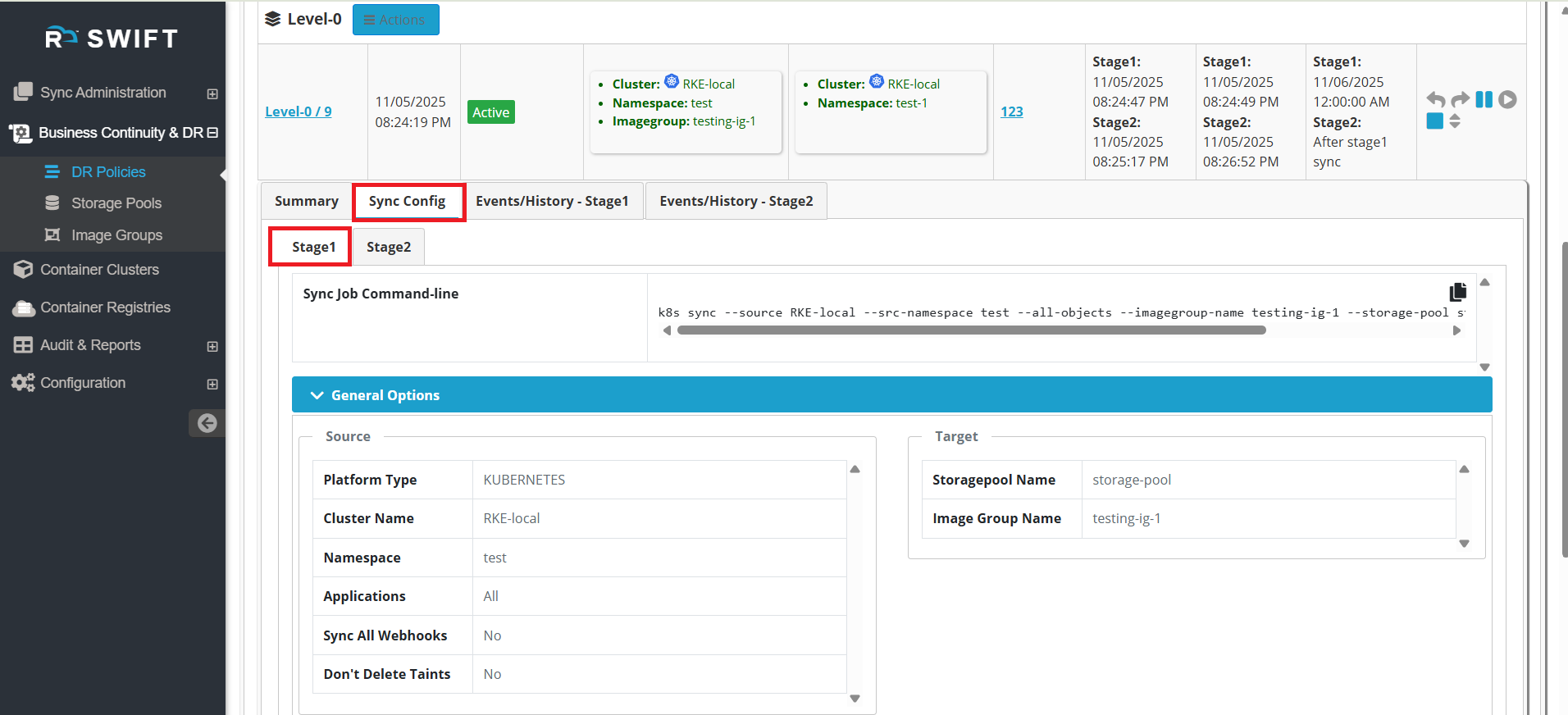
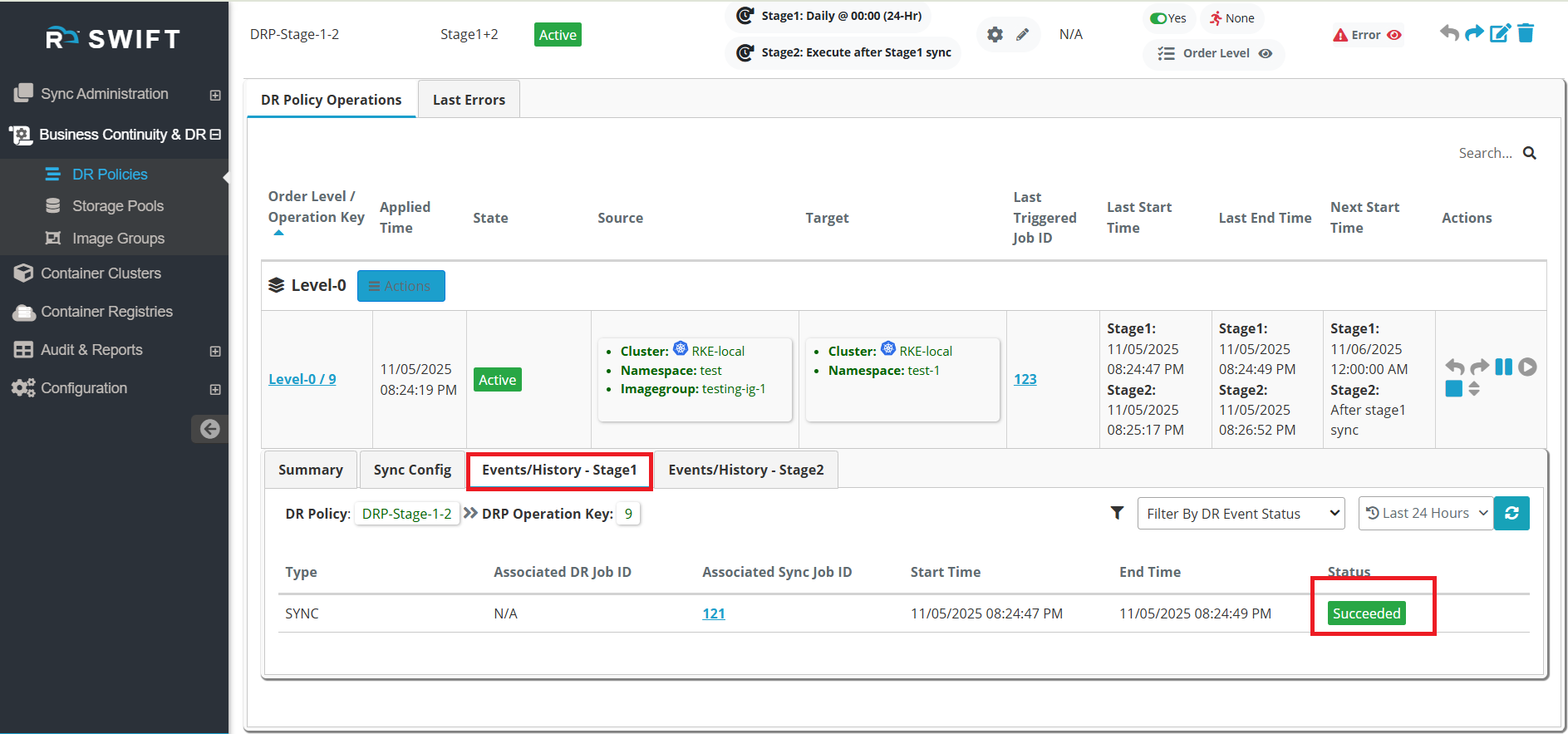
7. If you check the Event History (Stage 1) and Event History (Stage 2) tabs, you can view the event history of each Stage 1 and Stage 2 sync along with their status.
8. You can add multiple application syncs under the same order level, and all of them will run simultaneously. To do this, apply the DR Policy again and select the required namespaces for the application sync.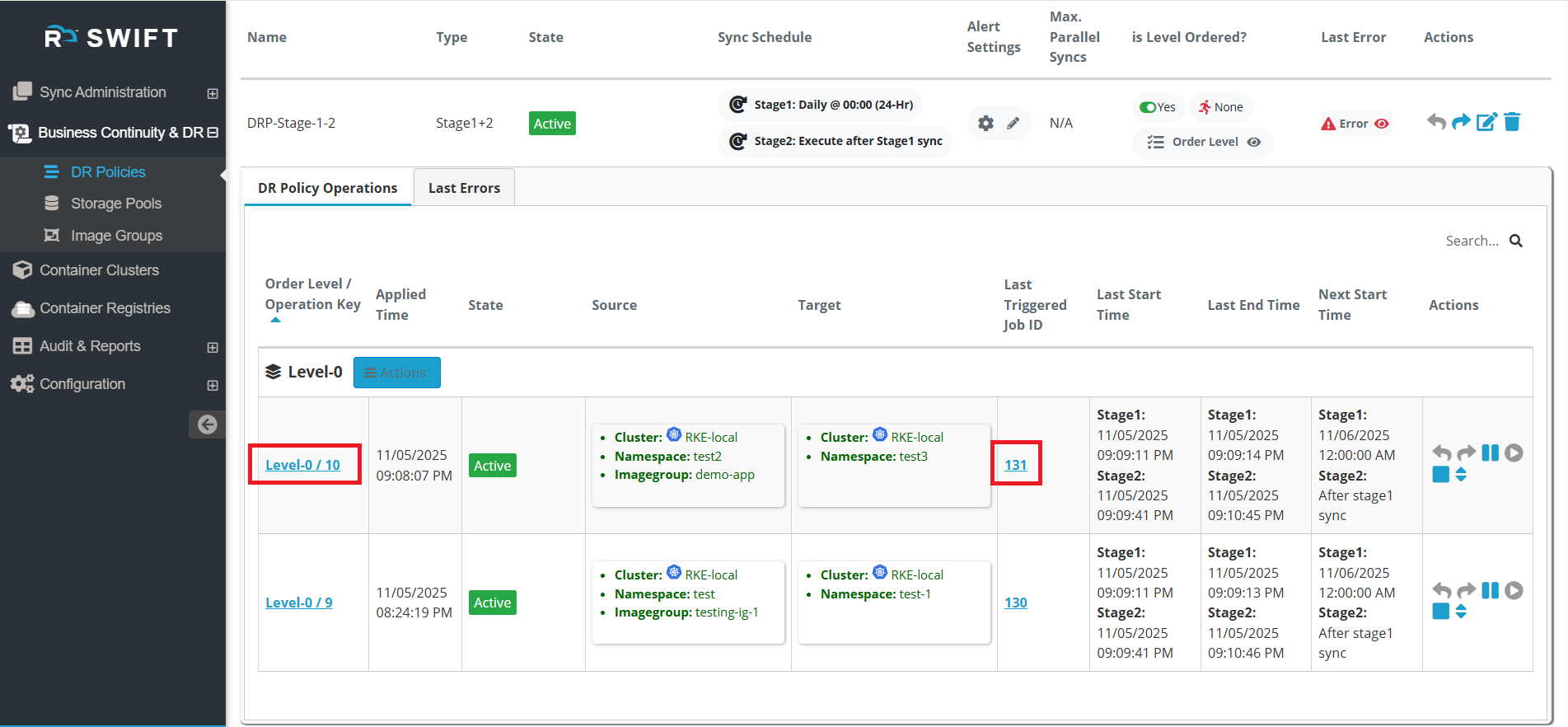
9. You can view all the replications associated with the DR Policy.