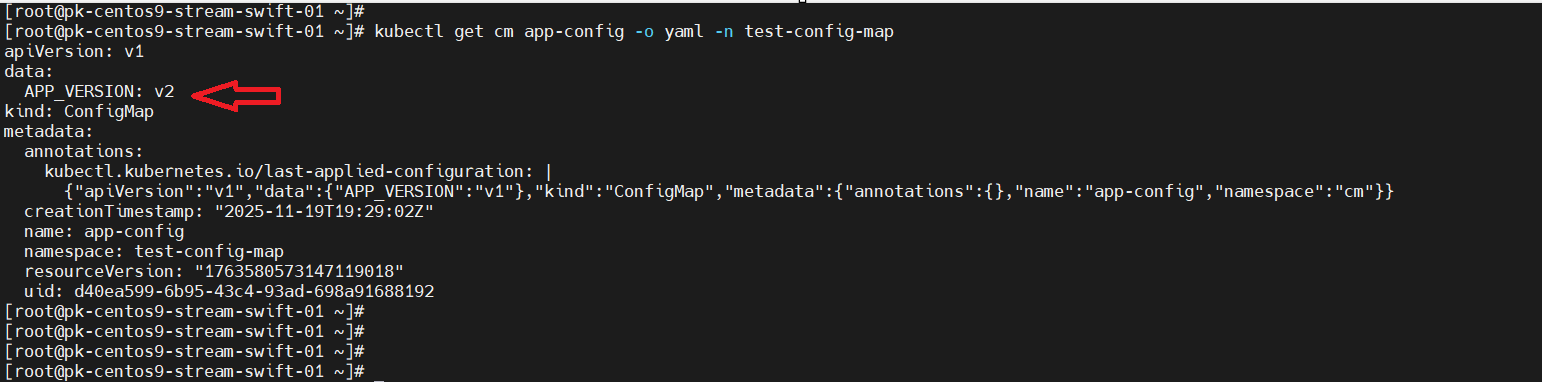
This Knowledge Base (KB) explains how to patch or update a ConfigMap in a Kubernetes cluster using a Post Script in the SWIFT platform. This method is useful when you want to modify a configuration value (such as application version, URLs, toggles, or environment-specific settings) after SWIFT completes a migration.
Use Case:
1. Change config values needed on the target cluster.
2. Update environment settings for the app to run properly.
3. Add/remove settings based on target environment needs.
Pre-requisite:
1. Your Kubernetes cluster is successfully added in SWIFT.
2. You have kubectl installed on the SWIFT VM.
3. SWIFT VM has access to the cluster (kubeconfig configured).
Lets patch the Config Map with SWIFT.
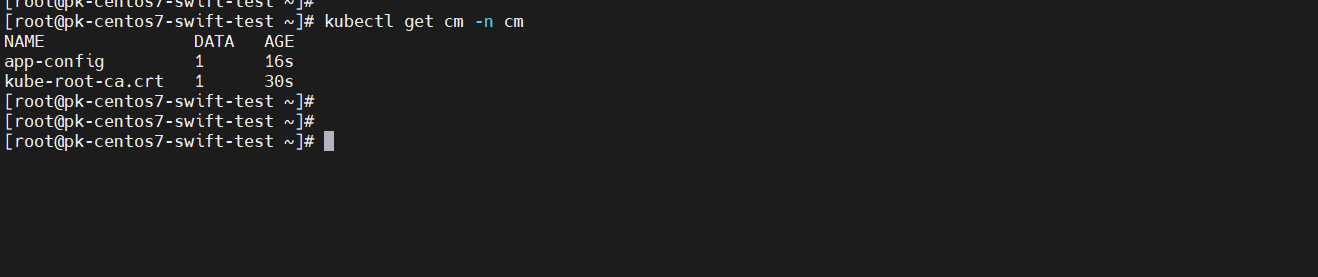
1. We can check whether the ConfigMap exists on the source cluster. In the screenshot below, you can see the created ConfigMaps
- app-config --> This is the ConfigMap you created.
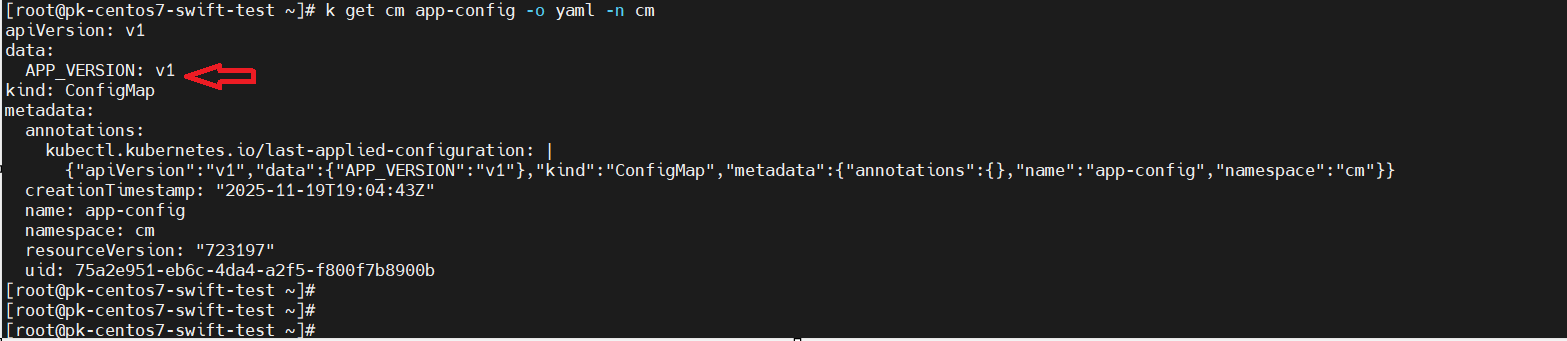
2. Now we want to update the ConfigMap with APP_VERSION: v2. As you can see in the screenshot below, it currently has v1.
3. To update the config map , we can use post script that we can patch the config map to target cluster. you can use the Post Script option.
Create a script that patches the Config map on the target cluster, ensure the script is stored in SWIFT with executable permissions, and confirm that the target cluster is accessible from the SWIFT VM. Please refer to the commands below to patch the Config Map.
This version update after migration. we can mention IP, existed IP u want to change.
this can write it on summary, --> it is applicable for all object like deployment. not for only CM.
we can add
export KUBECONFIG=/root/gke.yaml
kubectl patch configmap app-config -n test-config-map -p '{"data":{"APP_VERSION":"v2"}}'
4. Login to SWIFT Dashboard and add EKS and GKE cluster.

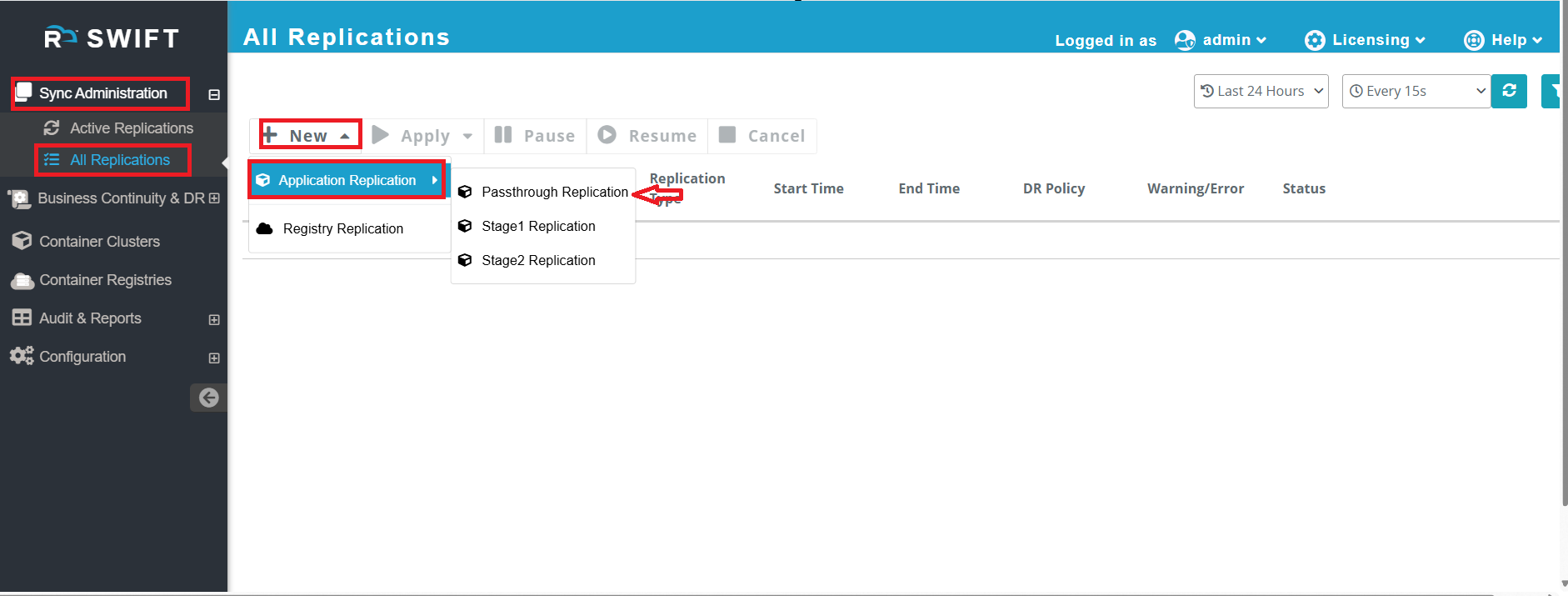
5. After that, go to ‘Sync Administration’ → click on ‘All Replications’ → click on ‘New’ → select ‘Application Replication’ → and choose ‘Passthrough Replication’.
6.Provide the clusters and namespace at both source and target side.
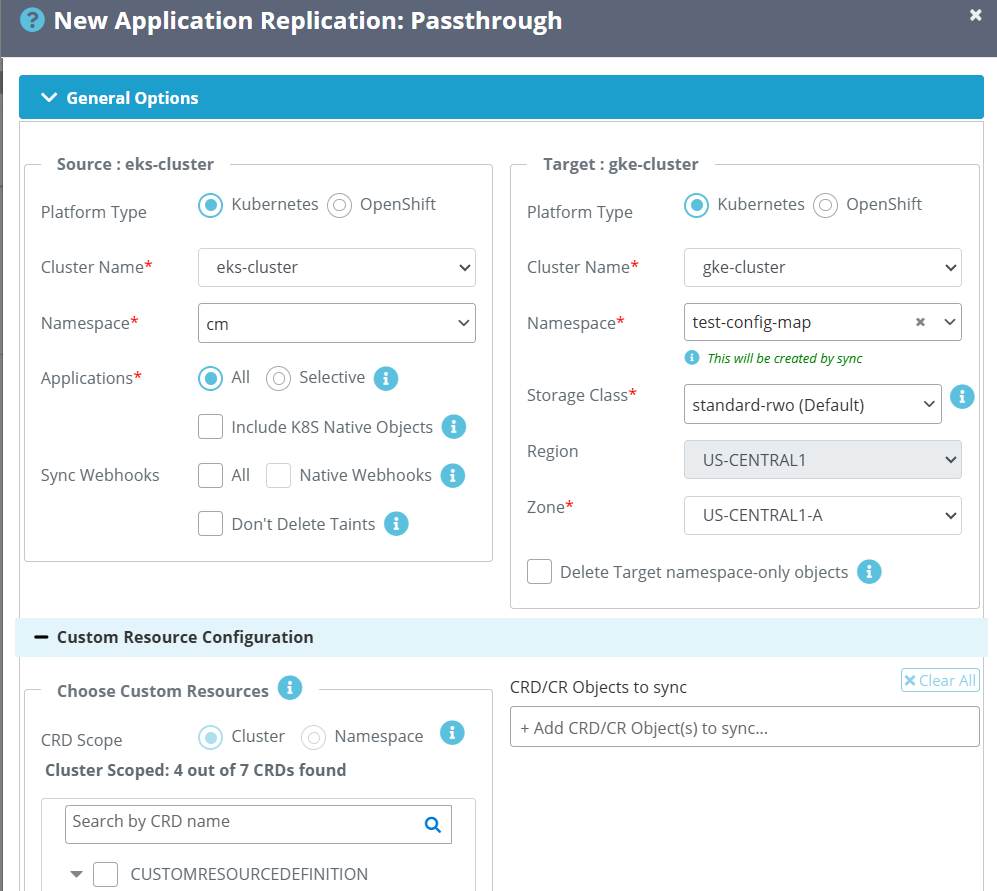
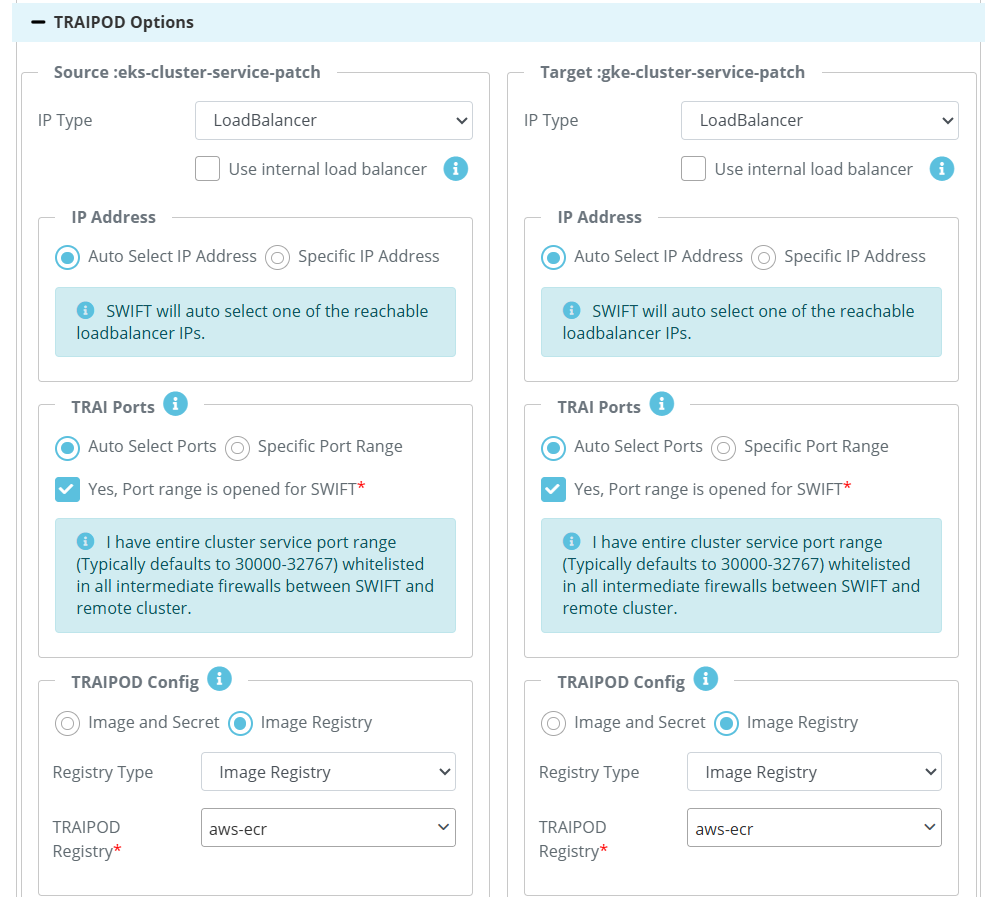
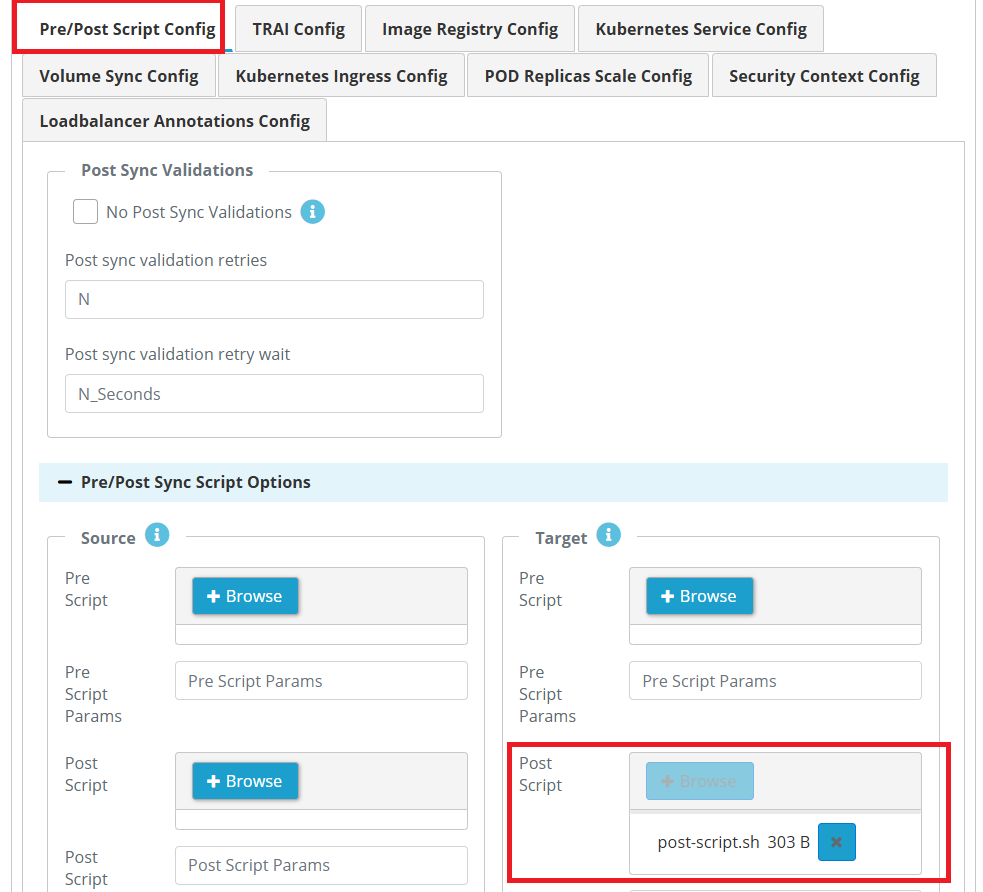
7. Now go to the ‘Advanced Options’ tab and select the Pre/Post Script configuration. Browse and upload your post script, which should contain the patch command.
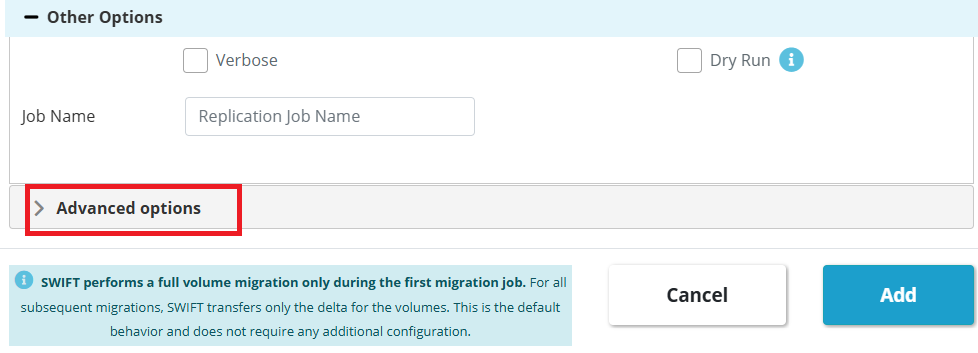
8. Once click on 'Add' button ,then sync will be started. To see, Go to All replication under 'Sync Administration' .

9. Once the sync is completed, you can verify whether the API_VERSION has been patched by accessing the config map at target side.

10. You can see below screenshot, the config map has been migrated successfully.

11. Also we can see the API_VERSION updated to v2 by accessing target clucter.