
This article outlines the steps to increase the memory of a GCP VM when the existing configuration is not sufficient for application performance or workload requirements. Increasing the VM memory helps resolve issues such as high memory utilization, application slowdowns, or service crashes. This process involves stopping the VM, updating the machine type or custom memory settings, and then restarting the instance.
We have spin out the GCP BYOL instance, now want to increase the memory for that VM.
1. Check once created VM

2. Click on the VM. In the Details tab, you will see the 'Machine Configuration' section. It currently shows 2 vCPUs and 8 GB of memory.
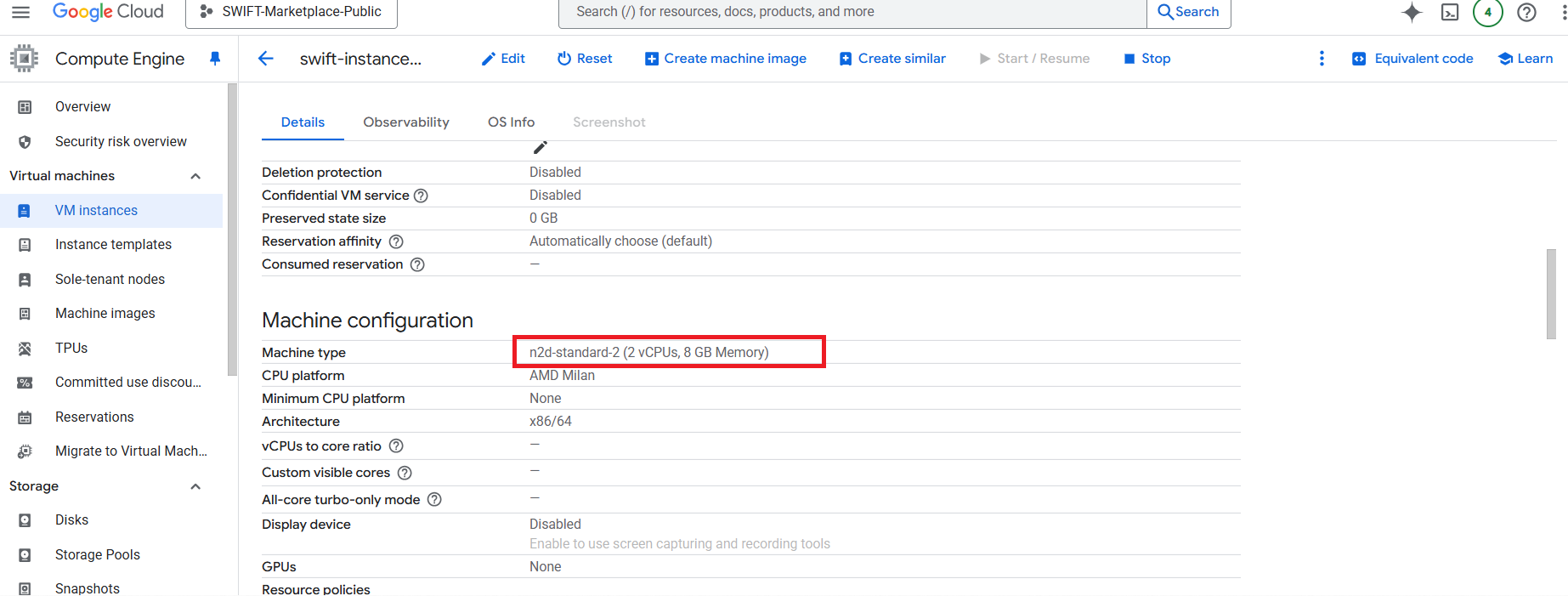
3. If you want to increase the memory, you first need to stop the VM. To do that, open the VM you want to modify and click Stop.

4. After the VM is stopped, click Edit at the top .
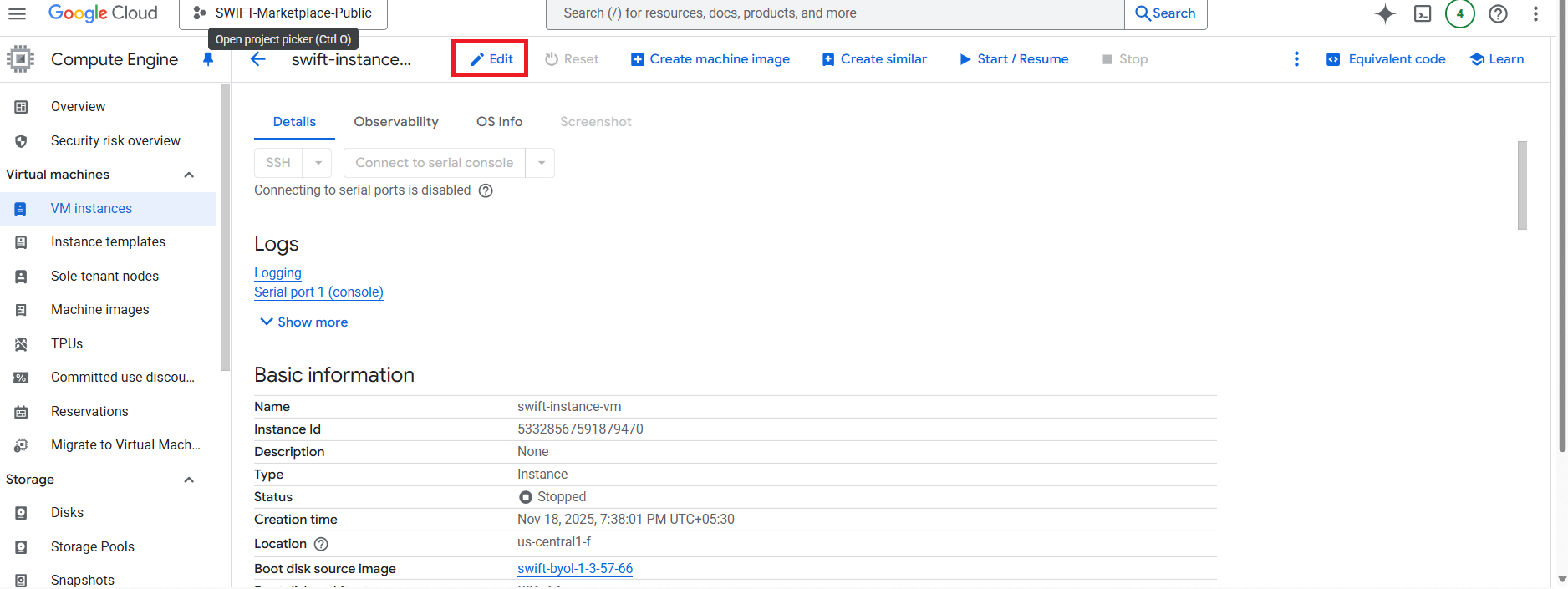
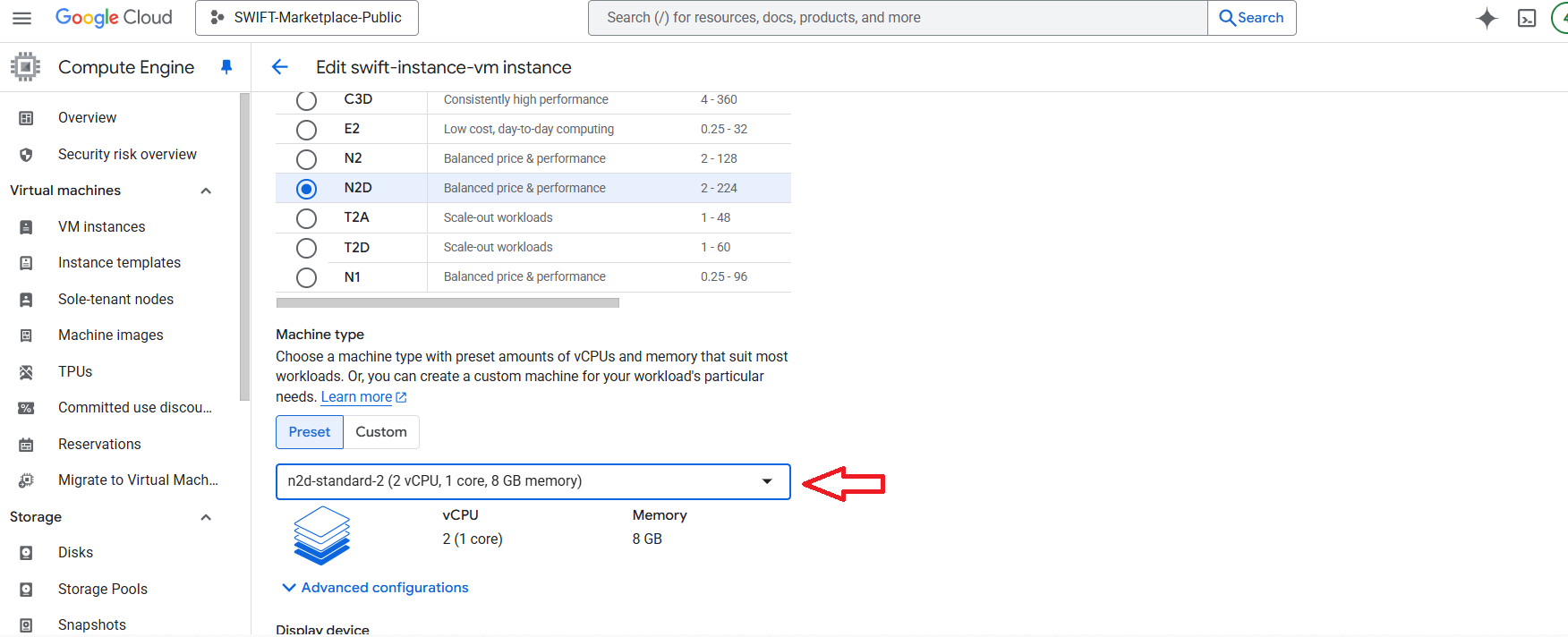
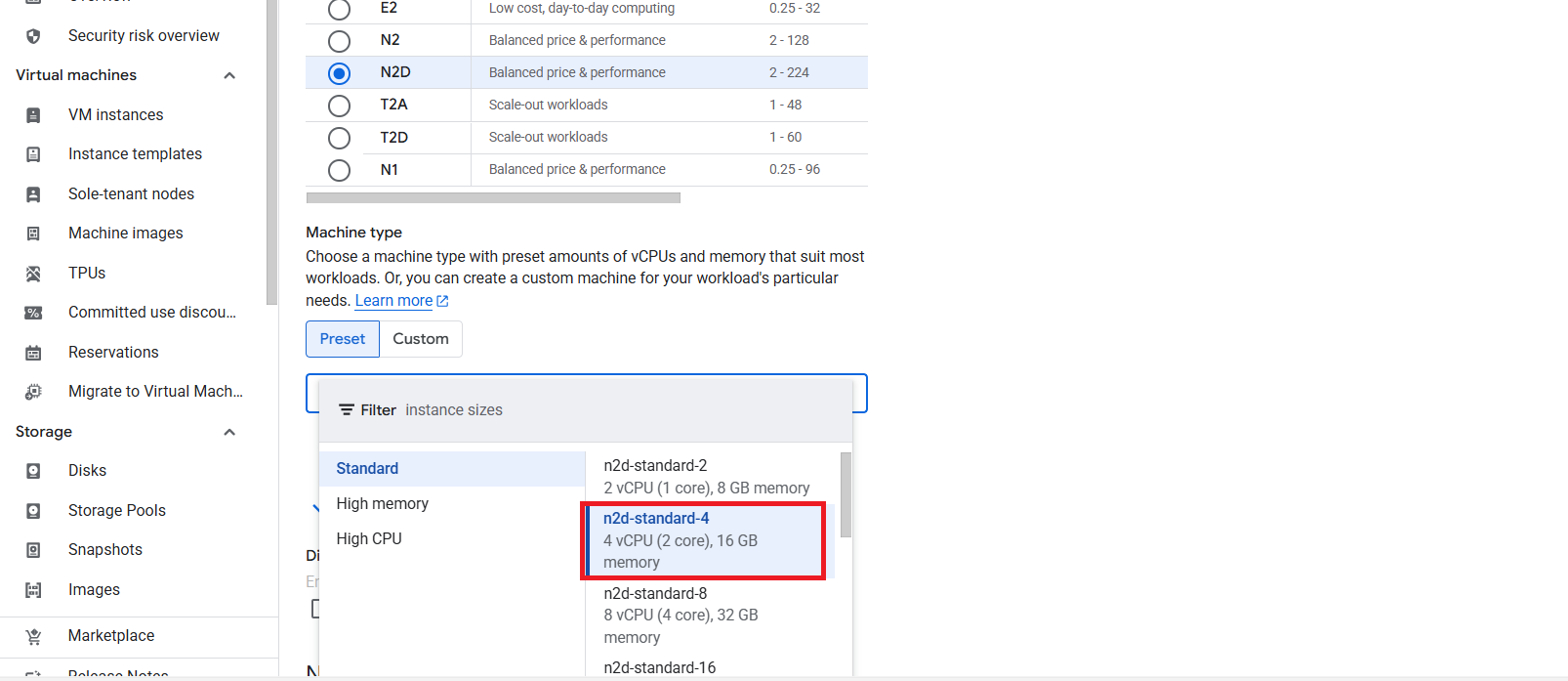
5. Scroll down to Machine configuration and Change the Machine type to one with higher memory. Here we have selected 4vCPU and 16 GB Memory.
6. Scroll down and click Save.
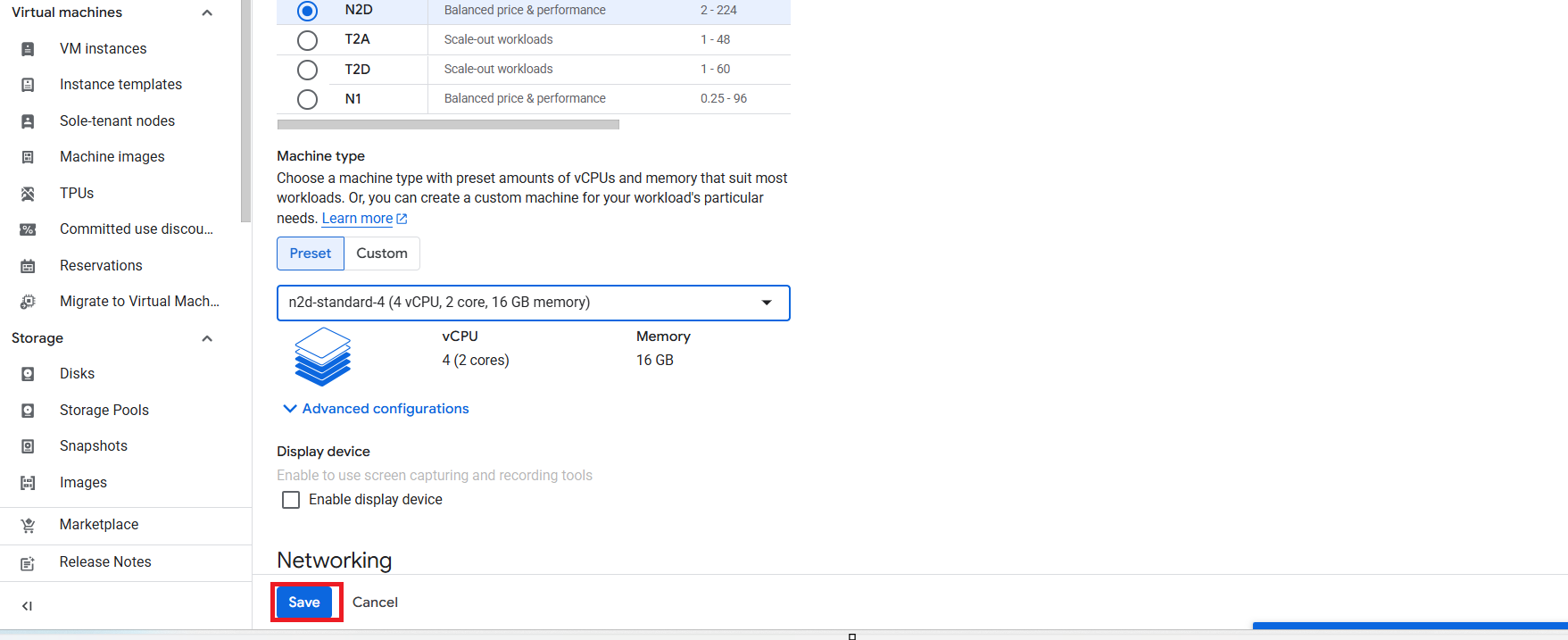
7. After saving: Click Start to power on the VM

8. The VM will now have the updated memory. You can check it by clicking on the VM and viewing the Machine Configuration section under Machine type.
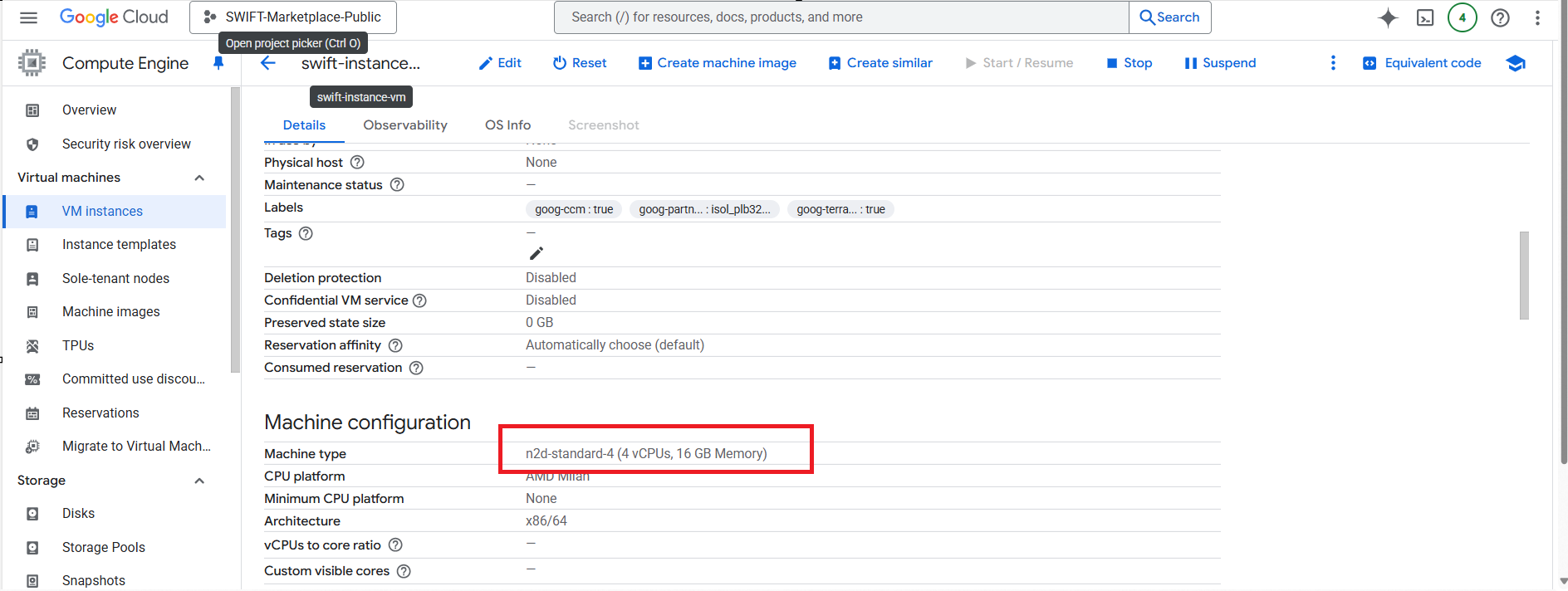
9. Also you can check with CLI.
#Before increasing the memory.

#After increasing the memory
