This is a centralized dashboard for monitoring SWIFT licenses. It provides a high-level overview of the active license's version, type, and status, along with operation statistics. The panel also displays detailed information for each deployed license batch, including its platform, functional purpose, installation date, and current usage capacity.
1. To access the Licensing Control Panel, navigate to:
Licensing > Control Panel

2. When you click on Control Panel, then it will show the Licensing control panel.
Lets see each part of licensing control dashboard in details.
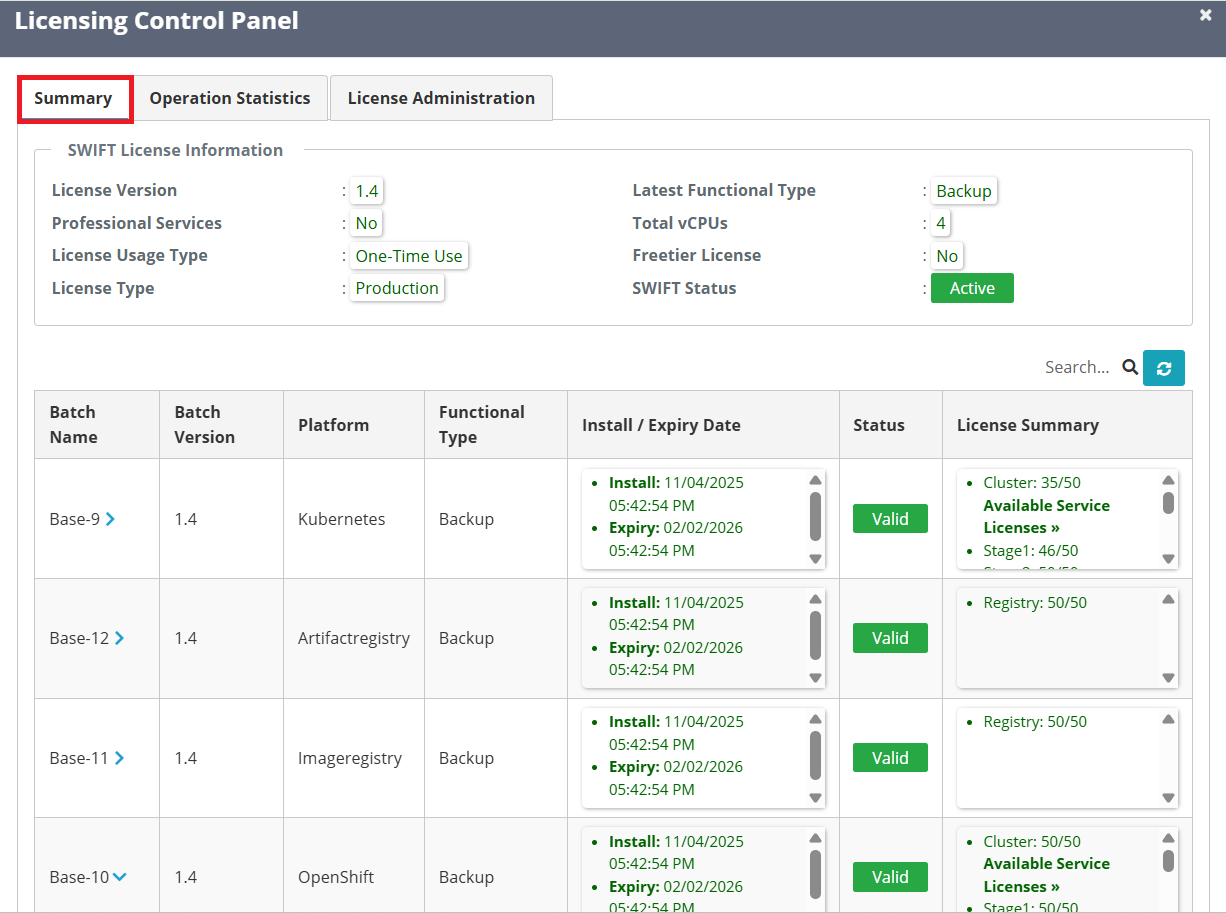
#Summary tab :
| Fields | Fields description |
| SWIFT License information | License version : It shows license version. Professional Services : Professional Services refer to paid, expert assistance provided by the SWIFT team to help you with implementation, customization, training, and support. In above screenshot there it is not PS license. Latest Functional type: This refers to which type of license your are using. There are two types of license, one it Replication second is Backup. The above example shown the license type is Backup. Total vCPU: 4 - The SWIFT machine Licensed to use a total of 4 virtual processor cores across your entire system. License Use Type: -One-time License (Valid for 1 Year) -Subscription License (vCPU-Based) License Type: We currently have a Production license in use, and we also provide a Trial license option. Free tier License: - When you launch the BYOL template from the Marketplace, you will receive a Free Tier license.
SWIFT Status: It shows SWIFT state . Currently it is running state |
| Batch Name | A unique identifier for this specific group of licenses (e.g., Base-9, Base-10). |
| Batch Version | The version number of the SWIFT that this license batch applies to. |
| Platform | Here in the platform column, you will see different platform licenses. For eg. Kubernetes, Image registry etc. |
| Functional type | We have two types of functional licenses:
|
| Install/Expiry Date | It will show install and expiry of the applied license. |
| Status | It will show license validity. |
| License Summary | It shows the number of licenses remaining or consumed out of the total applied licenses. |
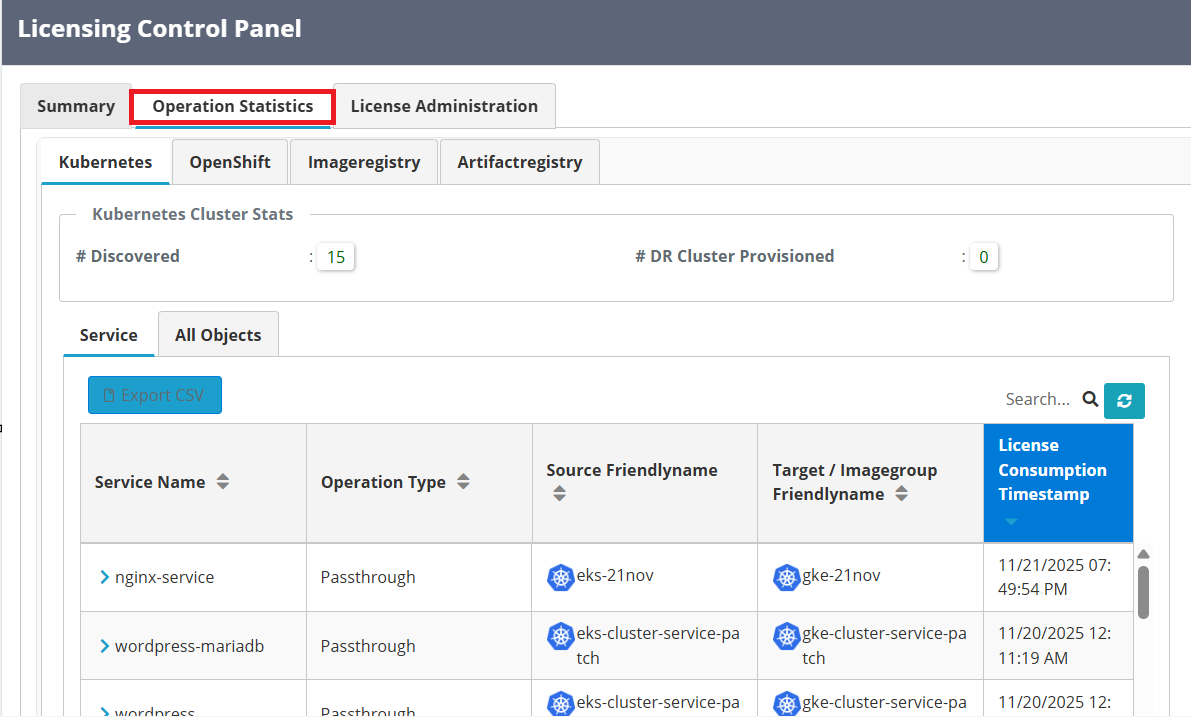
#Operation Statistics tab
Under the Operation Statistics tab, you can find detailed insights of license consumptions for specific platform.
we can see in below example it shows services license consumed for Kubernetes platform.
Also you can get license report you just need to click on 'Export CSV' Add example,
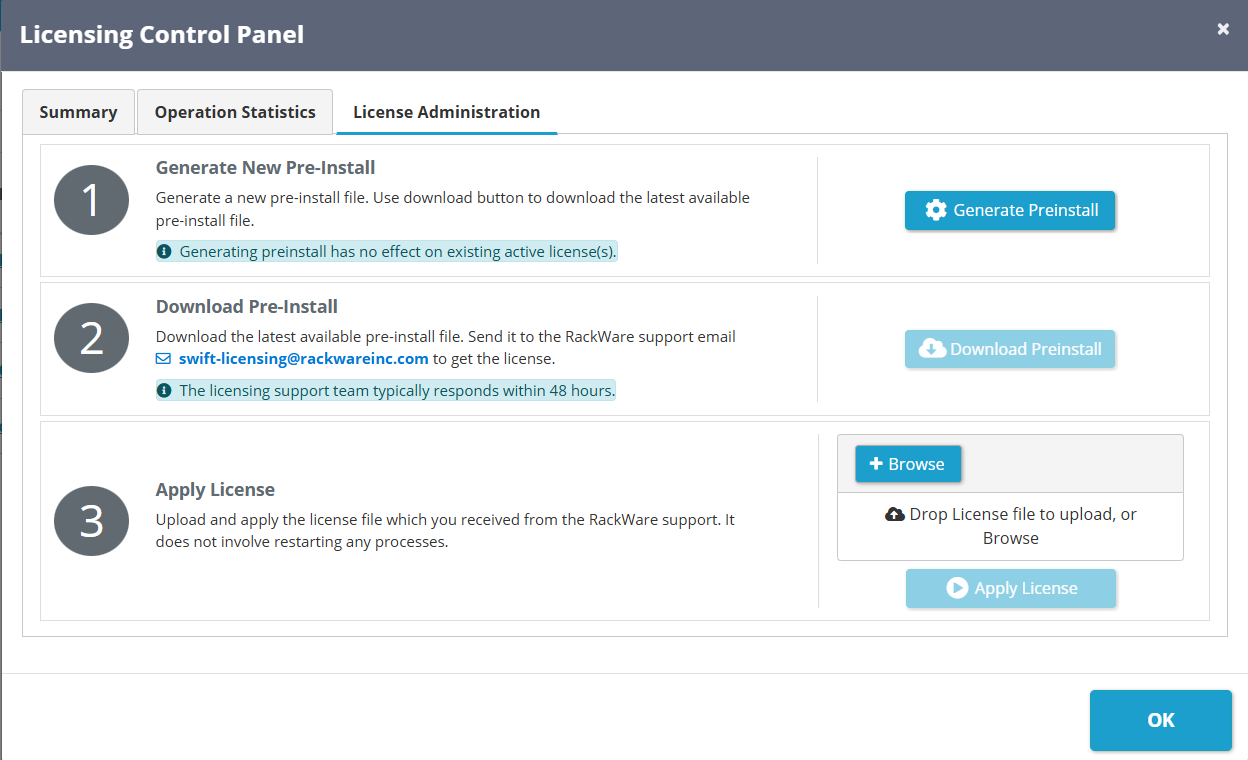
#License Administration tab
To obtain a license, you must first generate and download a pre-install file from the SWIFT. For detailed instructions, please refer to the License Administration KB Point no 6