Step-by-step procedure to perform a manual SWIFT upgrade using a build downloaded from an FTP server.
1. Make executable for the build. For example you download the build in /tmp directory.
chmod +x <path>/<SWIFT_build>
2. Check whether the services of the previous SWIFT version are running (command: swiftadm status all), and then stop all services. If you are installing a fresh setup, you do not need to perform this step, you can directly proceed to the next step.
swiftadm stop all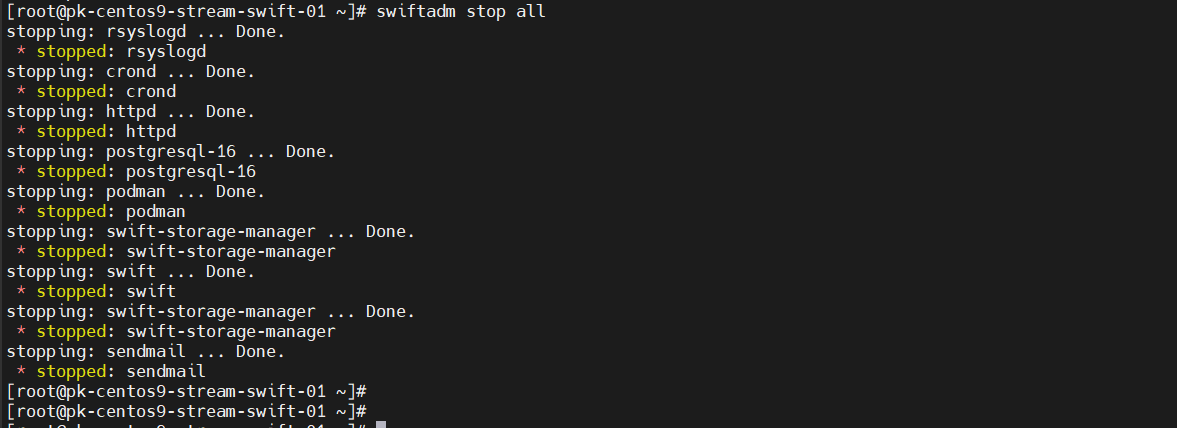
3. Run the build. And provide your acceptance 'yes' and configure NTP server if you want, then put 'n'
/tmp/rackware-swift-release-1.3.57.92.sh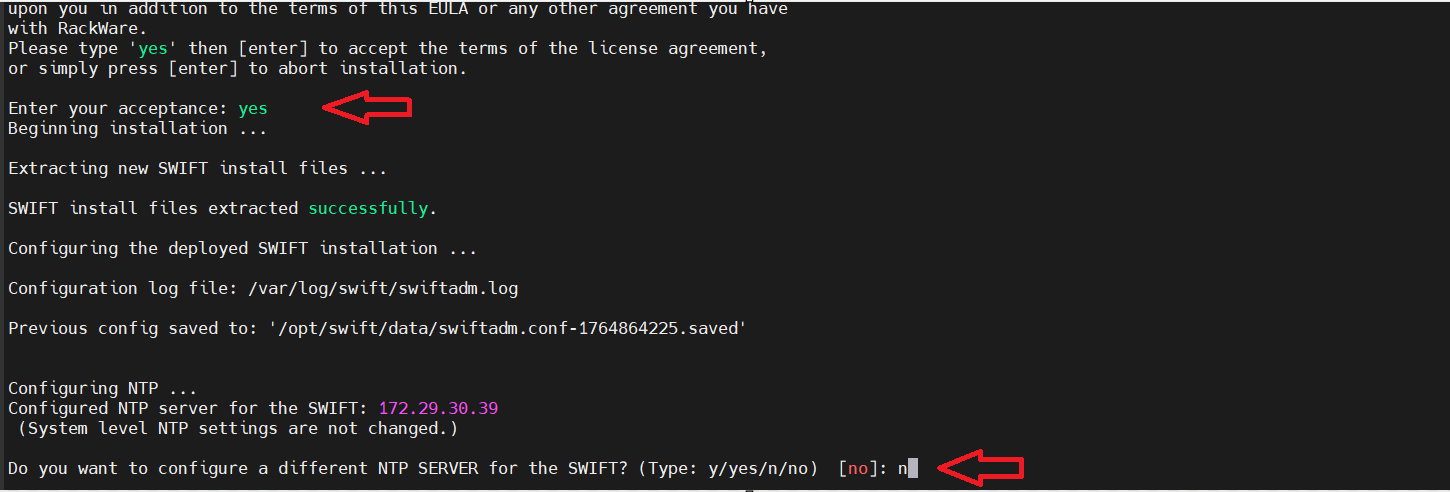
4. Once you provide NTP input, the SWIFT upgrade will begin
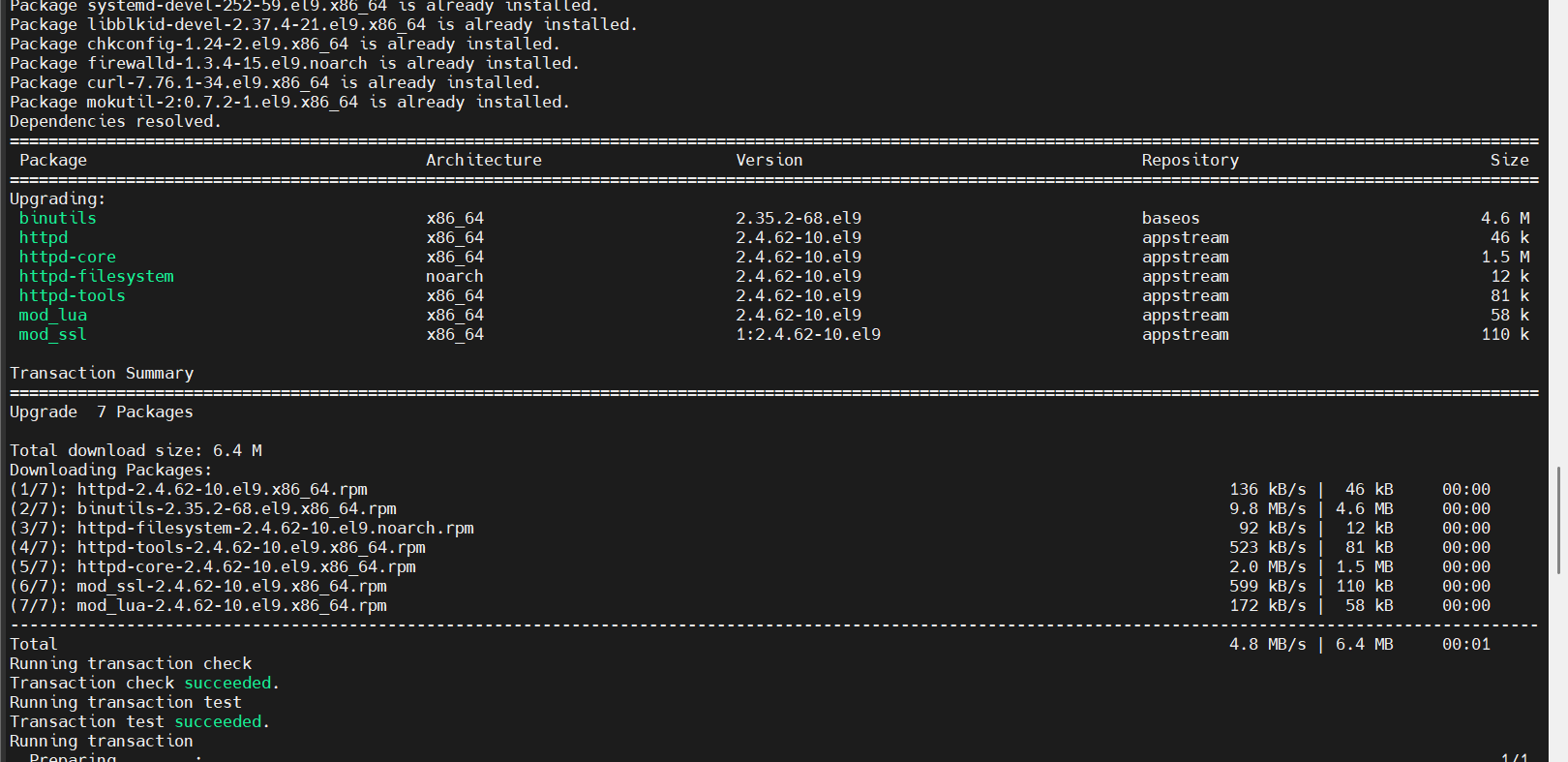
5. Once completed, it will look as shown below. 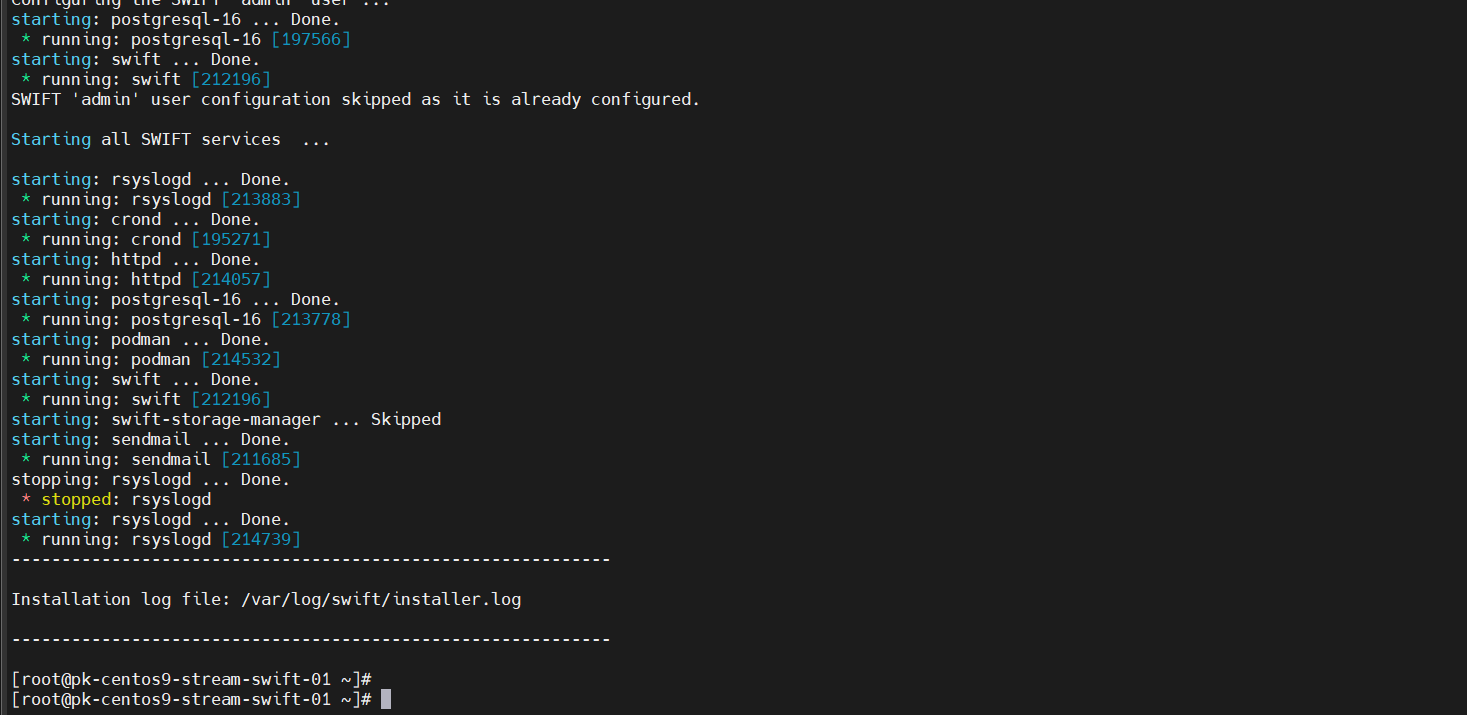
6. Then you can verify the correct version has been upgraded or not with below command.
sc swift show
7. Also verify all the services are running or not.
swiftadm status all

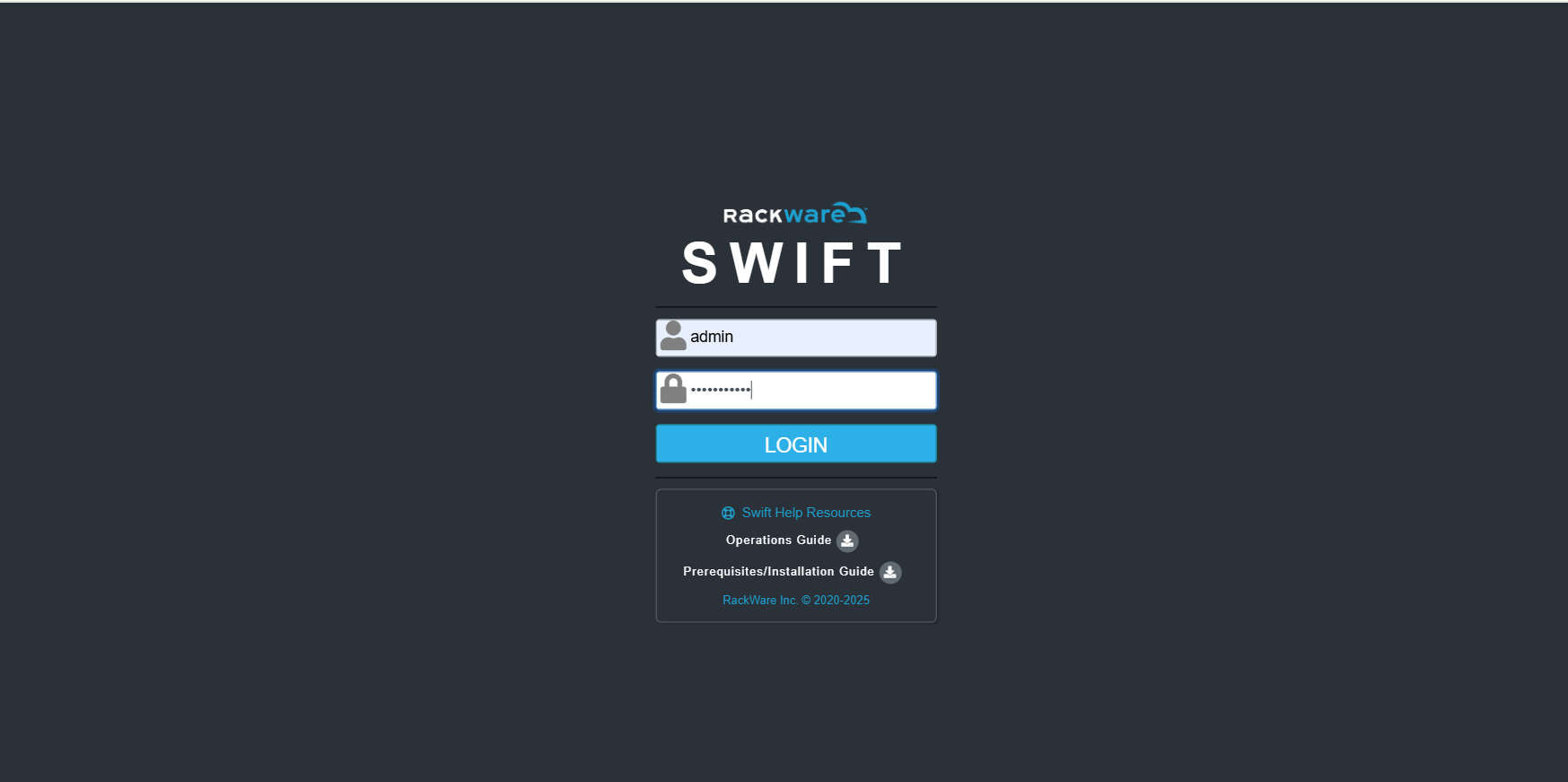
8. Now you can check if SWIFT dashboard is accessible are not? With your old password. If you have set it up.
https://<swift-ip>/swift/dashboard/