This article outlines the steps to increase the memory of a OCI VM when the existing configuration is not sufficient for application performance or workload requirements. Increasing the VM memory helps resolve issues such as high memory utilization, application slowdowns, or service crashes. This process involves stopping the VM, updating the machine type or custom memory settings, and then restarting the instance.
When you spin out the SWIFT instance from marketplace and you want to increase the memory for that VM. Then perform below steps.
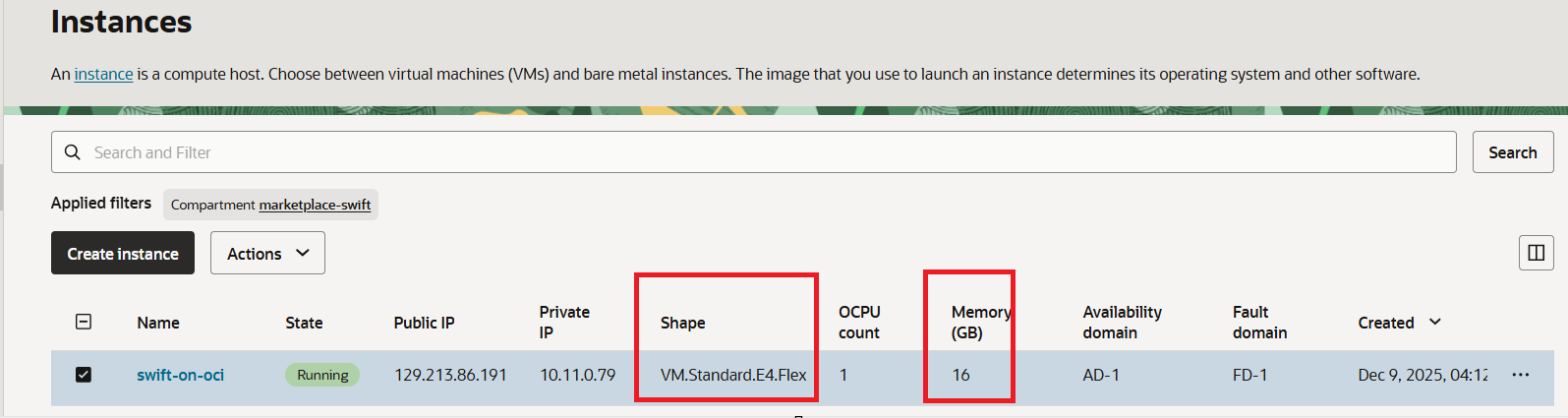
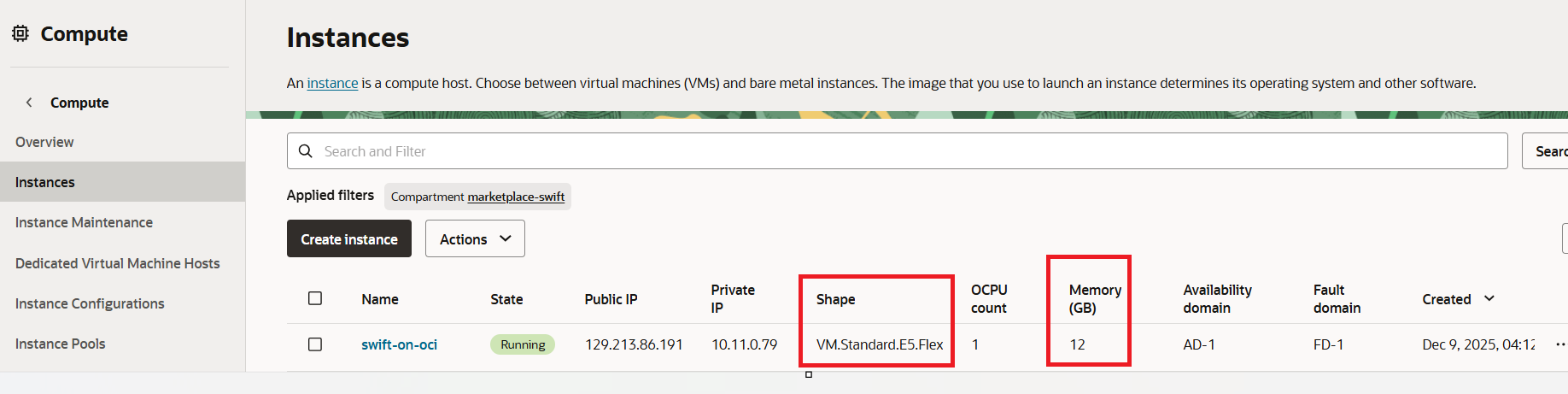
1. Below is the OCI instance created from OCI Marketplace. As you can see shape and memory for that VM.
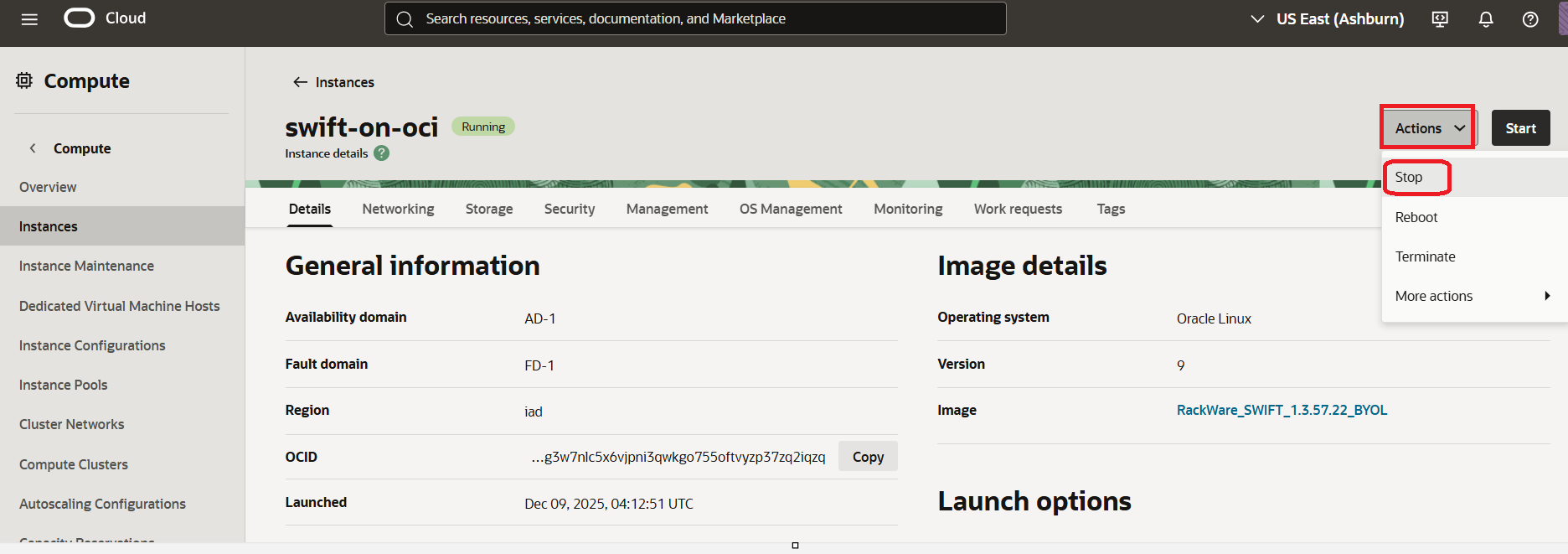
2. Stop the VM which you want to increase the RAM. For that click on instance > Click on 'Action' > Click on Stop > Stop Instance
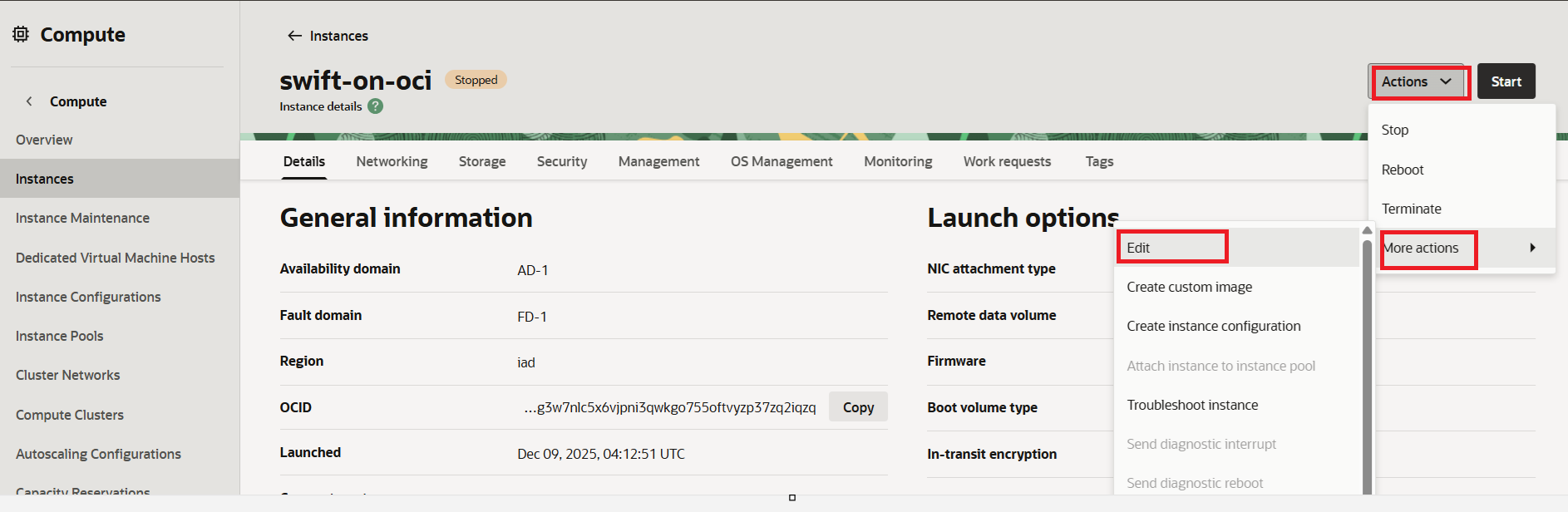
3. Now change the shape, After stopping the VM, Click on stopped instance > Go to Action tab > Click on 'More Actions' > Edit
4. Once you click on Edit > then below screen will be appeared, Select a shape with higher RAM (memory), as per the shape series, you can increase the memory and click on 'Save changes' Please see below screenshot for your reference.
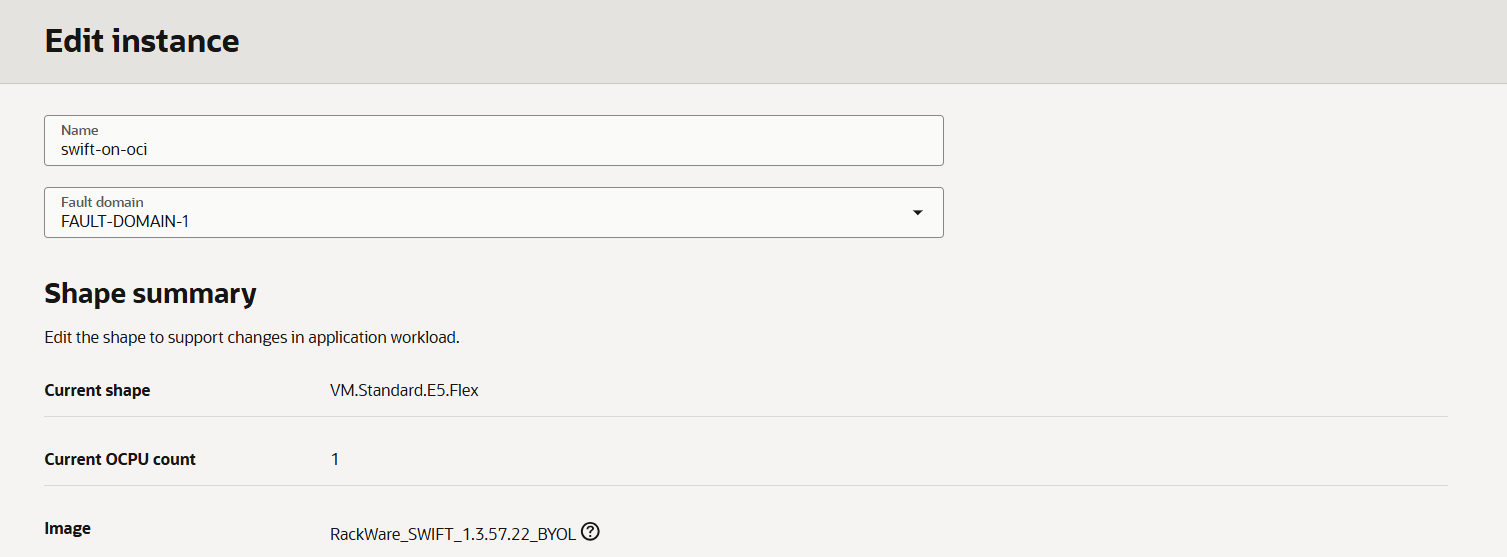
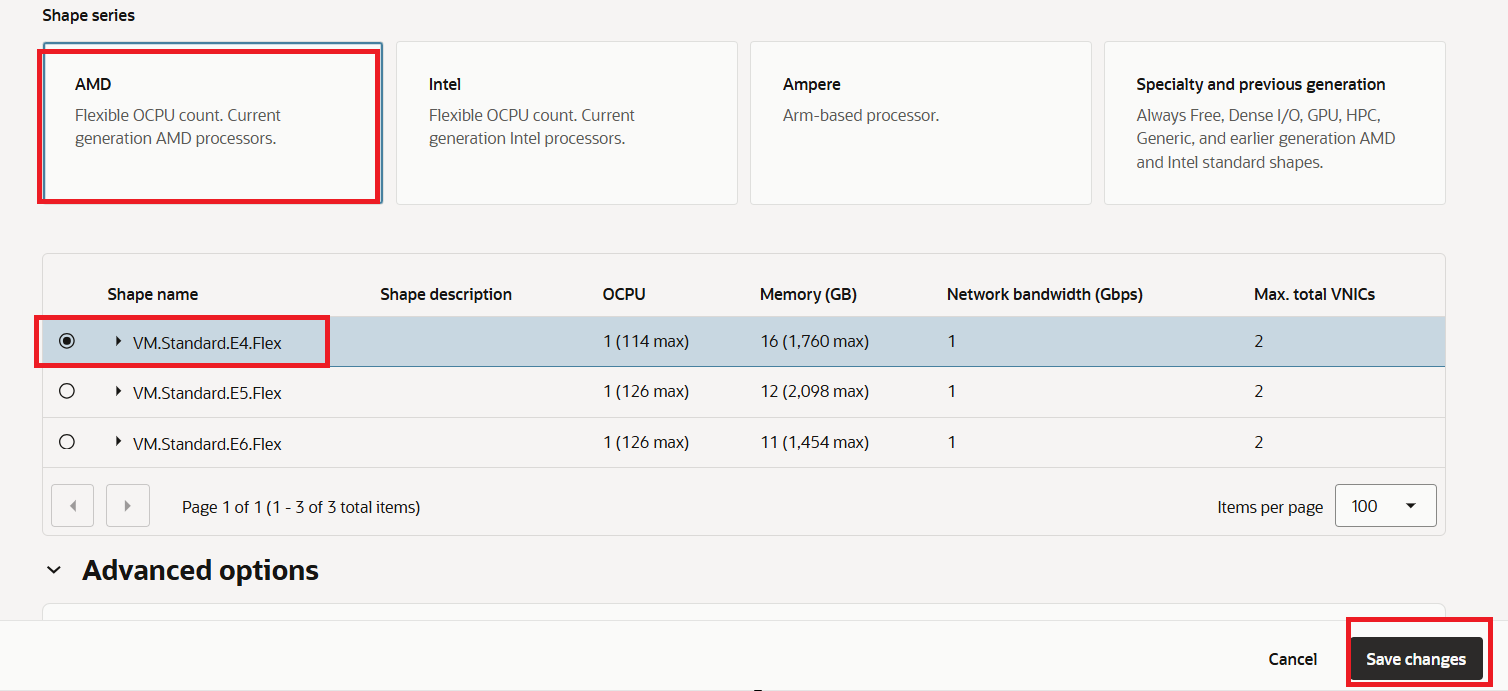
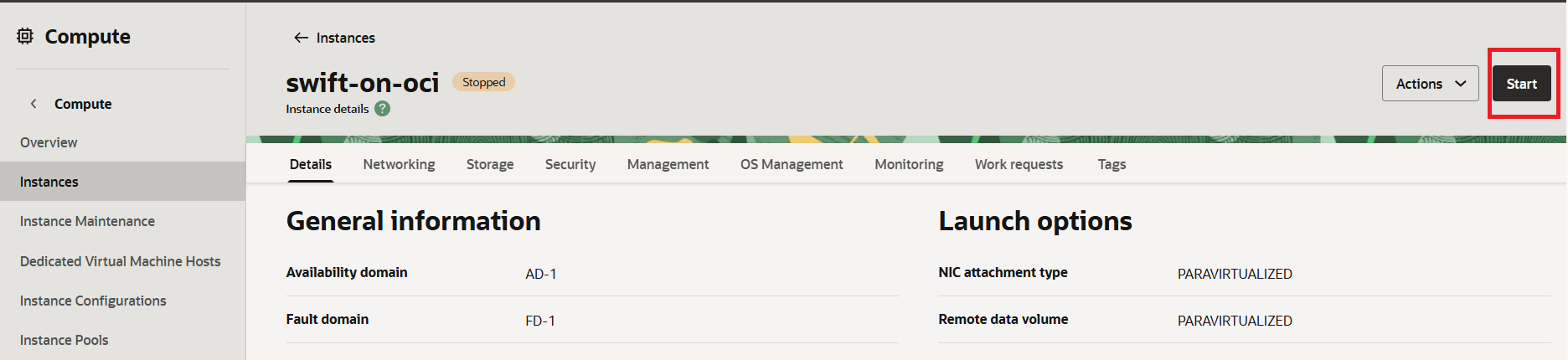
5. Now Start the VM, to do this Select the VM > and click on Start.
6. After starting the VM, you will able to see the increased RAM. Previously it was 12 GB and now it is showing 16 GB.