
Huawei Software Repository, hereafter referred to as SWR.
This article explains how to add a Huawei Software Repository (SWR) in SWIFT.
Discovering the registry is a step to perform Image Registry (IR) synchronization between Huawei Cloud and other cloud platforms.
If you want to migrate container images from Huawei Cloud to another cloud (or vice versa), SWIFT must first discover the source registry.
Use Case Example:
1. Other cloud's container image registry migration to SWR – Enables users to synchronize or migrate container images from any supported registry (such as ECR, ACR, OCIR, or DockerHub) to SWR using SWIFT’s 'Registry Replication' feature.
2. Transient Pod Automation – Allows SWIFT to automatically deploy transient pods required for data transfer and validation during image sync operations.
Pre-requisite:
1. Huawei Cloud Account
2. Required Credentials : Access and Secret key
3. Required Permissions : Permission to list images and repositories also Read access to SWR repositories
Following are steps to discover the SWR registry.
1. Log in to the SWIFT Dashboard. From the left navigation menu, select Container Registries, then click Add new registry.
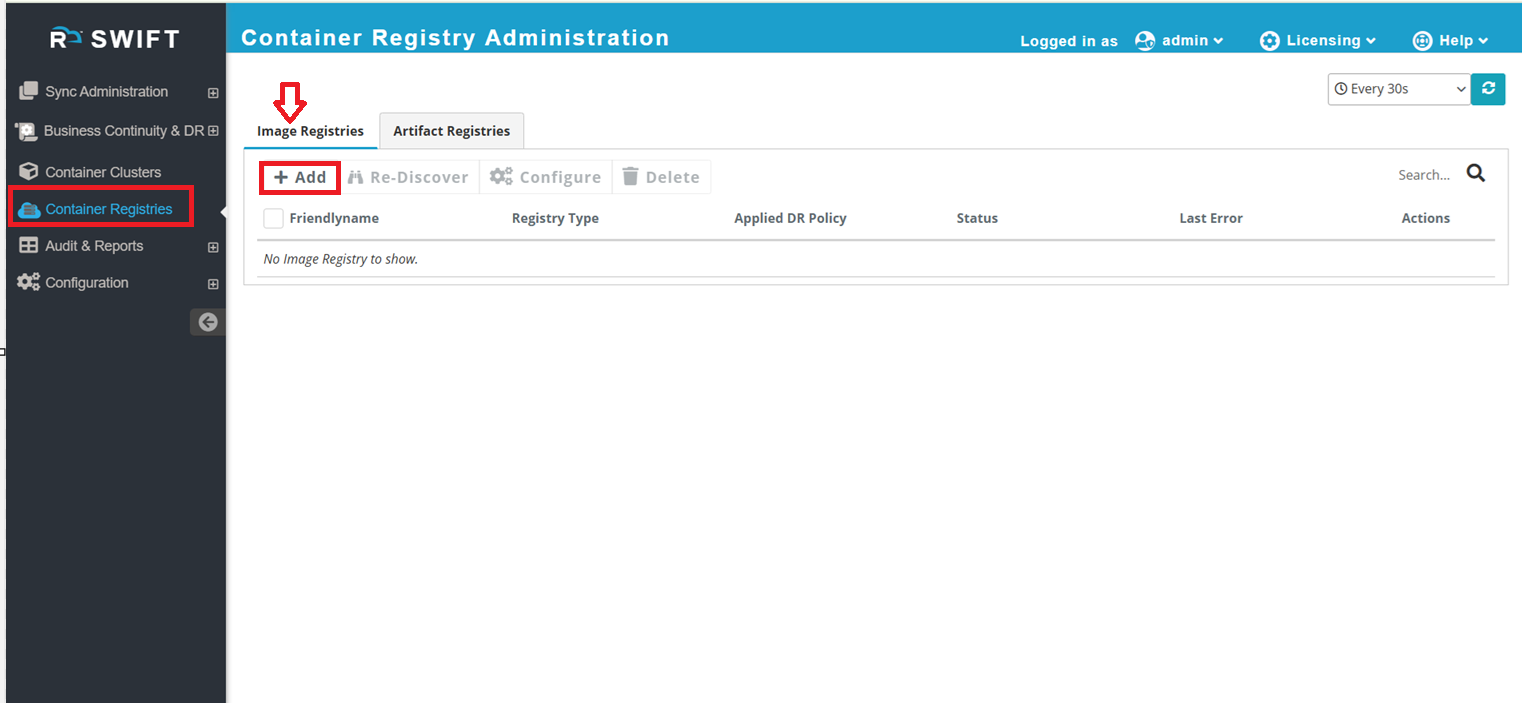
2.Click Add to add a new registry. Choose Huawei as the registry cloud type. Enter the SWR credentials, along with the Organization Name, Region, and all other required information. Make sure all mandatory fields are completed before moving to the next step.
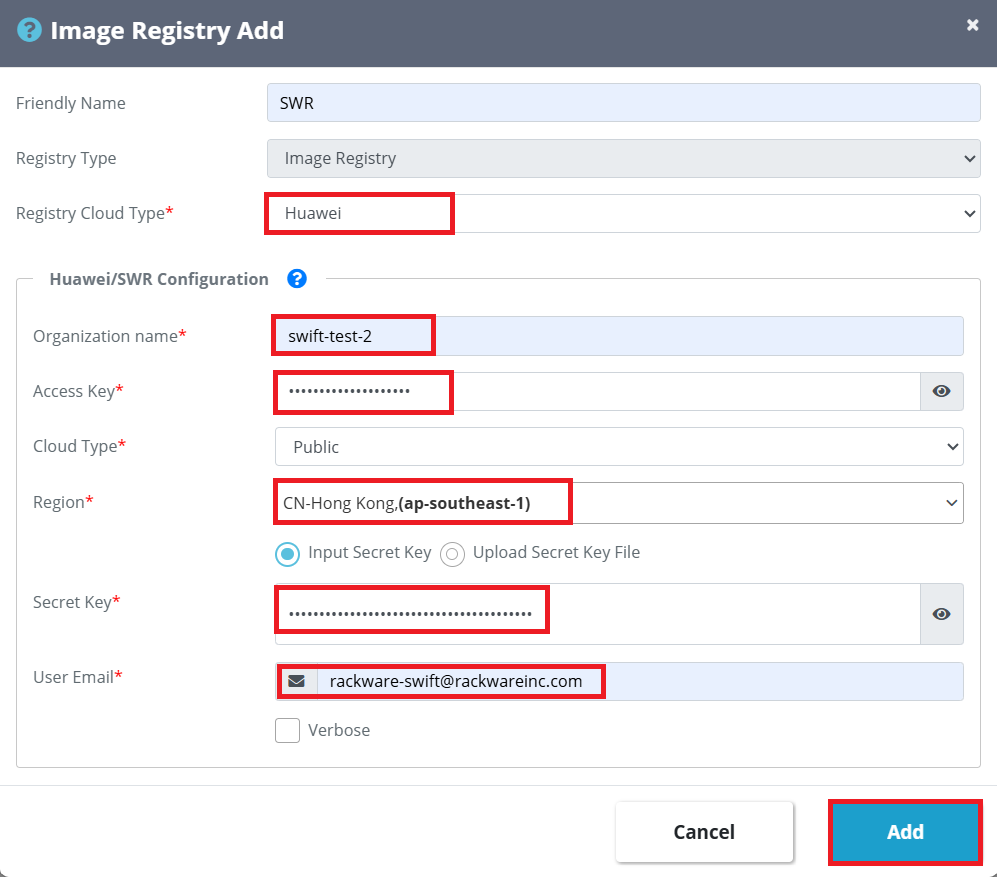
| Fields | Fields Parameter |
| Friendly name | Provide any friendly name for Image registry |
| Registry Cloud type | Select the Huawei from dropdown list |
| Organization name | The name of the Huawei Cloud organization under which the container images are stored in SWR |
| Access key | Provide Access Key associated with the Huawei Cloud IAM user. It is used by SWIFT to authenticate and access the SWR registry |
| Cloud type | Select the cloud type public or sovereign |
| Region | Provide the Huawei Cloud region where the SWR registry is hosted |
| Secret key | Provide Secret Key corresponding to the provided Access Key. This key is used along with the Access Key to securely authenticate SWIFT with the Huawei SWR |
| User email | Provide email address where SWR is using. |
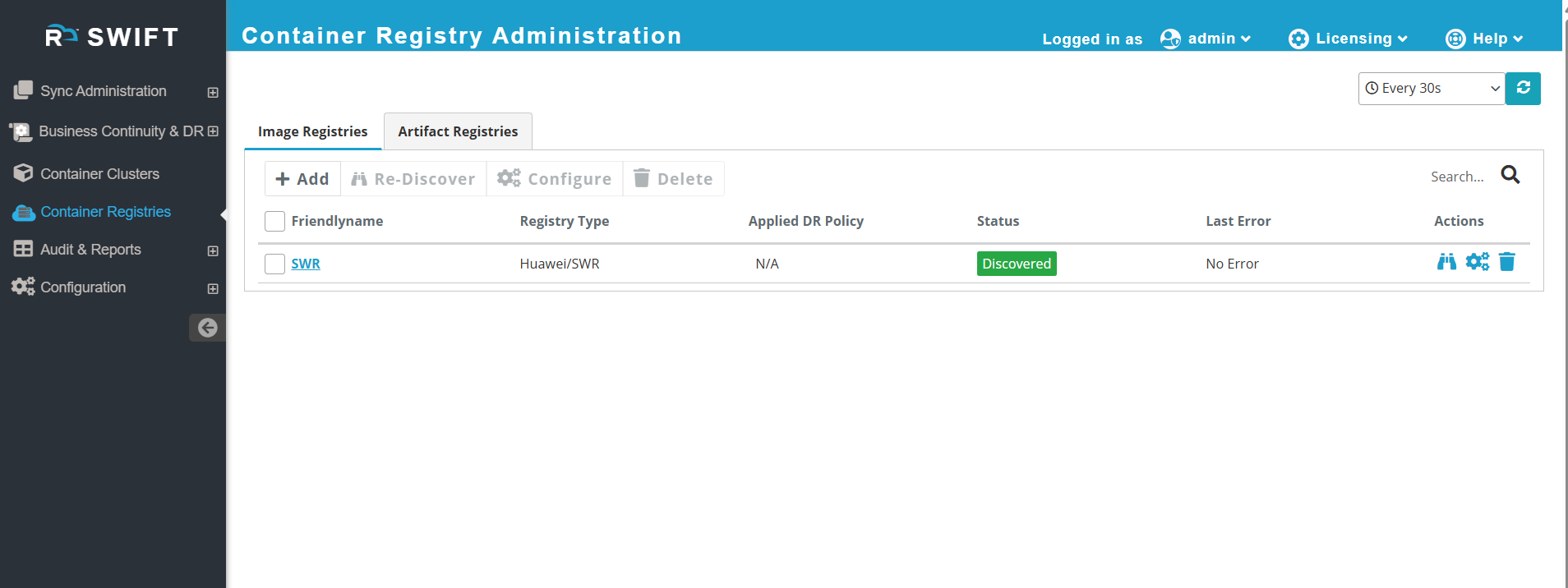
3.After clicking the Add button, the SWR registry will be added and visible in SWIFT.
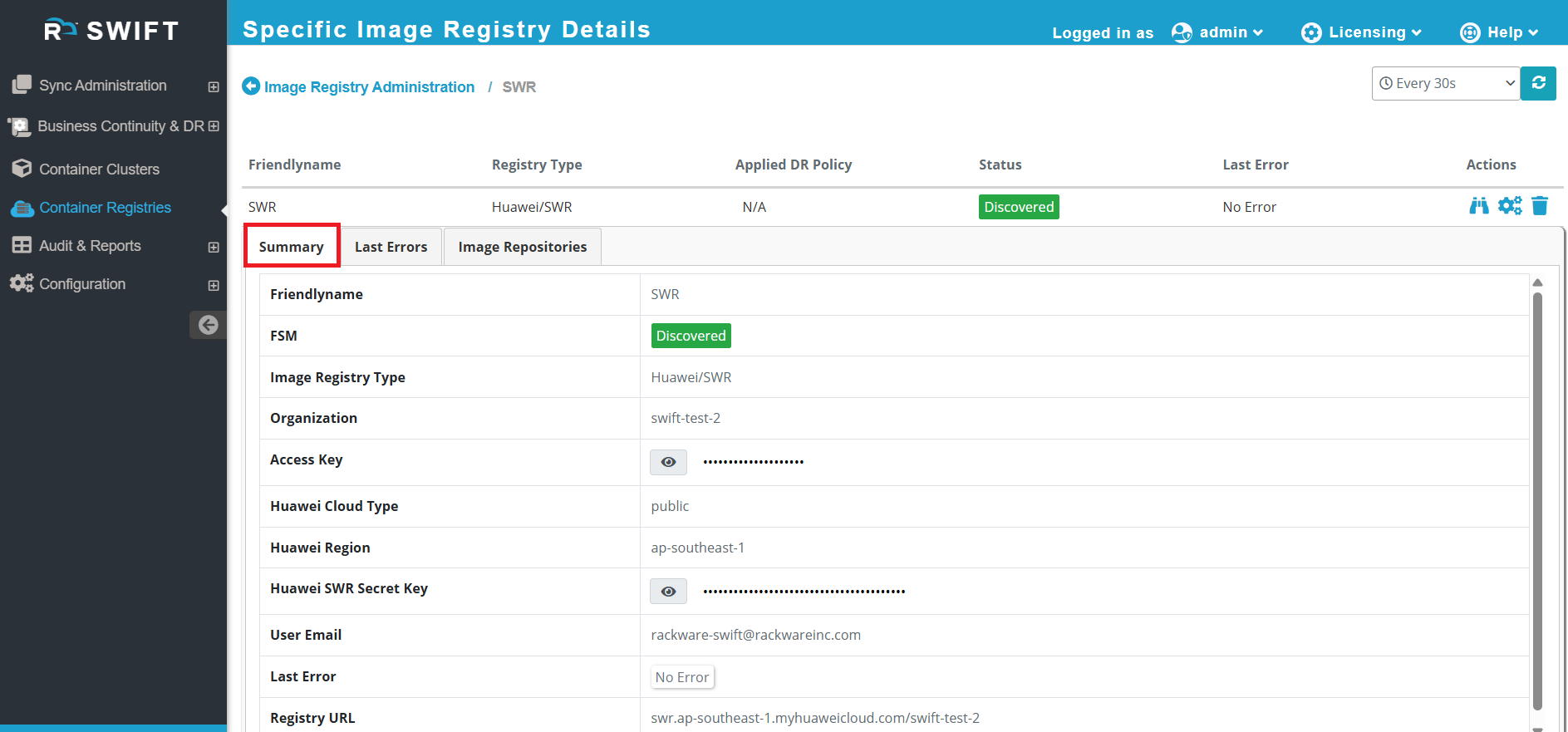
4. When you click on the created SWR registry, you will be able to view the registry details, such as the registry name, organization, access key, secret key, and other related information.
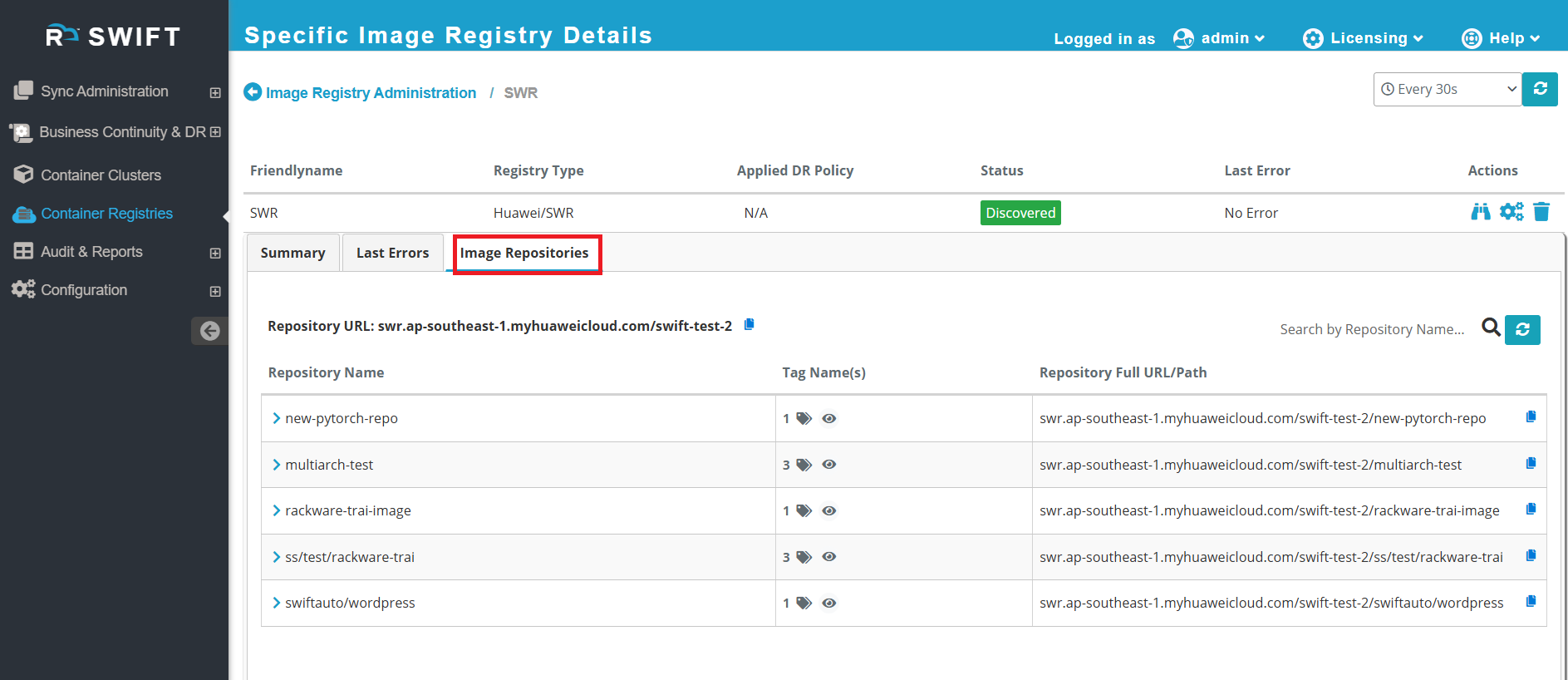
5. As shown in the screenshots below, these are the repositories discovered by SWIFT. Only metadata is collected by SWIFT; the actual container images are not collected. The metadata discovery is limited to repositories that belong specifically to your organization.
What’s Next
Sync Images Between Registries
To sync container images from one image registry to another, please refer to the KB article below:
Image registry sync
Set Up DR Policy for Image Registry Sync
Now that the image registry has been successfully discovered, you may want to configure a Disaster Recovery (DR) policy for image registry synchronization.
For detailed steps, refer to the KB article below:
Set up DR for Image registry
How to CCE cluster add in SWIFT
How to migrate application with Passthrough sync
Related KB Articles
The following actions are available for the discovered image registry:
Re-Discover
Use this option to re-discover the image registry. If new images have been added or existing image tags have been updated in the registry and you want those changes to be reflected in the SWIFT portal, you can perform a re-discovery.
For detailed steps, please refer to the KB article below:
How-to-rediscover-cluster
Configure
Use this option to modify the existing image registry configuration, such as updating credentials or registry details.
For more information, refer to the KB article:
Configure the Image Registry
How-to-configure-cluster
Delete
Use this option to delete the image registry from the SWIFT dashboard.
Note: This action removes the registry only from the SWIFT portal. It does not delete the registry or images from the cloud provider.