
For any migration or disaster recovery (DR) activity, the first step is to discover the cluster in SWIFT. Discovery allows SWIFT to identify and register the cluster along with its associated resources such as namespaces, workloads, and other objects. Only after the cluster is successfully discovered, you can proceed with operations like syncing applications, or performing the actual migration or failover tasks.
Pre-requisite:
1. To discover the CCE cluster, you must have a cluster created in the Huawei cloud and know the region where the cluster is deployed.
2. You should have Project ID, Access and Secret key.
Following are steps to discover the Huawei CCE cluster.
1. Login to the ‘SWIFT’ dashboard and navigate to the ‘Container Cluster’ menu and click on ‘Add’ button.
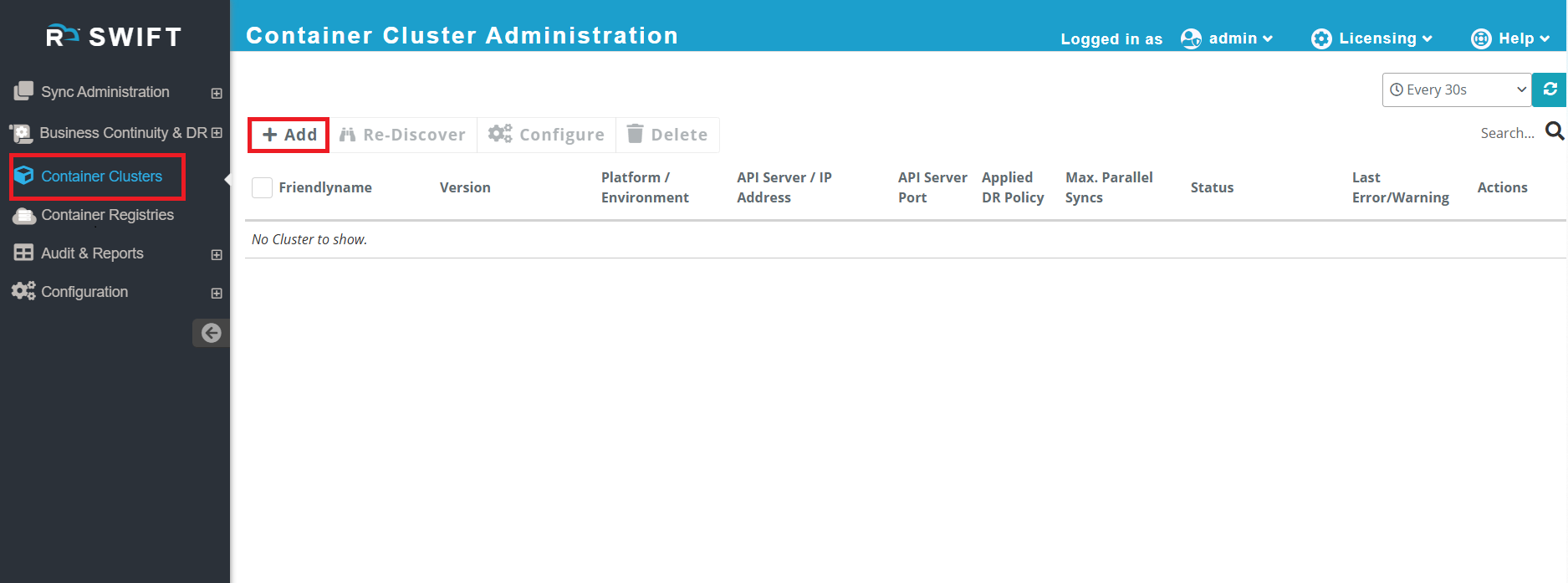
2. Once you click on 'Add ' button. It will display Cluster Add modal/dialog. There you need to provide cluster details to be discovered.
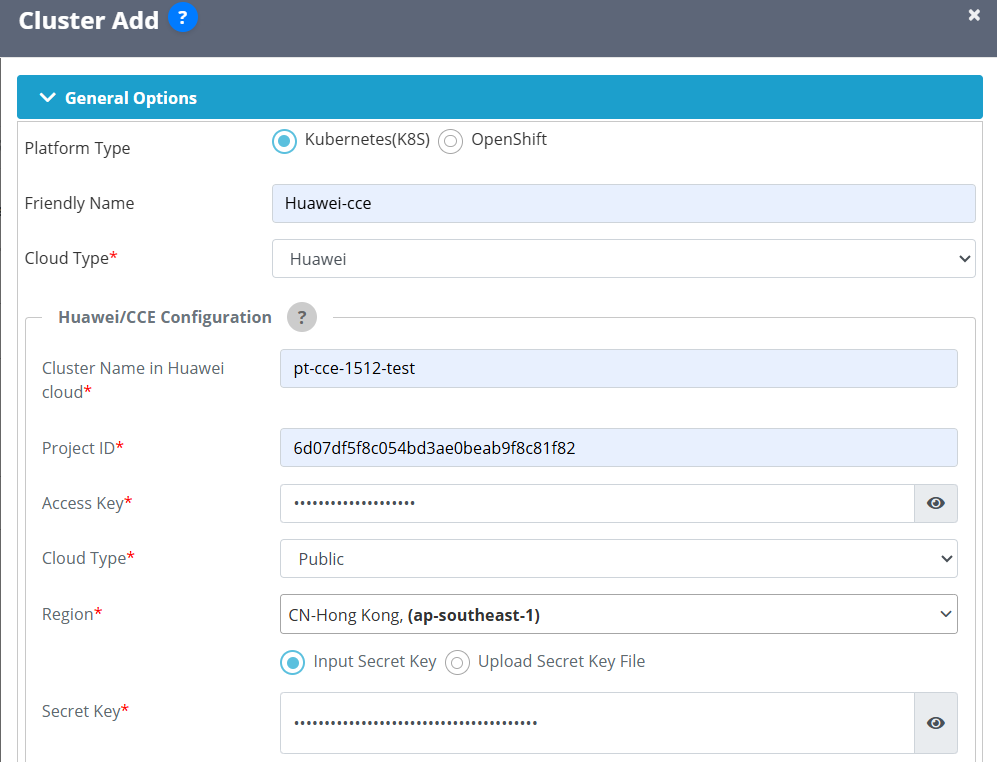
| Field | Field Description |
| Platform type | Select the platform where your cluster is running |
| Friendly name | You need to enter a friendly name according to your cluster or project. |
| Cloud Type | Choose the ‘cloud type’ from the dropdown as SWIFT supports various clouds. |
| Cluster Name in Huawei cloud | Put the Huawei cluster name that you want to add. |
| Project ID | It tells SWIFT which Huawei Cloud project to work with. |
| Access key | is used to authenticate API requests. |
| Cloud Type | Choose cloud type: Public -> Public Cloud is operated by a global cloud provider and Sovereign Cloud ---> Country-specific cloud infrastructure with strict data residency and regulatory compliance. |
| Region | Provide the region from dropdown where your cluster residing |
| Secret Key | Provide secret key which is the private credential paired with the Access Key. |
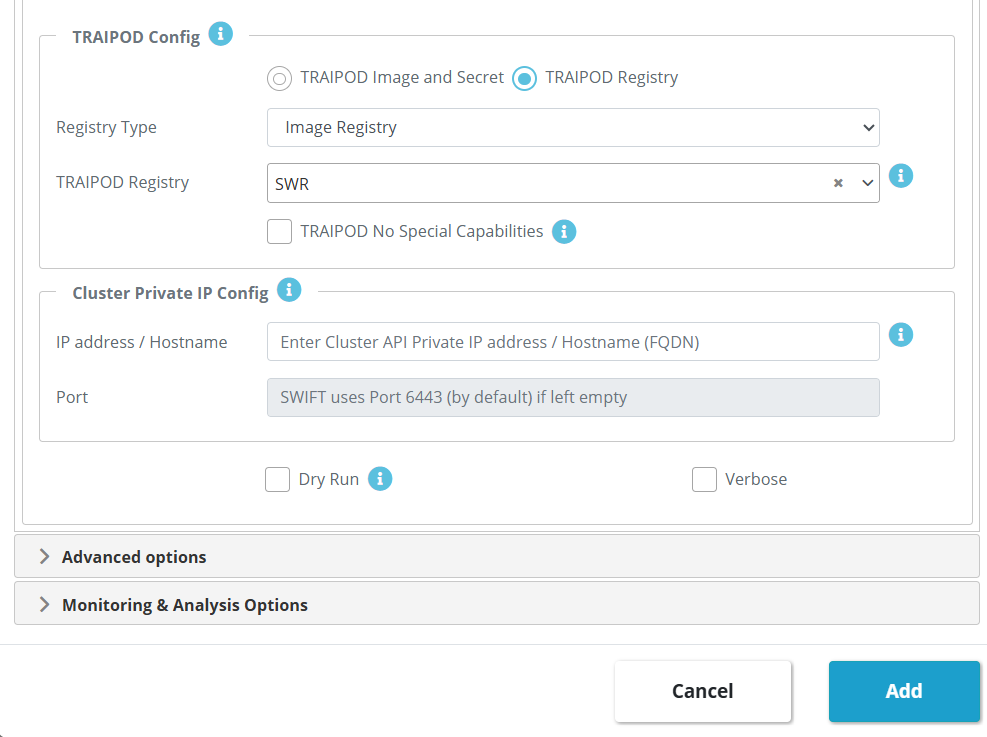
Below are the Optional parameter while adding cluster in SWIFT.
| Field | Field Description |
| TRAIPOD Config | This is an optional input. They can be configured for each sync, and the values input for the sync will override the defaults set for the cluster. For more info you can look TRAIPOD KB article. To more know about Traipod Config section, Please follow below KB Article. traipod-config |
| Cluster private IP config | Normally, the IP address or hostname mentioned in the kubeconfig file is used to discover the cluster. However, if you want to set up a private IP or hostname to access the cluster, and the public IP mentioned in the kubeconfig is not used, this setting can be used to overwrite the default kubeconfig IP with the private IP and port. |
3. Now, click the Add button. Within a few seconds, the CCE cluster will be added. You can view all information about the cluster and its metadata. Simply expand the cluster by clicking on it, and you will see the details.

- When you go to the Summary tab, you will find information about the cluster, such as its creation date, CCE cluster name, API server port, Kubernetes version, and more. It will display the basic details of cluster.
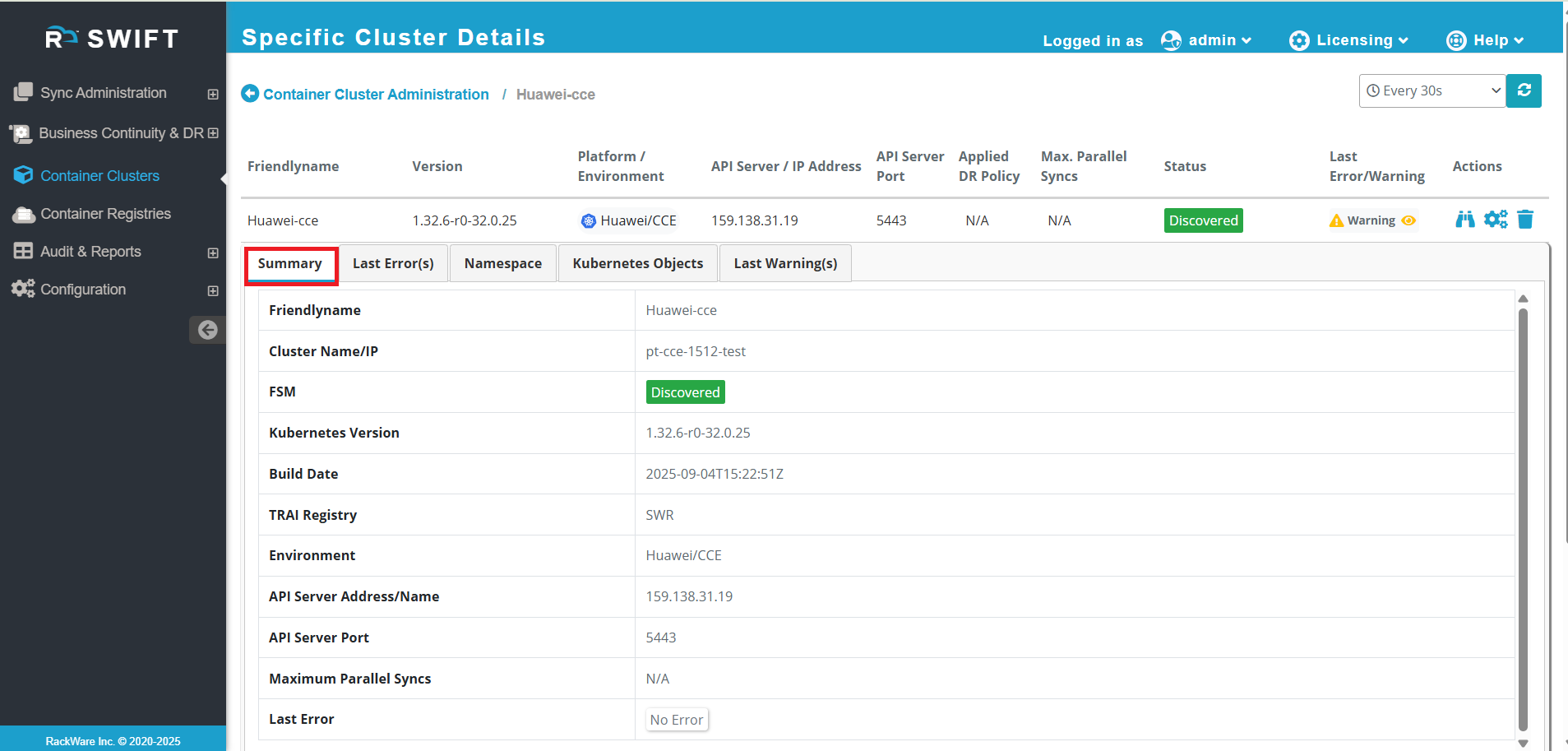
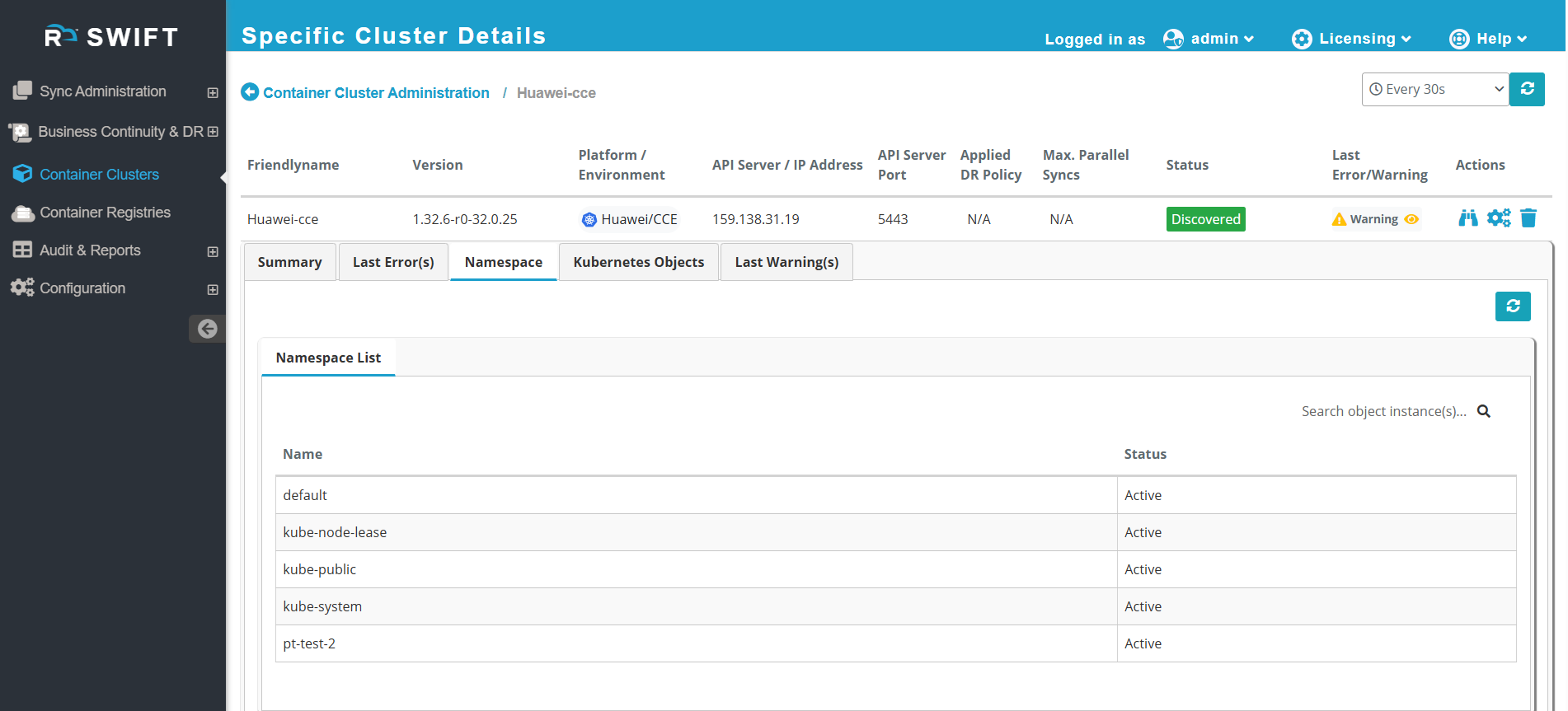
- When you go to the Namespace tab, you will see all the namespaces created in the cluster, including the default namespaces provided by CCE.
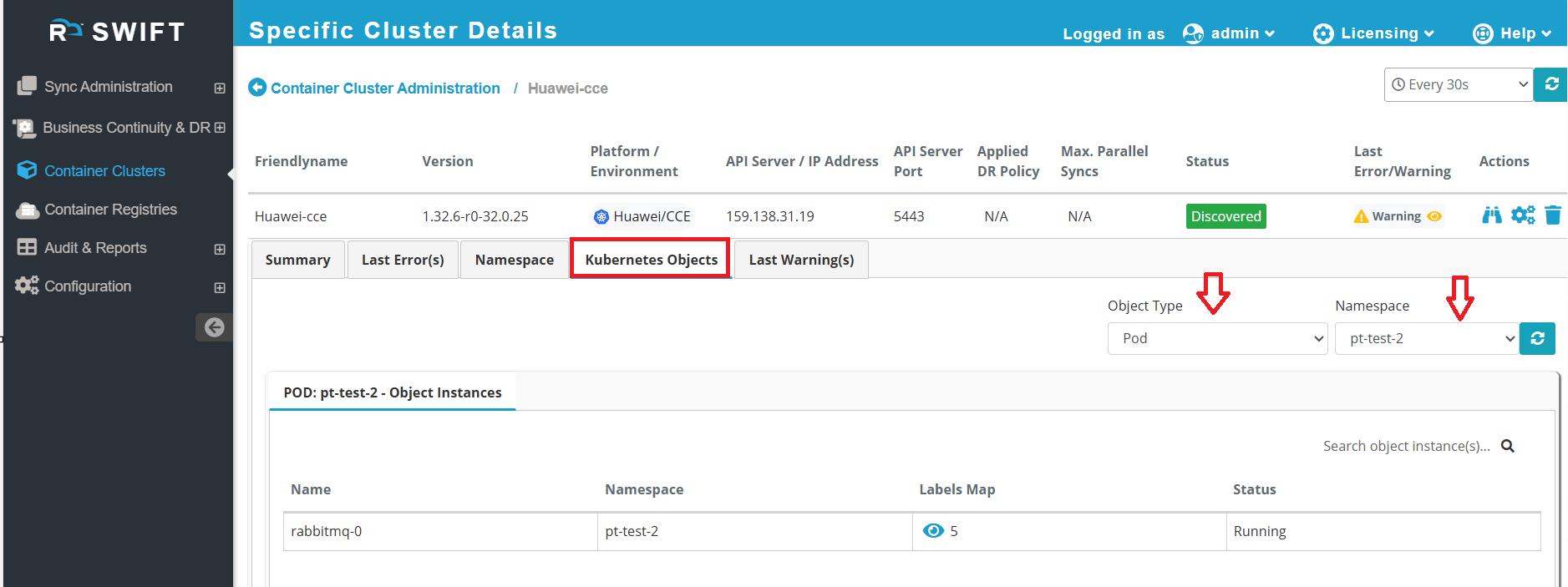
-When you go to the Kubernetes Objects tab, you can view the objects running in your namespace. Simply select the object type from the Object Type tab and choose the namespace from the dropdown. This will display the objects running in that namespace on the cluster. In the screenshot below, you can see that one pod are running in the 'pt-test-2 namespace.
4. Once the cluster is discovered, you will have access to additional operations. You can perform the following actions on the selected cluster.

What next:
Now that the clusters are discovered, you may want to set up a Migration or Disaster Recovery (DR) job. Then follow below KB links.
How to migrate application with Passthrough sync
How to migrate applications with Stage sync
PT and stage sync with DRP apply
Related KB's
Re-Discover : This option allows you to re-discover the cluster. If you have added new namespaces or applications to the cloud cluster and want them to be reflected in the SWIFT portal, you can re-discover the cluster.
Configure : Use this option if you want to modify the cluster configuration. Please check KB Article on 'Configure the cluster'
Delete : Use this option to delete the cluster. However, ensure that no DR Policy is attached to the cluster; otherwise, the cluster cannot be deleted and the Delete option will be disabled. It will delete from SWIFT dashboard only not from cloud.