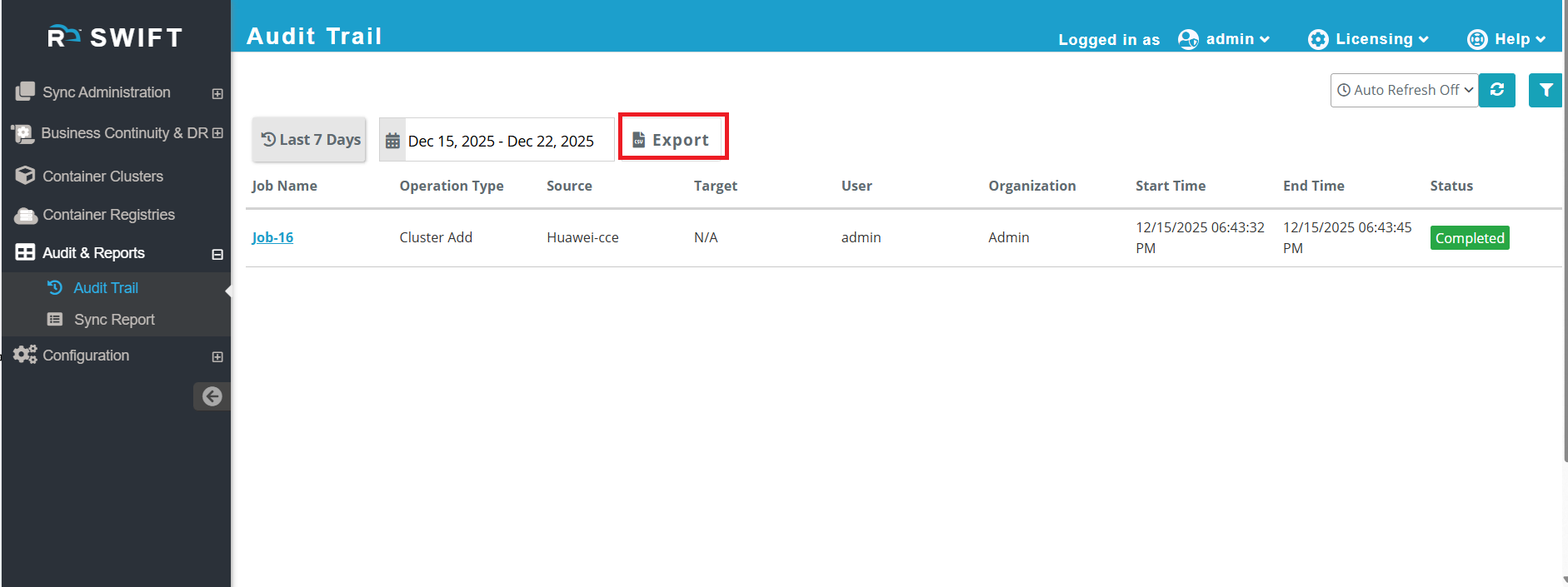
The Audit Trail in SWIFT provides a centralized view of all sync operations executed within the platform. It allows users to quickly review historical sync activities using predefined time filters such as Last 7 Days, Last 15 Days, or a Custom Date Range.
Each audit entry displays key details such as the job name, operation type, start and end time, execution status, and the user who initiated the action. This helps users track historical sync activities for monitoring, troubleshooting, and compliance purposes.
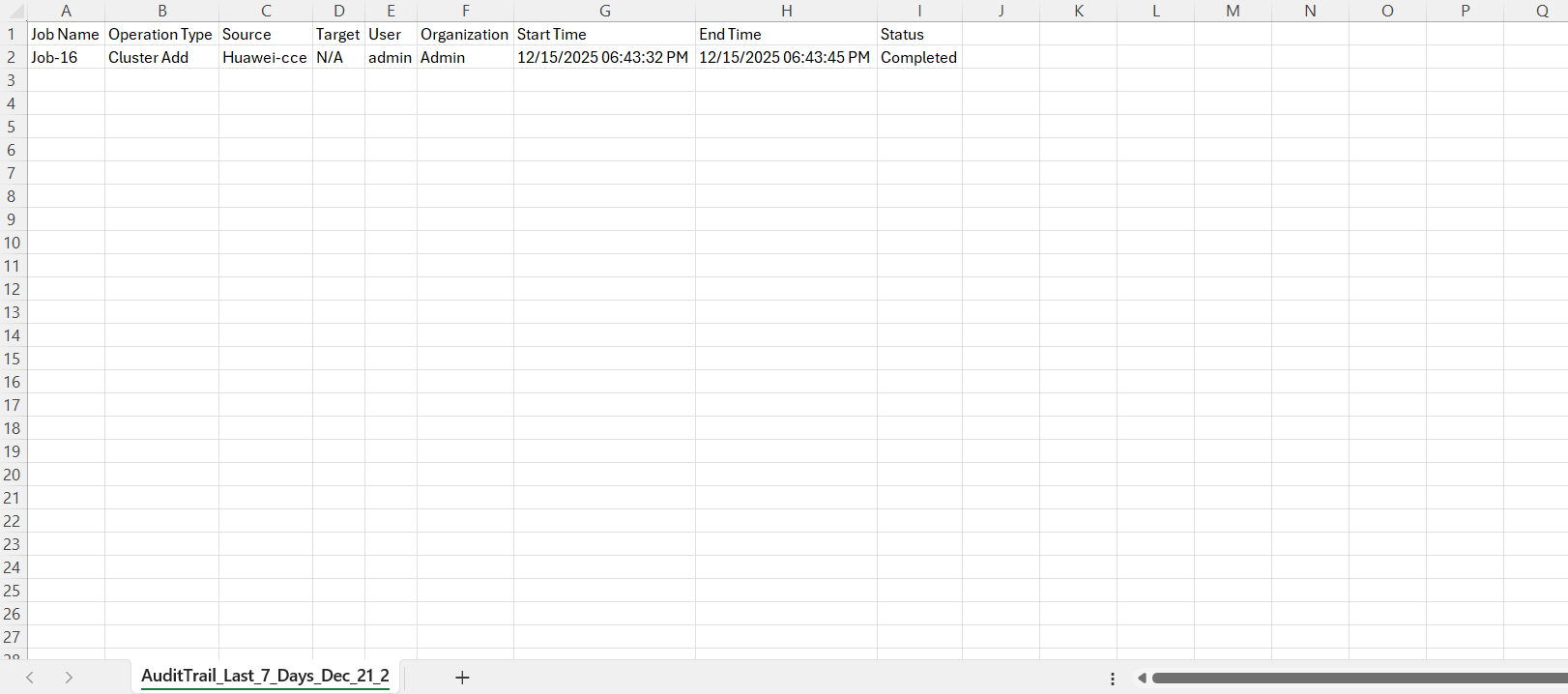
The Audit Trail also includes an Export to CSV option, allowing users to download audit records for offline analysis, reporting, or audit retention.
Pre-requisite:
Sync or related operations should have been executed so that audit records are available.
Use Cases
1. Audit and Compliance Tracking
Track sync activities performed within SWIFT over specific time ranges such as the last 7 days, last 15 days, or a custom date range, helping meet audit and compliance requirements.
2. Operational Visibility
View detailed information about sync operations, including job name, start time, end time, status, and the user who initiated the action, enabling better operational monitoring.
3. Troubleshooting and Validation
Quickly identify completed or failed sync operations during a specific time window to assist with troubleshooting and validation.
4. Historical Analysis and Reporting
Use the Export to CSV option to download audit trail data for offline analysis, sharing with stakeholders, or maintaining records for internal or external audits.
Following you can follow below steps.:This kind of you can generate the sync. 5
For Audit trail you can follow below steps.
1. Login to the SWIFT, Click on 'Audit Trail' under 'Audit and Report' .
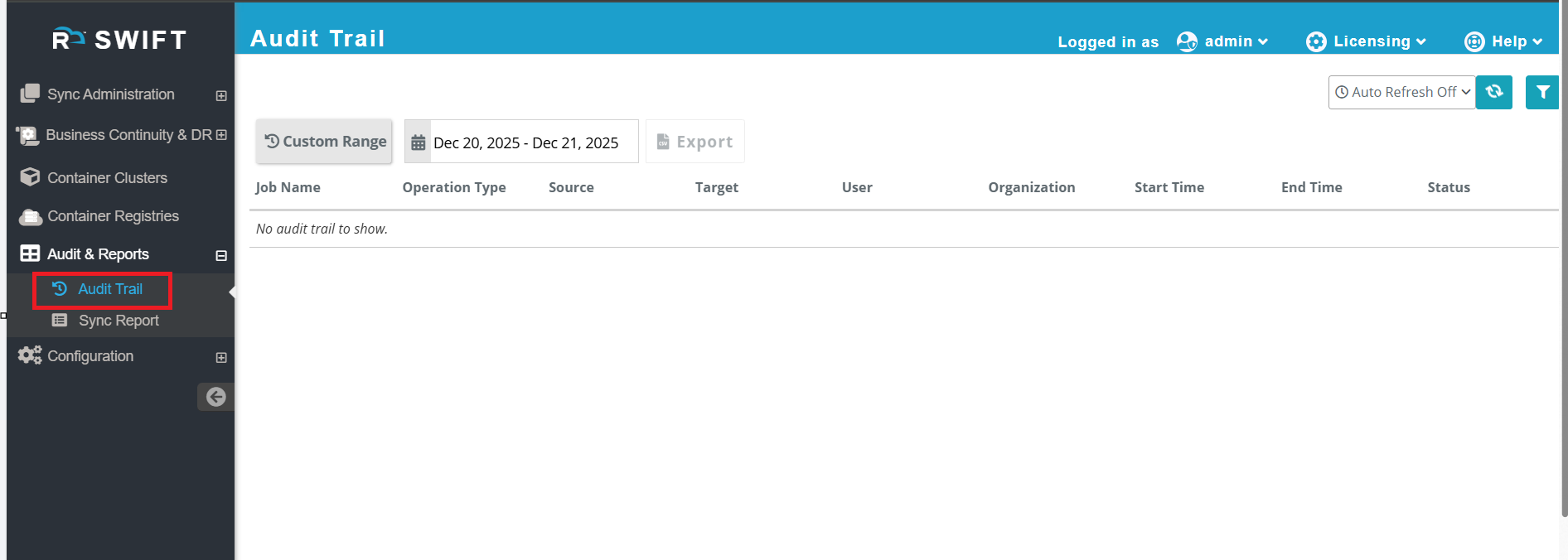
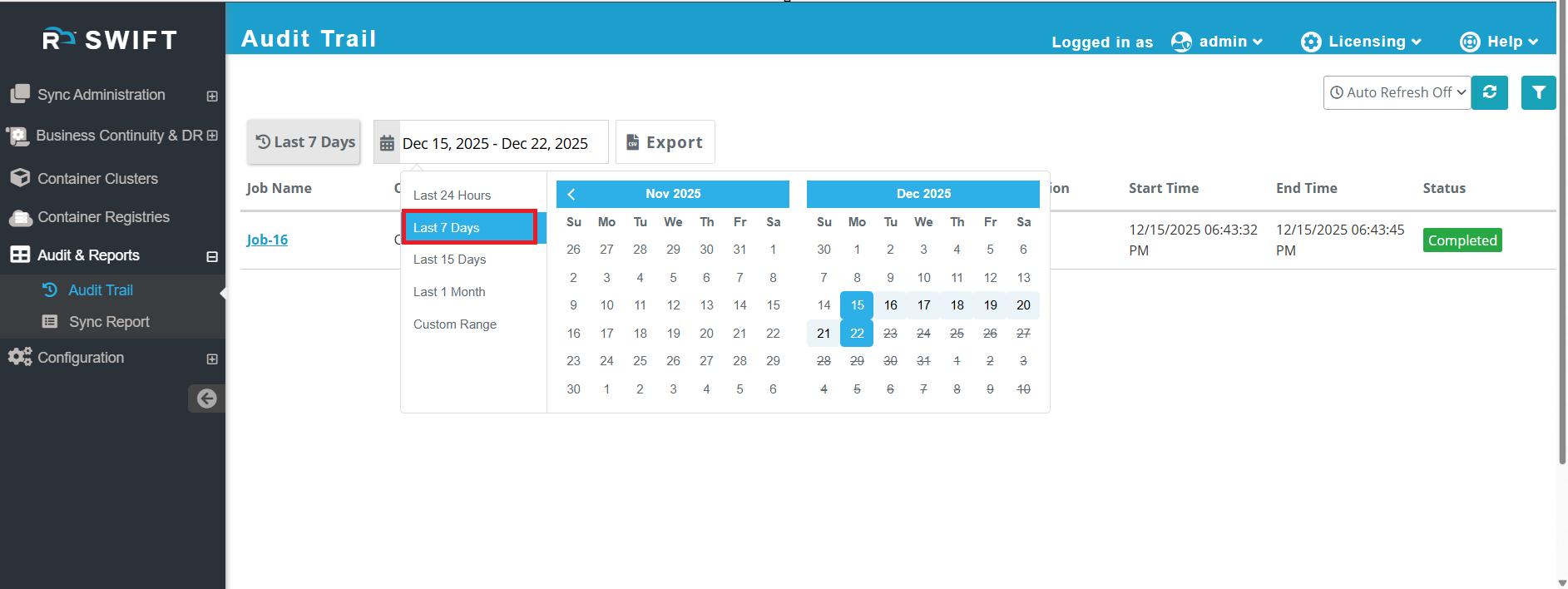
2. To view sync or any other operations performed within SWIFT, click on the Date selection box and choose the required time range. Based on the selected date range, the Audit Trail will display the corresponding operations performed during that period.
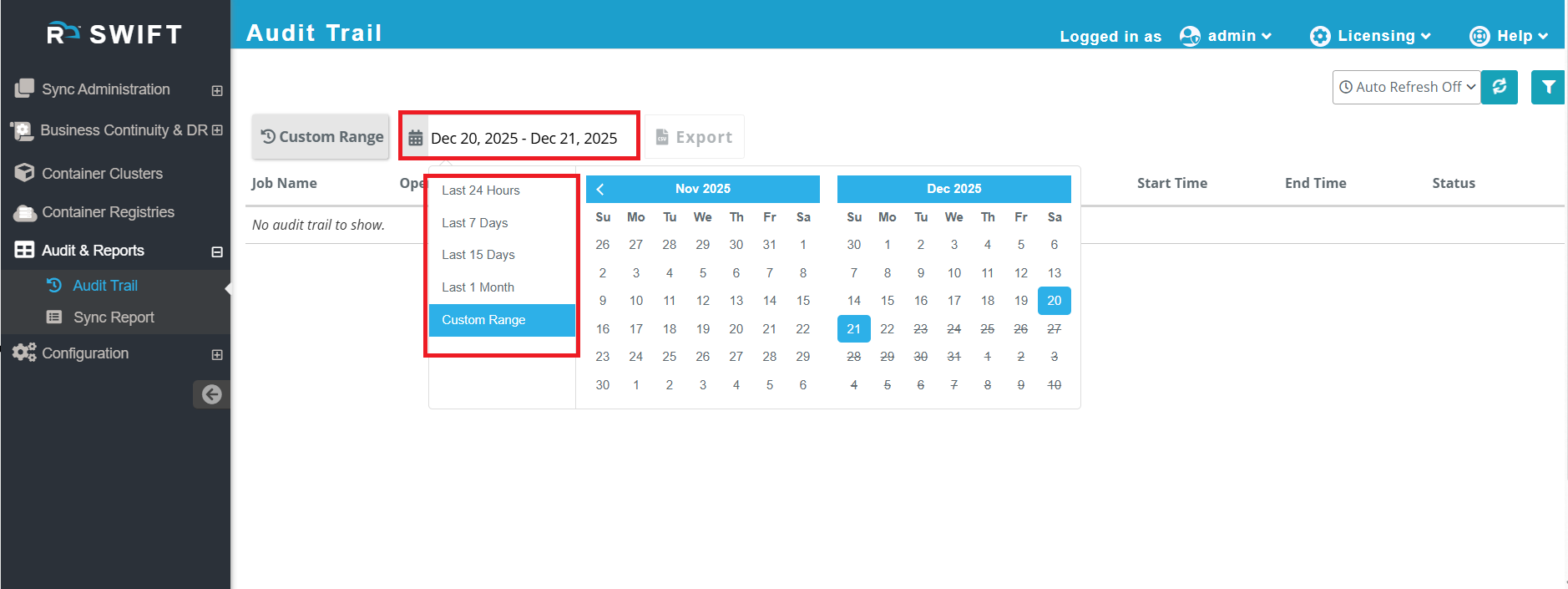
3. If you want to view sync or any other operations performed in SWIFT, click the Date selection box and choose the required time range. Based on the selected range, SWIFT will display all operations performed during that period.
For example, if you select the last 7 days, the SWIFT dashboard will show all operations that were performed over the past 7 days. As shown in the screenshot below, selecting the 7-day range displays the corresponding operations. You can choose a different range as needed to view specific activity.
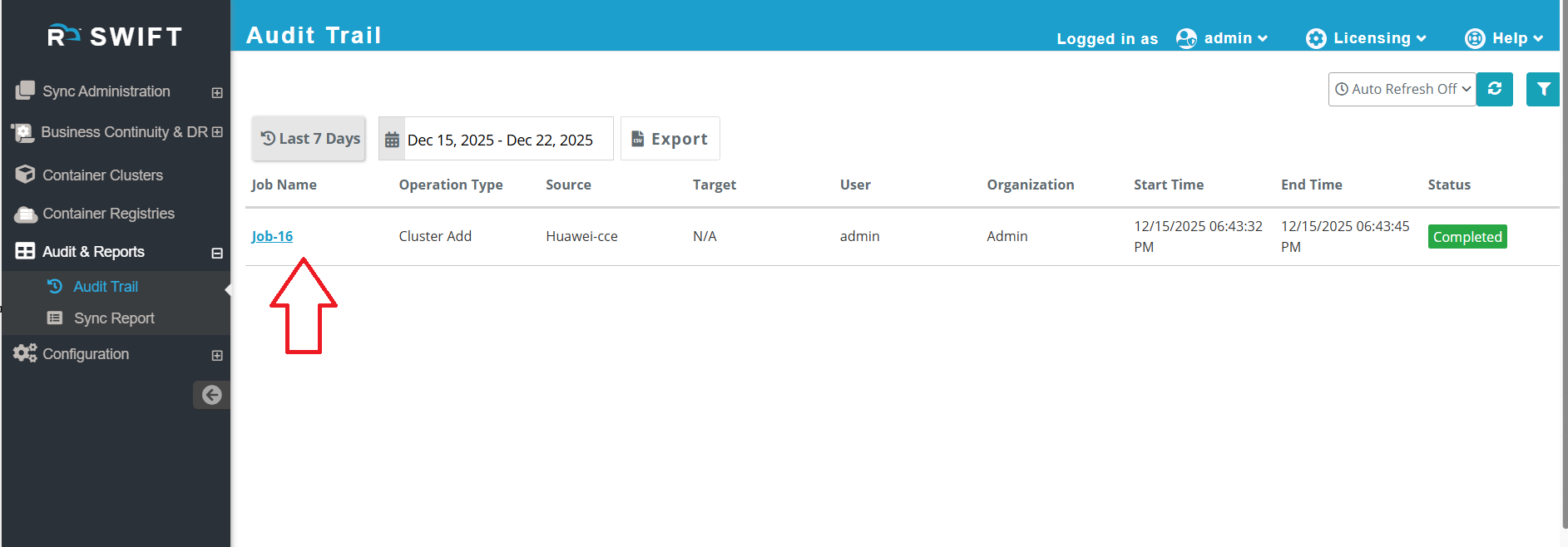
4. If you want to export these operations, simply click the Export button. The data will be downloaded in CSV format for further analysis or record-keeping.