
The Sync Report shows a history of all migration and DR syncs performed in SWIFT. It helps you quickly see where the sync ran from and to, who triggered it, how long it took, and whether it completed successfully. This makes it easy to verify sync results and troubleshoot if something goes wrong.
Usecase:
In most organizations, teams are required to regularly share reports with management to confirm that compliance processes are properly set up and followed. This includes validating that migration and disaster recovery (DR) syncs are executed as per defined standards.
The Sync Report in SWIFT helps customers meet this requirement by providing a clear and complete record of all migration and DR sync activities. Using this report, teams can demonstrate that compliance processes are in place and operational across environments.
If a Sync Report is needed for compliance, audit, or management review purposes, it can be easily generated from SWIFT and shared with stakeholders as supporting evidence.
To get the Sync Report, Follow the Steps Below:
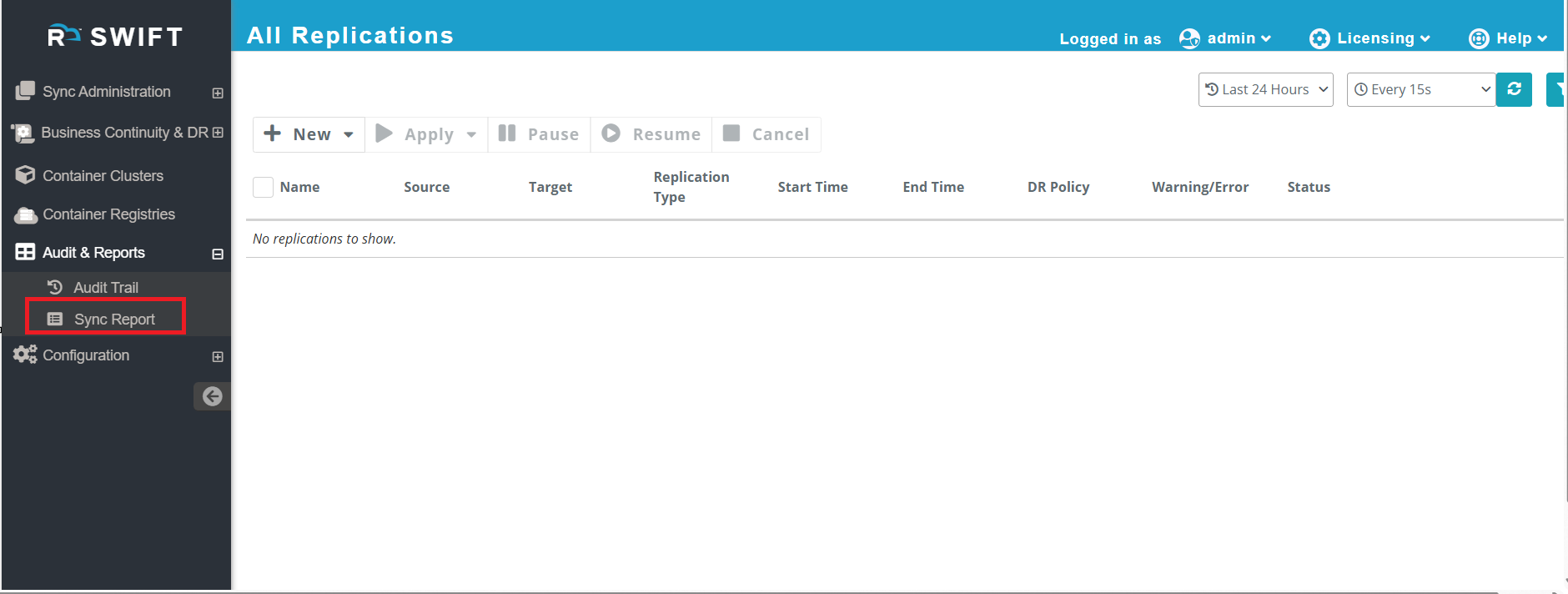
1.Log in to SWIFT and navigate to the Sync Report under the Audit and Reports section.
2. In the Replication Query Builder, select the required filter options (e.g., Source, Target, Period, Job Status).
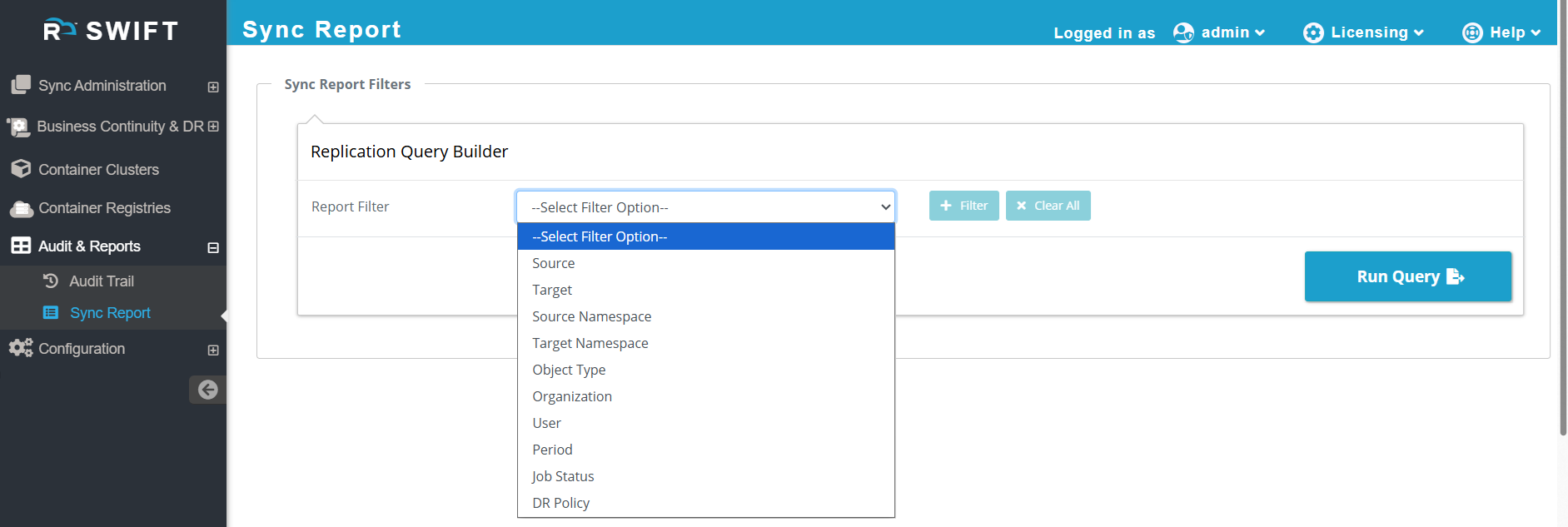
The Sync Report lets you filter and view migration or DR sync history based on what you are looking for. Each filter helps you narrow down the results.
1. Source : This tells you from which cluster the sync started. If your application was running in an on-prem cluster, you can select that cluster as the source to see all syncs that started from there.
2. Target: This shows where the data or application was synced to. Select your DR cluster to confirm that syncs were successfully pushed to the DR environment.
3. Source Namespace: This filter is used to see syncs for a specific namespace in the source cluster. If multiple apps are running in the same cluster, you can select the production namespace to see only production-related syncs.
4. Target Namespace: This shows the namespace in the target cluster where the data was synced. Use this to confirm that the application was restored or synced into the correct DR namespace.
5. Object Type : This helps you filter by what kind of Kubernetes objects were synced.
6. Organization : This is useful when SWIFT is used by multiple organizations or teams.
7. User : This shows who triggered the sync.
8. Period : This allows you to select a time range. For a monthly compliance review, you can filter syncs from the last 30 days and share the report.
9. Job Status : This tells you whether the sync succeeded, failed, or is still running. If something went wrong, you can filter by Failed jobs and quickly investigate.
10. DR Policy : This shows syncs that were run under a specific DR policy.
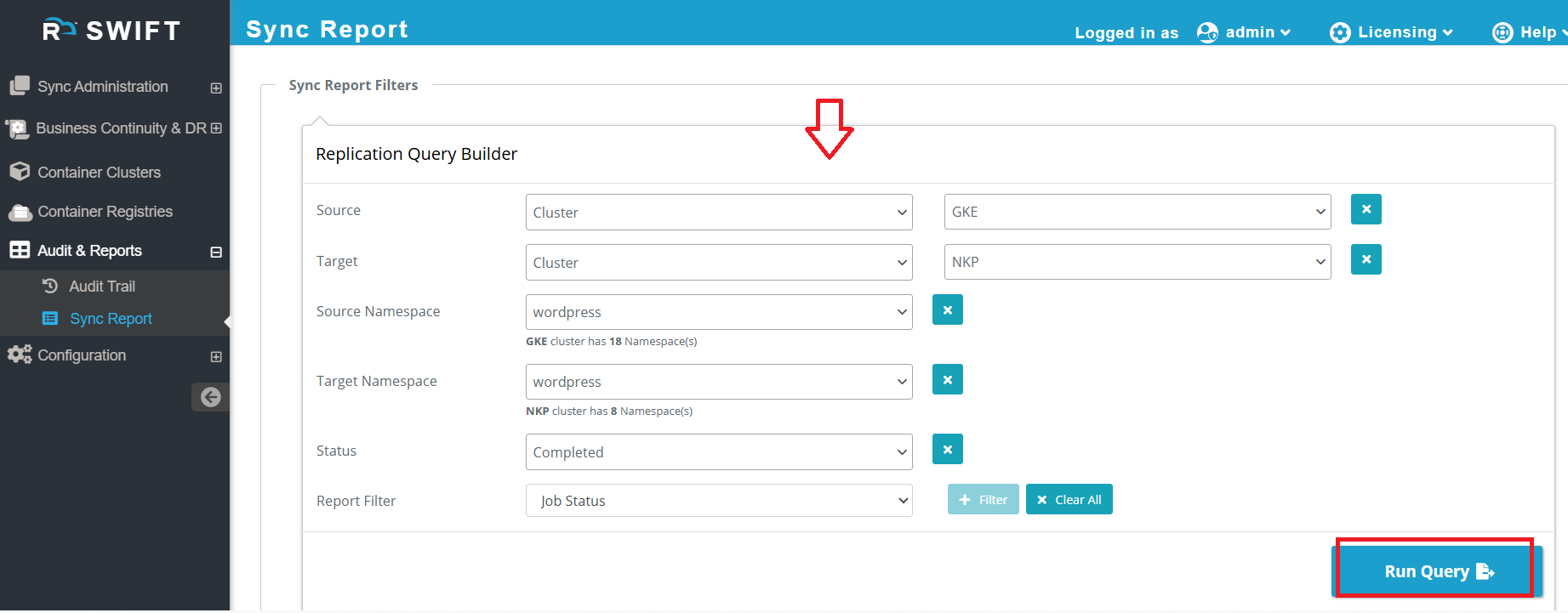
3. Apply filters such as Source, Target, Namespace, Object Type, Organization, User, Period, Job Status, or DR Policy. Build custom replication queries using the Replication Query Builder Execute the query by clicking Run Query to view sync details and status .
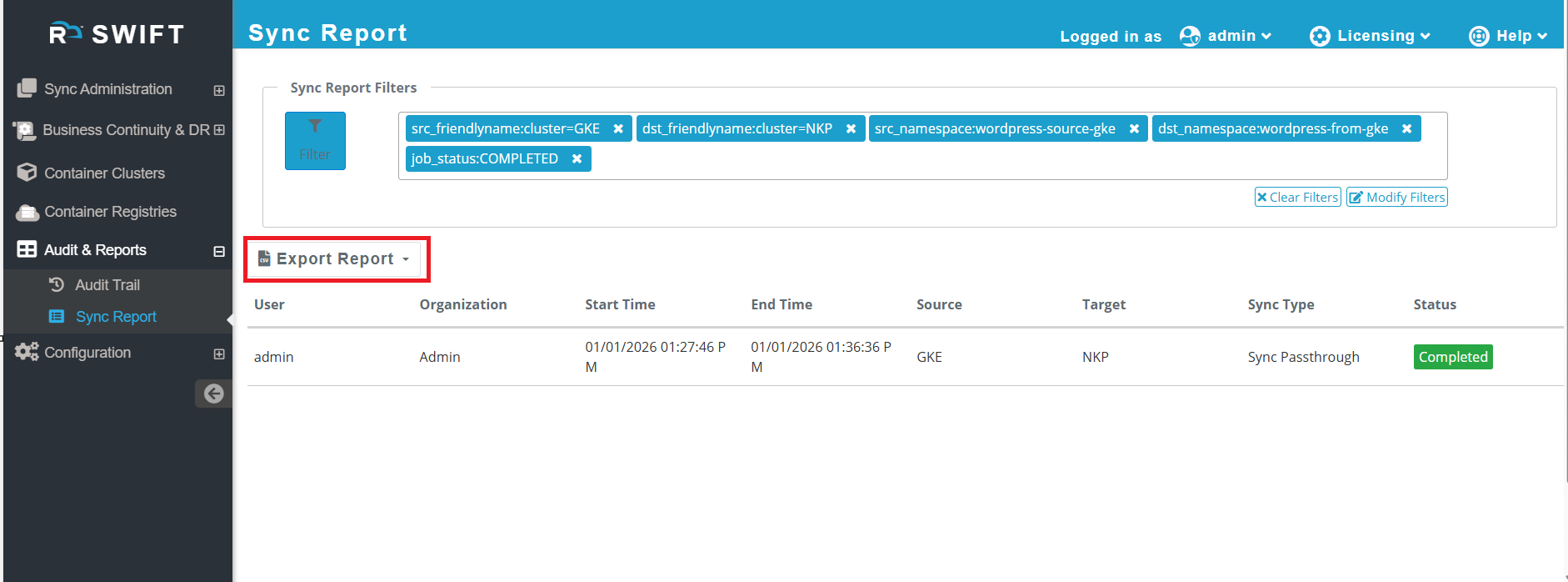
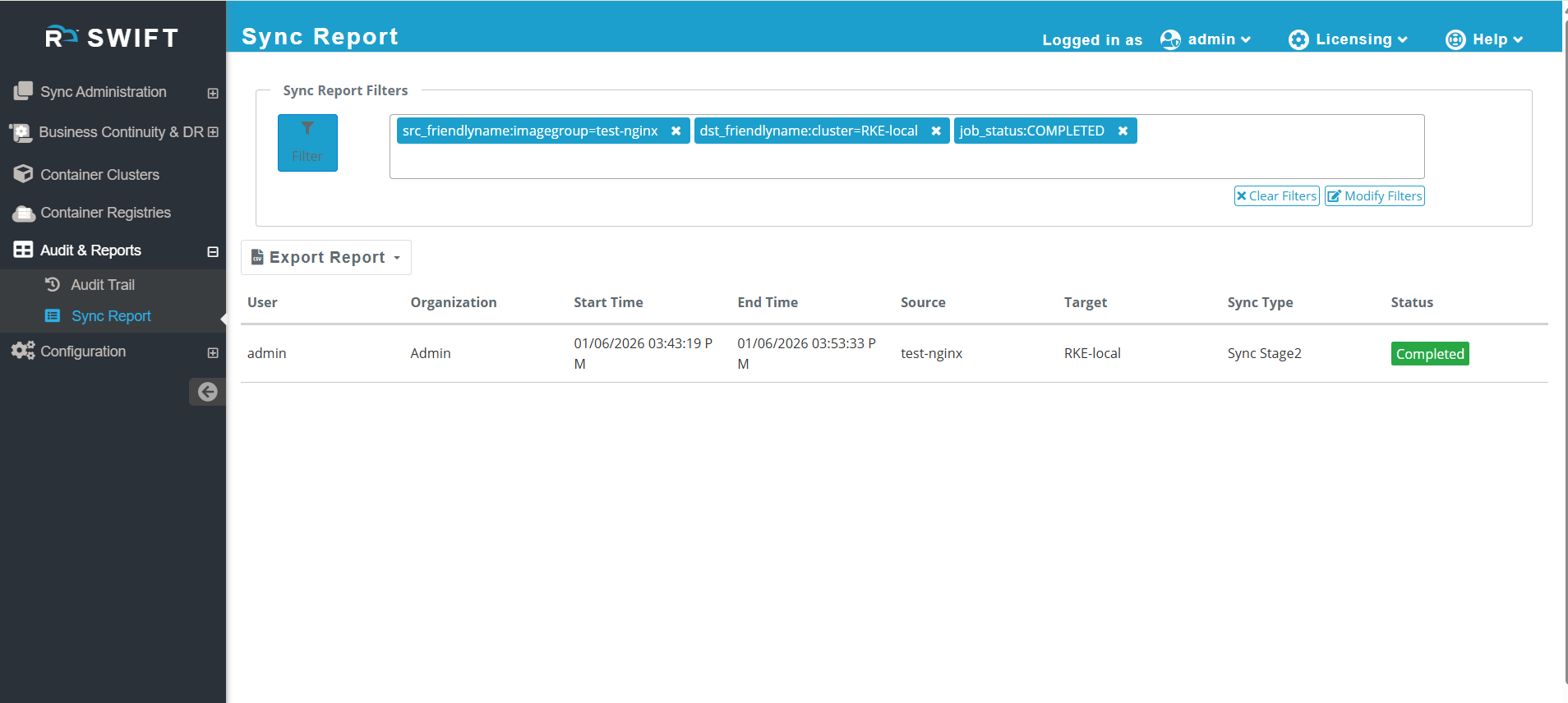
4. After running the query, the Sync Report displays the sync job details based on the selected filters.
The report includes the following information:
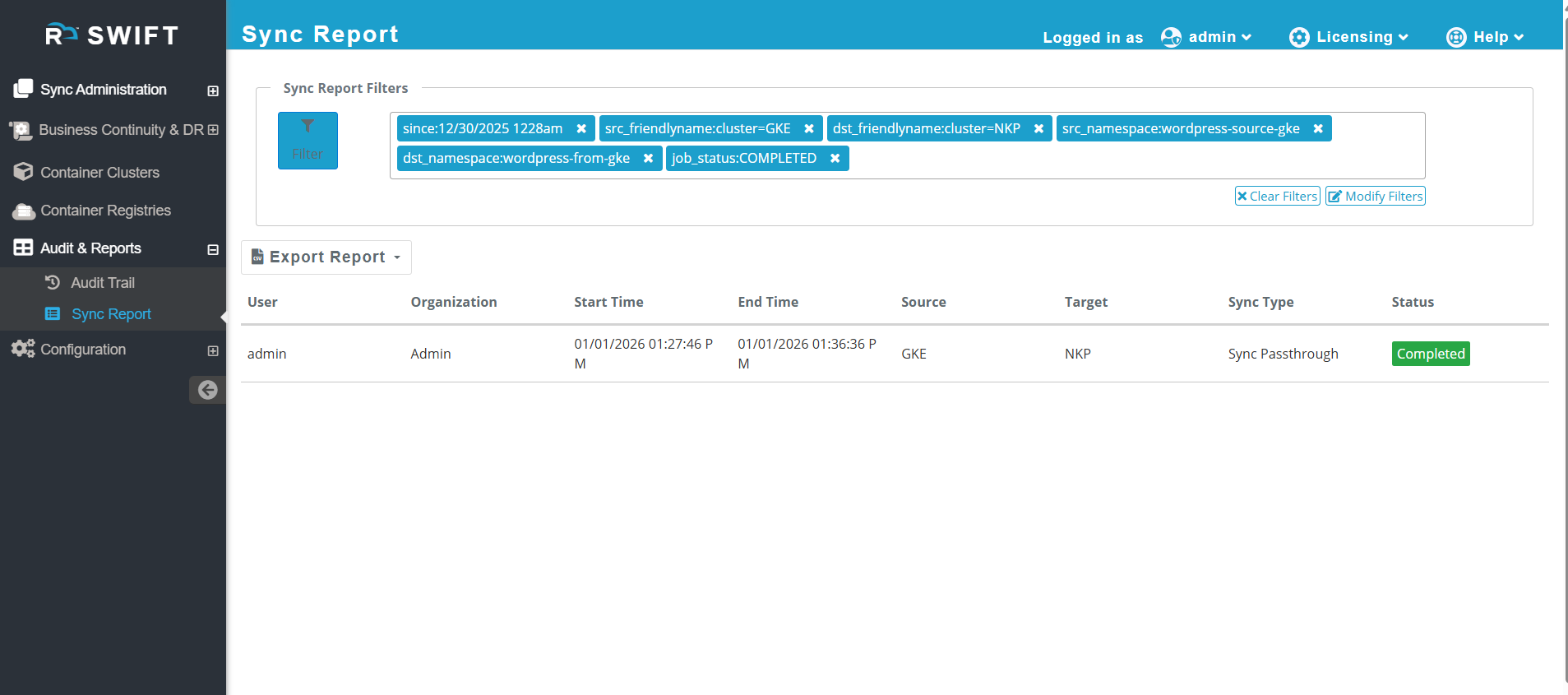
5. After reviewing the synchronization results, you can export the report for audit, compliance, or troubleshooting purposes. Ensure the required filters are applied and the sync results are displayed. Click Export Report..
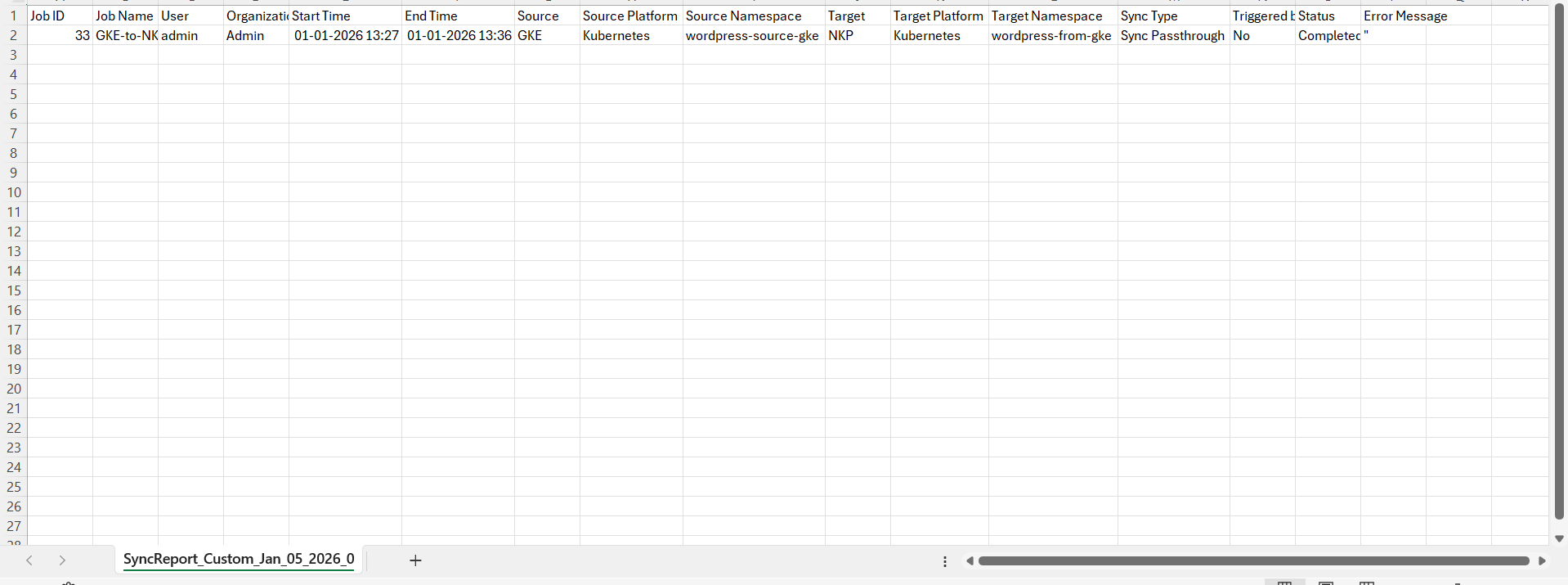
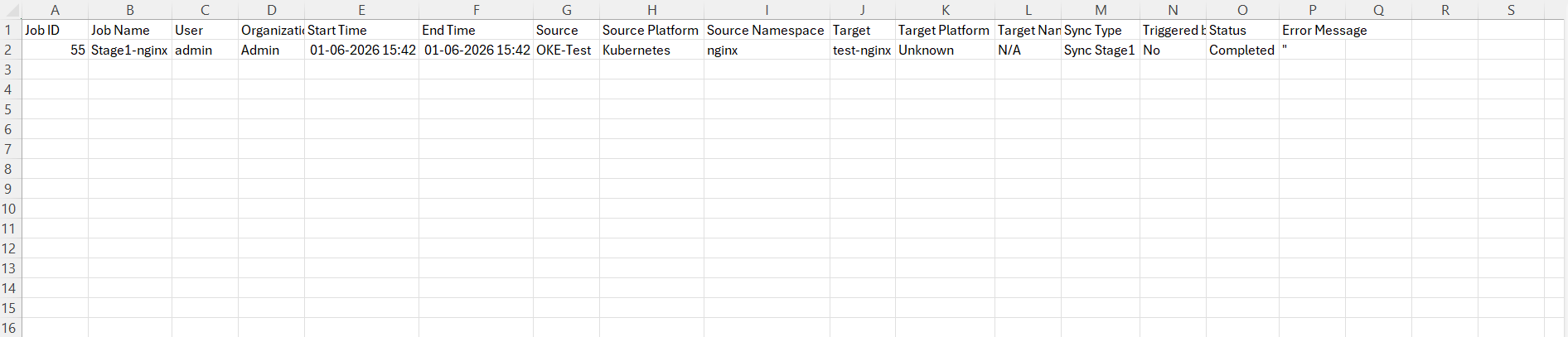
6. The exported Sync Report provides detailed information about each synchronization job in a tabular format (Excel/CSV) for audit and troubleshooting purposes.
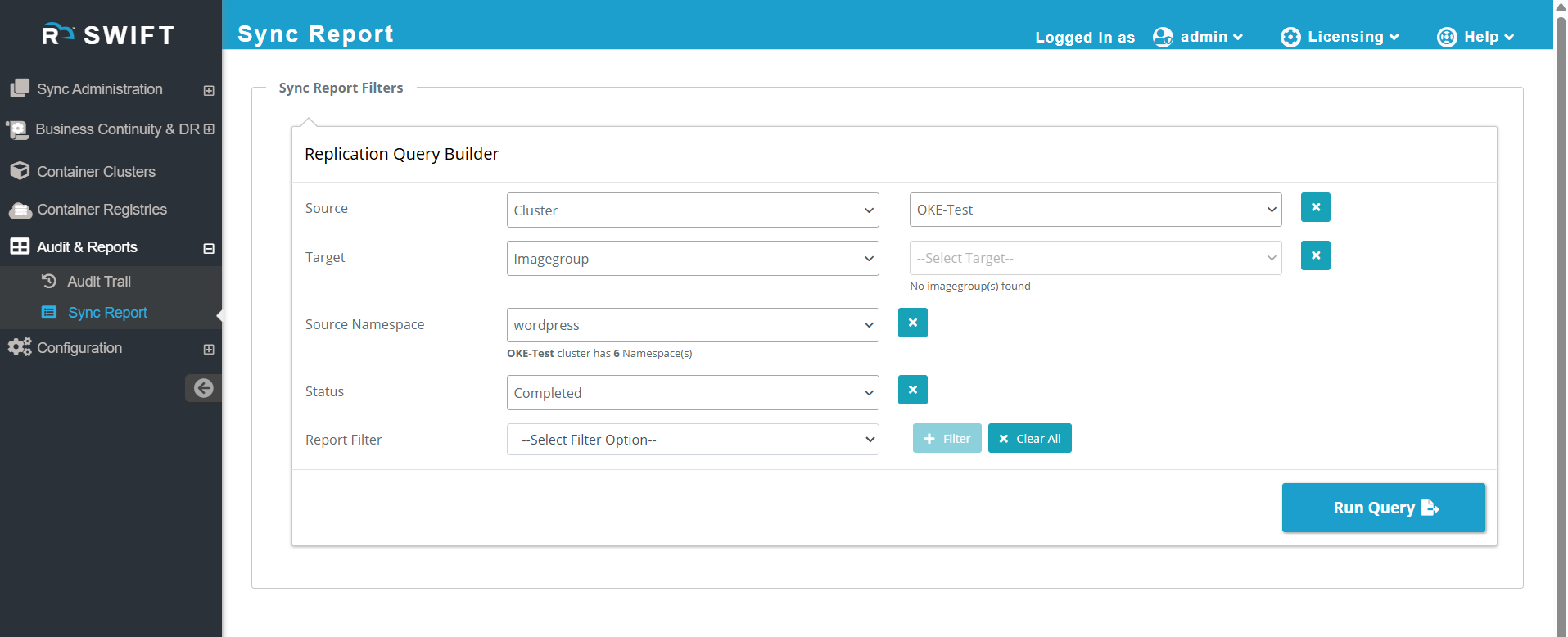
7. Suppose you want to see stage1 sync from OKE to Image group. then you do as below.
7.1 First you need to select the Source cluster, image group, source namespace and Status and click on Run Query.
7.2 Once you click on Run Query, you will see the Stage-2 sync Job.
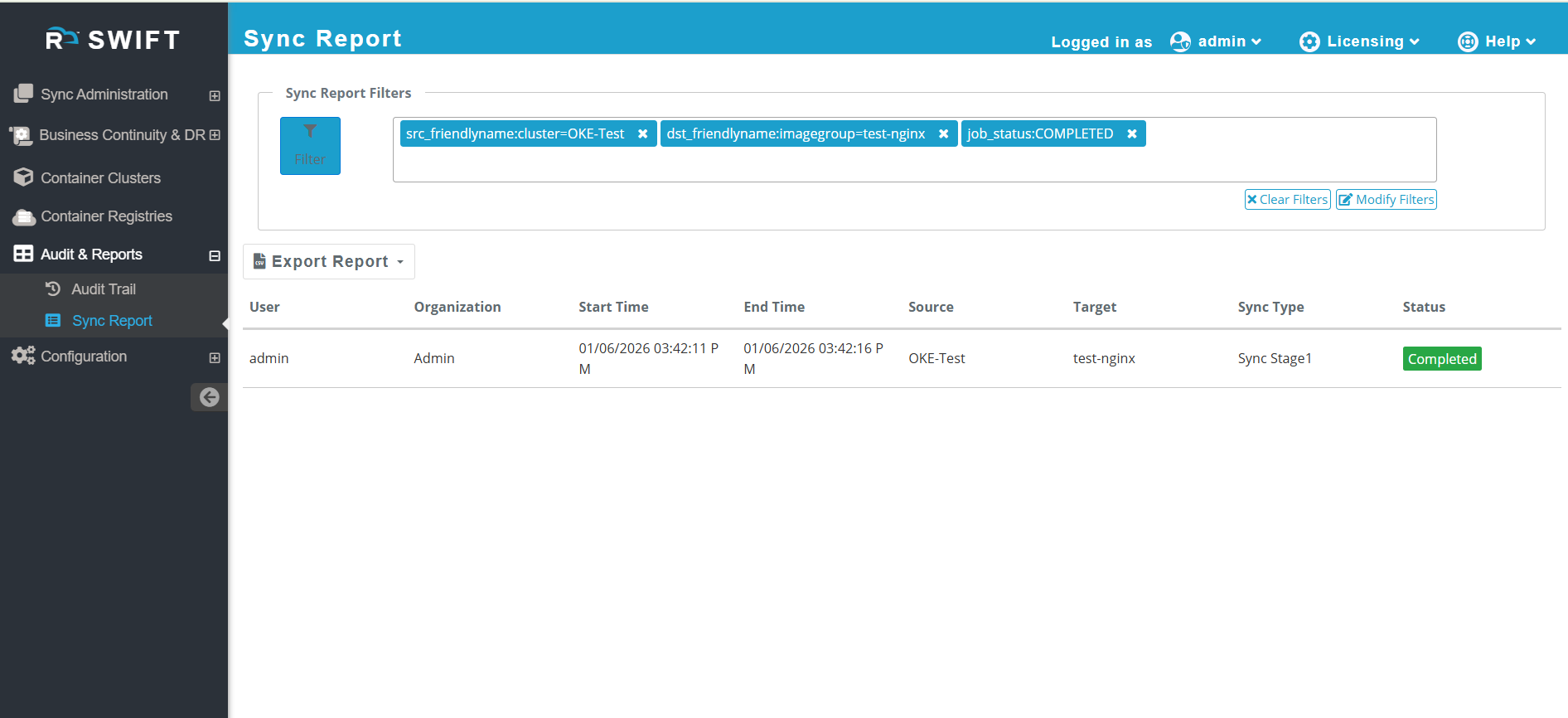
7.3 To verify the Stage 1 sync details, you can export the report and review it offline. Simply click on Export CSV to download the report. The exported file will contain all the parameters based on the filters you applied, allowing you to validate the filtered data easily.
8. Similarly, if you want to view the Stage 2 sync from the Image Group to RKE, follow the steps below.
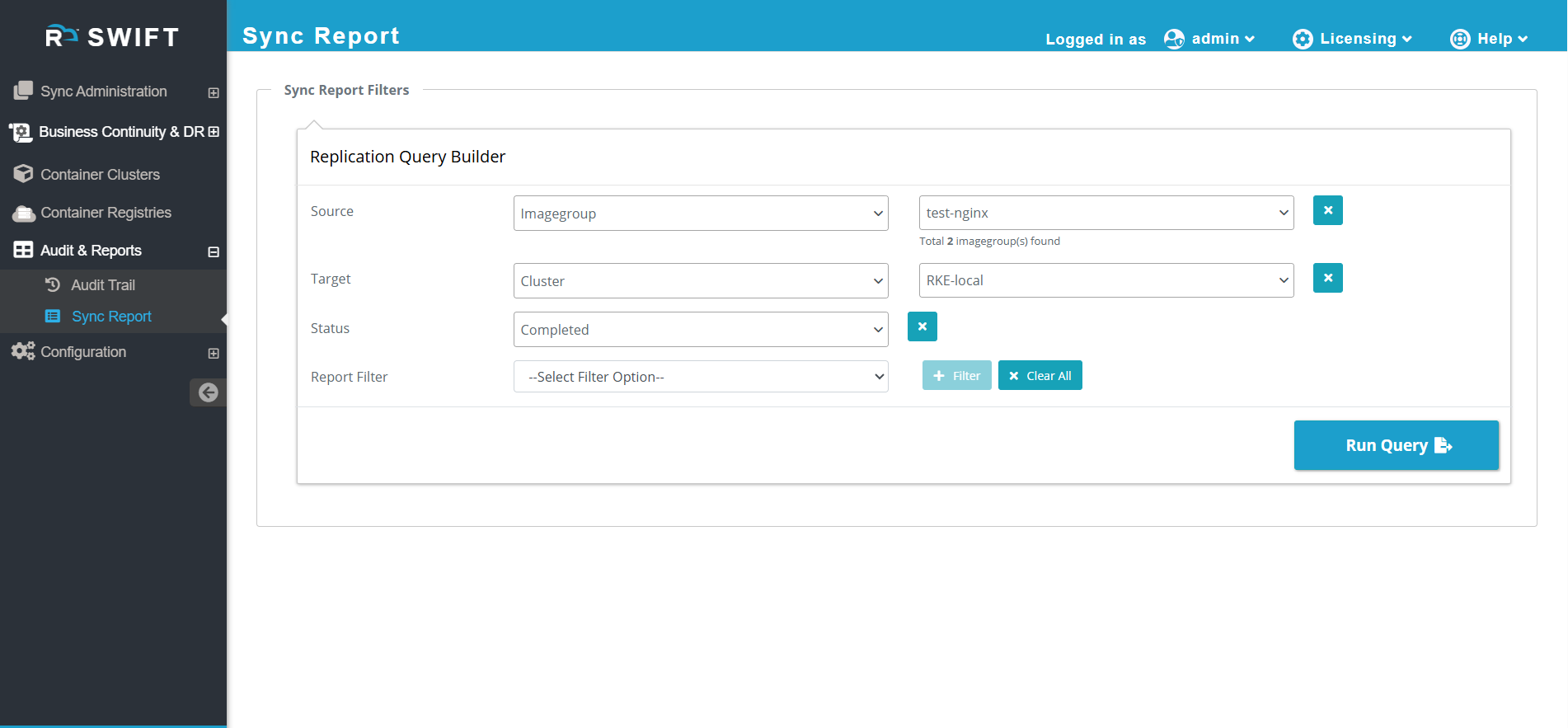
8.1 To verify the Stage 2 sync, apply filters for the Source as a Image group, target as Target Cluster and Job Status. Once these filters are applied, the results will display the corresponding Stage 2 sync details.
8.2 Once you click on Run Query, you will see the Stage-2 sync Job.
8.3 To verify the Stage 2 sync details, you can export the report and review it offline. Simply click on Export CSV to download the report. The exported file will contain all the parameters based on the filters you applied, allowing you to validate the filtered data easily.
