
SWIFT supports sync between Kubernetes clusters, Kubernetes to OpenShift, OpenShift to OpenShift, and OpenShift to Kubernetes, enabling cross-cloud as well as cross-platform/version compatibility. All kinds of migration are supported in SWIFT. It provides a consistent application state and configurations during migration.
This Knowledge Base article explains how to migrate applications from any Kubernetes cluster to a Nutanix Kubernetes Platform (NKP) cluster using RackWare SWIFT.
Pre-Requisite:
1. Discover Source cluster and NKP cluster in SWIFT. You can refer How to discover cluster, discover NKP cluster as a Local.
2. During the sync process, SWIFT deploys TRAIPOD on both the source and target clusters. For this deployment, you must provide either the TRAIPOD image and its image pull secret or an image registry. When an image registry is used, SWIFT automatically pushes the TRAIPOD image and deploys it on both clusters. To enable this, the image registry must be discovered/configured in SWIFT. Please refer to the “How to Add Image Registry” KB for detailed steps.
Please find below steps to start the Migration.
1. Login to the ‘SWIFT’ dashboard.
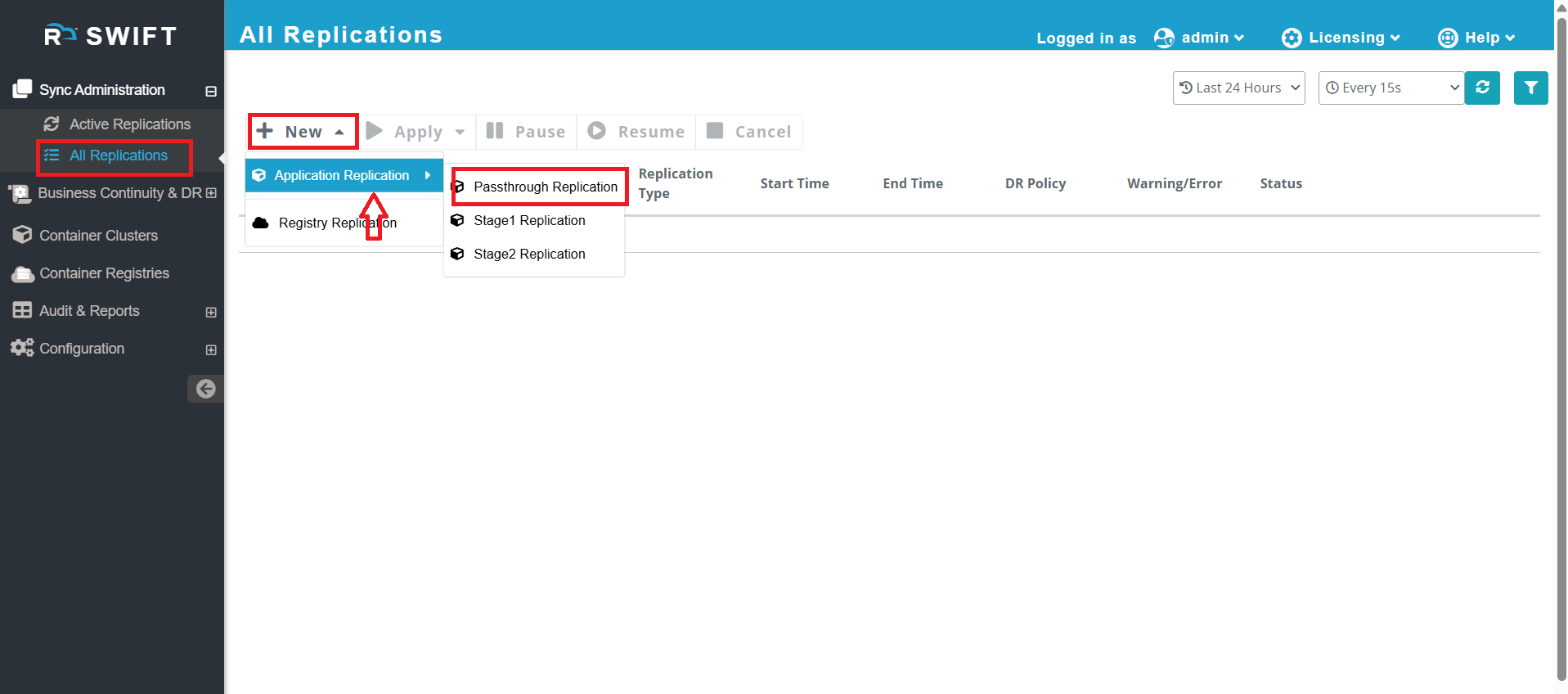
2. After logging in to the SWIFT dashboard, navigate to Sync Administration > click All Replication > select New > choose Application Replication, Passthrough sync pop up will appear.
3. Now, select the source and target clusters, and also choose the namespace on the source cluster where your application is running. Also, on target side user can either provide the name of an existing namespace or specify a new name. If a new name is given, that namespace will be created during the sync process on the target cluster.
For other options please refer to Table below the screenshot.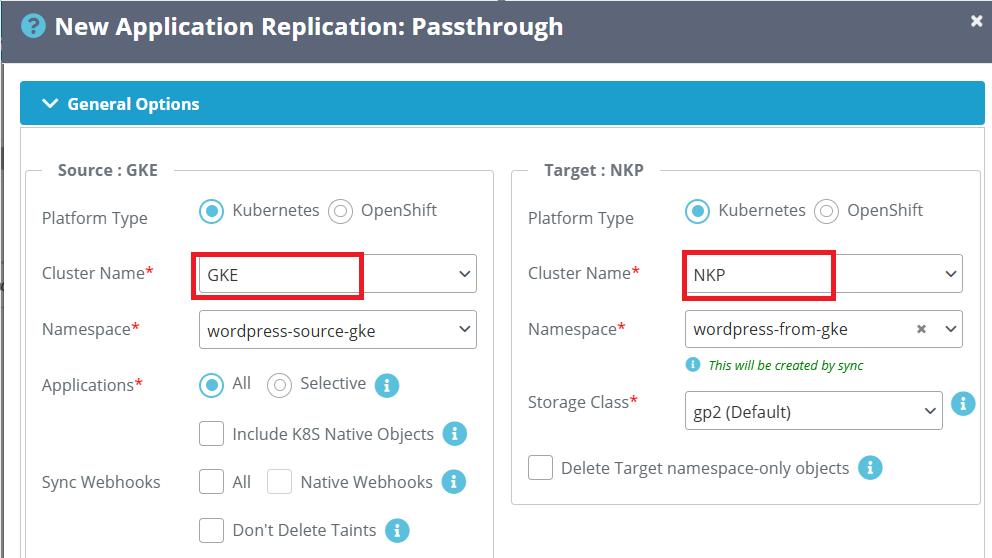
| Fields | Fields Description |
| Platform type | Select the platform where cluster is running for source and target |
| Cluster Name | Select cluster name from dropdown on source and target side |
| Namespace | Provide the namespace at source side where you source application running. Also select the namespace at target side. |
| Application | ALL :- All objects from source namespace will be replicated. Selective :- If you want to sync only selected object then you can use this option. Include K8S native objects :- Include native k8s objects' ensures that Kubernetes native objects will also be synced. Ex. Kubernetes service from default namespace. |
| Sync webhook (Source side) | ALL :- If you select this, then all webhook that are present in the source, it will migrated to target. Native Webhook :- Includes cluster-level native Kubernetes webhooks during migration. Don't delete the taints :- By default taints going to be deleted, if you don't want this, then you can select this option |
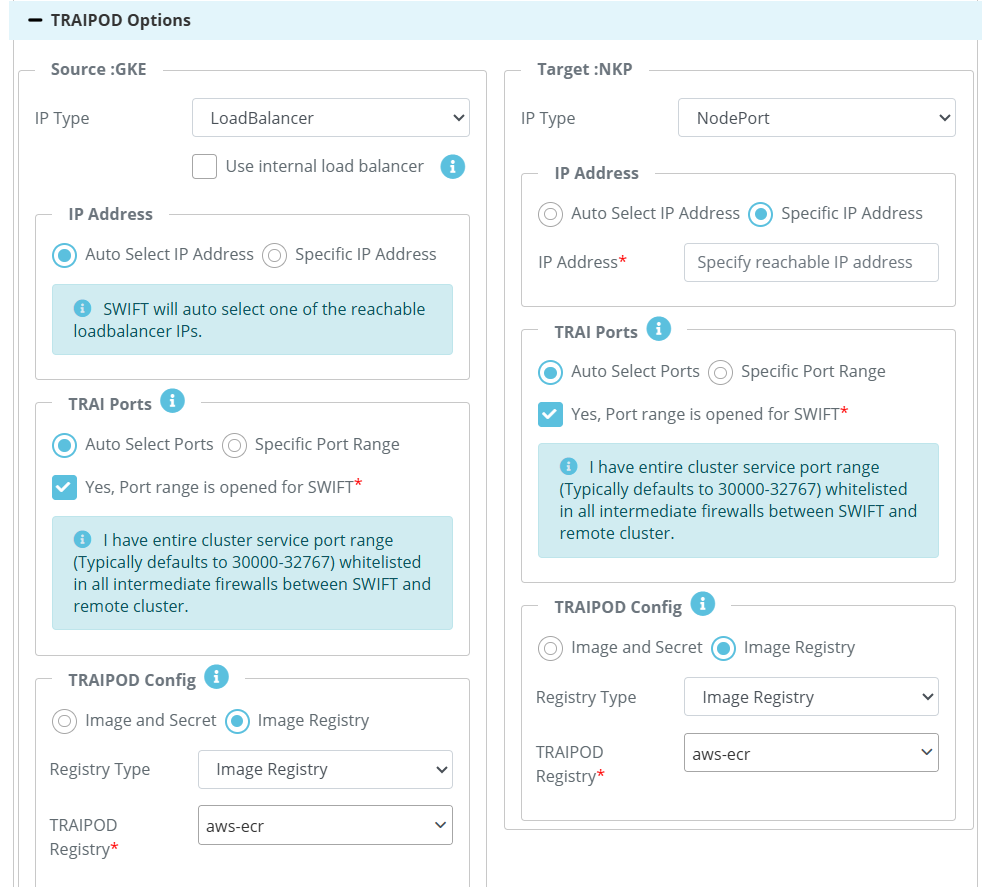
| TRAIPOD Option | In the TRAIPDO section, you can choose either Auto-select Port or specify a Custom Port Range (if you have whitelisted ports between 30000–32767). The selected port will be opened in the cloud firewall accordingly. In the TRAIPOD Config section, you will see two available options:
|
4. Now, you can optionally provide a name for the sync operation. This is not mandatory. Then, click the Add button to start the Migration.
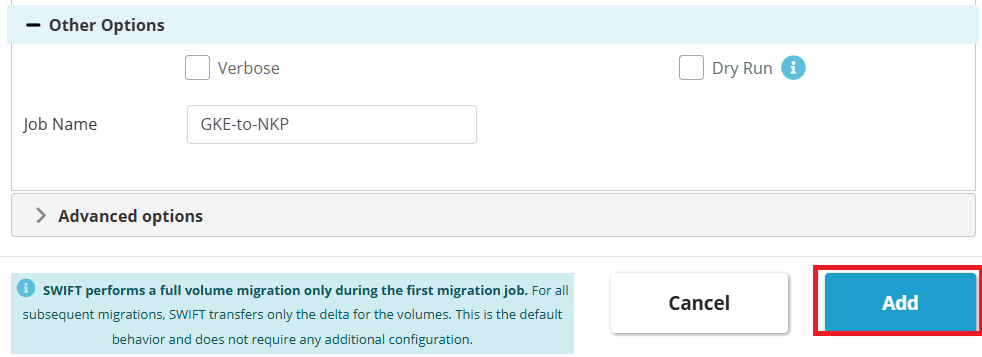
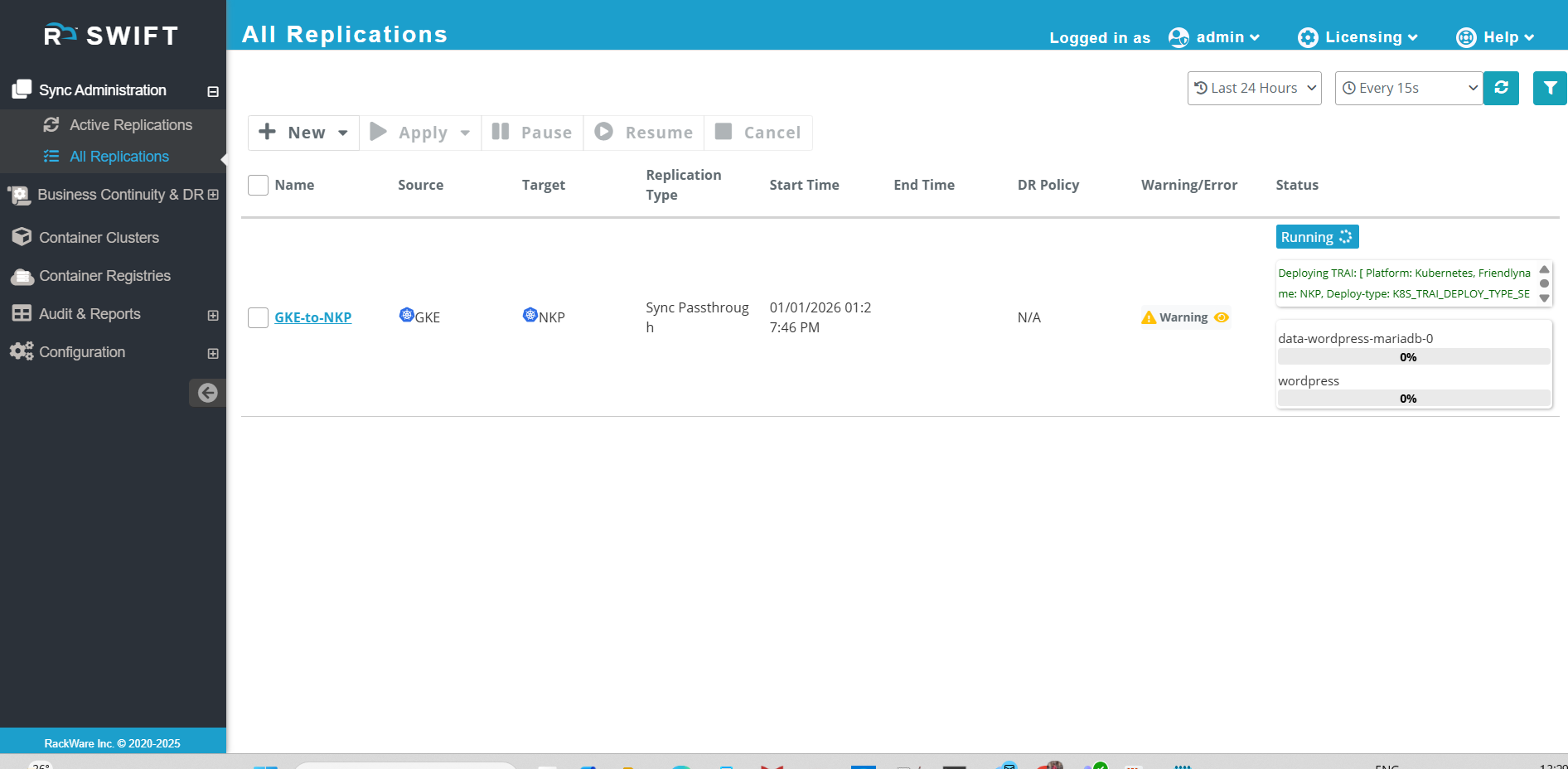
5. After clicking the Add button, the Migration process will start.
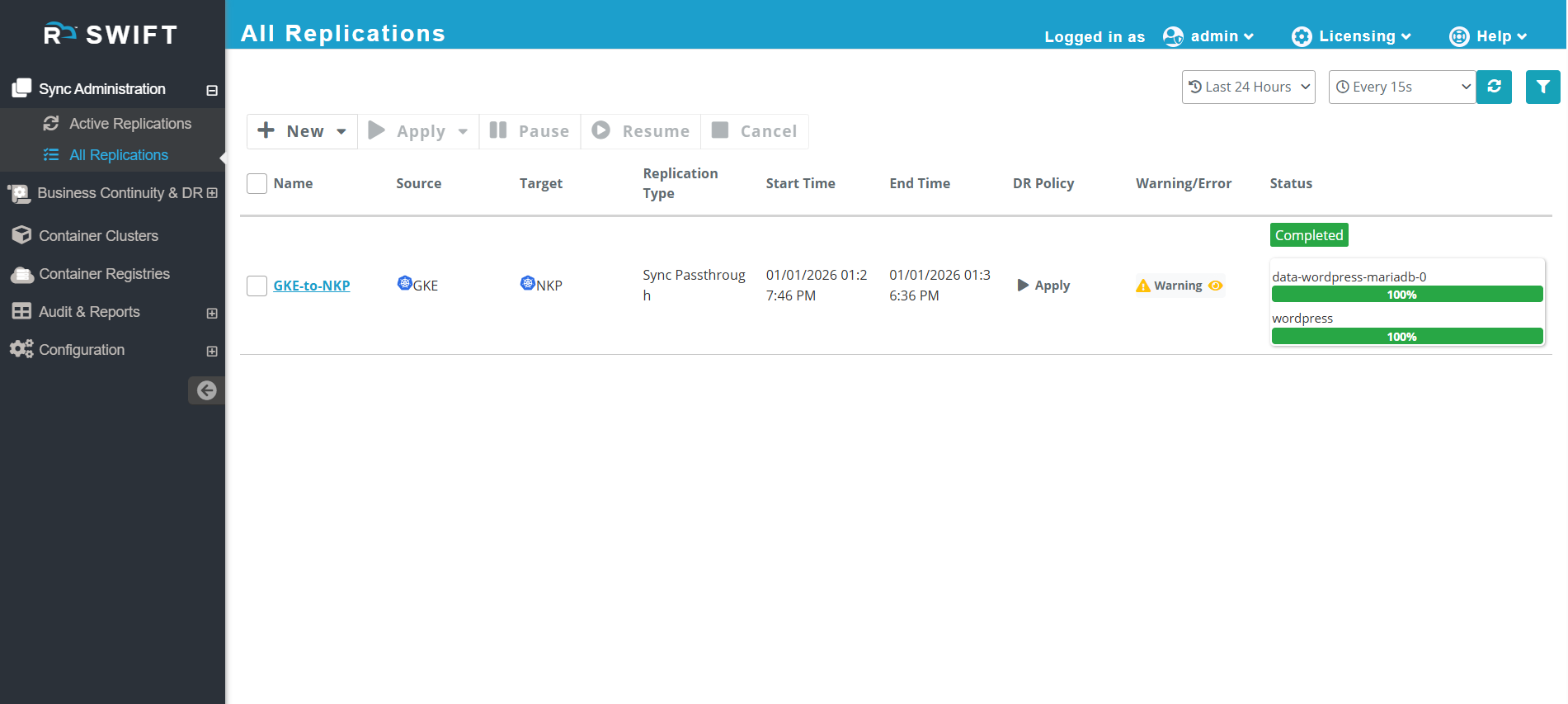
6. Once the migration finishes successfully, the job status will appear as shown in the example below
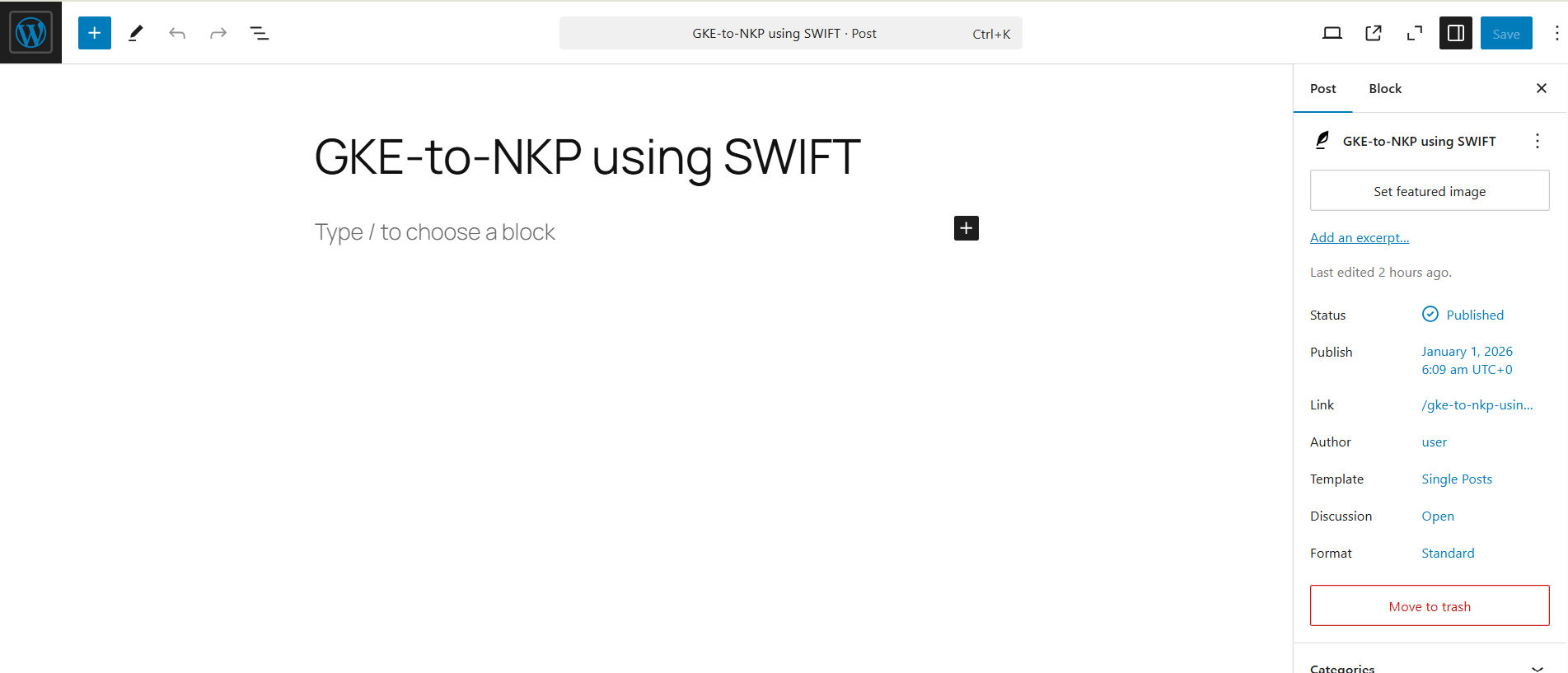
7. You can verify the migration by checking the namespace in the target cluster. You can access application from target cluster and verify that the WordPress post created on the source cluster is visible on the target NKP cluster, confirming that the application has been successfully migrated and is accessible on NKP.
#What Next: