
In this article, we will see how to set up a Stage 1+2 DR Policy from any Kubernetes cluster to NKP. When the Stage1+2 DR Policy is applied in SWIFT, Stage-1 performs data backup by syncing applications to SWIFT storage, and Stage-2 replicates this data to the DR cluster.
Pre-requisite:
1. DR Policy must be created, is already created.
2. Source and target cluster should be added in SWIFT , already discovered and added in SWIFT.
3. At least one storage pool created in SWIFT, will ask chatgpt for better sentence.
1. To apply the Stage-1+2 DR Policy, navigate to Business Continuity & DR → DR Policies, select the created Stage-1+2 DR Policy, click Apply, and choose Application Replication to enable the policy.
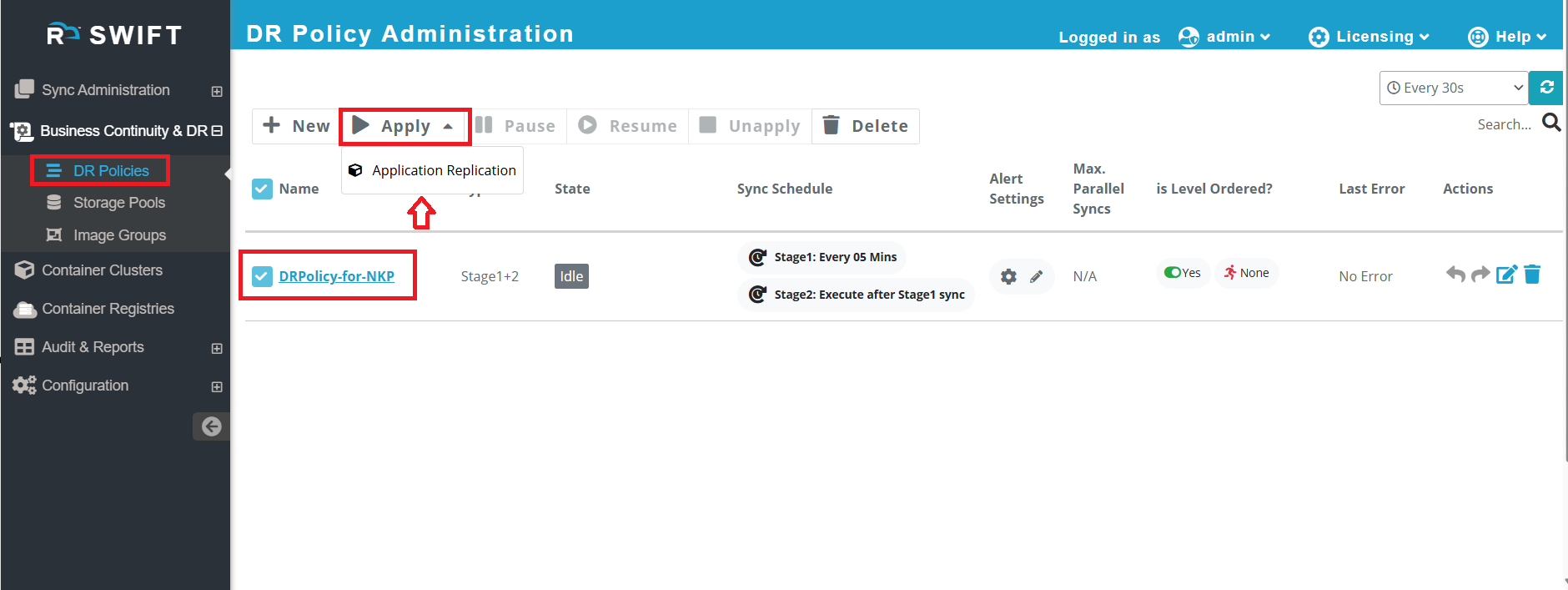
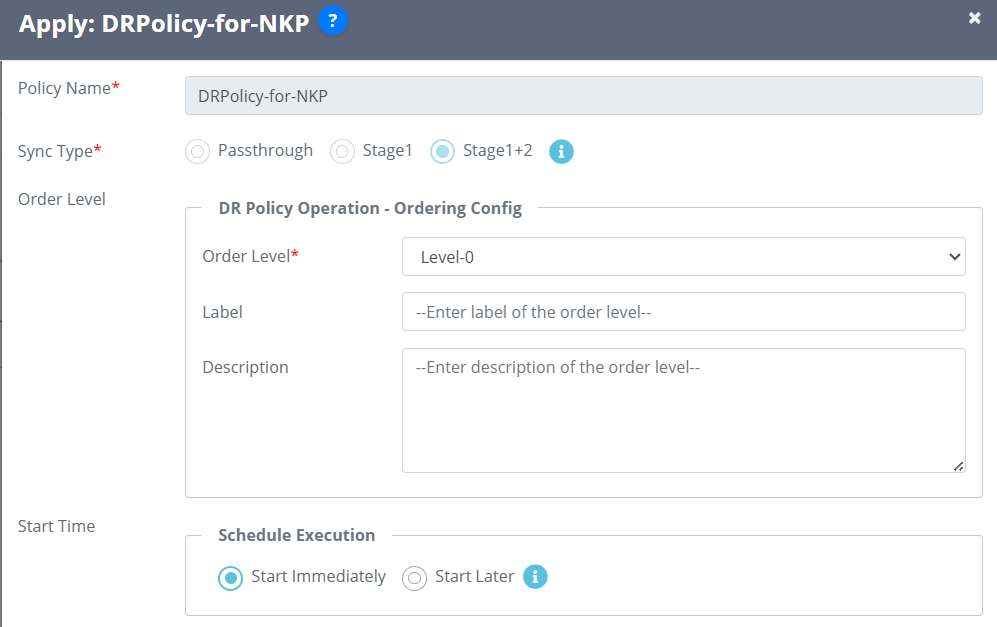
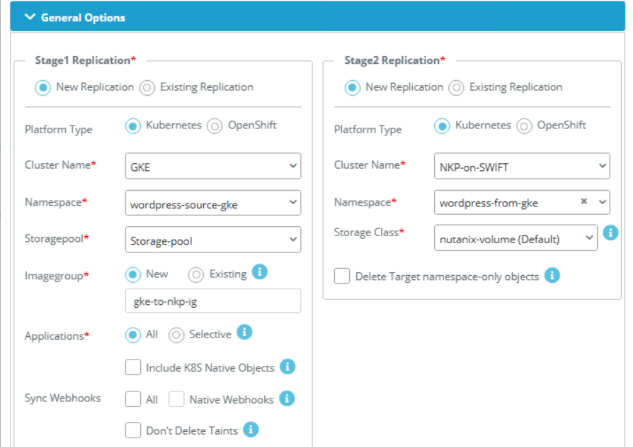
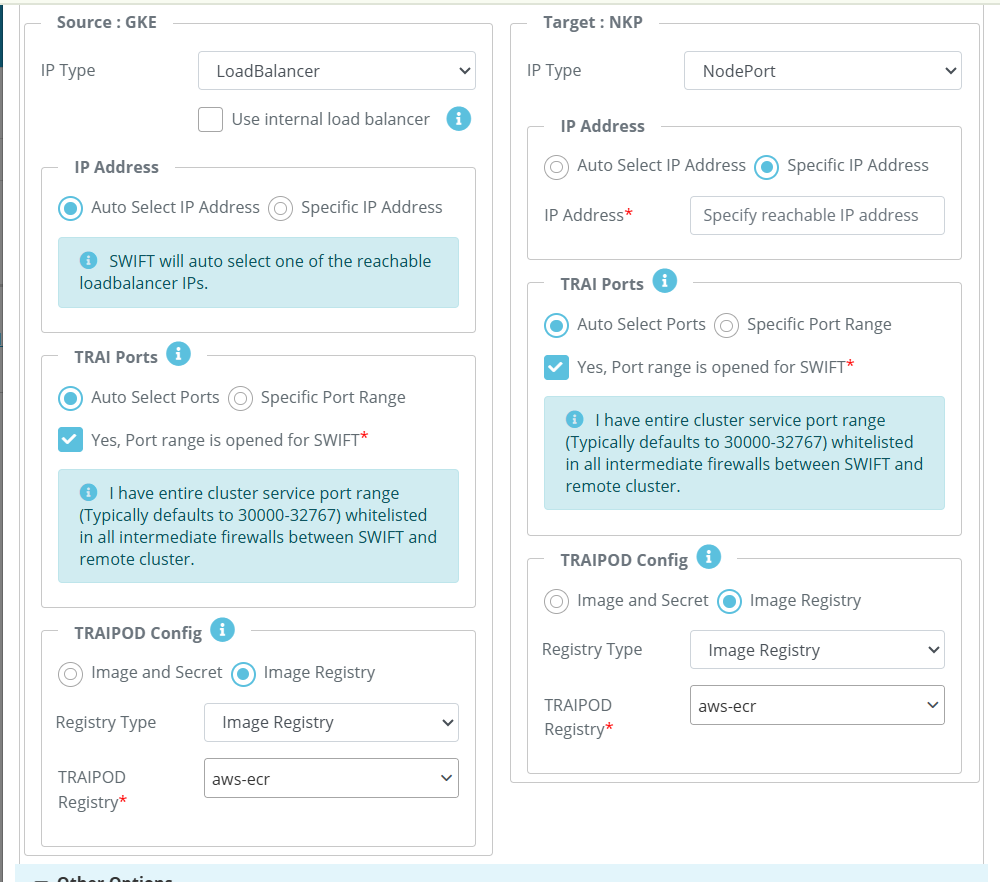
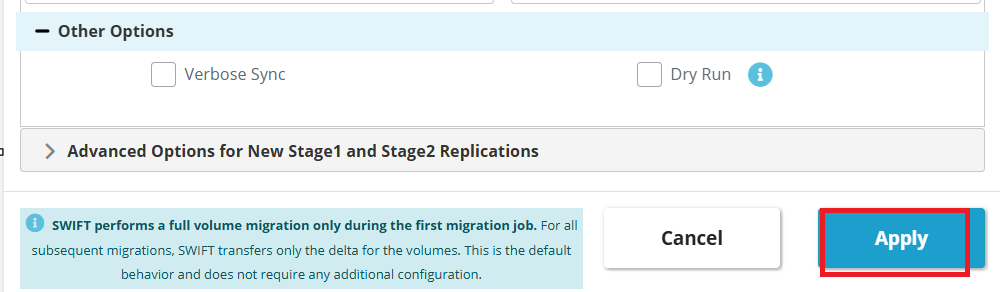
2. After clicking Application Replication, a new window will appear, as shown in the example below. Please refer to table below the screenshot for details information about the details to be filled. Here we will set DR from GKE to NKP cluster.
| Fields | Fields Description |
| Policy Name | The Policy name will be displayed for whichever policy you are applying |
| Sync Type | Since you created a Stage1+2 sync mode, it will display the same. |
| Start Time | Here, if you want to sync immediately then you can click on start immediately otherwise you can start the specified time, you just need to 'click on start later' and specify the time on which sync should start. |
| Platform type | Select the platform where your cluster is running for source and target. |
| Cluster Name | Select the clusters name from dropdown for both source and target side. |
| Namespace | Provide the namespace at source side where you source application running. Also choose namespace at target side. |
| Storagepool (Source side) | This is pre-requisite , it should be created before applying DR policy. |
| Image Groups | Provide the image group name it will be created during sync. An Image Group in SWIFT is a collection of volume images captured from an application during the backup or sync process . |
| StorageClass (Target Side) | Select the storageclass to be used at target cluster. |
| Application | ALL -> Everything in your IG, all objects will be replicated. Selective --> If you want to do only selected object then you can use this option. Include K8S native objects --> Include native k8s objects' ensures that Kubernetes objects like Services, ConfigMaps, Secrets, and Ingress are migrated along with the application. |
| Sync webhook (Source side) | ALL --> If you select this, then all webhook that are present in the source, it will migrated to target. Native Webhook --> Includes cluster-level native Kubernetes webhooks during migration. Dont delete the taints --> By default taints going to be deleted, if you dont want this, then you can select this option |
| Exclude applications for replication | If you want to exclude certain application or objects from source side, then you can do from this option |
| Traipod Options | In the TRAIPDO section, you can choose either Auto-select Port or specify a Custom Port Range (if you have whitelisted ports between 30000–32767). The selected port will be opened in the cloud firewall accordingly. In the TRAIPDO Config section, you will see two options: 1. If you select 'Image and Secret', you will need to provide the image and its corresponding image secret at both sides. 2. If you select 'Image Registry', you can choose an image registry that has already been added to the container registry at the both sides. |
Once you filled all the details click on apply to start the DR Policy.
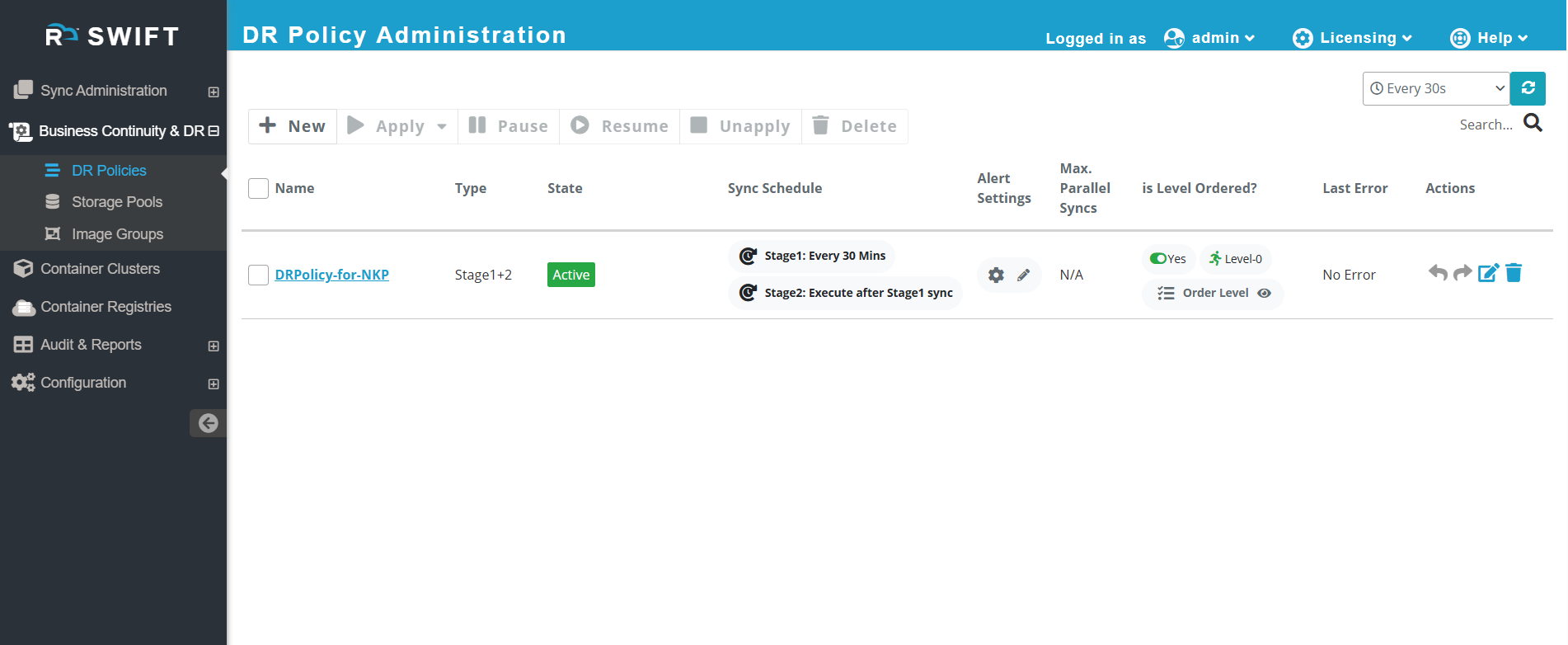
3. Once the Stage-1+2 DR Policy is applied, it becomes active and the sync process begins. The sync runs every 30 minutes as per the configured schedule, and the sync frequency can be modified if required.
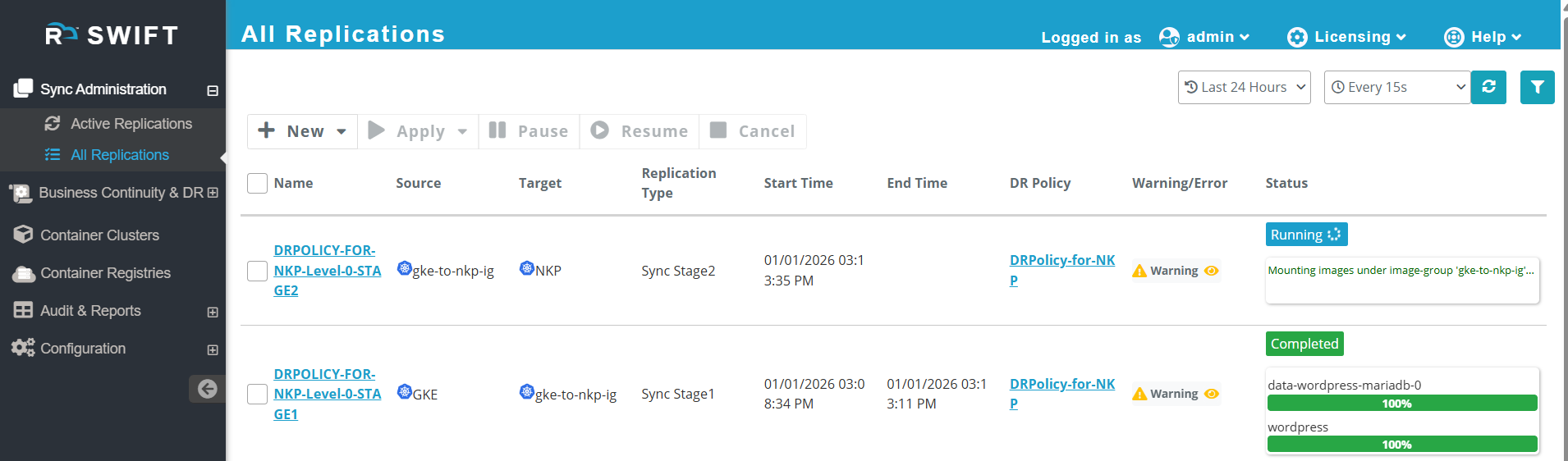
4. Go to Sync Administration → Application Replication. Here, you will see the Stage-1+ 2 sync initiated by the applied DR Policy, along with the corresponding DR Policy name.
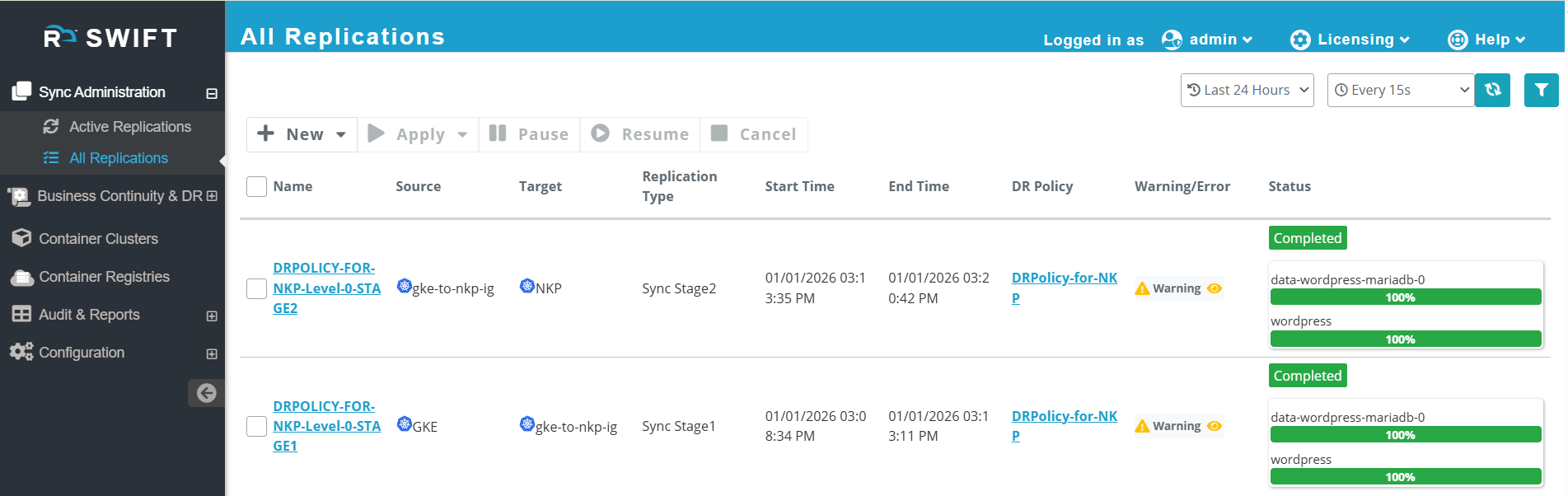
5. Wait until the Stage-1 and Stage-2sync gets completed. As shown below, both sync stages are Completed.
6. You can see that the application has been successfully backed up on the SWIFT side under the Image Group.
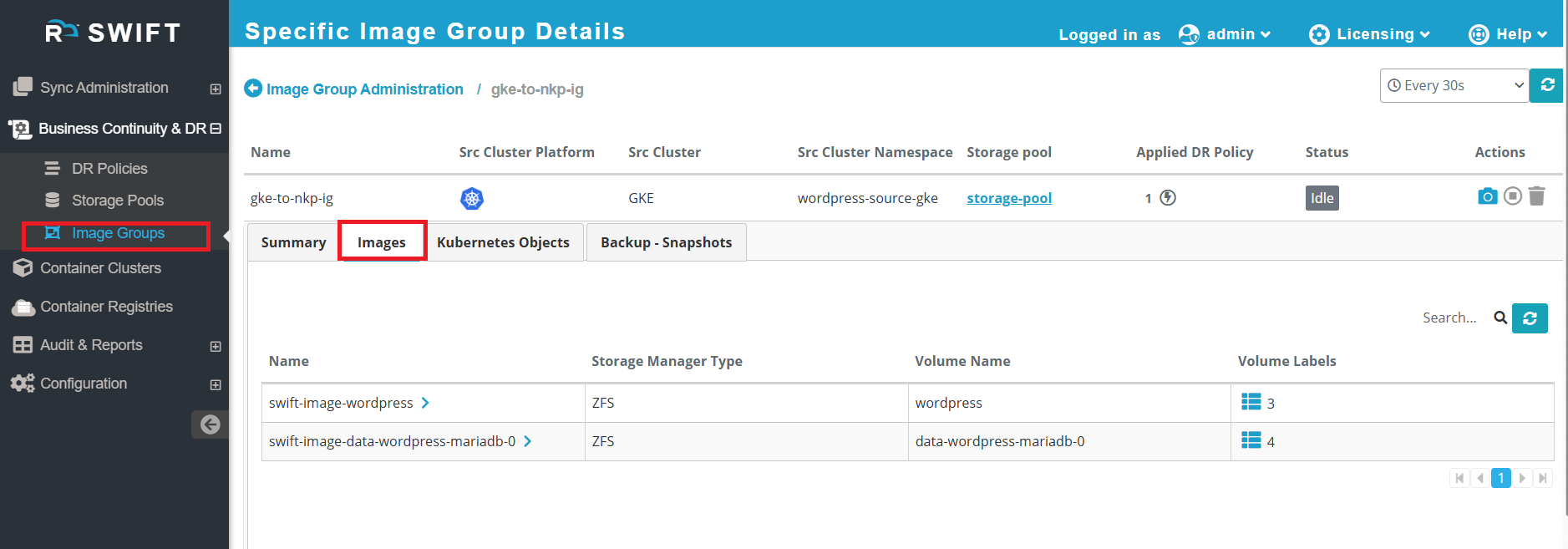
7. You can check the target (DR) cluster’s namespace to confirm that the same application has been successfully replicated.
You can make changes to the application on the source cluster. After the configured schedule interval (here, 30 minutes), the sync will be triggered automatically, and all the changes will be replicated to the DR side.
#What Next
Failover: Failover is performed when the source cluster goes down and you want to restore all your setup on another cluster. SWIFT transfers all applications, PersistentVolumeClaims (PVCs), and associated data from the source cluster to the target (DR) cluster, ensuring business continuity with minimal downtime.
If the GKE cluster encounters an issue or goes down and you want to restore all data to the NKP cluster, you can perform a failover using SWIFT. To know more about failover refer to this KB How-to-perform-failover
Fallback: Once the source cluster is back online, you can perform a fallback. This will sync the updated data and applications from the NKP back to the GKE, restoring your original setup. To know more about fallback refer to this KB How-to-perform-fallback