
Using SWIFT, users can backup and restore applications running on an NKP cluster by using Stage-1 and Stage-2 sync. First, the user performs a Stage-1 sync, which creates an Image Group in SWIFT. This Image Group contains the application and its data and is stored locally in the SWIFT VM storage pool. After Image Group is created, the user can take backups of the same Image Group. When the application is updated, the user can run Stage-1 sync again and take another backup. In this way, multiple incremental backups can be created over time. Later, the user can choose any required backup and restore the application to any Kubernetes cluster, enabling reliable backup, restore, and disaster recovery using SWIFT.
Pre-requisite:
Stage 1 sync must be completed successfully. Then you will have a Image group created.
To perform the backup and restore operations, follow the steps below.
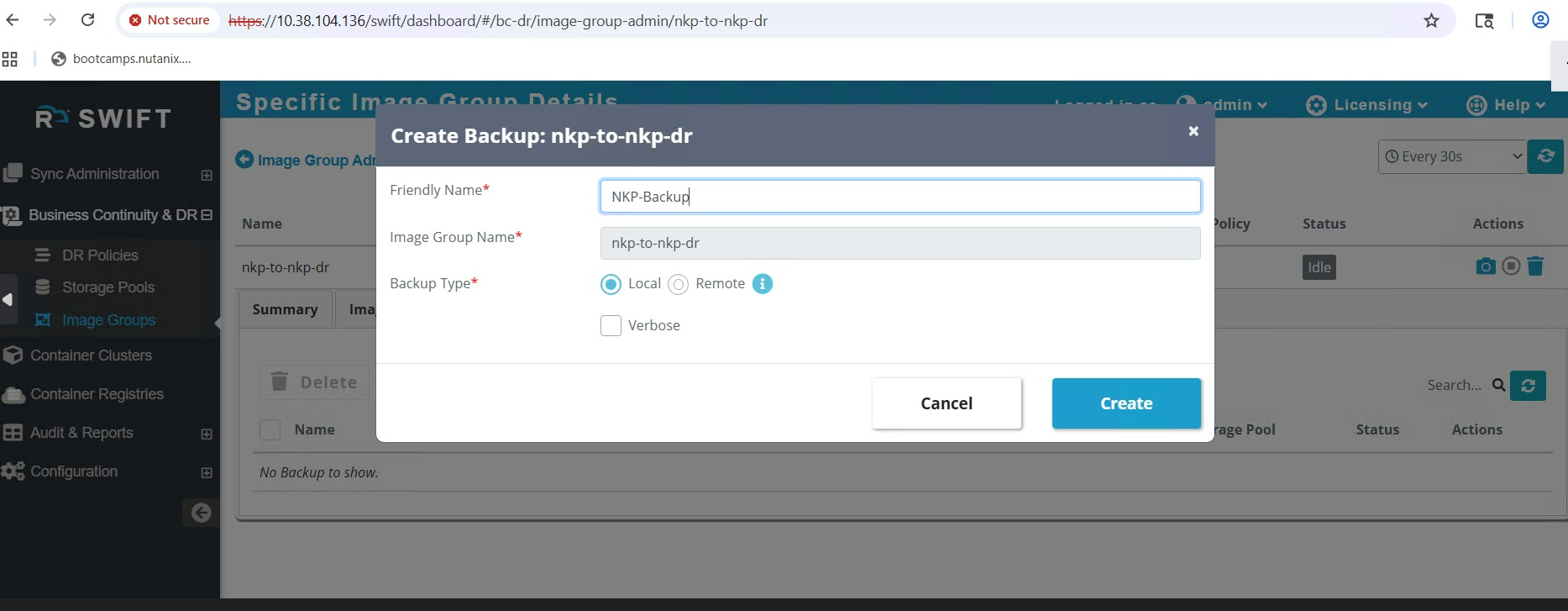
1. To create backup, Go to Image Groups, select the image group you want to back up, click the Camera icon, and then click Create.
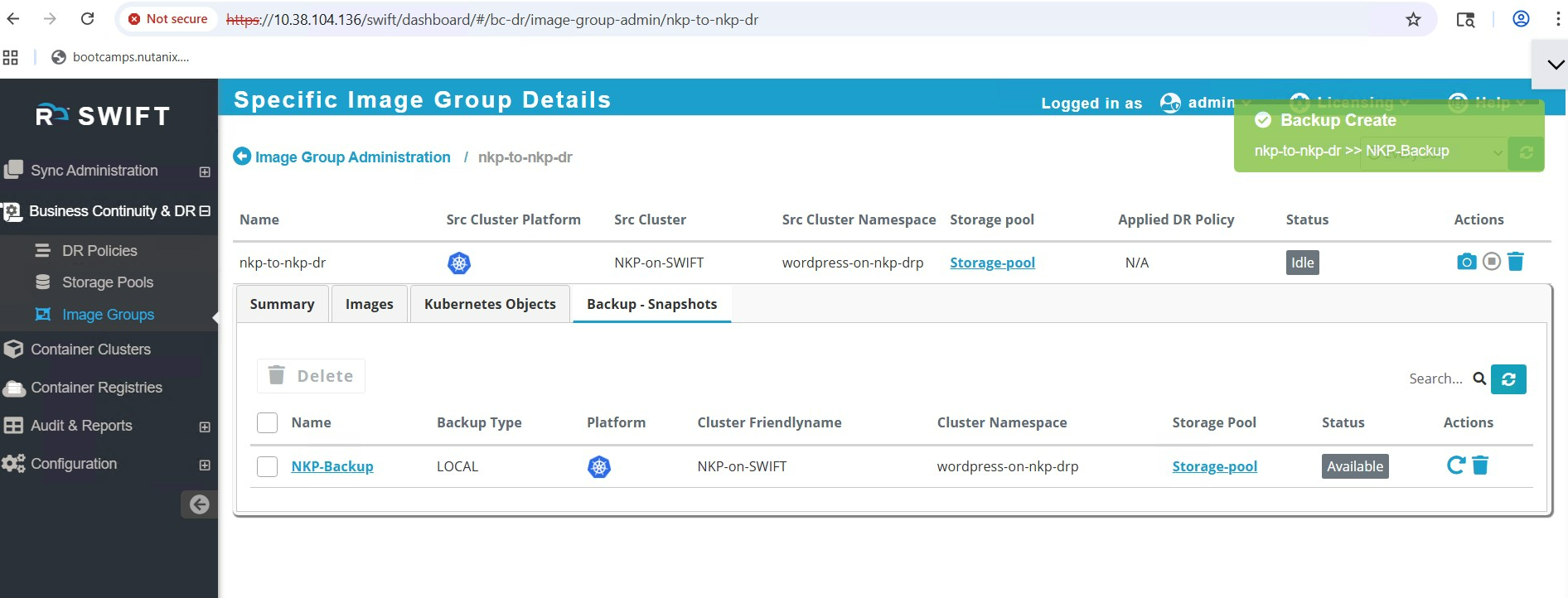
2.Once the backup is created successfully, it will appear as shown in the example below.
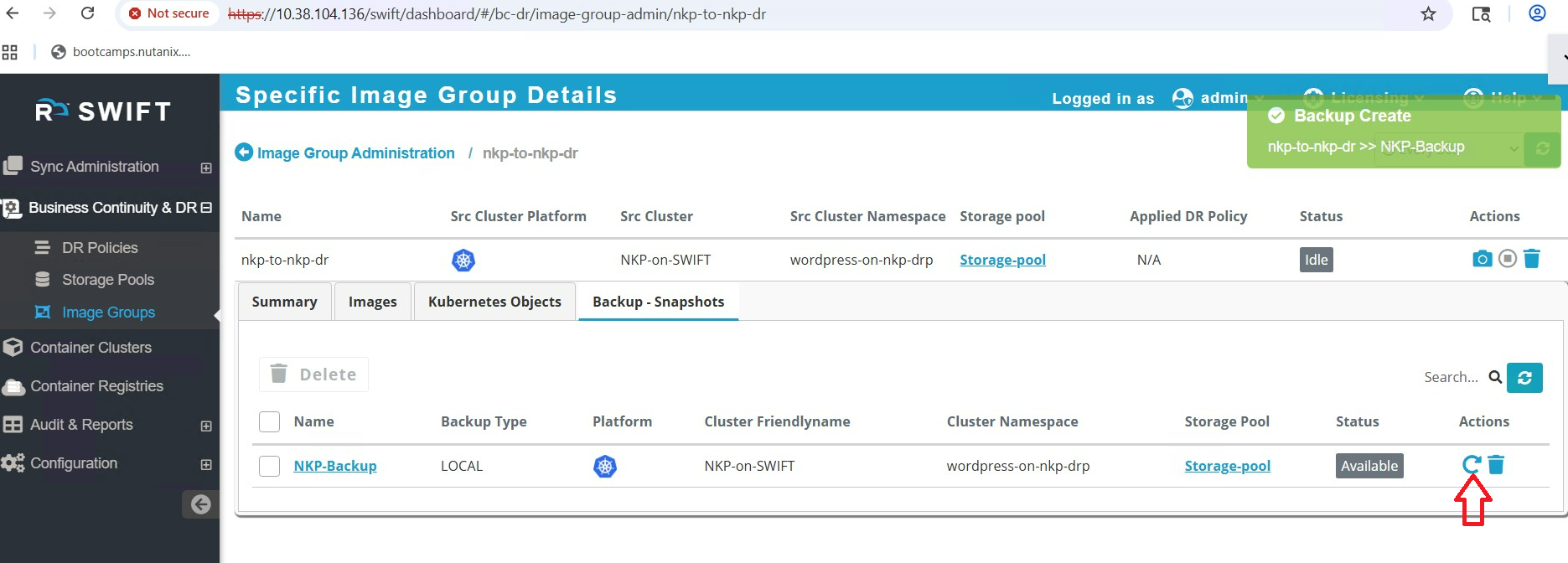
3. To restore the backup to the NKP DR cluster, go to the created Backup Snapshots under the Image Groups section and click on tilt arrow under Actions.
4. Fill the target details by selecting the NKP cluster where the backup needs to be restored.
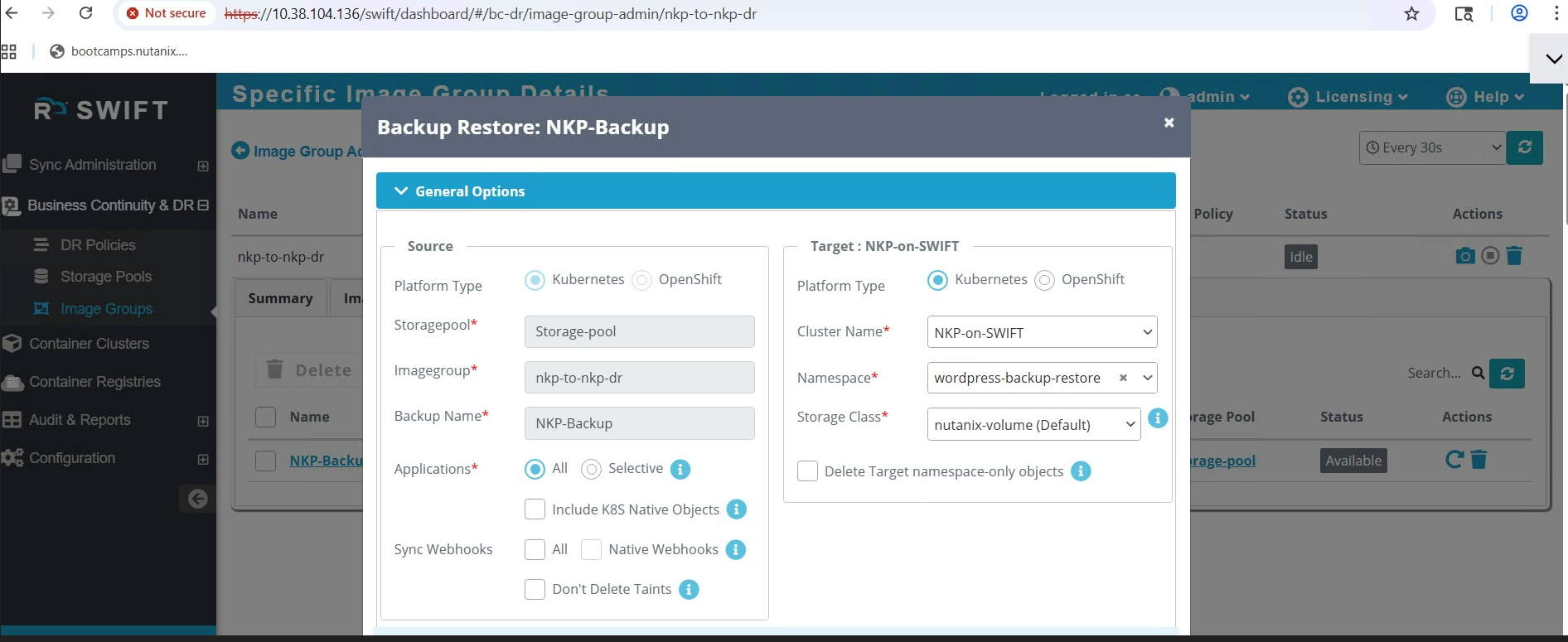
5.This action will trigger the Stage-2 sync. Once the sync is completed, you can verify on the target cluster that the application has been successfully migrated and is running.
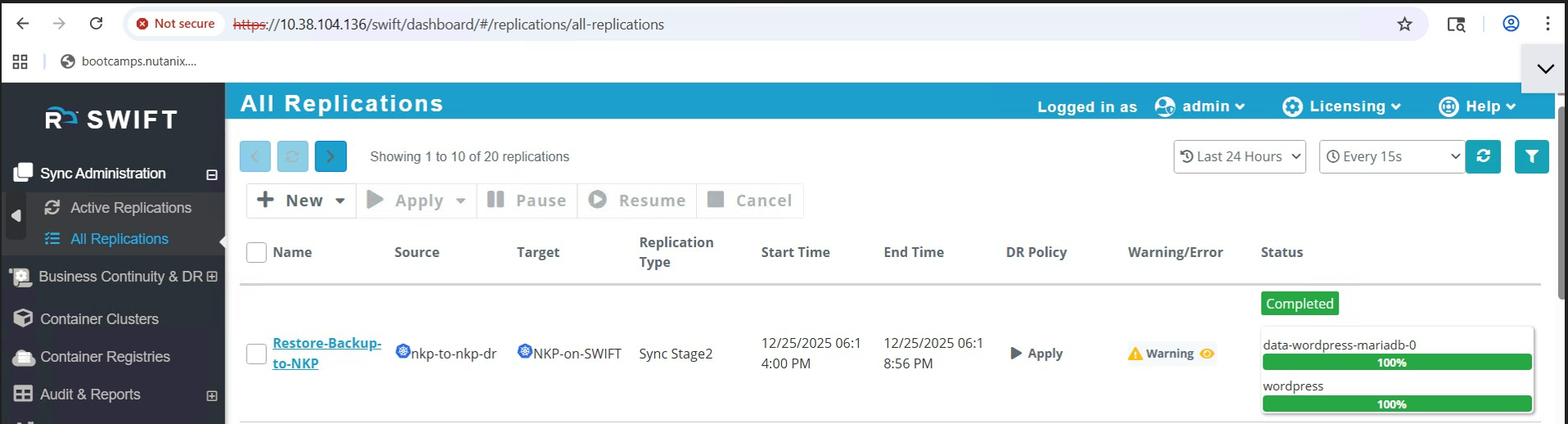
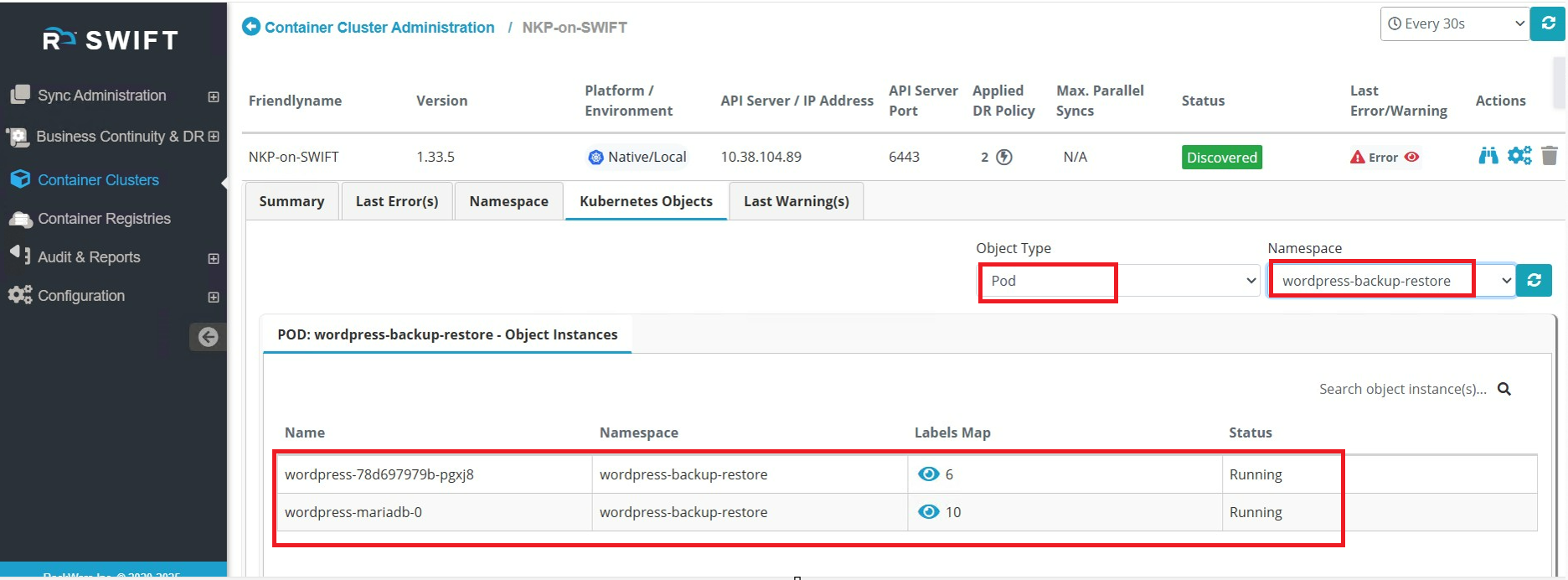
6. You can also verify that the application is running from the SWIFT dashboard. Navigate to Container Clusters > select the target cluster where the application was restored > Click on Kubernetes Objects tab > choose the object type (for example, Pod) and select the namespace where the application was restored. In the same way, you can verify other Kubernetes objects as required.
Related KB's