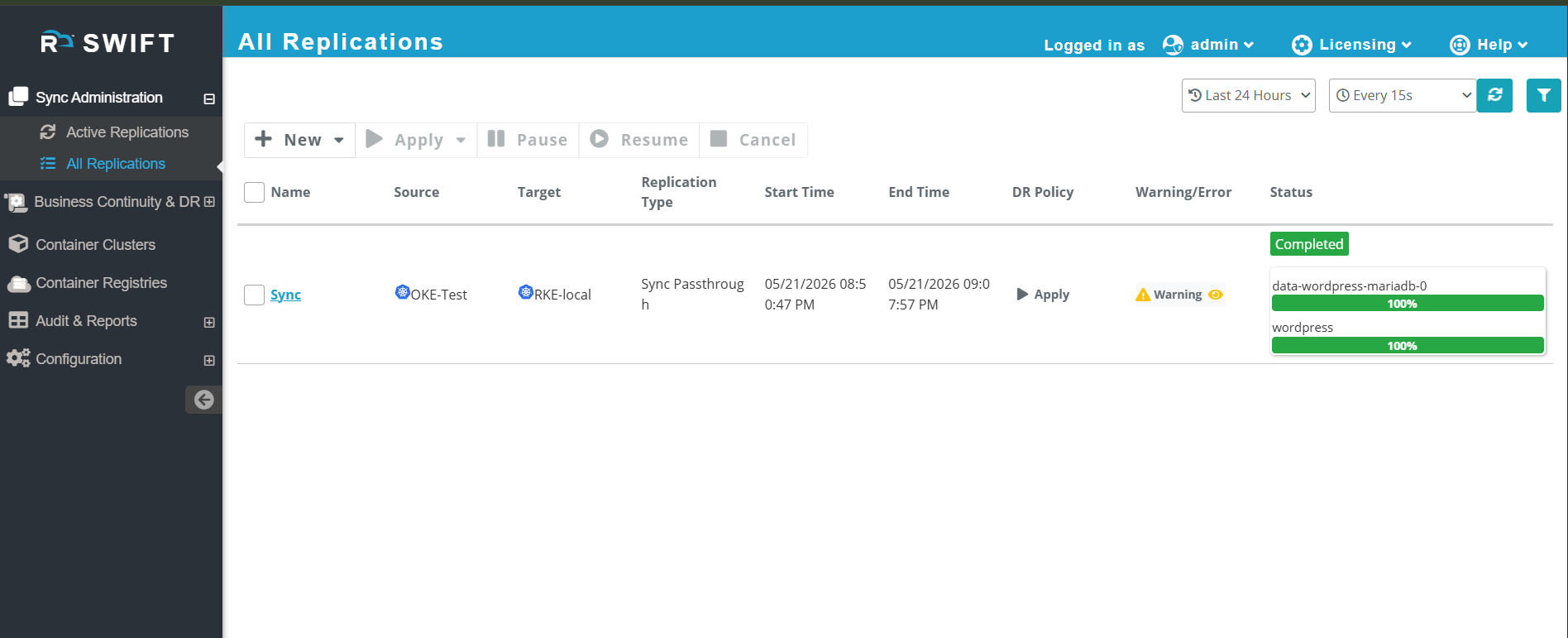
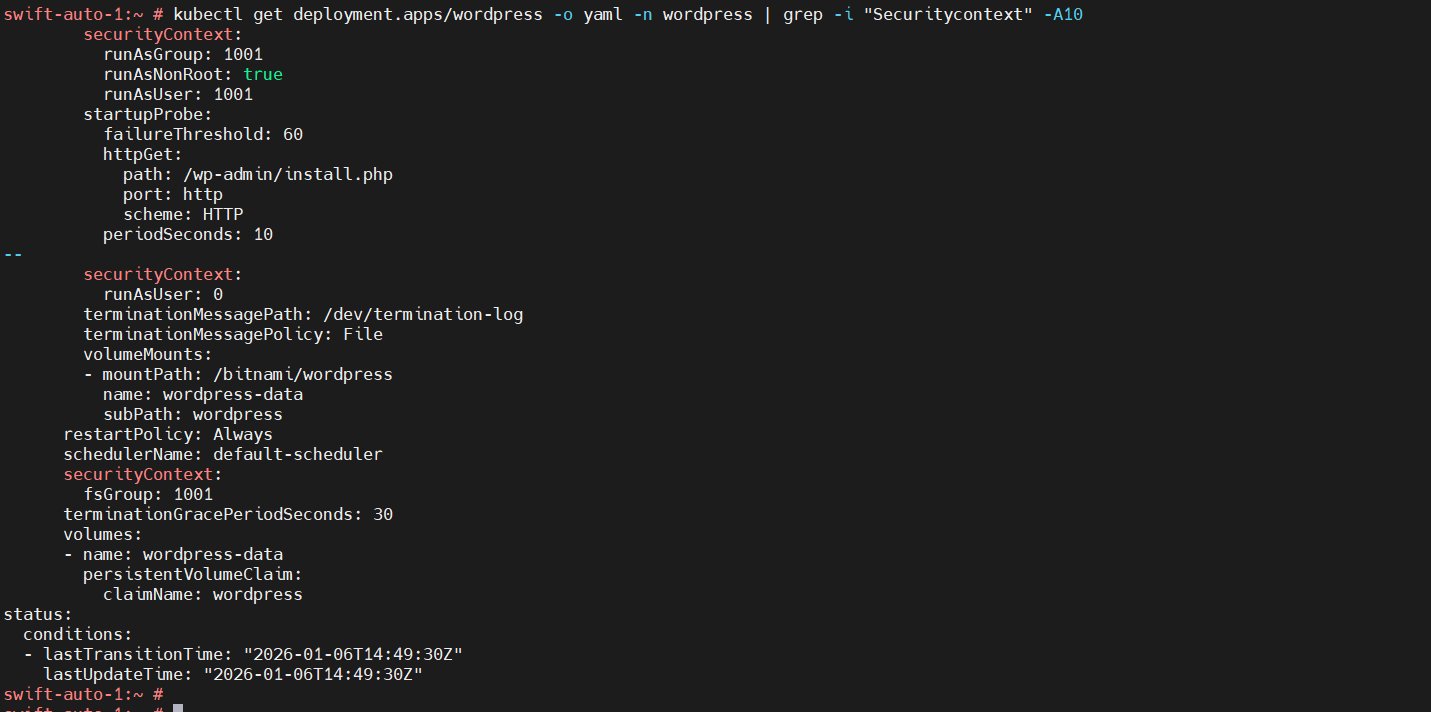
When syncing or migrating workloads from an OpenShift cluster to another Kubernetes platform, it is critical to preserve pod and container security context settings such as runAsUser, runAsGroup, and fsGroup.
In OpenShift, these values are often automatically injected into pods through Security Context Constraints (SCCs). If these security context configurations are not applied to the migrated workloads, pods may fail to start due to file system permission issues, especially when persistent volumes are involved.
The security context mapping option ensures that runAsUser, runAsGroup, and fsGroup values are explicitly applied during the sync process. This allows migrated pods to run with the correct user and group permissions, ensuring application stability and successful startup. As per the requirement, you can also modify the workload security context configuration on the target cluster side.
Use case:
When migrating stateful workloads from an OpenShift cluster to another Kubernetes platform such as Google Kubernetes Engine or Amazon Elastic Kubernetes Service, preserving security context values like runAsUser, runAsGroup, and fsGroup is important.
Suppose you are migrating a WordPress stateful application (with persistent volumes) from one Kubernetes platform (e.g., OpenShift / EKS / RKE) to another (e.g., GKE). WordPress stores critical data (uploads, plugins, themes, configs) on a persistent volume mounted at /bitnami/wordpress
Without Security context
Target clusters do not auto-assign these values . If runAsUser, runAsGroup, fsgroup are not explicitly set. then pod fails with errors like: < Permission denied, Operation not permitted> and it will in CrashLoopBackoff
With Security Context :
runAsUser : 1001 : Matches the ownership of files inside the container image and volume
runAsGroup: 1001: Required for group-based write access
fsGroup: 1001: Instructs Kubernetes to change group ownership of mounted volumes
Note: How to identify the correct value . Run the following command on the source cluster:
kubectl get pod <pod-name> -o yaml
Look for the securityContext section and you will get some numeric values . These numeric values should be used when configuring the migration.
To do this please follow below steps.
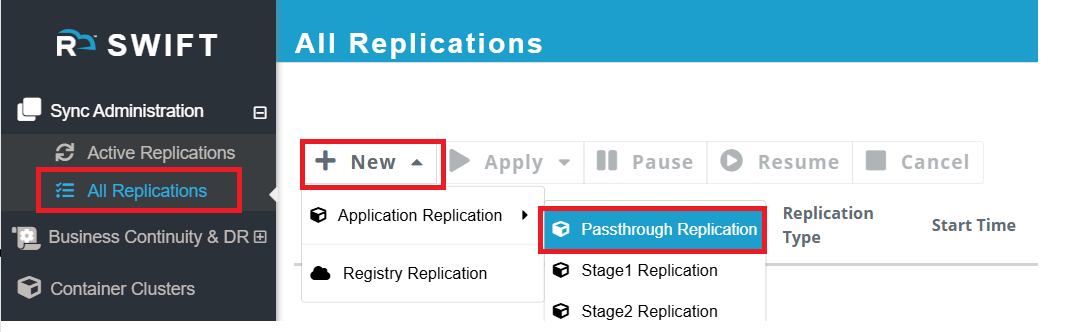
1. Login to the SWIFT and navigate to the > Sync administration > All replication > New > Passthrough Replication (For migration)
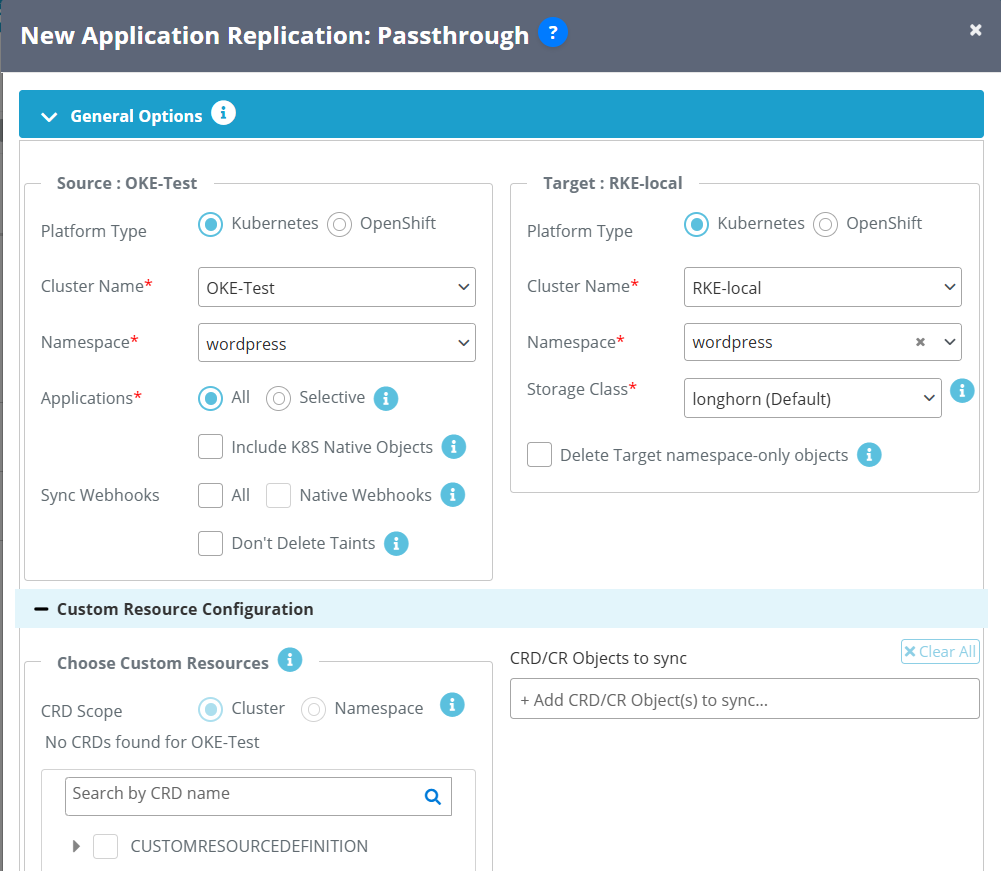
2. You will then see a new pop-up where you need to enter the source and target cluster details. For more information, please refer to this KB article.
3. Now navigate to Advanced options > Security context config.
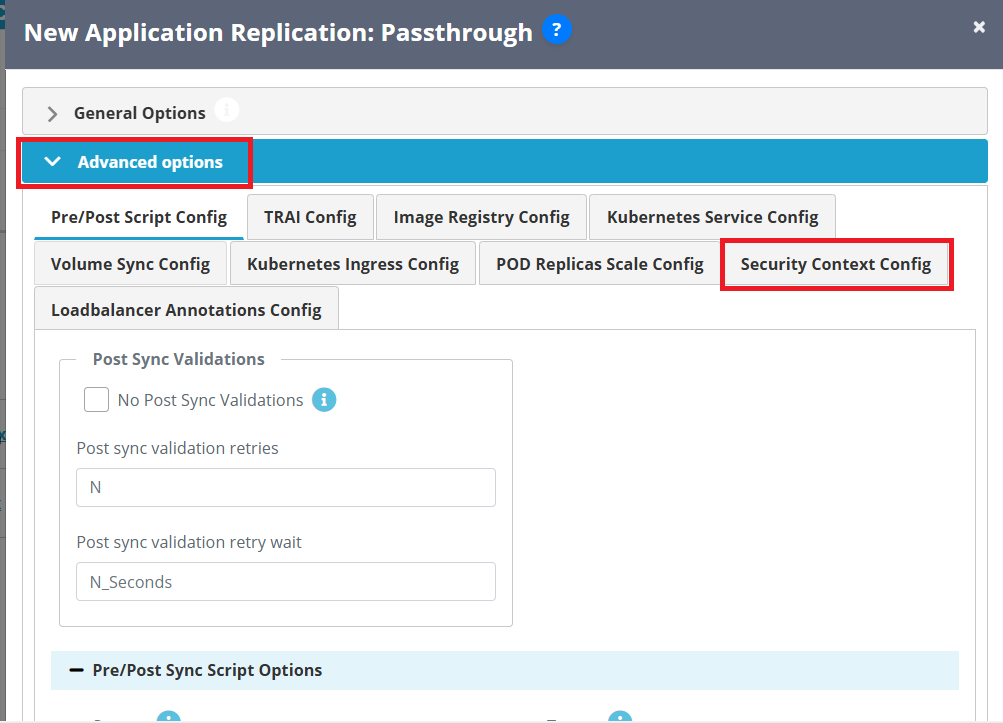
4. Here you will see three options as below.
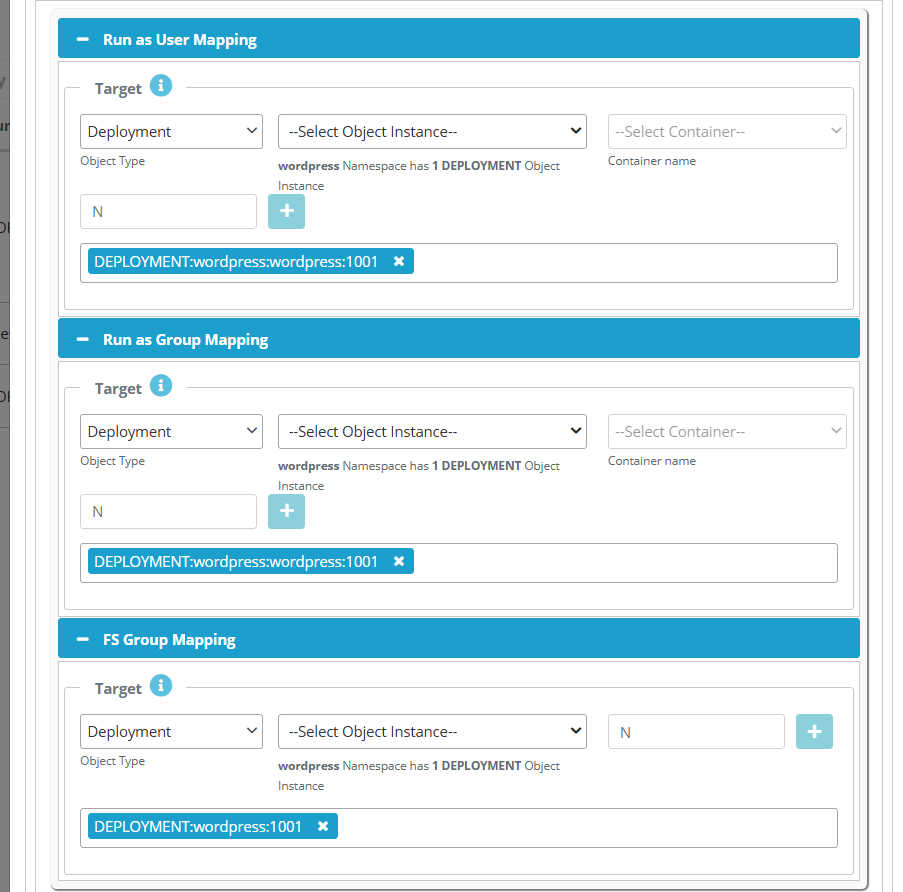
This above screen allows you to configure User Mapping, Group Mapping, and FS Group Mapping for a selected Kubernetes object.
Run as User Mapping
- Select the Object Type (for example, Deployment).
- Choose the required Object Instance from the dropdown.
- Select the Container name if applicable
- and click + to add the mapping.
- The selected mapping is displayed below for confirmation.
Run as a Group Mapping
- Select the Object Type and Object Instance.
- select the Container name.
- Enter the Group ID and click + to add the mapping.
- The configured group mapping appears in the summary section.
FS Group Mapping
- Select the Object Type and Object Instance.
- Enter the FS Group ID and click + to add it.
- The added FS group mapping is shown in the list below.
These mappings ensure that the application runs with the correct user and group permissions, helping maintain security and access control consistency.
5. Now click on Add button to start the migration.

6. Then sync will be completed and we can verify it at target side by checking the selected object permissions.