
An Image Group in SWIFT is a logical collection of Kubernetes or OpenShift volumes captured for backup and disaster recovery. During Stage-1 Sync, all data from the source is copied to SWIFT, including PVC data, related Kubernetes/OpenShift objects, and metadata. At this stage, SWIFT automatically creates an Image Group to store this information. The Image Group contains PVC data and object details, which can be later used for migration, DR.
Image Group cloning is used when you want to create a copy of an existing application environment.
Pre-requisite:
1. Should have created Storage pool
2. Stage1 sync should have been completed.
Topics Covered
An Image is created during a Stage1 sync, and it cannot be created manually.
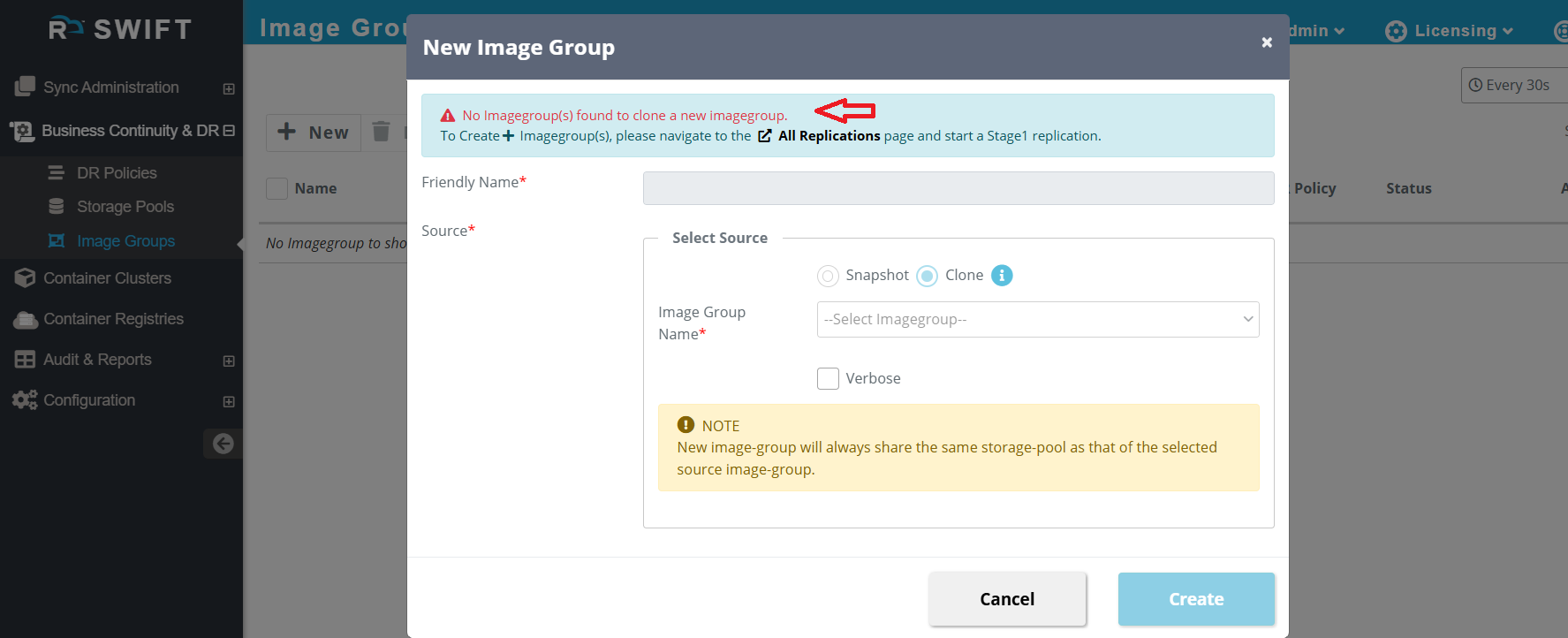
To Create/Clone Image group
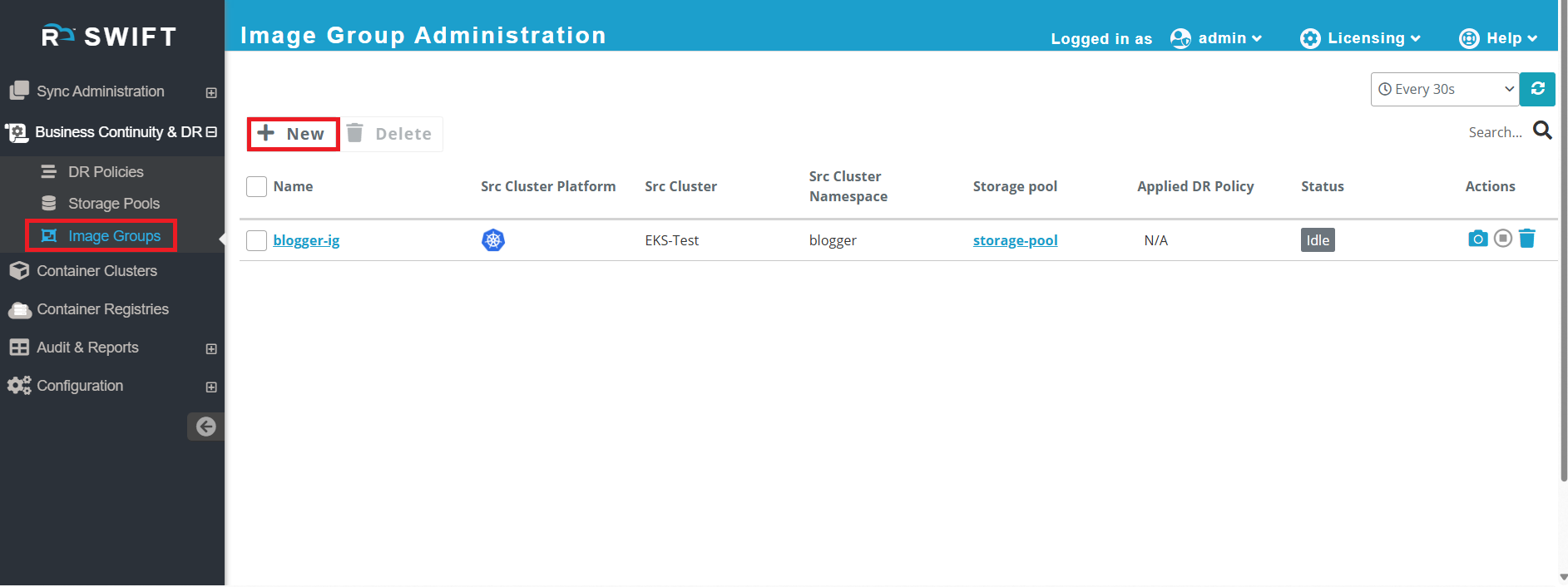
1. Go to the Business Continuity & DR > Click on Image Groups > Click on New
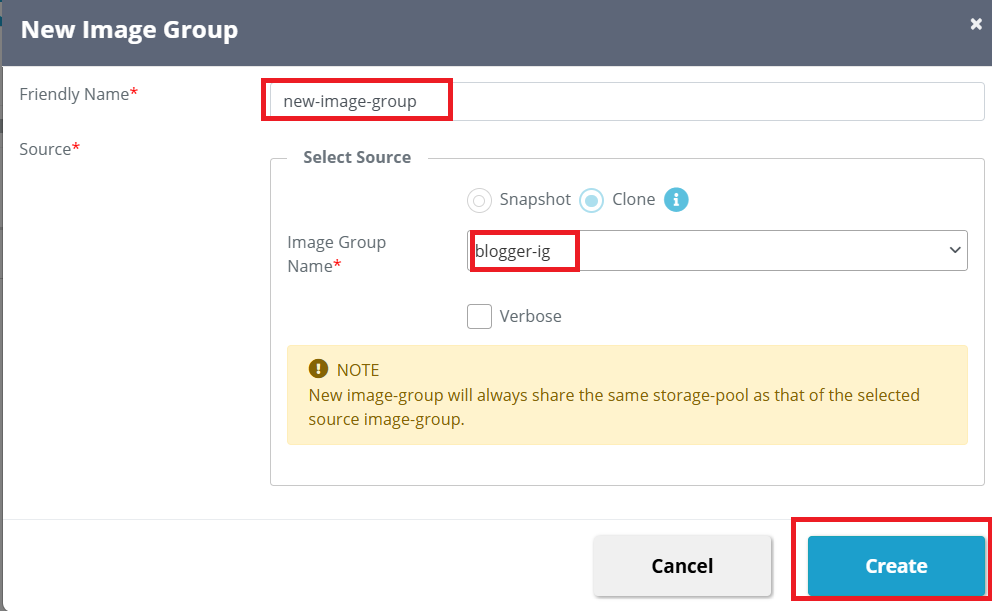
2. Provide a friendly name, keep the default Clone option selected, choose an existing image group from the dropdown, and click Create to create a new image group.
3. When you click the Create button, a new image group will be created identical to the selected existing one.
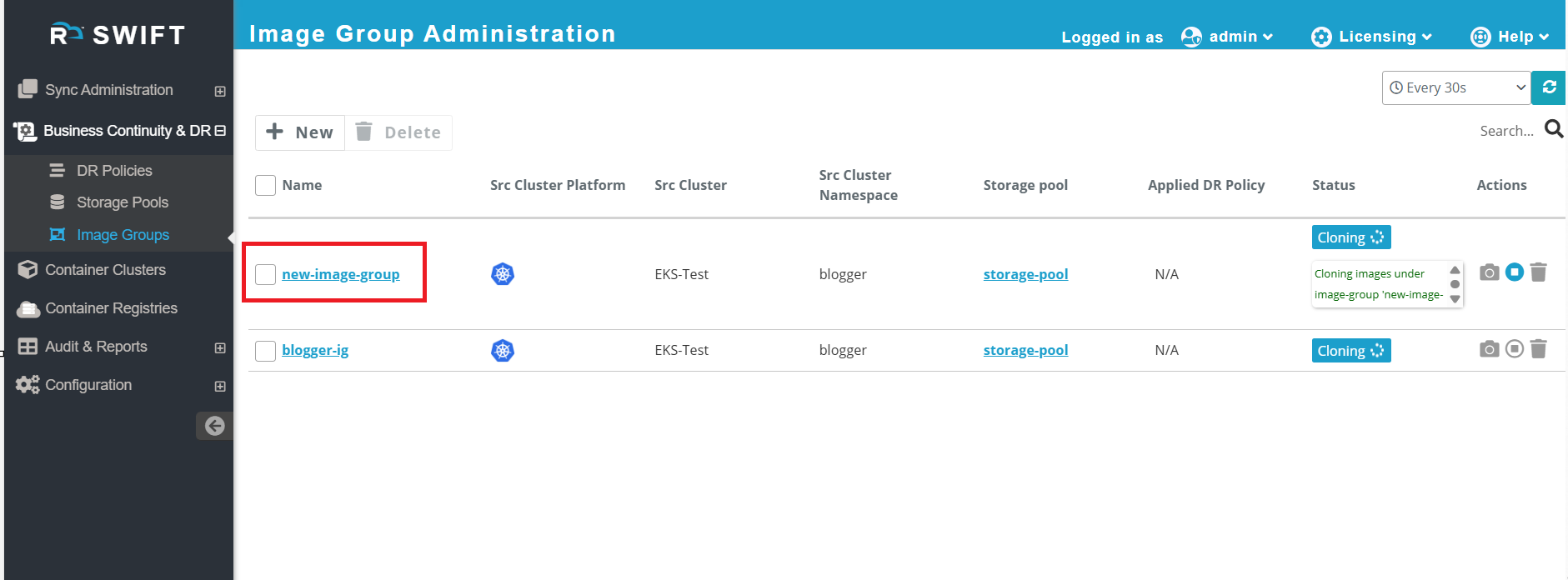
4. Once it is created, it will look the same as an Image Group created during Stage-1 sync.
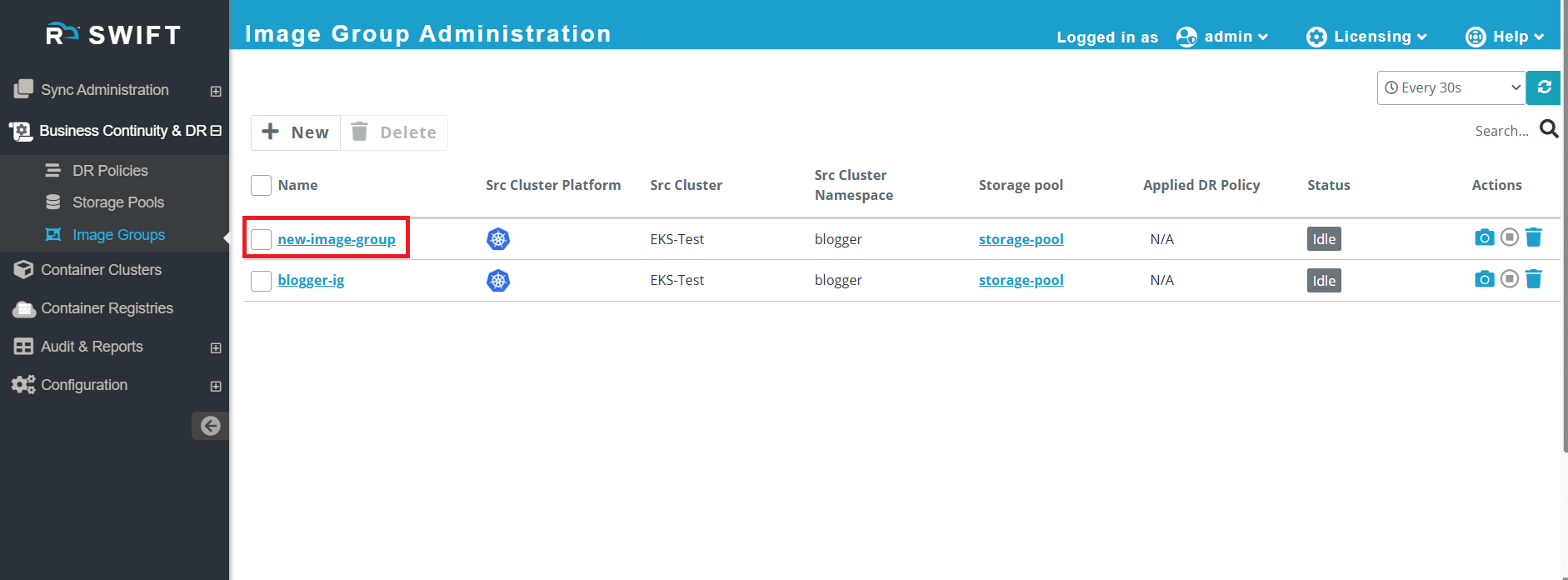
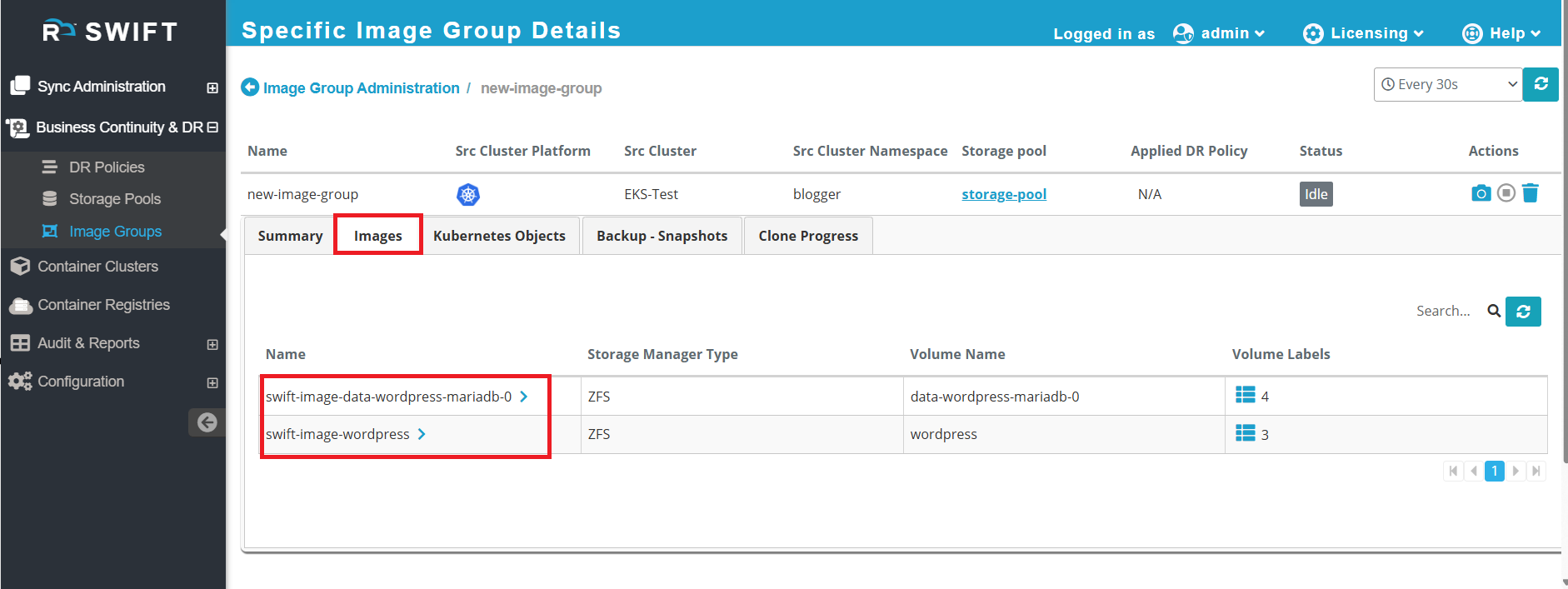
5. You can verify the newly created image group has the same images as the existing one by clicking on the new image group and selecting on the Images tab.
To Delete the image group
Over time, some image groups may no longer be needed for your deployments. Deleting unused image groups helps you keep your environment organized.
Before deleting an Image Group, make sure it is in an IDLE state and not in syncing mode. If it is syncing, identify the associated sync and either cancel it or wait for it to complete.
Below are the steps to delete the image group.
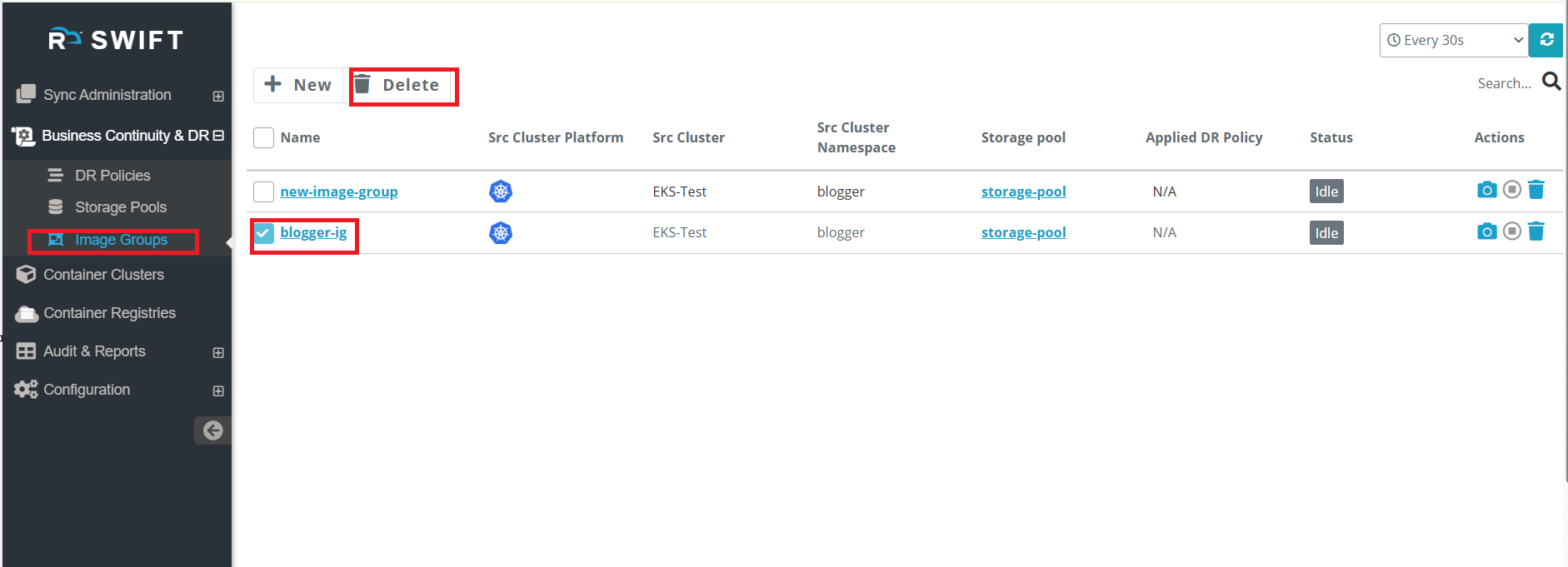
1.Go to Business Continuity & DR > Image Groups. Select the image group you want to delete and ensure its state is IDLE before proceeding. After selecting image group, click on Delete button.
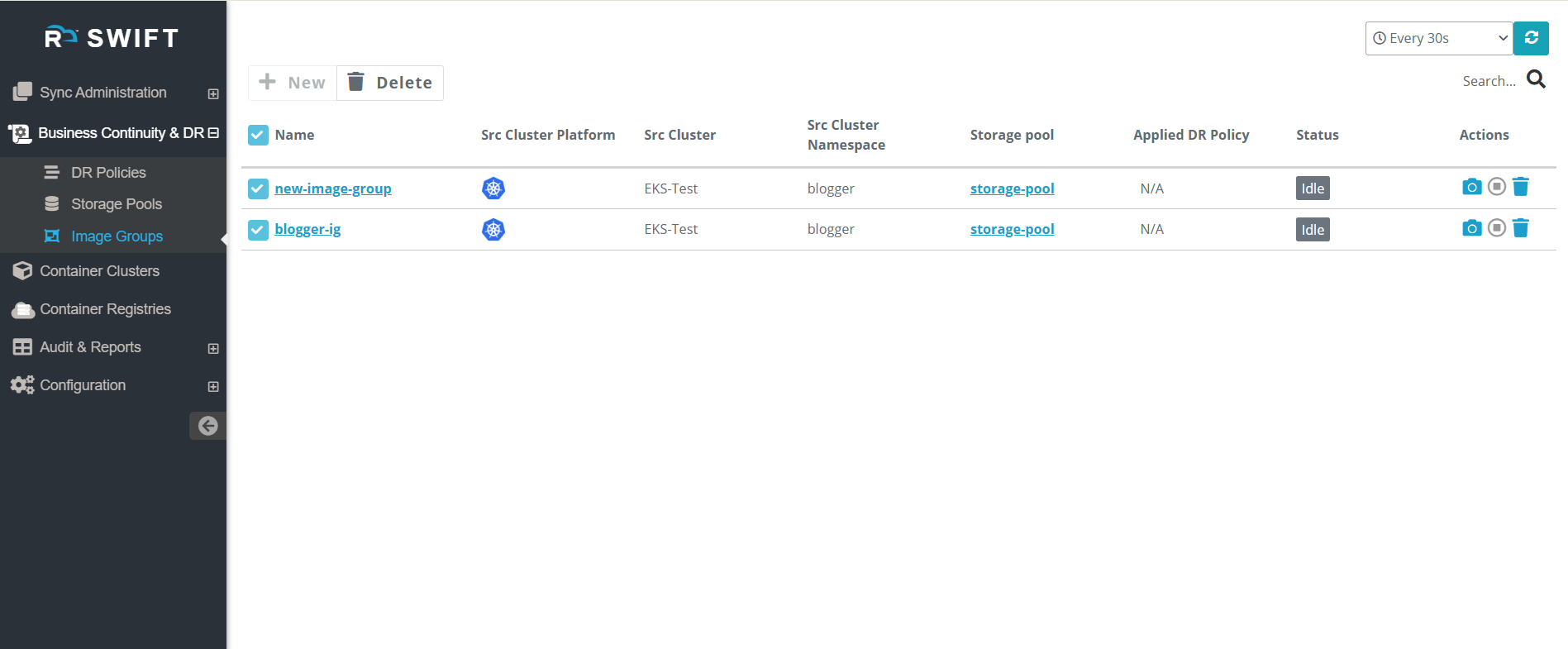
2.To delete multiple image groups, select the required image groups and then click Delete.
What next:
How to backup and restore image group