
SWIFT allows you to protect Kubernetes applications by creating local and remote backups after completing Stage 1 sync, which creates an image group. You can perform full or incremental backups to maintain multiple recovery points and protect application data. In case of data corruption or failed updates, you can roll back by restoring a required version from available backup images. Local backup is stored within the SWIFT VM, while remote backup is stored on selected cloud environment. This provides simple data protection, version control, and flexible recovery options.
Pre-requisite:
1. Local storage pool must be there.
2. Stage1 sync should be completed.
Topics Covered
Steps to create Local Backup
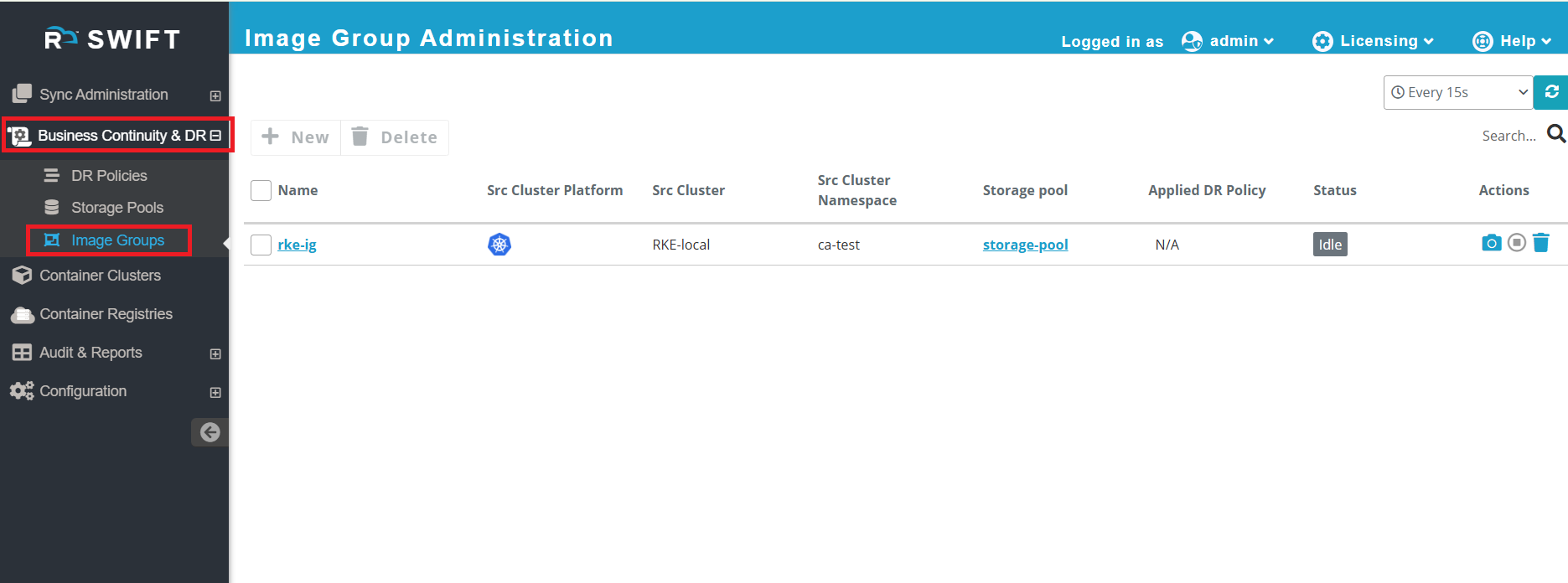
1. After Stage 1 sync, an image group is created, and we can take a backup of that image group. Go to Business Continuity & DR > Image Groups.
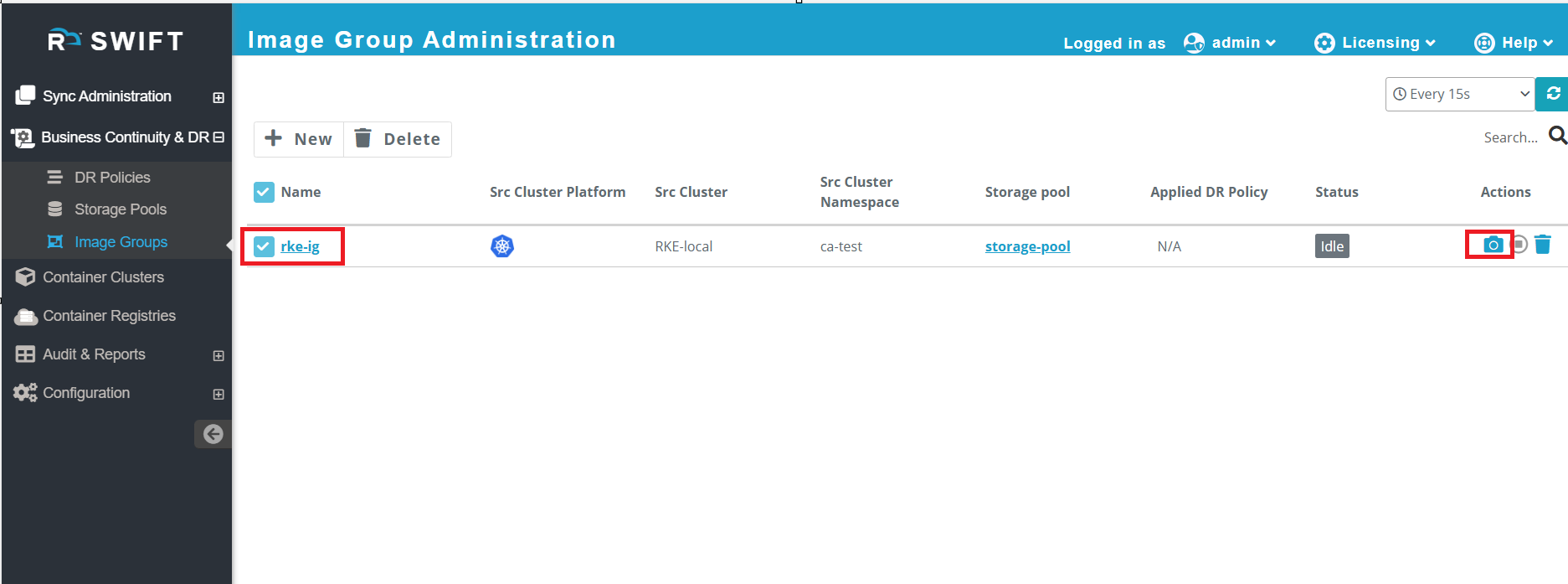
2. Select the image group where you want to backup and click on camera button under actions tab to create a backup.
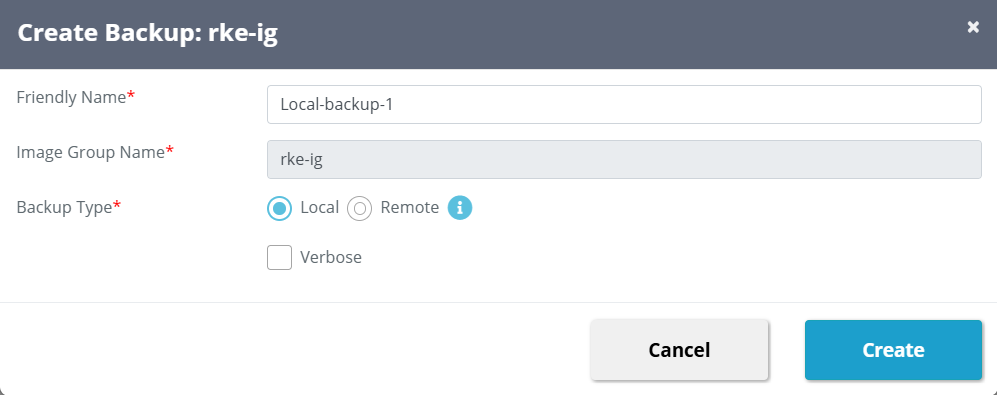
3. Provide a friendly name, select Local as the Backup Type, and click Create. 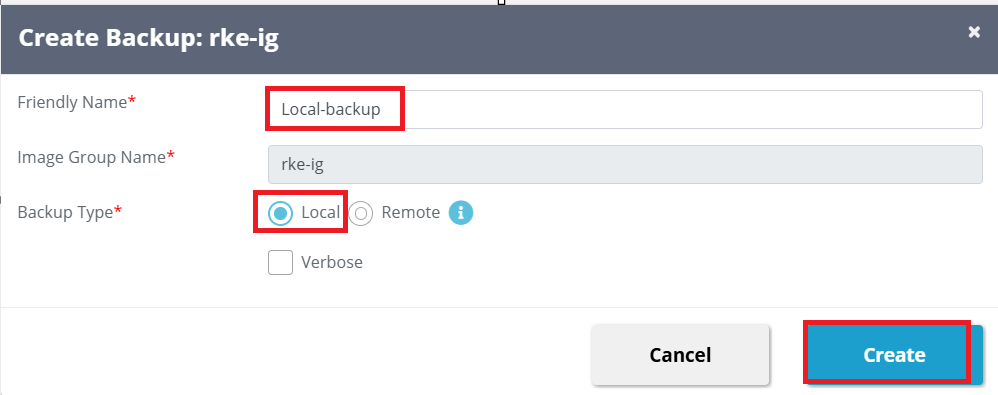
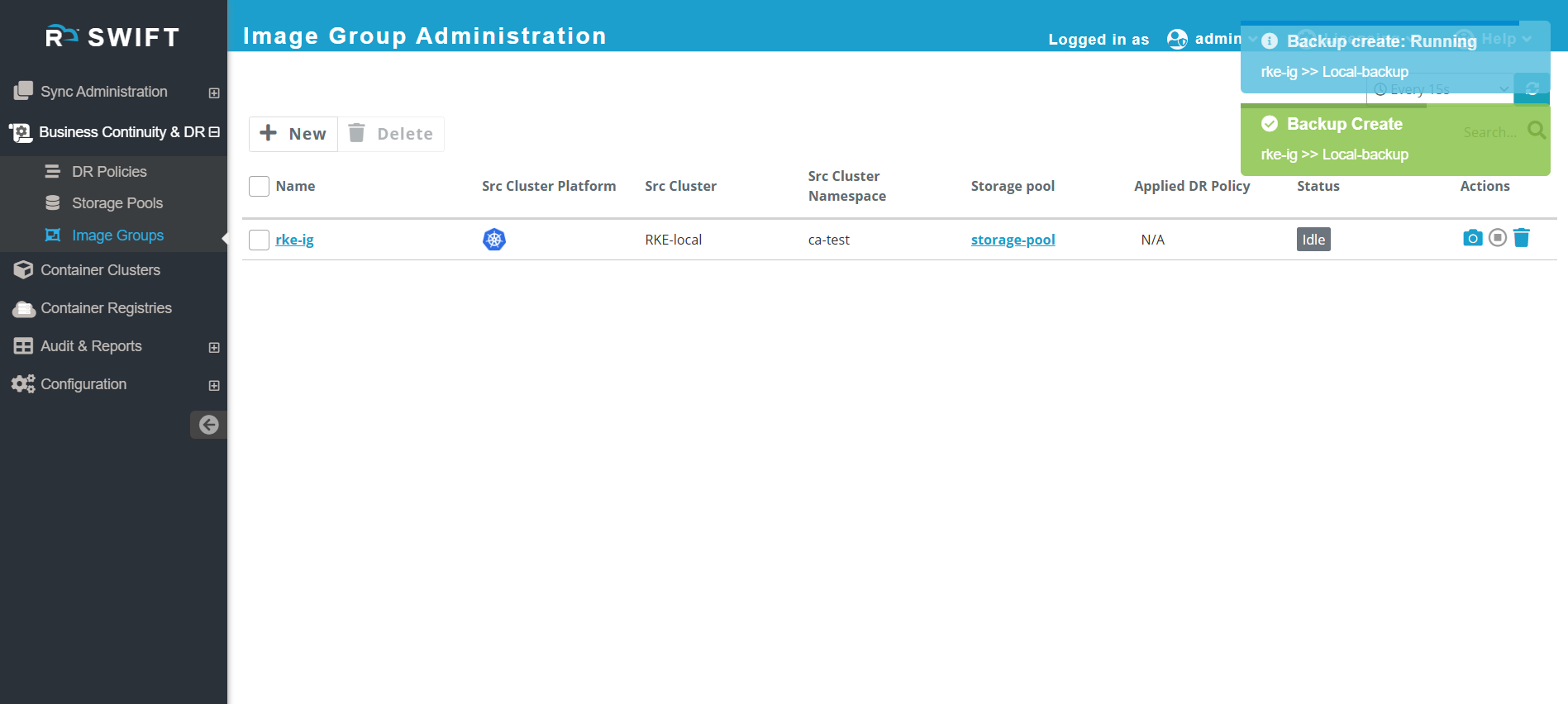
4. Once you click on Create button, it will start the local backup.
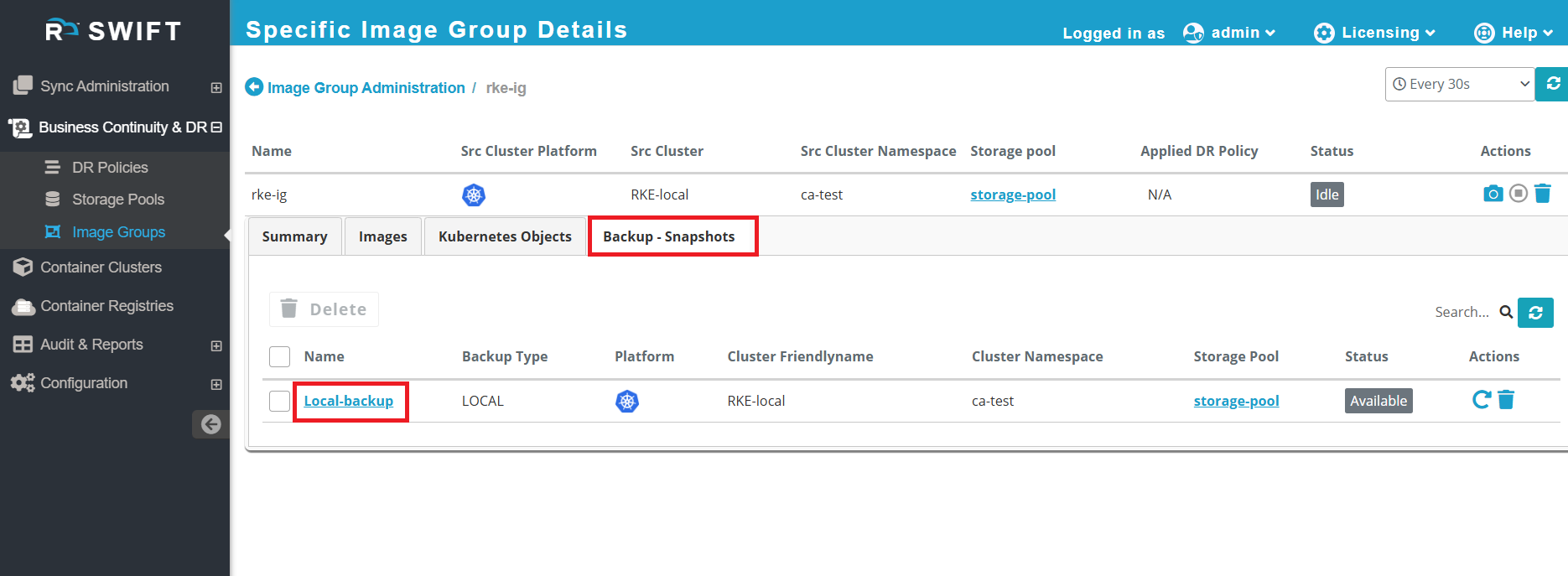
5. To verify, click on the Image Group and open the Backup Snapshot tab. There you can see the created backup.
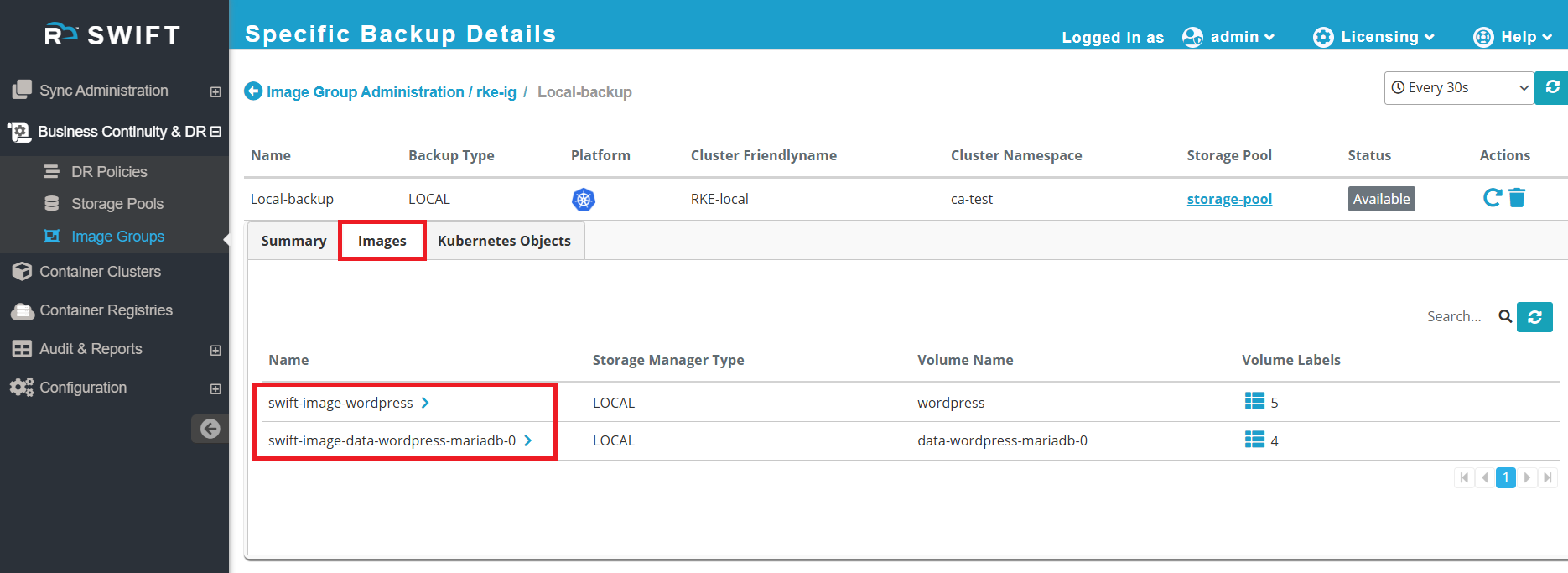
6.To confirm your volumes are backed up correctly, click on the created local backup and verify the details.
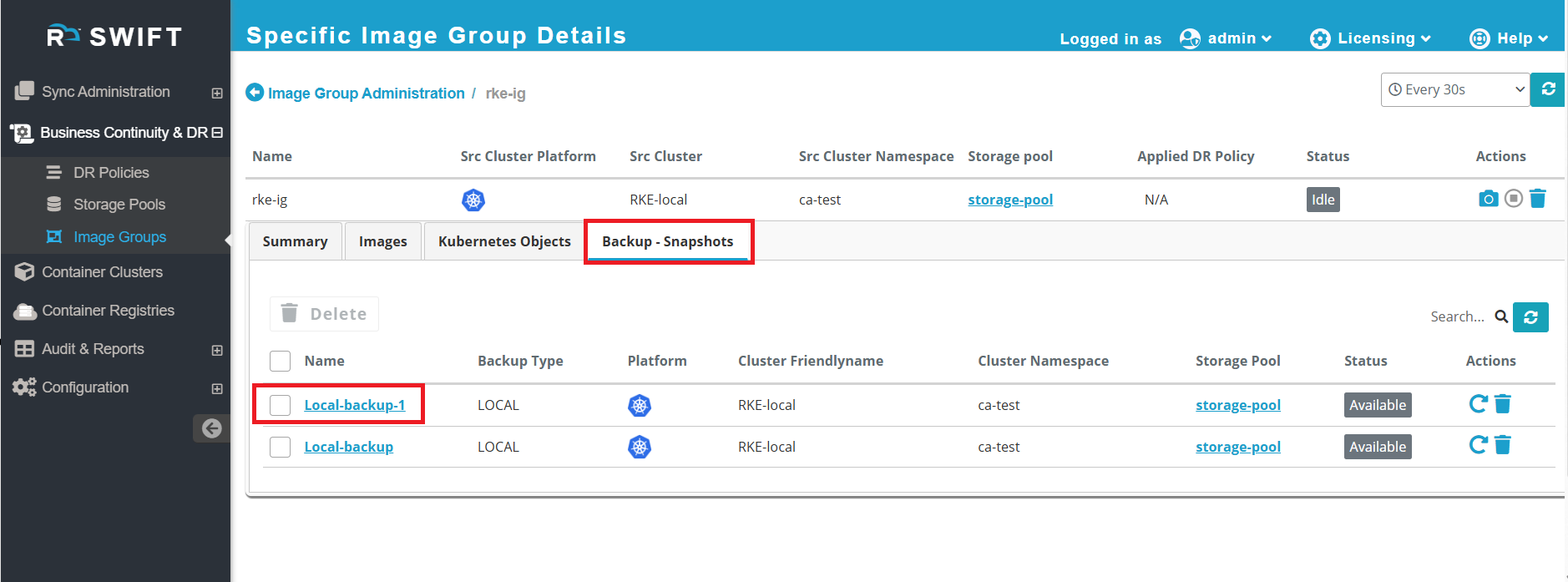
7. Similarly, if we run Stage 1 sync again with the same image group, the image group gets updated. At this point, we can take another backup with the updated data. In this way, we can take incremental backups to maintain different versions of the application.
Steps to create Remote Backup
Pre-requisite:
1. A remote storage pool must be created in any required cloud.
2. The stage1 sync must be completed which will create image group.
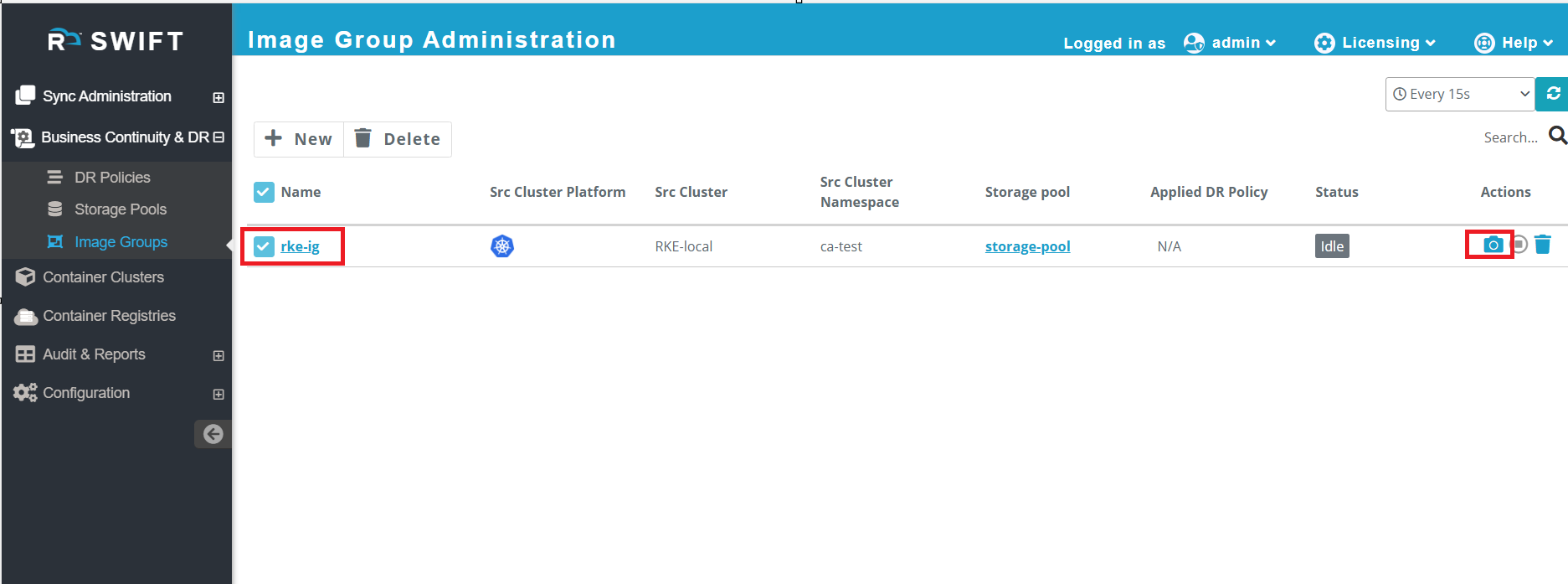
1. Select the image group where you want to backup and click on camera button under actions tab to create a backup.
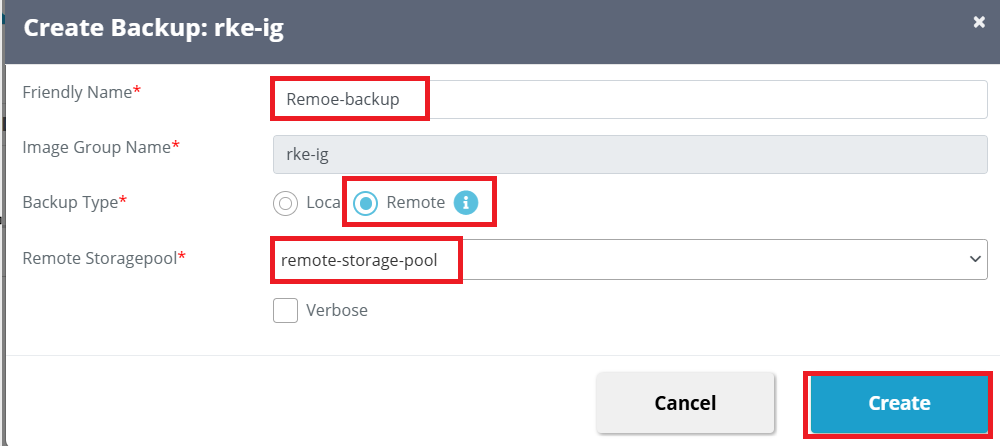
2. Provide a friendly name, select Remote as the Backup Type, choose the remote storage pool from the dropdown, and click Create.
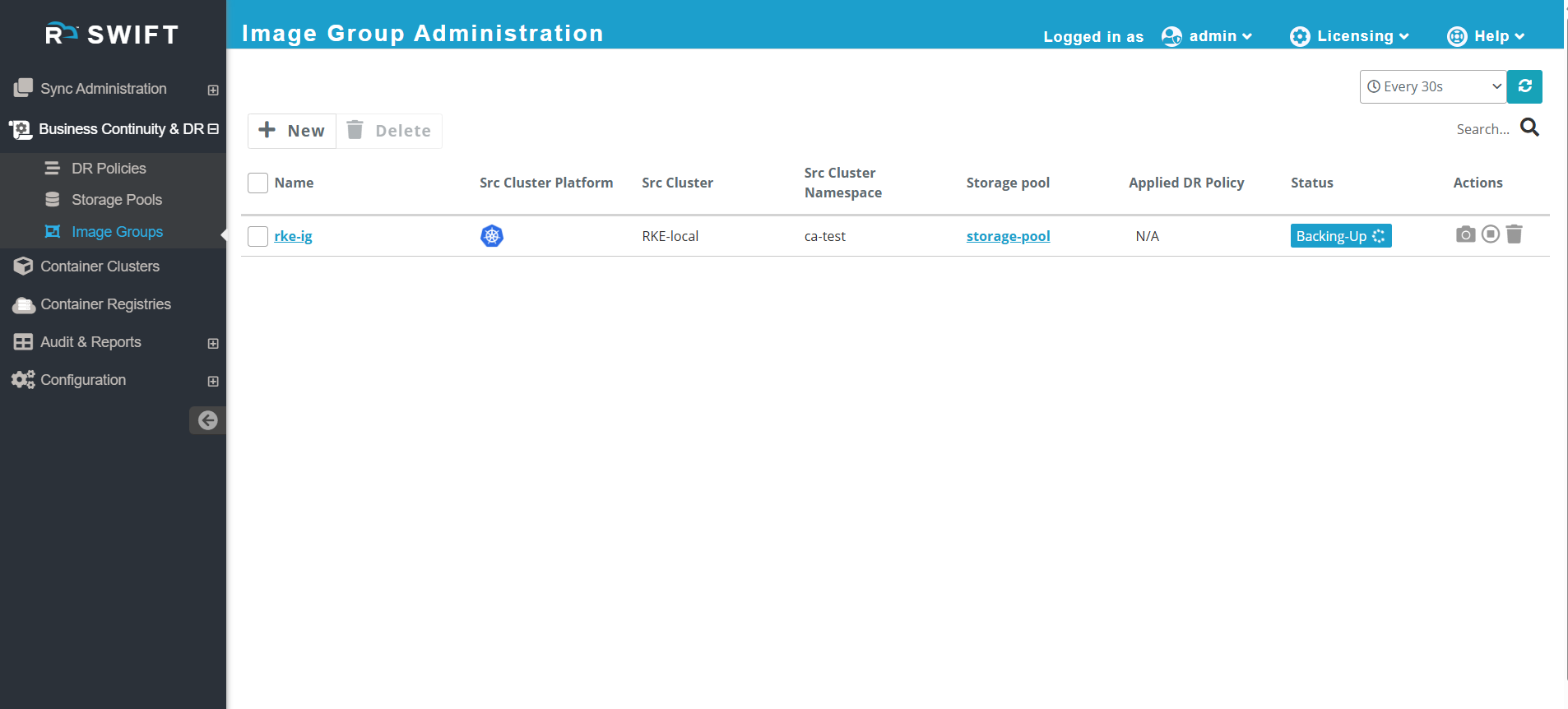
3. The remote backup will start.
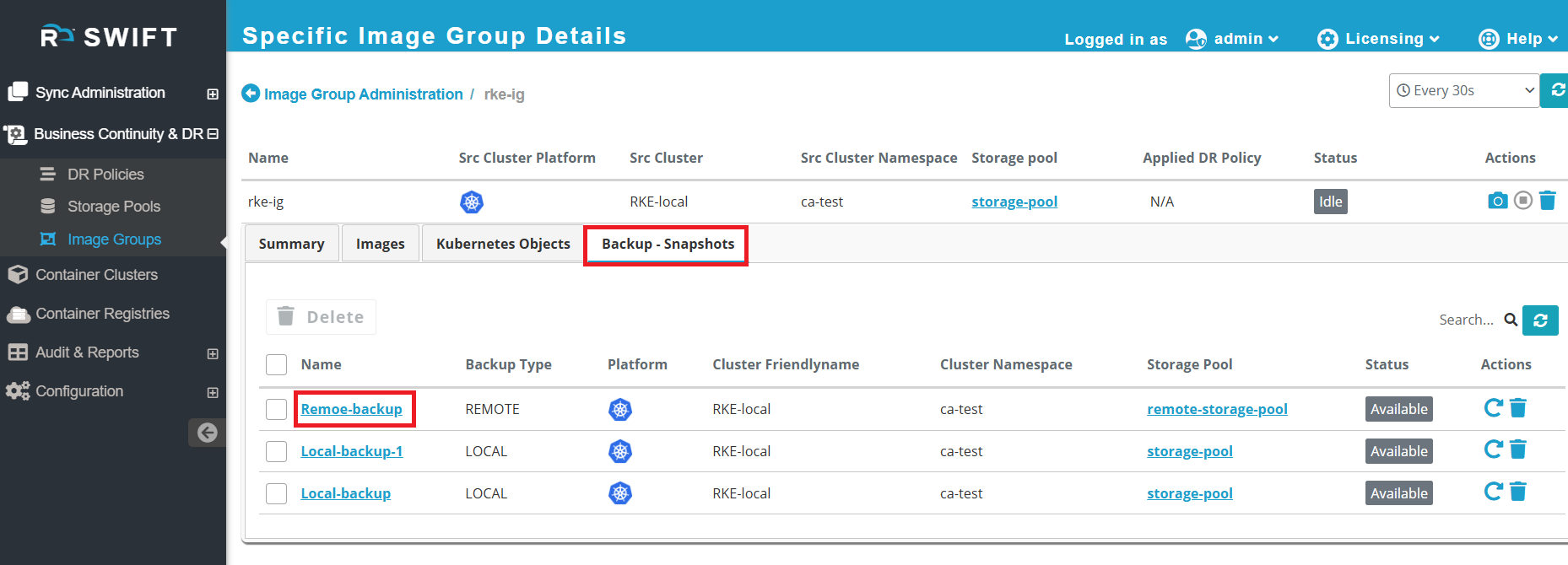
4. Once the remote backup is complete, click on the Image Group and open the Backup Snapshot tab to verify it..
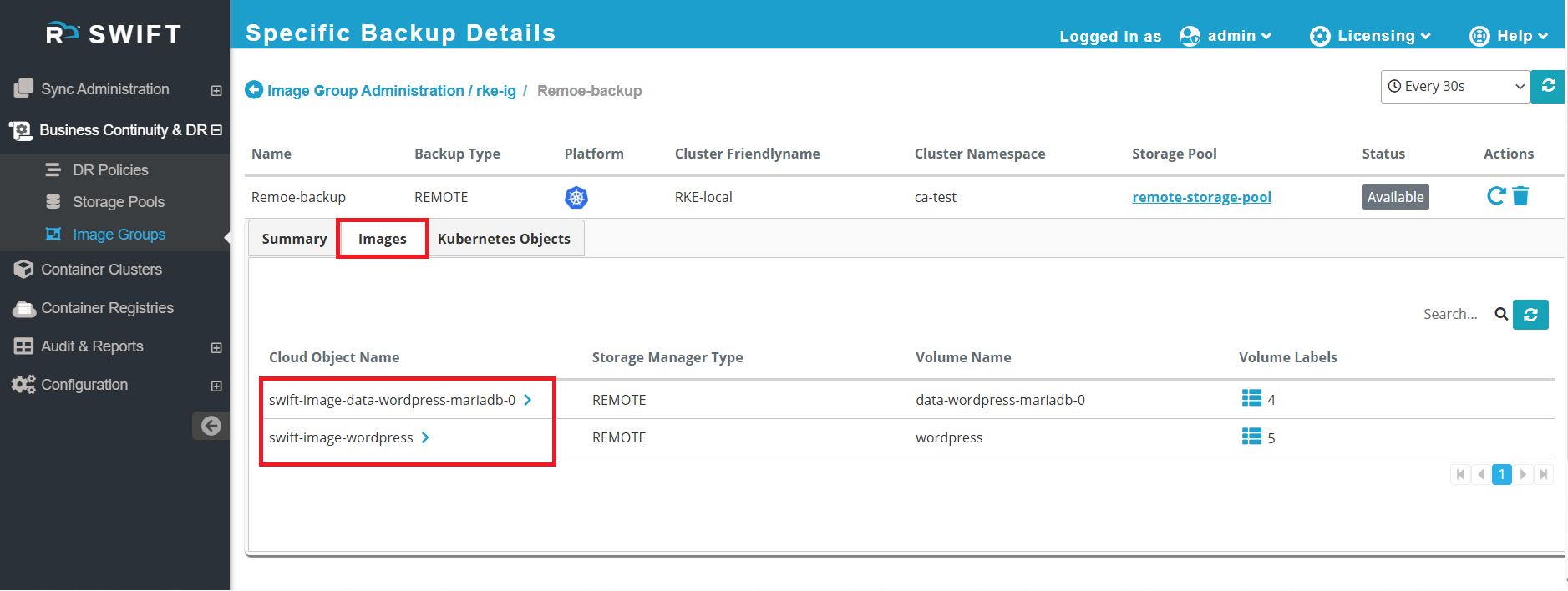
5. You can also cross-verify by clicking on Remote Backup > Images, where you can see the volumes backed up remotely.
What Next: