Passthrough is designed for migrating applications from a source cluster to a target CCE cluster. It works like a lift-and-shift approach, allowing you to move applications without modifying their configuration.
SWIFT supports sync between Kubernetes clusters, Kubernetes to OpenShift, OpenShift to OpenShift, and OpenShift to Kubernetes, enabling cross-cloud as well as cross-platform/version compatibility. All kinds of migration are supported in SWIFT. It provides a consistent application state and configurations during migration.
When to Use:
Use Passthrough when you want to migrate applications directly from the source cluster to the target cluster.
Pre-Requisite:
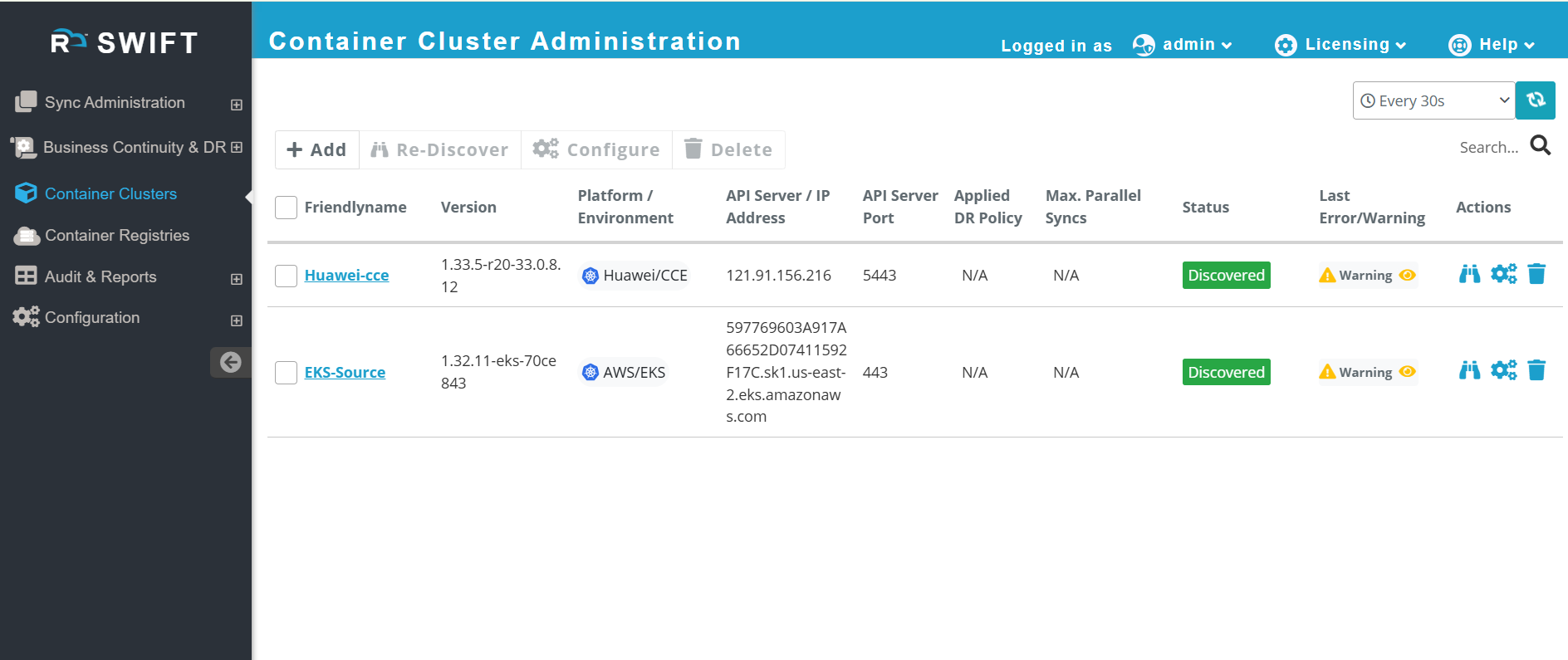
1. Before going to do passthrough replication, you should have any source cluster and Huawei cluster. How to discover cluster
2. How to add Image registry. -: As a SWIFT needs its Transient Rackware Agent Image (TRAI) run on both side of the clusters and TRAI can be uploaded to any registry.
Please find below steps to start the Passthrough sync. From Any-to-Huawei CCE (Source as a EKS).
1. We have already added both EKS and CCE cluster in SWIFT.
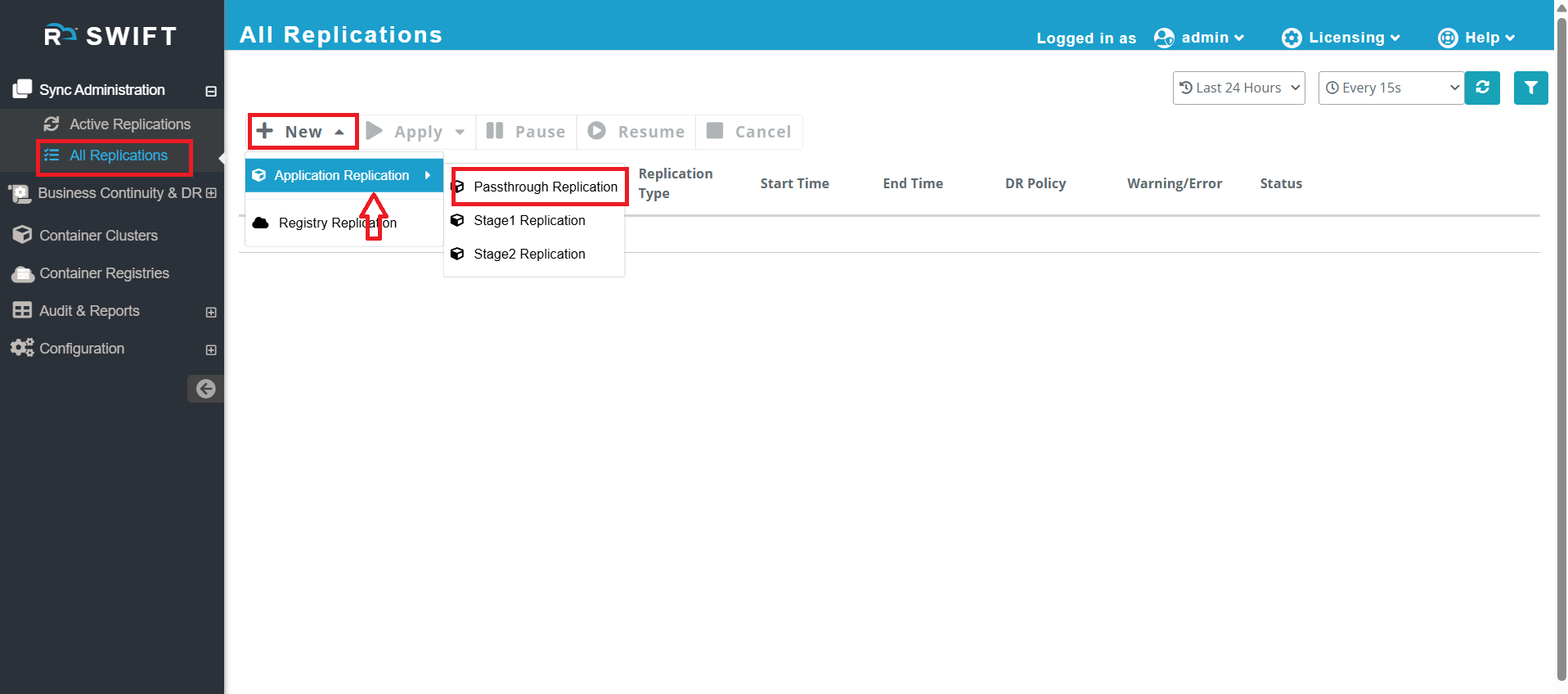
2.Now, Go to the Sync Administration > Click on 'All Replication' > New > Select 'Application Replication' > Choose 'Application Replication'
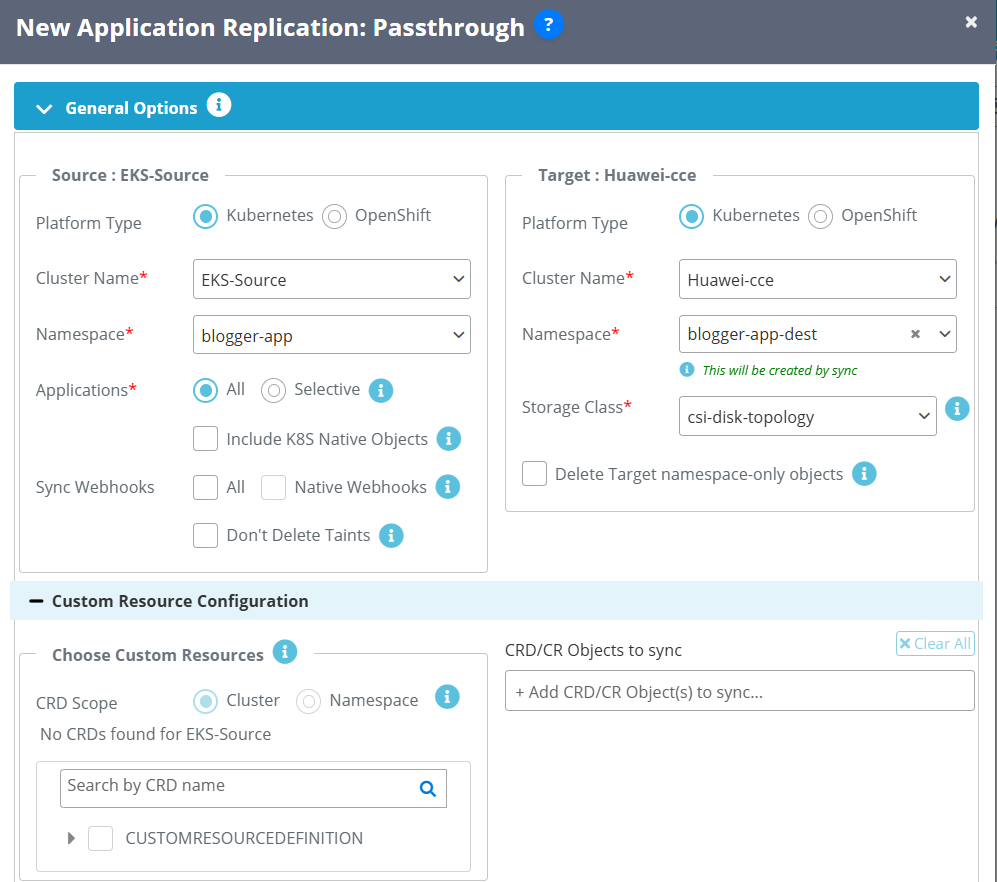
3. Now, select the source and target clusters, and also choose the namespace on the source cluster where your application is running — this is the application you want to migrate to the target Huawei cluster. Also, the user can either provide the name of an existing namespace or specify a new name. If a new name is given, that namespace will be created during the sync process on the target cluster.
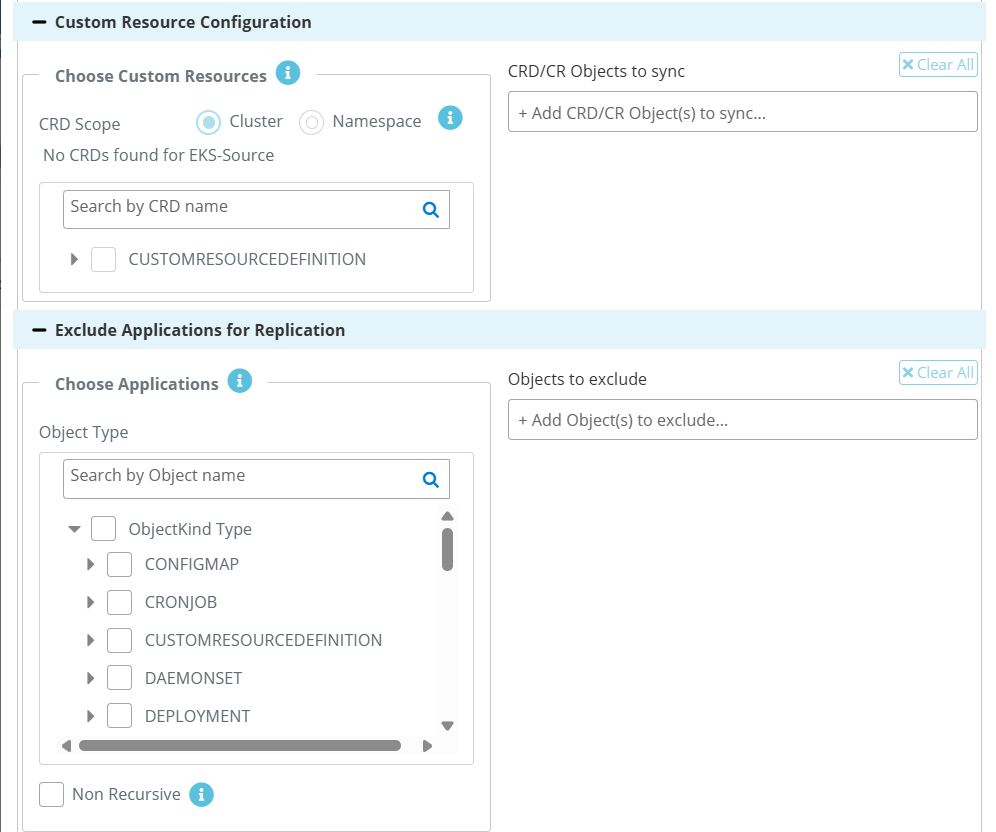
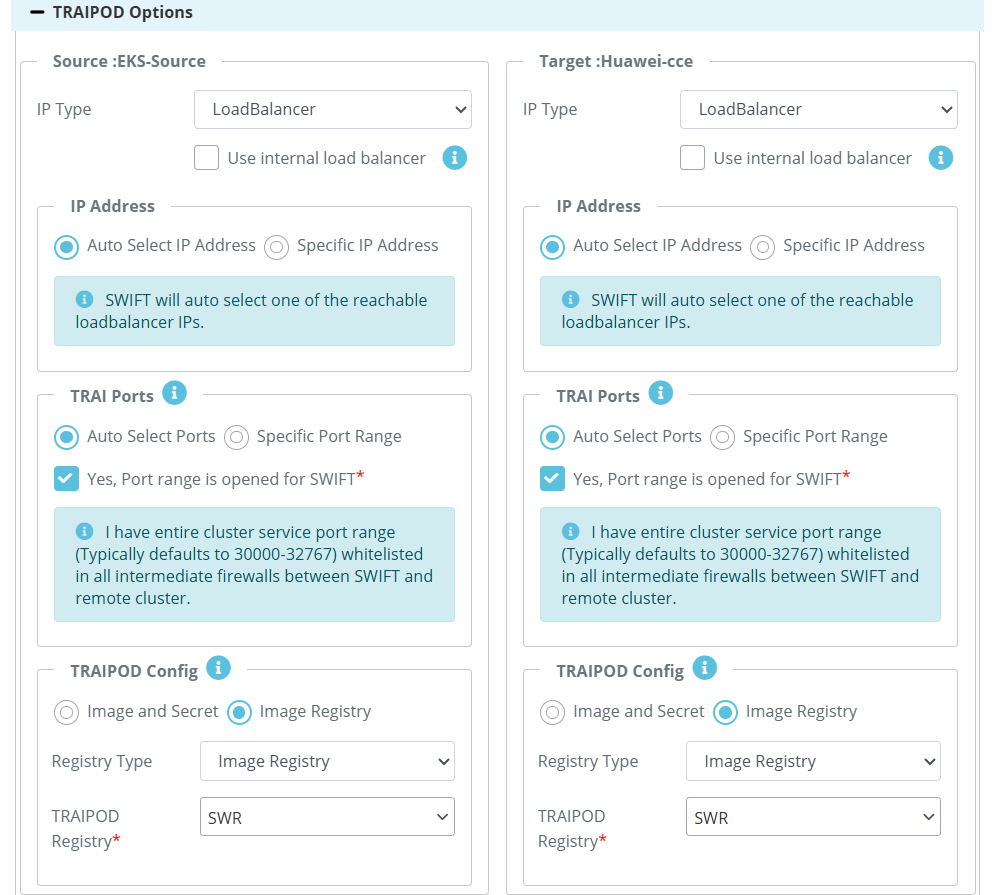
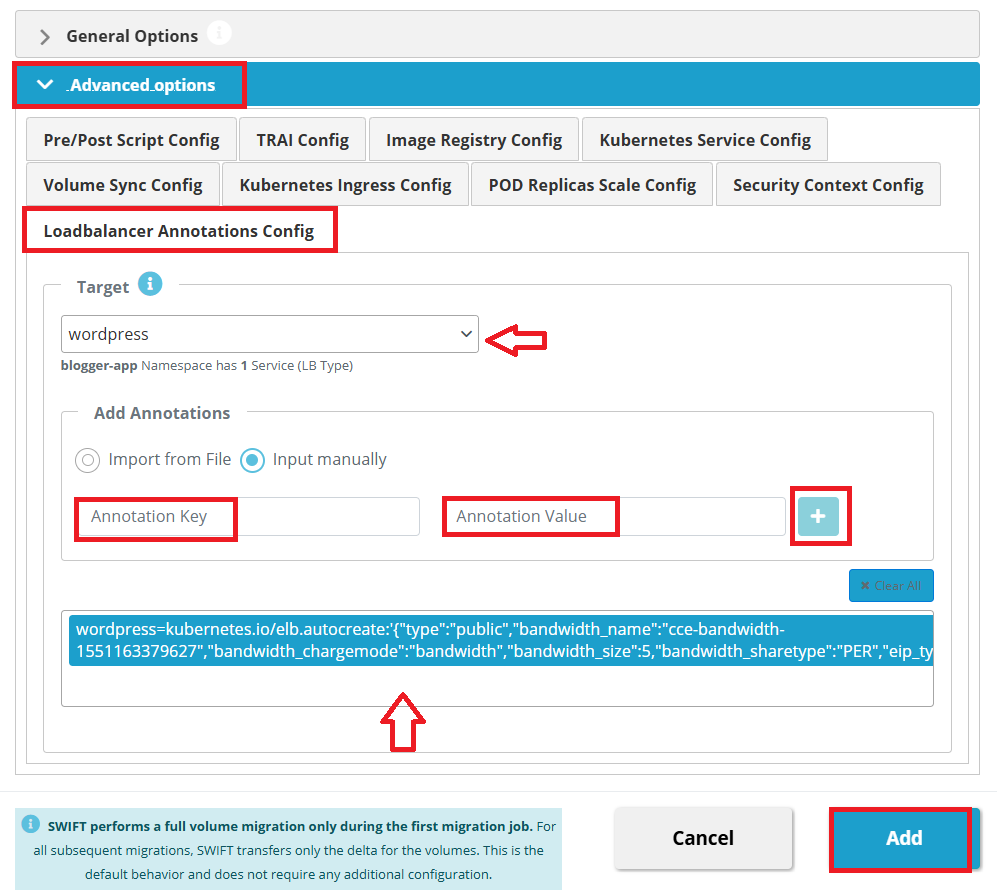
4. In Huawei Cloud, a Load Balancer is not created automatically for Kubernetes LoadBalancer type services. To provision a Load Balancer, you must add the required service annotations along with EIP details. This can be configured using SWIFT.
To do this, Navigate to Advanced Options > Select the LoadBalancer Annotation Config tab > Select the required service name from the dropdown list > Add annotations by either Uploading an annotation file, or Manually entering the annotation key and value, then clicking the Plus (+) button > Click Add to start the migration.
Example Annotation:
kubernetes.io/elb.autocreate: '{"type":"public","bandwidth_name":"cce-bandwidth-1551163379627","bandwidth_chargemode":"bandwidth","bandwidth_size":5,"bandwidth_sharetype":"PER","eip_type":"5_bgp","name":"james"}'Important Note:
Repeat this process for each LoadBalancer-type service that requires Load Balancer provisioning.
[If there is a load balancer on the source side and you require a load balancer on the target side after migration, follow these steps. If you do not need a load balancer on the target side, you can convert the service type using the alternative steps below.]
How to change service type to NodePort/ClusterIP
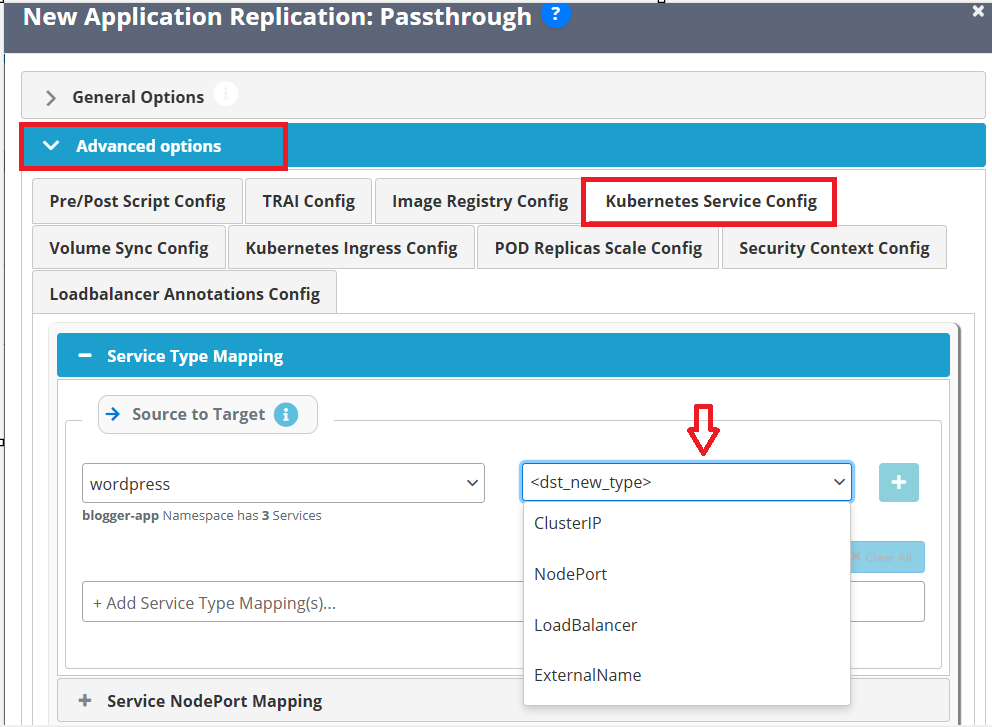
If a LoadBalancer is not required, you can modify the service type during migration using SWIFT:
Go to Advanced Options. > Open Kubernetes Service Type Config > Change the service type to NodePort or ClusterIP as needed.
5. Click the Add button to initiate the migration. Once the sync is triggered, the system will begin the passthrough sync. A confirmation message will be displayed after the passthrough sync is successfully completed.
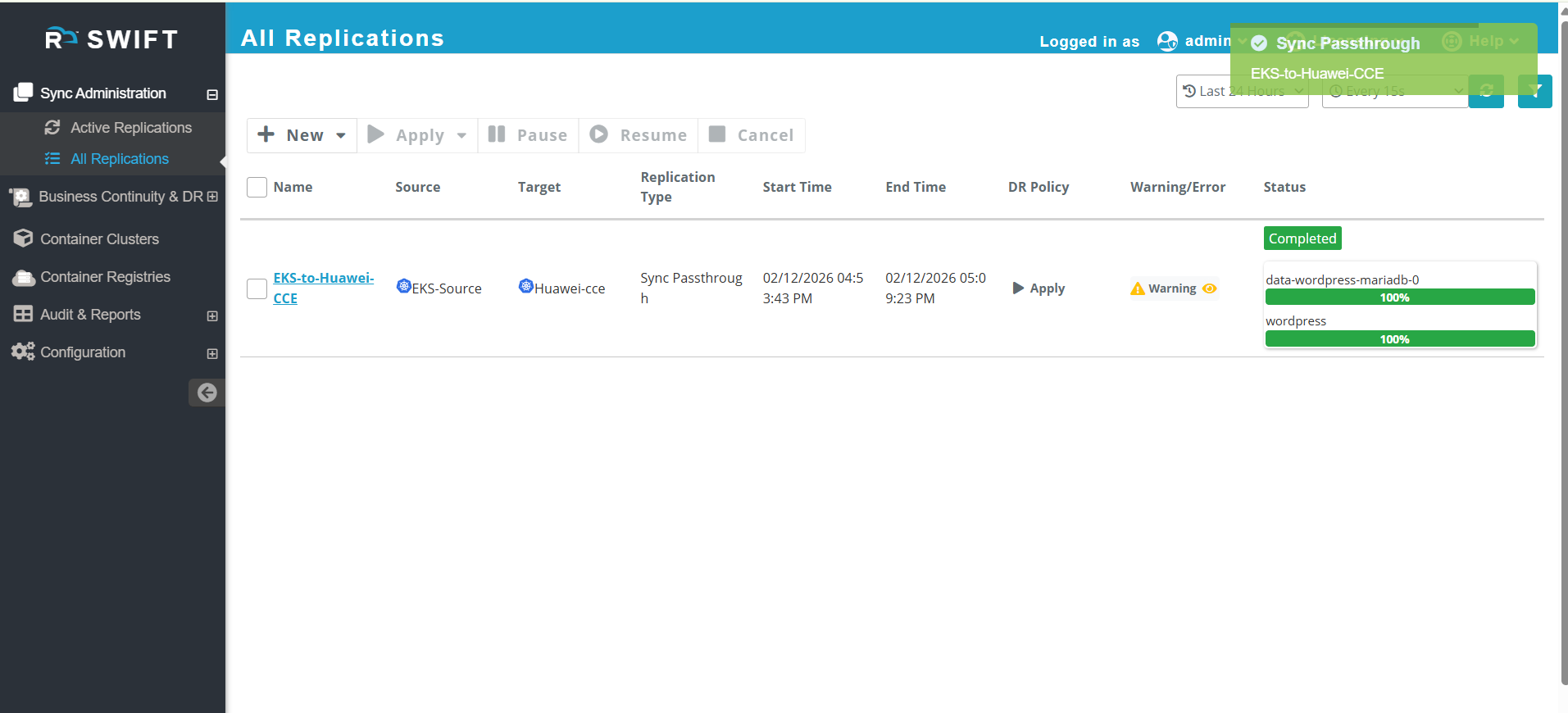
6. Access the application on the target Huawei CCE cluster and verify that the data (for example, posts) created on the source side are correctly reflected.
For this go to Huawei CCE console > Open the target cluster > Select the target namespace > From the left-side menu, go to Resources > Services and Ingresses. > Locate your application service and copy the LoadBalancer IP address > Use this LoadBalancer IP in a browser to access the application and validate the data. 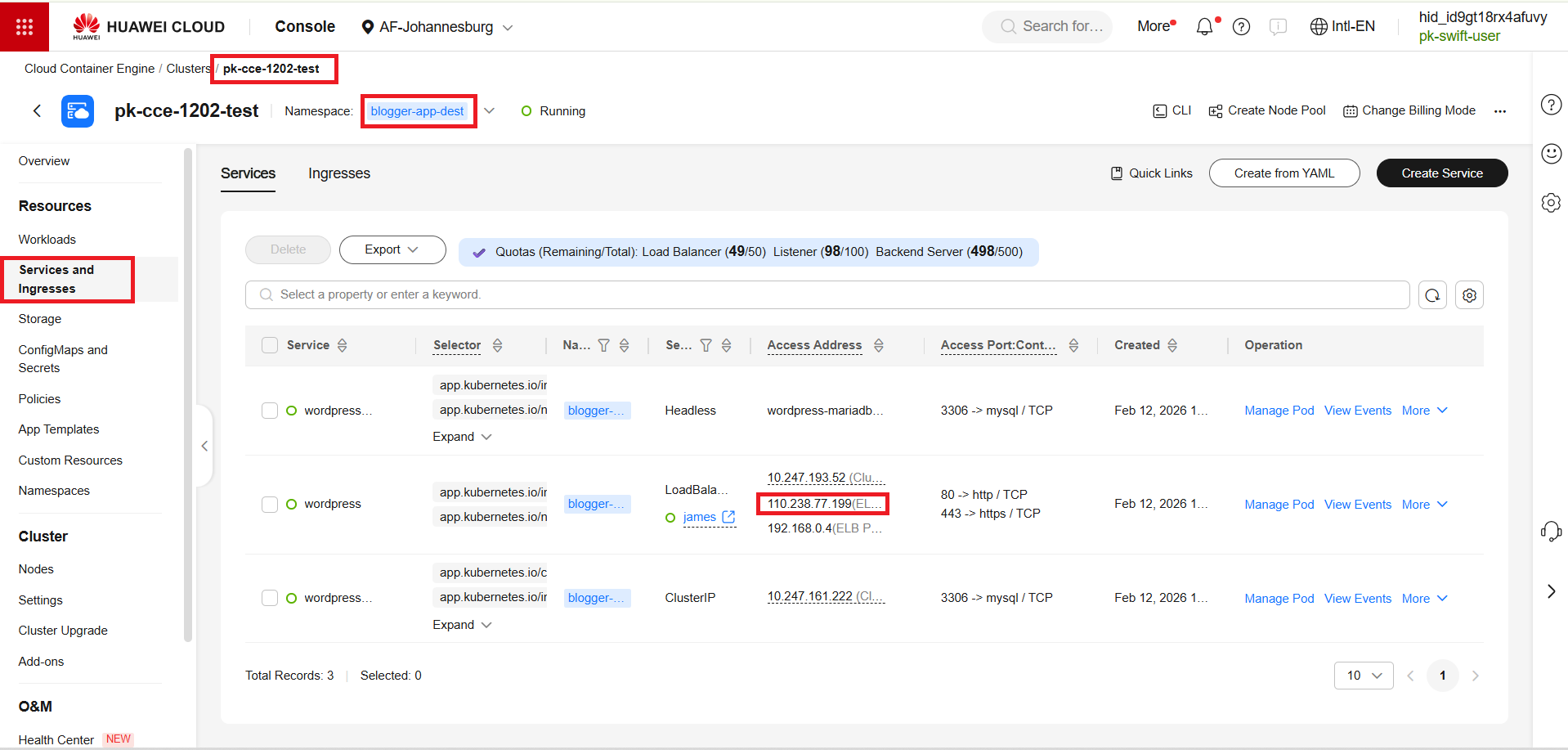
7.Open a web browser, enter the copied LoadBalancer IP address, and verify that the posts are visible on the target application.