To migrate applications, there are three types of sync modes you can use:
1. Passthrough sync:-This is a simple lift and shift operation. Your application is directly copied to the target environment without storing any data on the SWIFT server.
2. Stage1 sync: - Use this when you want to create a backup copy of your application on the SWIFT server. This allows you to re-hydrate (restore) and deploy the application to the target environment at any time in the future.
3. Stage2 sync:- Use this when you are ready to fully move your application to the target environment. This sync uses the backup from Stage 1 (if available) or performs a fresh sync to complete the migration.
Pre-requisite:
1. Discover the source cluster.
Topics Covered
Stage1 Replication
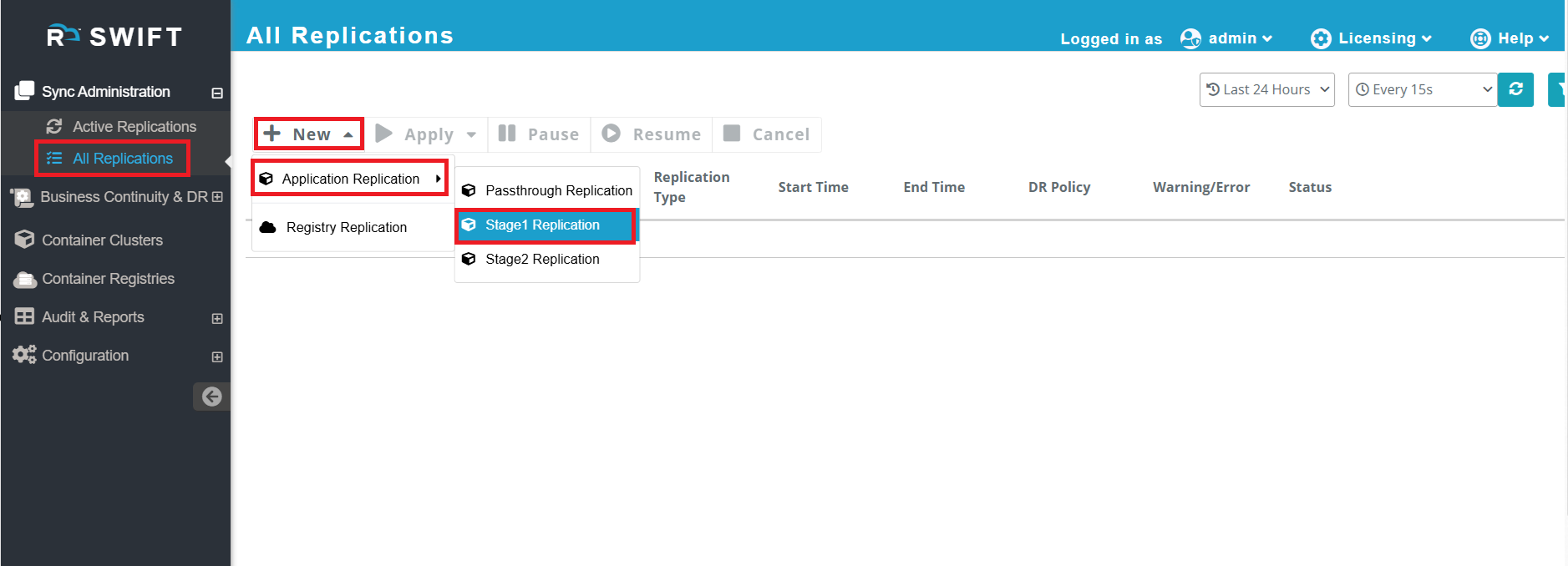
1.Once you add the storage pool, you can start the Stage 1 replication. For this, you only need to select the source cluster, and the other side will be your storage pool. To do this, Go to Sync Administration > All Replications > Click 'New' > Select Application Replication > Choose Stage-1 Replication.
2. Now yo just select your source cluster and choose storage pool and put the image group name. As you can see below screenshot we have selected the EKS cluster at source and at target side there will be a storage pool that we have created in SWIFT.
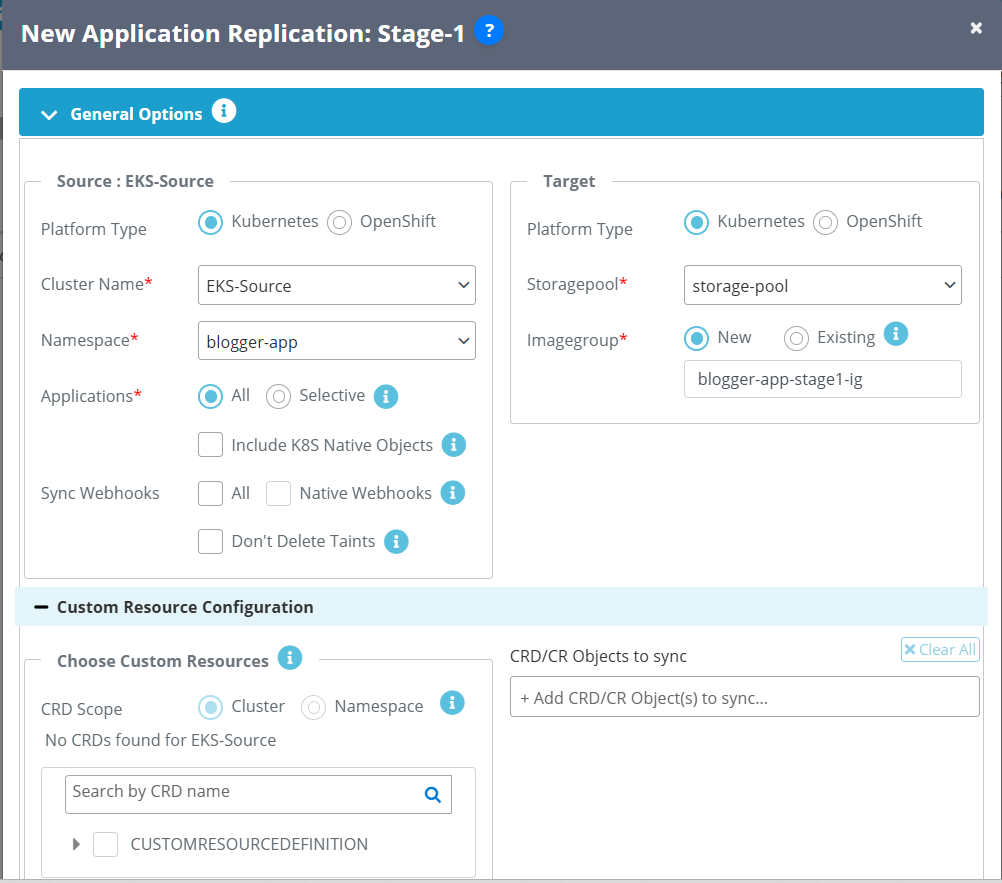
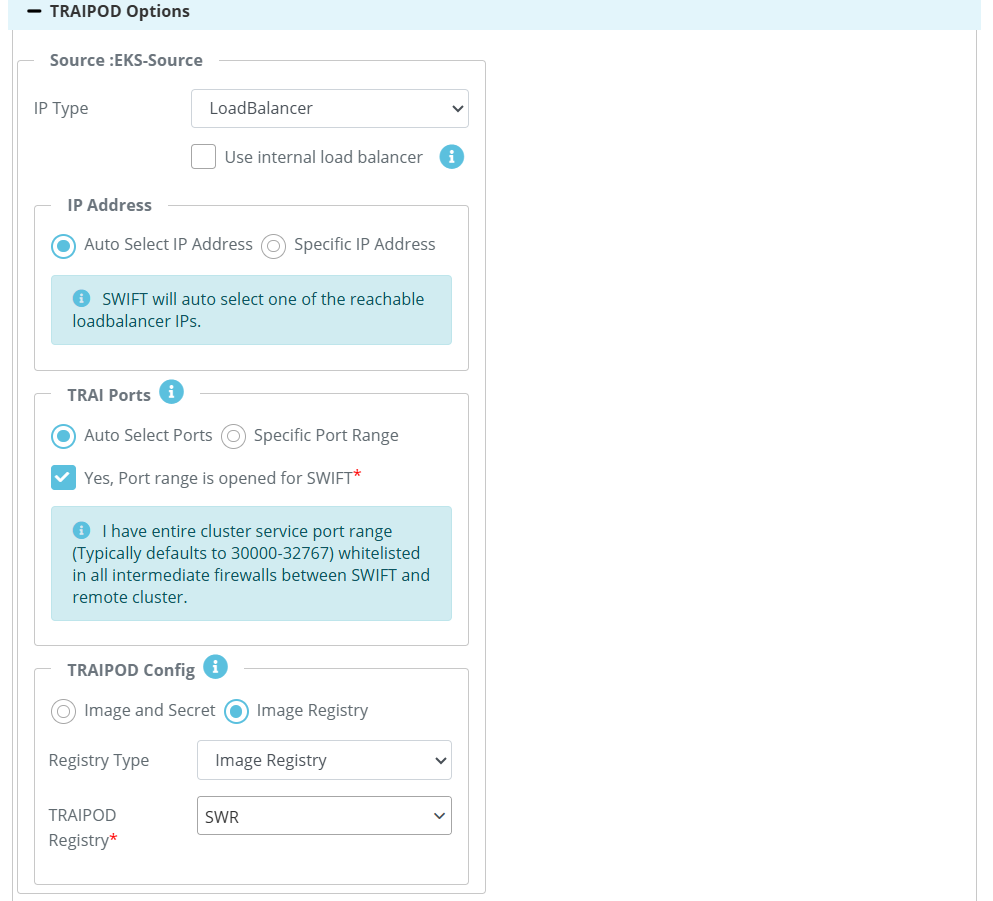
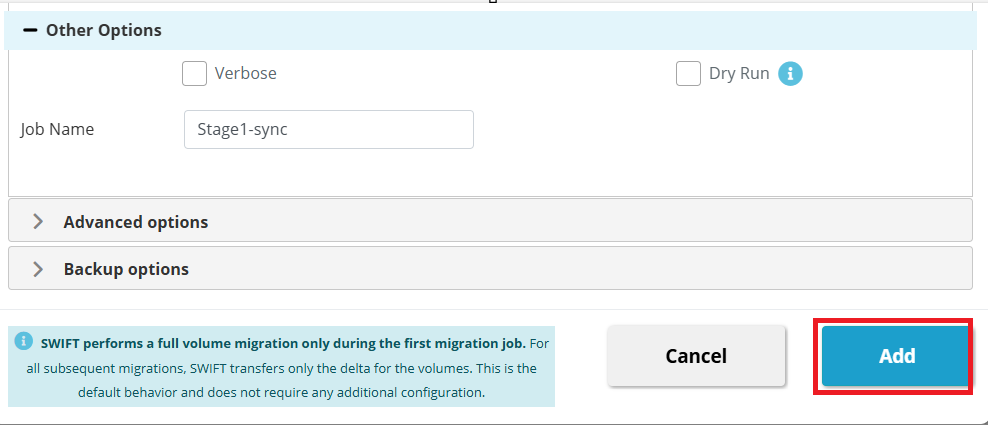
3. Now you can click on 'Add' button to start the stage1- sync.
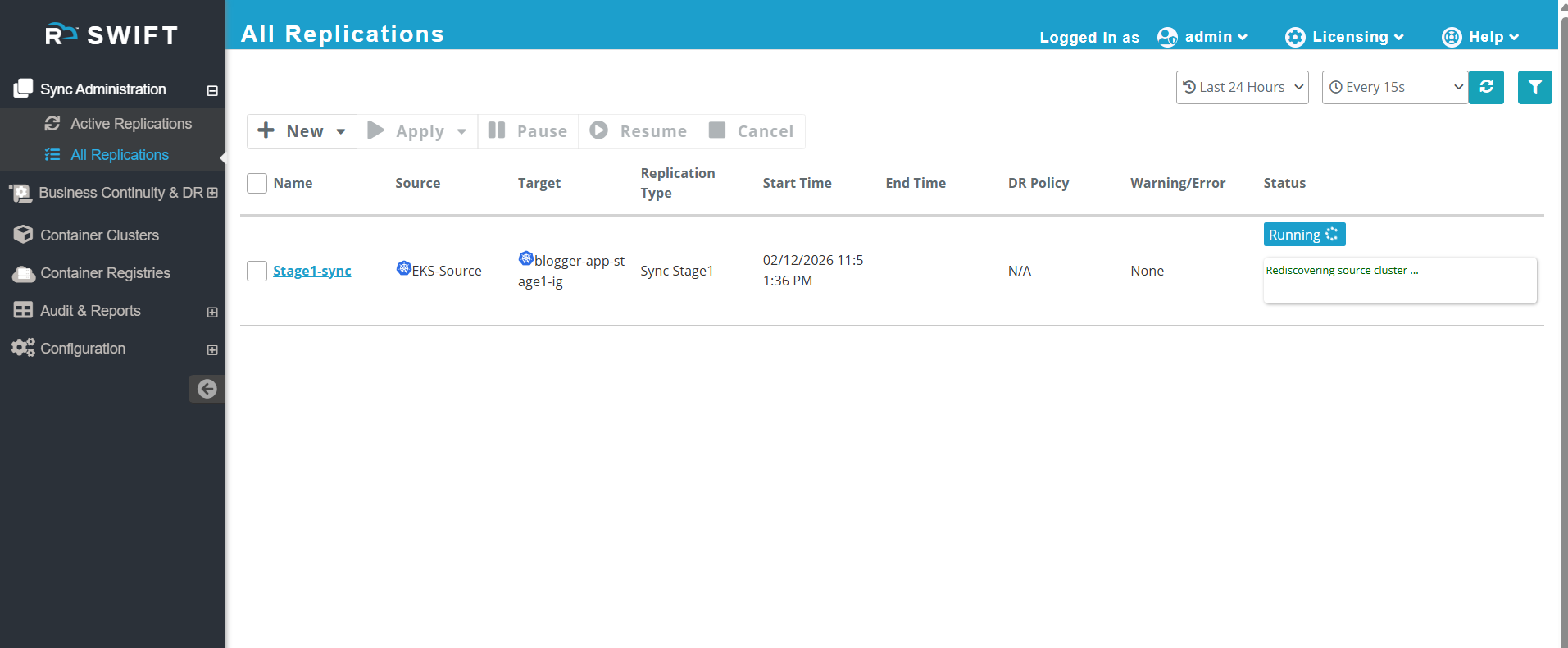
4. Once added, it will indicate that Stage 1 has started. As you can see in the screenshot below, the Source will be your primary cluster, and the Target will be your image group name. Now wait for sometimes to complete the sync.
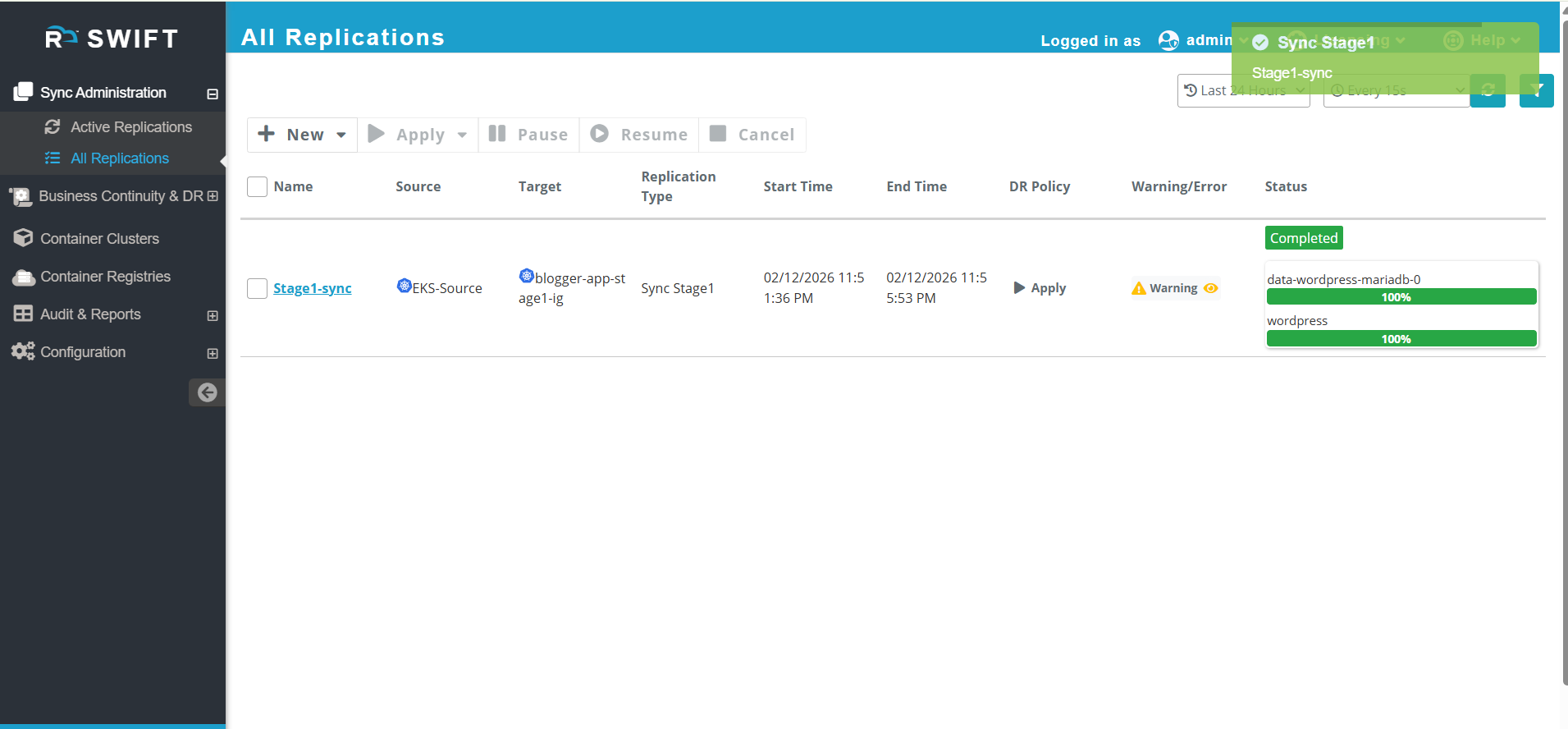
5. Once the stage1 is completed, go to Sync Administration > All Replication. Here, you can see the completed sync.
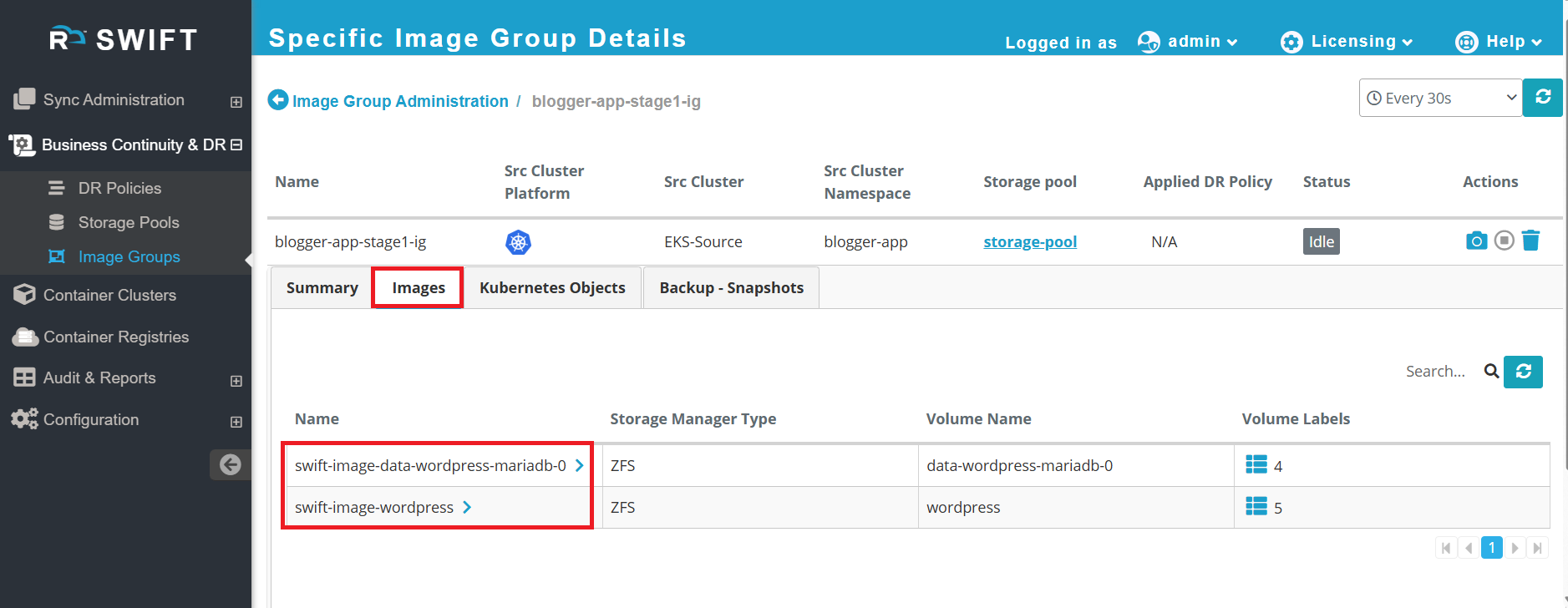
6. Now, you can verify whether your application has been successfully backed up in the Image Group.
Go to 'Business Continuity and DR' > 'Image Groups, and choose the image group name you provided during the sync process. You will see the images of your application listed there. Refer to the screenshot below.
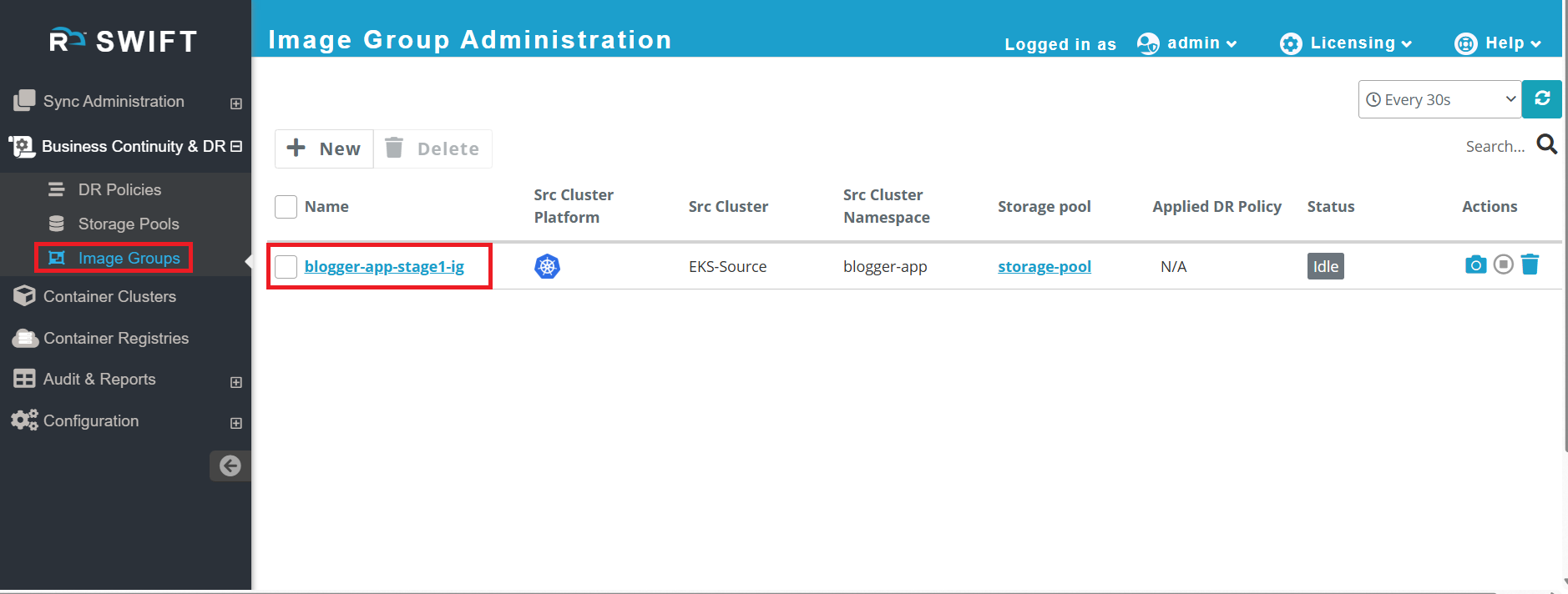
7. Expand that image group and see Image section.
Stage2 Replication
Stage 2 sync is the phase where, after Stage 1 preparation is complete, the application is actually migrated from the SWIFT environment to the Huawei CCE target cluster. In this stage, application components, configurations, and associated data are synchronized and deployed to the CCE cluster.
Pre-requisite:
Stage1 sync should have completed which will create a image group in SWIFT.
1. Once the stage1 is completed, then IG will be created, go to the > All replication under Sync Administration > click on New > Application replication > Stage2 Replication.
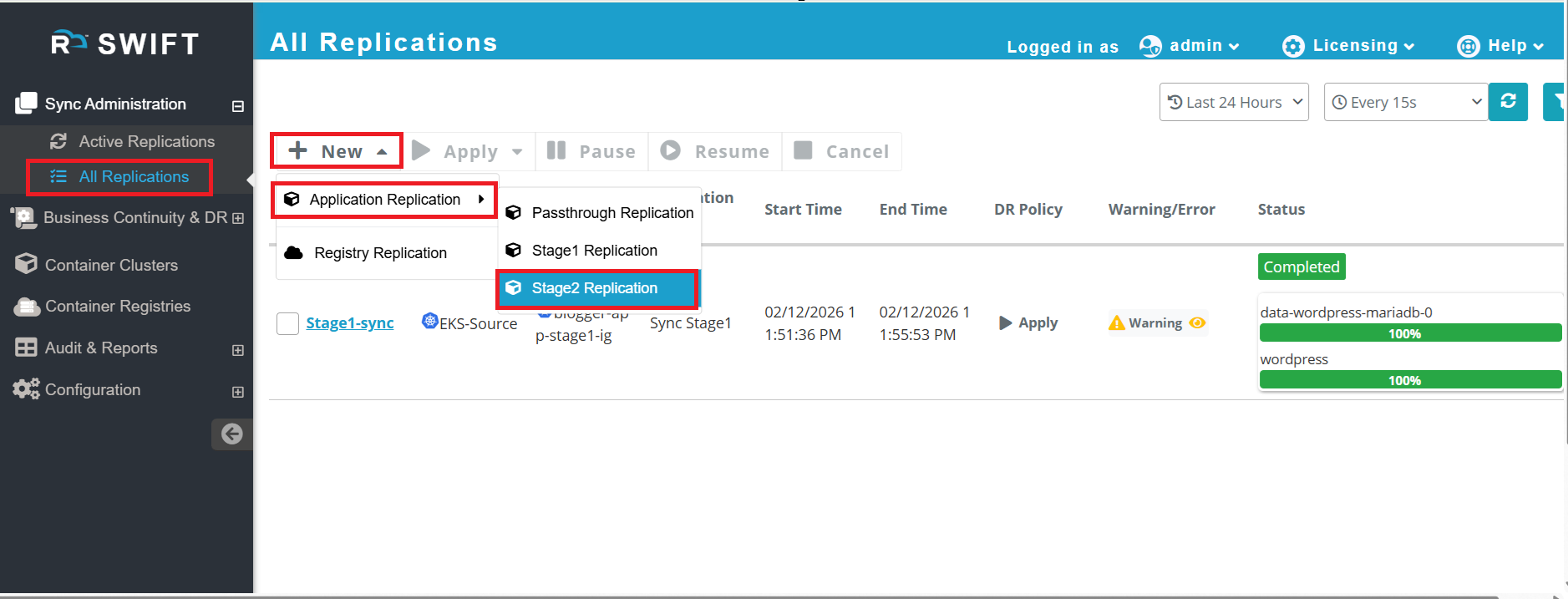
2. Once you click on Stage 2 Replication, you will be prompted to create a new replication for Stage 2.
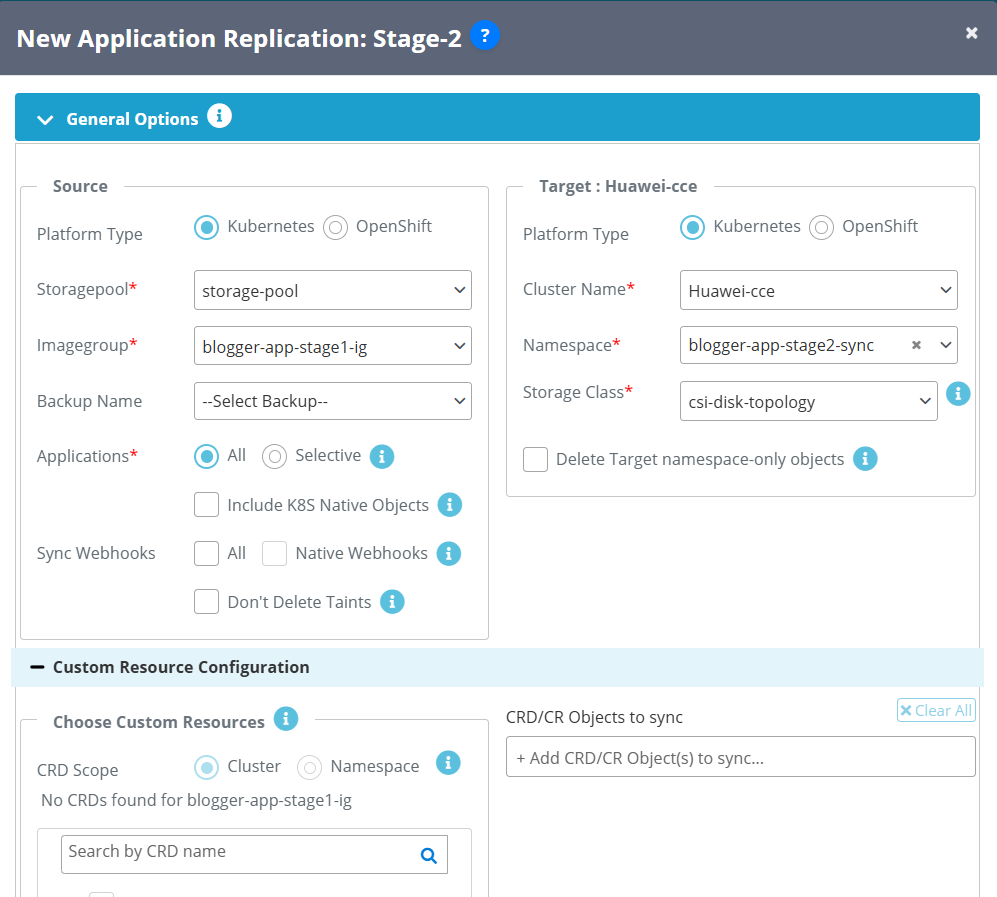
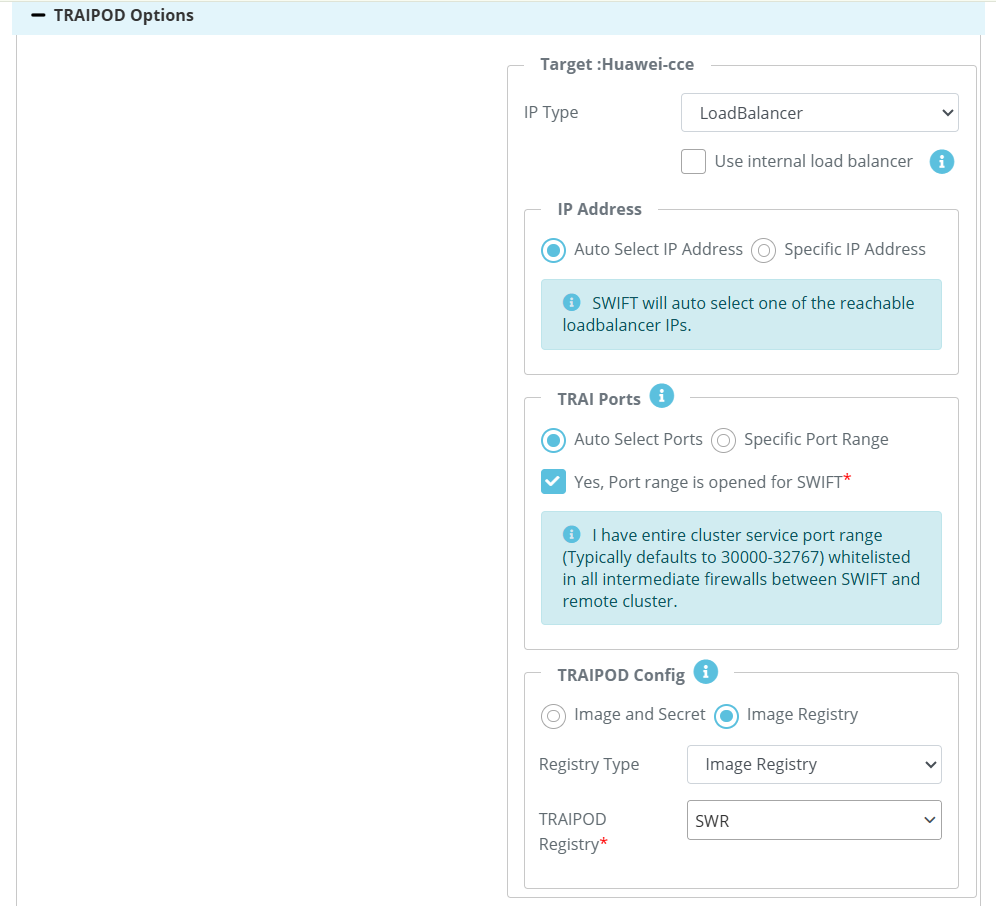
| Field Name | Field Description |
| Platform type (Source side) | Select the platform where your cluster is running |
| Storage Pool (Source side) | It will be listed which you have added a storage pool How to create Storage pool |
| Image group (Source side) | Image-Group in SWIFT represents a logical group of captured Kubernetes or OpenShift volumes. In the above screenshot, the IG was already created during stage1 sync. |
| Application (Source side) | ALL -> Everything in your IG, all objects will be replicated. Selective --> IF you want to do only selected object then you can use this option. Include K8S native objects --> Include native k8s objects' ensures that Kubernetes objects like Services, ConfigMaps, Secrets, and Ingress are migrated along with the application |
| Sync webhook (Source side) | ALL --> If you select this, then all webhook that are present in the source, it will migrated to target. Native Webhook --> Includes cluster-level native Kubernetes webhooks during migration. Dont delete the taints --> By default taints going to be deleted, if you dont want this, then you can select this option |
| Cluster Name | Select the cluster that is for target. |
| Namespace | You can either create a new namespace or select the existing from dropdown. So, your app will be migrated to specific namespace. |
| StorageClass | SWIFT will give you choice to choose the storageclass as per your k8s cluster |
| TRAIPOD Config | This is an optional input. They can be configured for each sync, and the values input for the sync will override the defaults set for the cluster. For more info you can look TRAIPOD KB article. To more know about Traipod Config section, You can follow below KB Article. traipod-config |
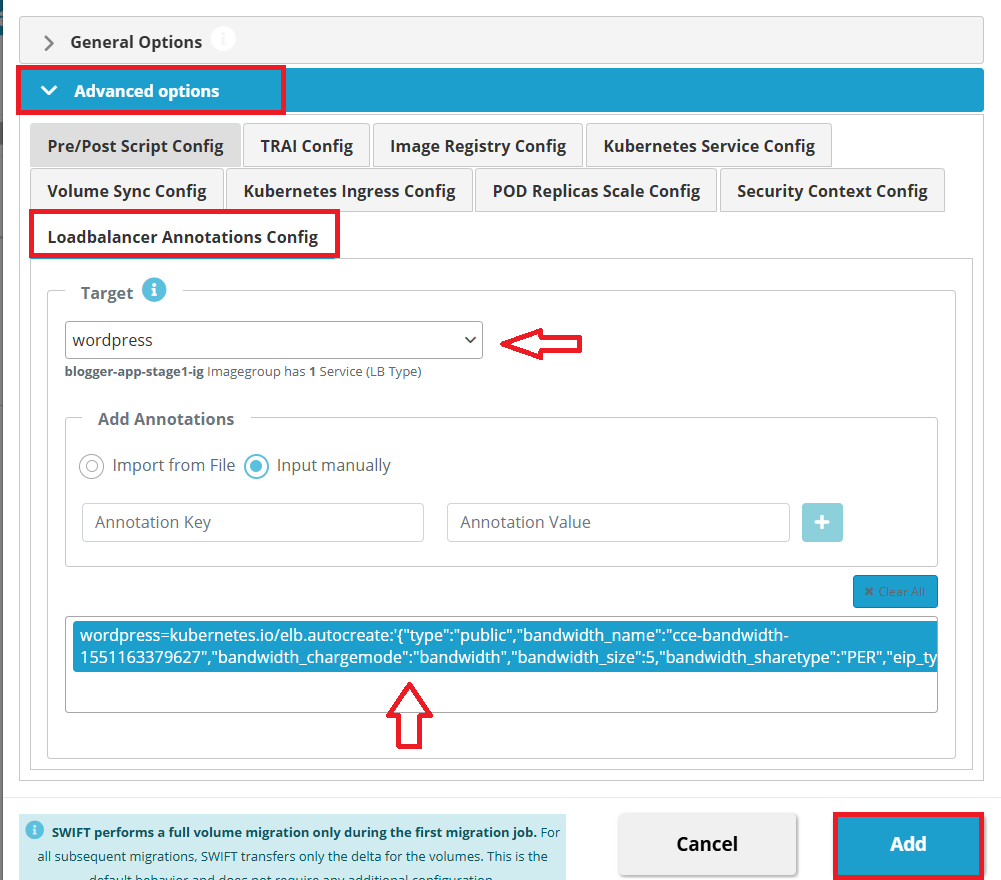
3. In Huawei Cloud, a Load Balancer is not created automatically for Kubernetes LoadBalancer type services. To provision a Load Balancer, you must add the required service annotations along with EIP details. This can be configured using SWIFT.
To do this, Navigate to Advanced Options > Select the LoadBalancer Annotation Config tab > Select the required service name from the dropdown list > Add annotations by either Uploading an annotation file, or Manually entering the annotation key and value, then clicking the Plus (+) button > Click Add to start the migration.
Example Annotation:
kubernetes.io/elb.autocreate: '{"type":"public","bandwidth_name":"cce-bandwidth-1551163379627","bandwidth_chargemode":"bandwidth","bandwidth_size":5,"bandwidth_sharetype":"PER","eip_type":"5_bgp","name":"james"}'Important Note:
Repeat this process for each LoadBalancer-type service that requires Load Balancer provisioning.
Alternative Option
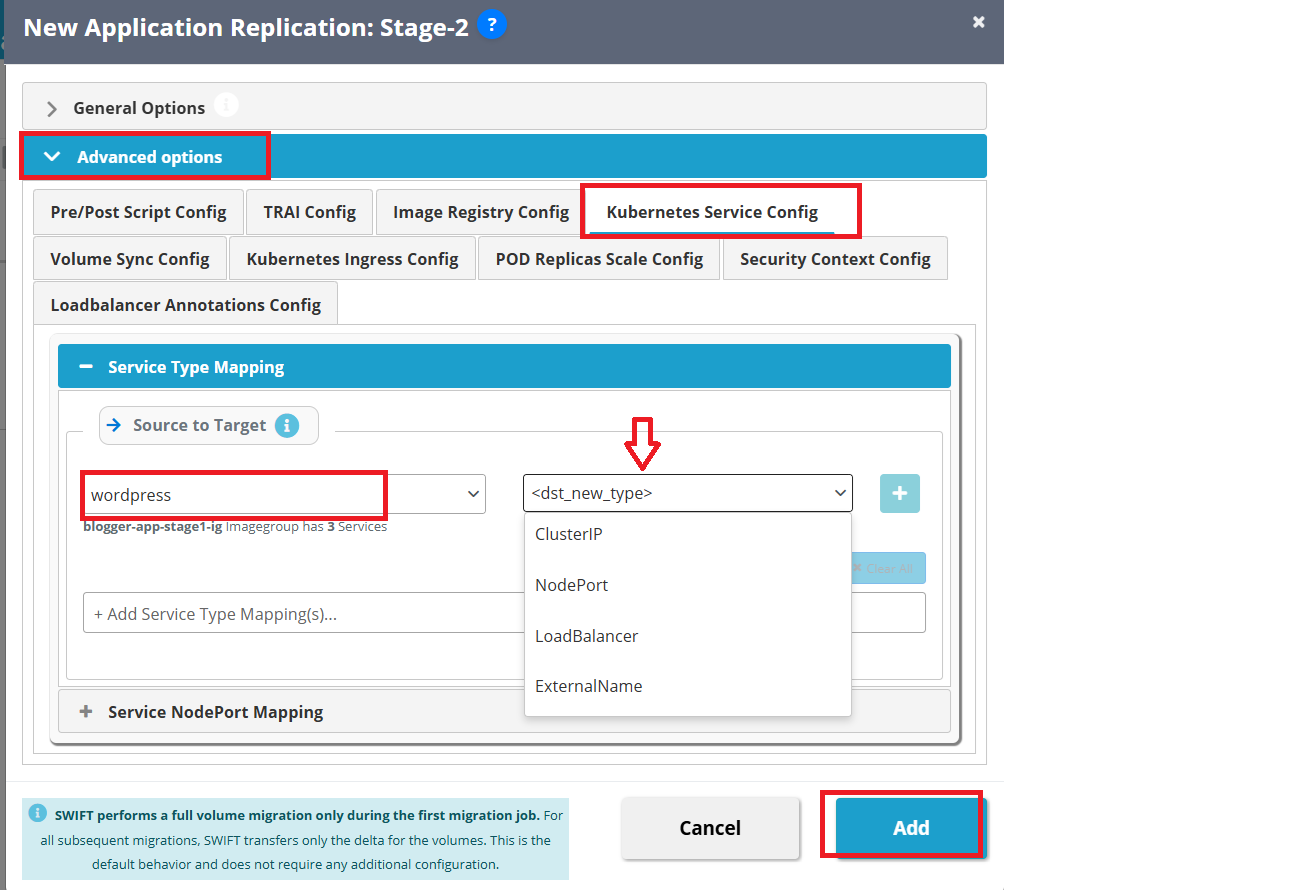
If a LoadBalancer is not required, you can modify the service type during migration using SWIFT:
Go to Advanced Options. > Open Kubernetes Service Type Config > Change the service type to NodePort or ClusterIP as needed.
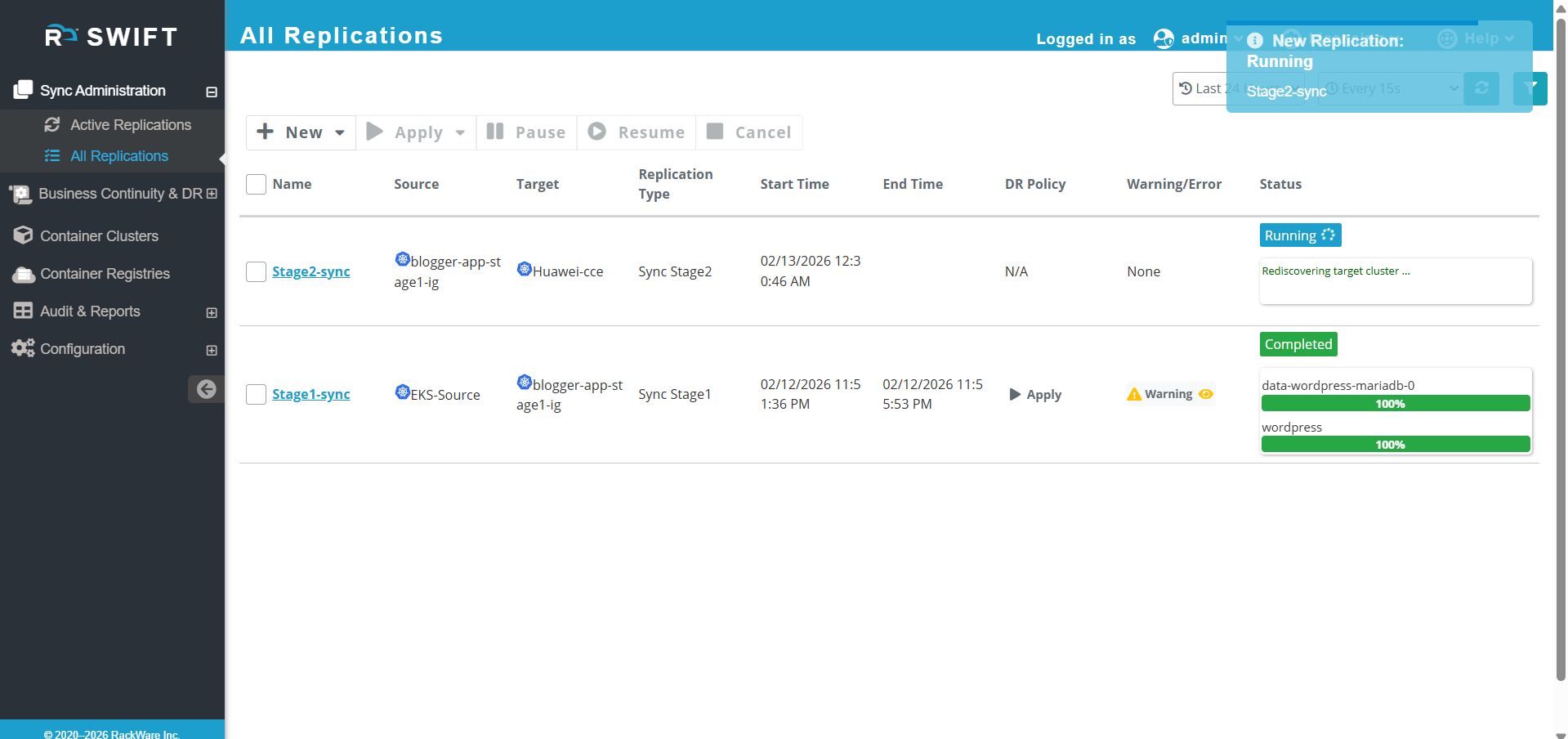
4. Once you click on Add button , then Stage2 will be initiated.
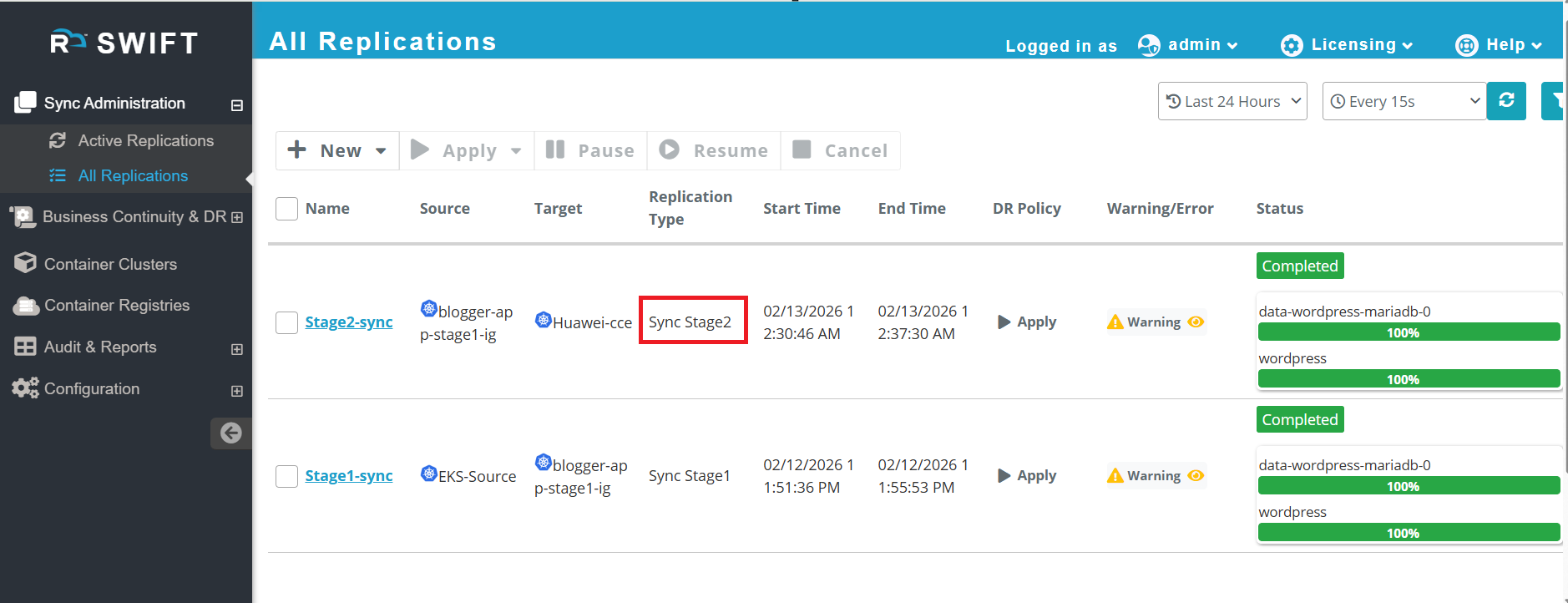
5. Now Stage2 has been completed.
6. Access the application on the Huawei Cloud target cluster. You can access the application either using kubectl or directly through the Huawei Cloud console.
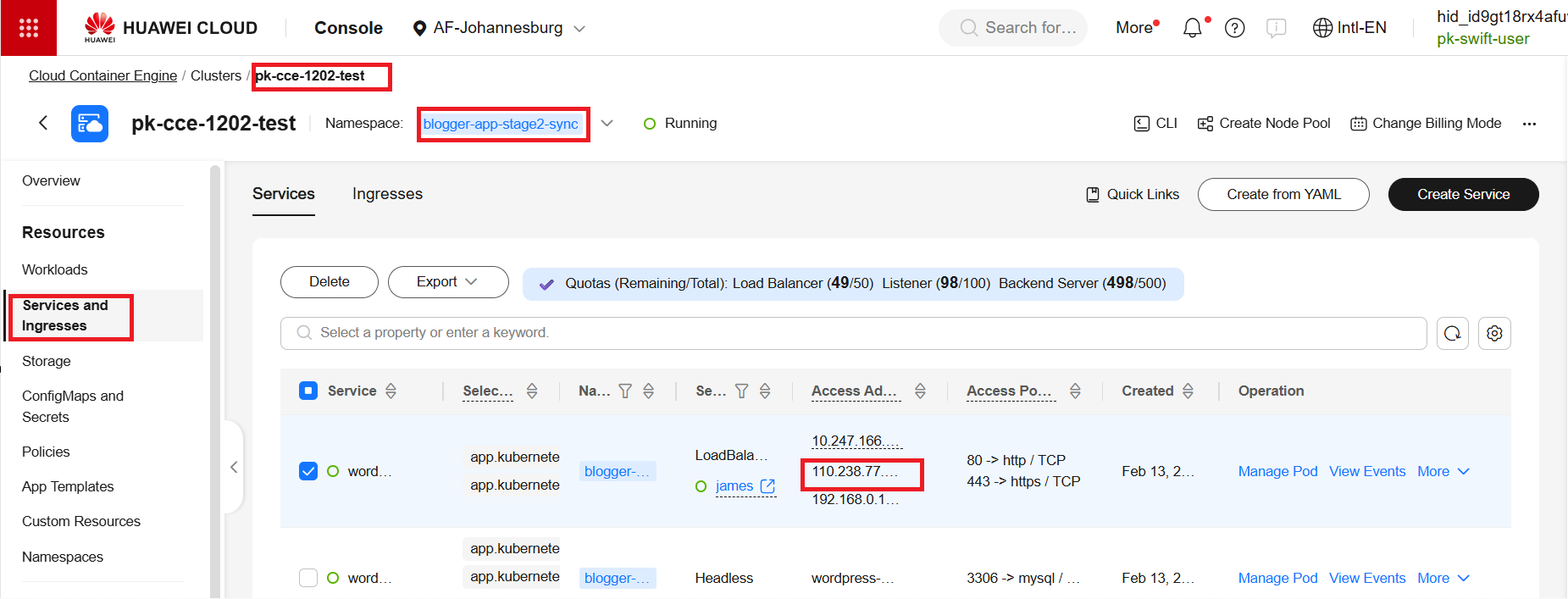
7. The application was accessed successfully at target Huawei CCE cluster, and the content posted on the source cluster was visible and verified.