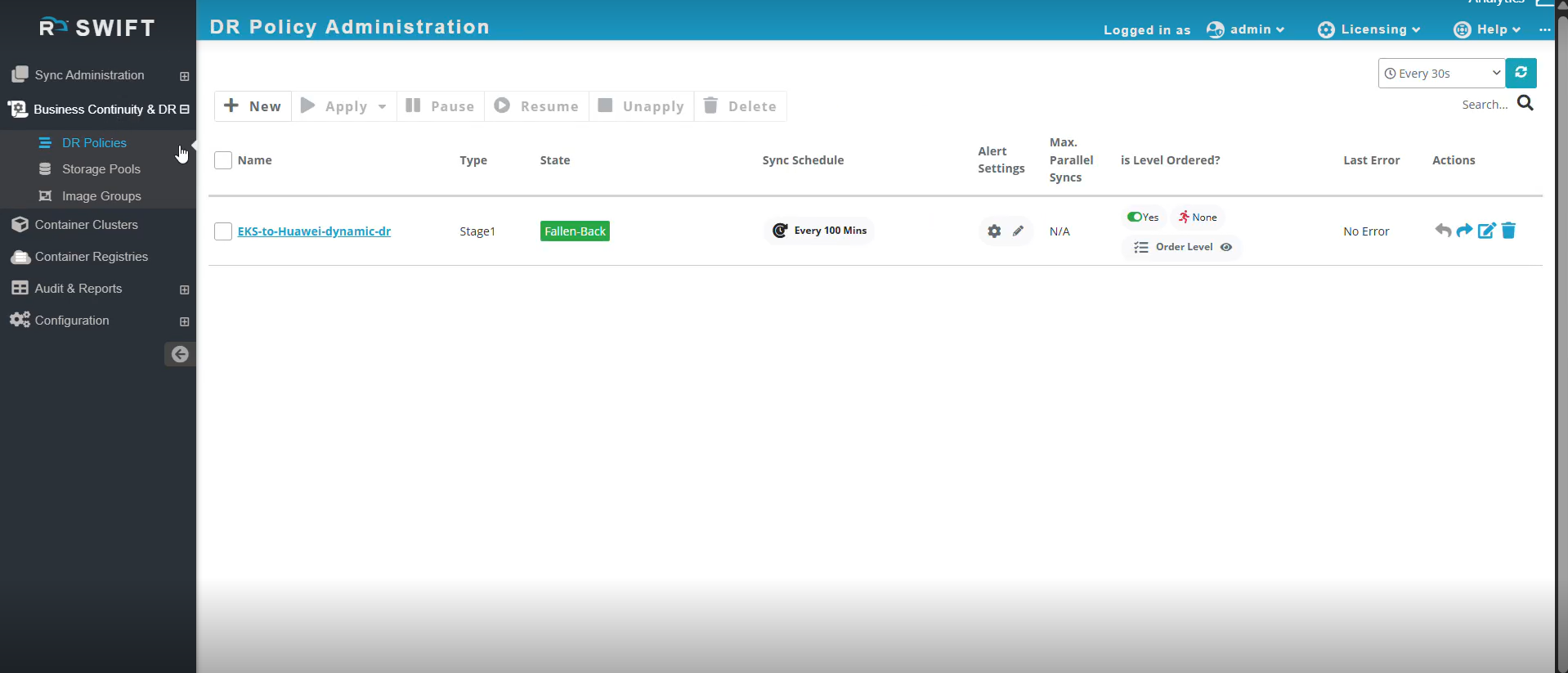
If you have a use case where you don’t want the DR cluster to be always running in the cloud to save costs, you can create Stage 1 sync which will take backups on the SWIFT as per schedule configured.
In the event of a disaster or an issue on the source side that requires restoration, you can use the Dynamic Cluster DR replication configuration to automatically create the Target (DR).
SWIFT has provided this nice feature that user can perform Dynamic DR provision. To do this follow below steps...
Pre-requisite:
User must have a cloud account where the dynamic cluster will be provisioned.
Topics Covered
- How to create dynamic DR provision at Huawei cloud using Stage1 DR Policy
- How to do Failover
- How to do Fallback
How to create dynamic DR provision at Huawei cloud using Stage1 DR Policy
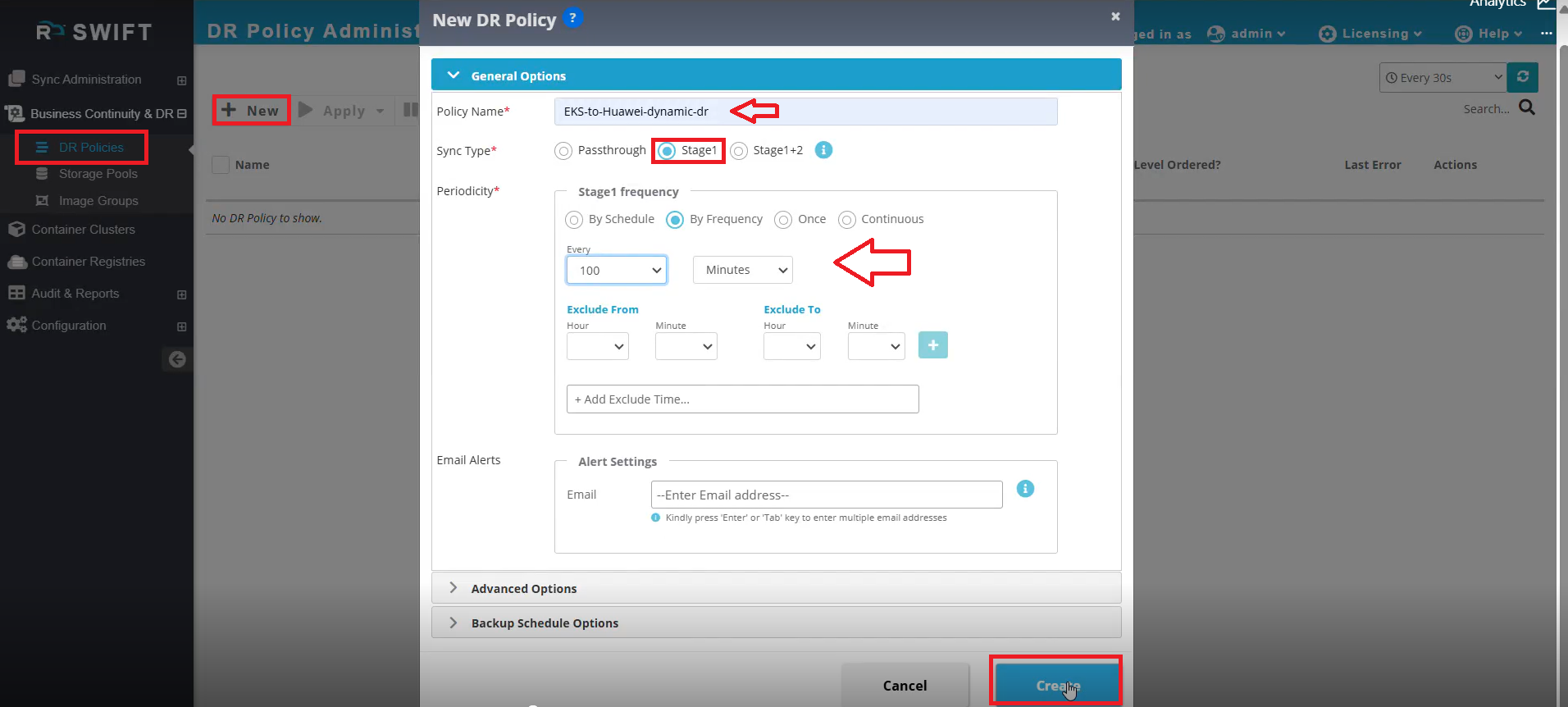
1. A Stage1 DR policy can be created from the Business Continuity DR section under DR Policies by selecting New, choosing Stage1 as the sync type, and then specifying the DR policy name and the required periodicity.
2. After creating the Stage1 DR Policy, you can select it and choose Apply, then proceed with Application Replication using the DR cluster. 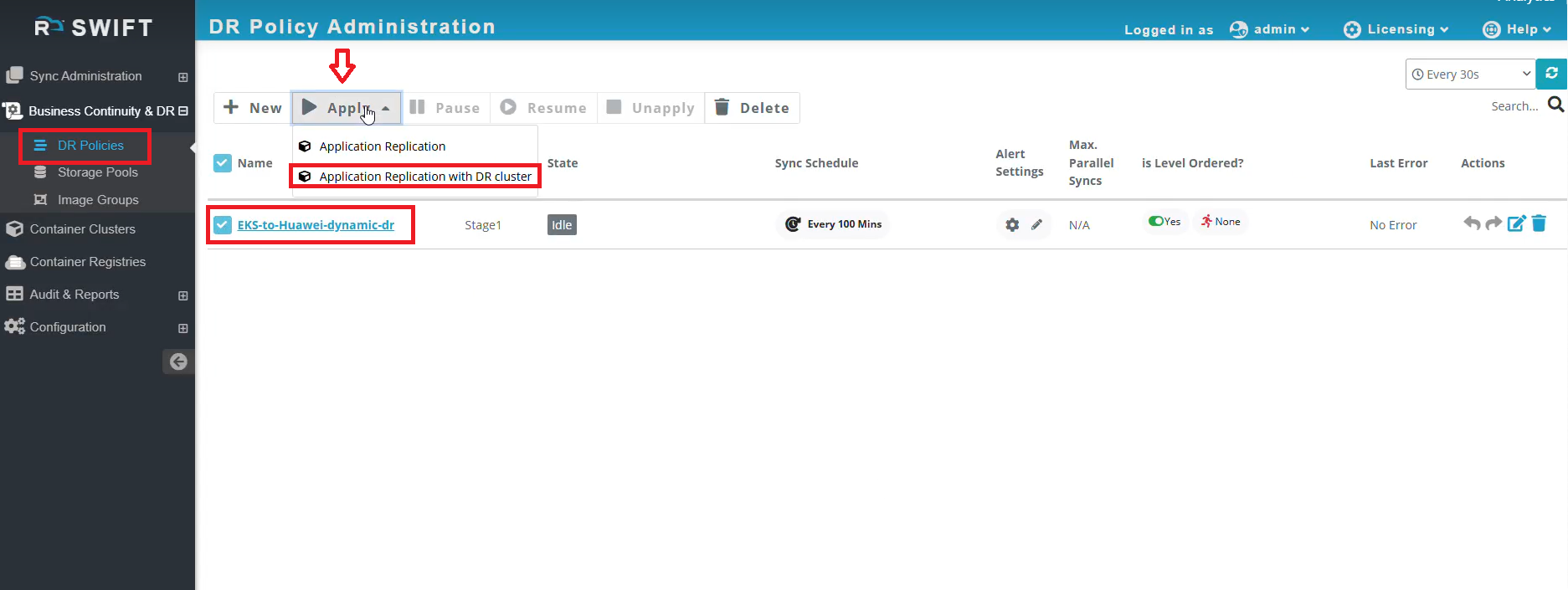
3. When you click on Application Replication using DR cluster, then one prompt will be appear. There you can provide the source and Dynamic cluster information.
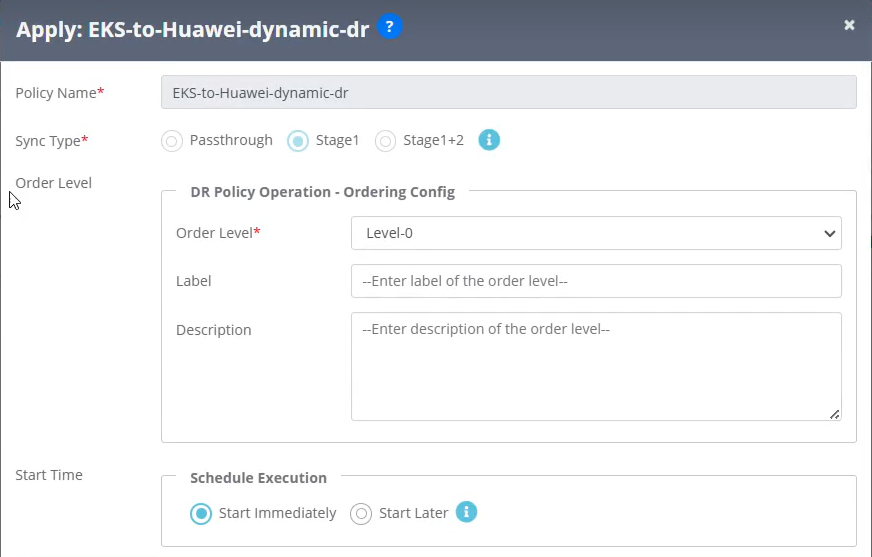
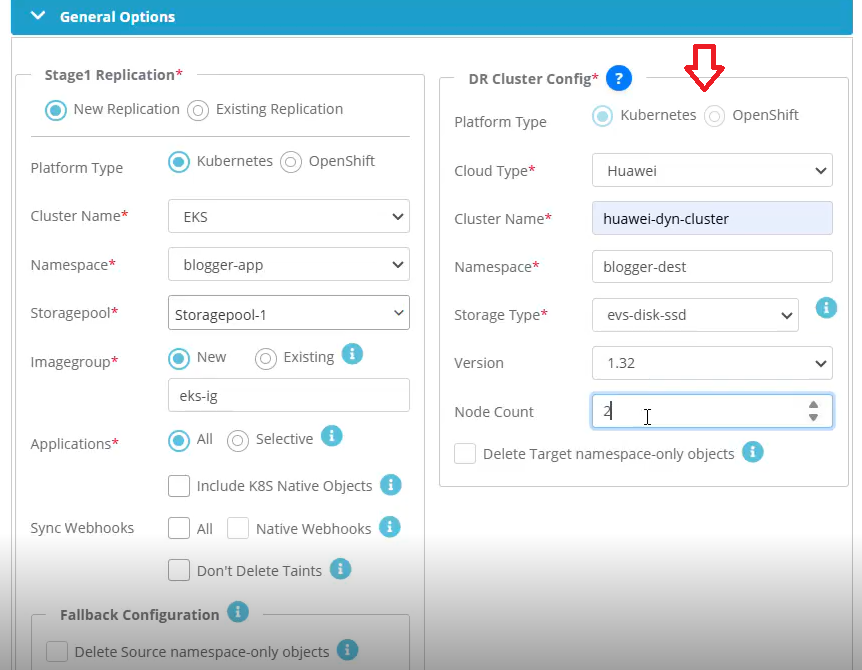
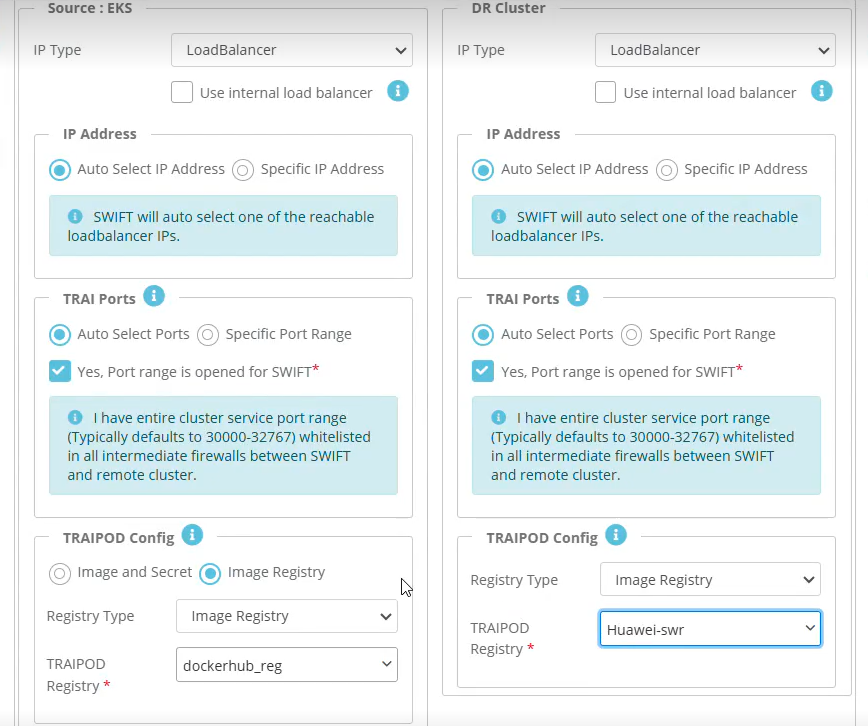
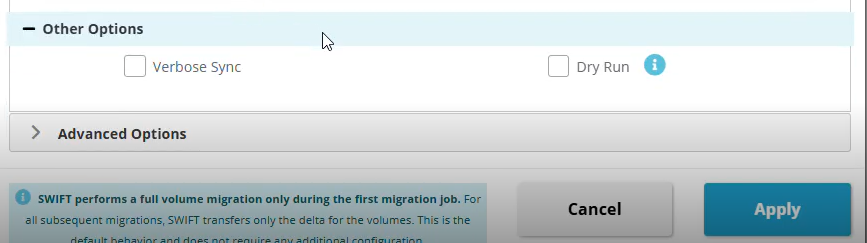
Stage 1 Replication
| Field | Field Description |
| Platform Type | Select the platform type of the source cluster (Kubernetes or OpenShift). |
| Cluster Name | Name of the source cluster where applications currently run. |
| Namespace | Source namespace that contains the application resources. |
| Storagepool | Storage pool used for replication data. |
| Imagegroup (New / Existing) | Select or create an image group for container images. |
| Applications (All / Selective) | Choose whether to replicate all applications or only selected ones |
| Include K8S Native Objects | Includes Kubernetes native resources (like ConfigMaps/Secrets) in replication. |
| Sync Webhooks | ALL --> If you select this, then all webhook that are present in the source, it will migrated to target. Native Webhook --> Includes cluster-level native Kubernetes webhooks during migration. Don't delete the taints --> By default taints going to be deleted, if you don't want this, then you can select this option |
DR Cluster Configuration
| Field | Field Description |
| Cloud Type | Cloud provider where the DR cluster will be created (e.g., Huawei). |
| Cluster Name | Name of the target (DR) cluster to be created or used. |
| Namespace | You can either create a new namespace or select the existing from dropdown. So, your app will be migrated to specific namespace. |
| Storage Type | Choose storageclass used on the target cluster. |
| Version | Kubernetes/OpenShift version for the DR cluster. |
| Node Count | Number of worker nodes to provision in the DR cluster. |
| Delete Target Namespace-only Objects | Removes namespace-scoped objects on the target during cleanup. |
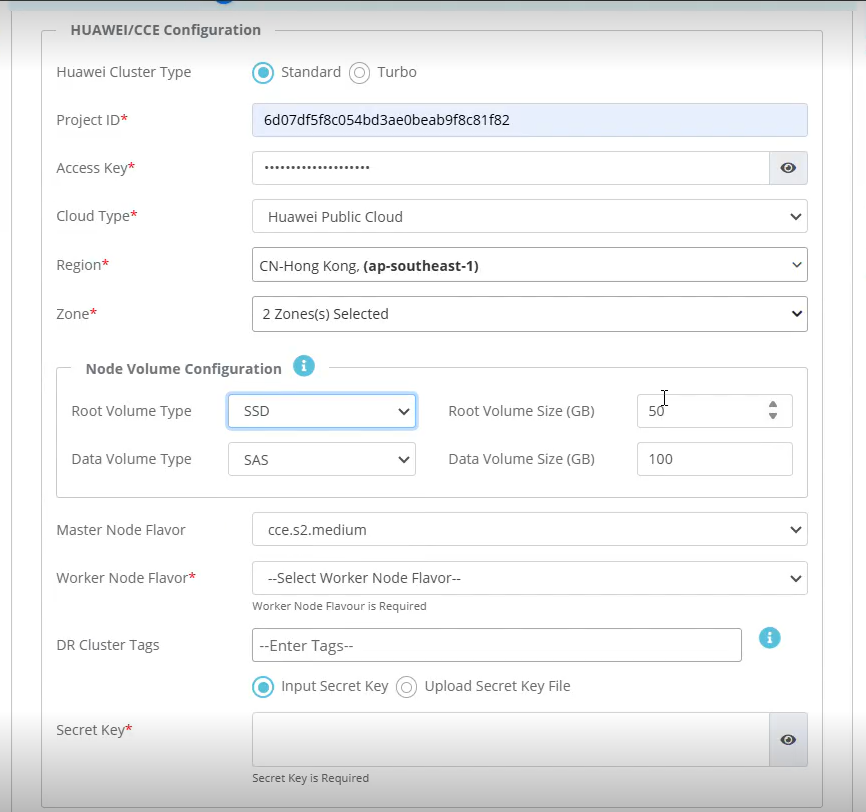
Huawei / CCE Configuration
| Fields | Fields Description |
| Huawei Cluster Type (Standard / Turbo) | Selects the performance and feature tier of the CCE cluster. Standard is general purpose, while Turbo provides higher performance. |
| Project ID | Unique Huawei Cloud project identifier where the resources will be created. |
| Access Key | Provide Huawei Cloud access key used for authentication. |
| Cloud Type | Specifies the Huawei cloud environment (e.g., Huawei Public Cloud). |
| Region | Geographic region where the CCE cluster will be deployed. |
| Zone | Availability zones within the selected region for cluster deployment. |
| Root Volume Type | Disk type for the node OS disk (e.g., SSD). |
| Root Volume Size (GB) | Size of the root disk allocated to each node. |
| Data Volume Type | Disk type for application/data storage (e.g., SAS/SSD). |
| Data Volume Size (GB) | Size of the data disk attached to each node. |
| Master Node Flavor | Instance type/specification for master nodes. |
| Worker Node Flavor | Instance type/specification for worker nodes. |
| DR Cluster Tags | Optional tags to organize and identify DR resources. |
| Secret Key Input Method | Choose whether to manually input the secret key or upload a key file. |
| Secret Key | Provide Secret key paired with the access key for secure authentication. |
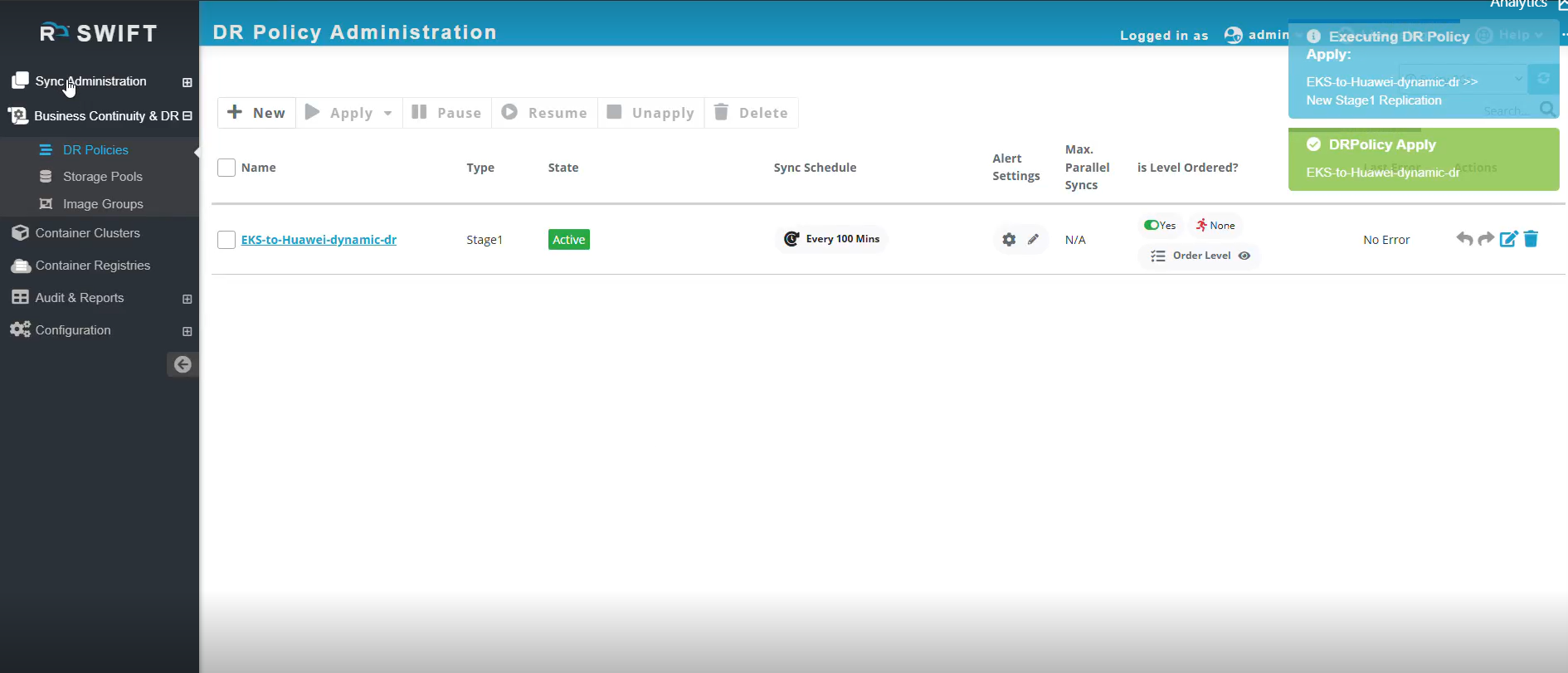
4.Once you apply the DR policy, it will move to the Active state. The dynamic DR cluster will not be provisioned unless a failover is triggered.
How to do Failover
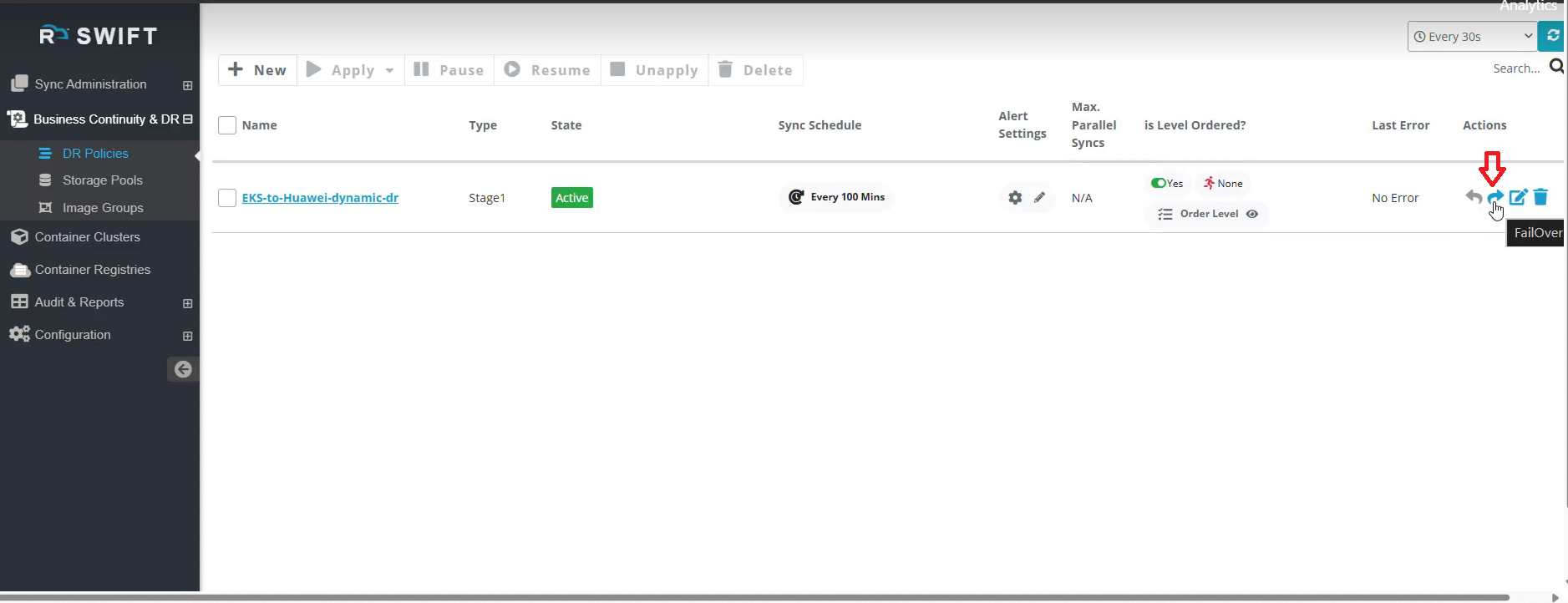
5. Click the Failover option (right-tilted arrow) to provision a dynamic DR cluster.
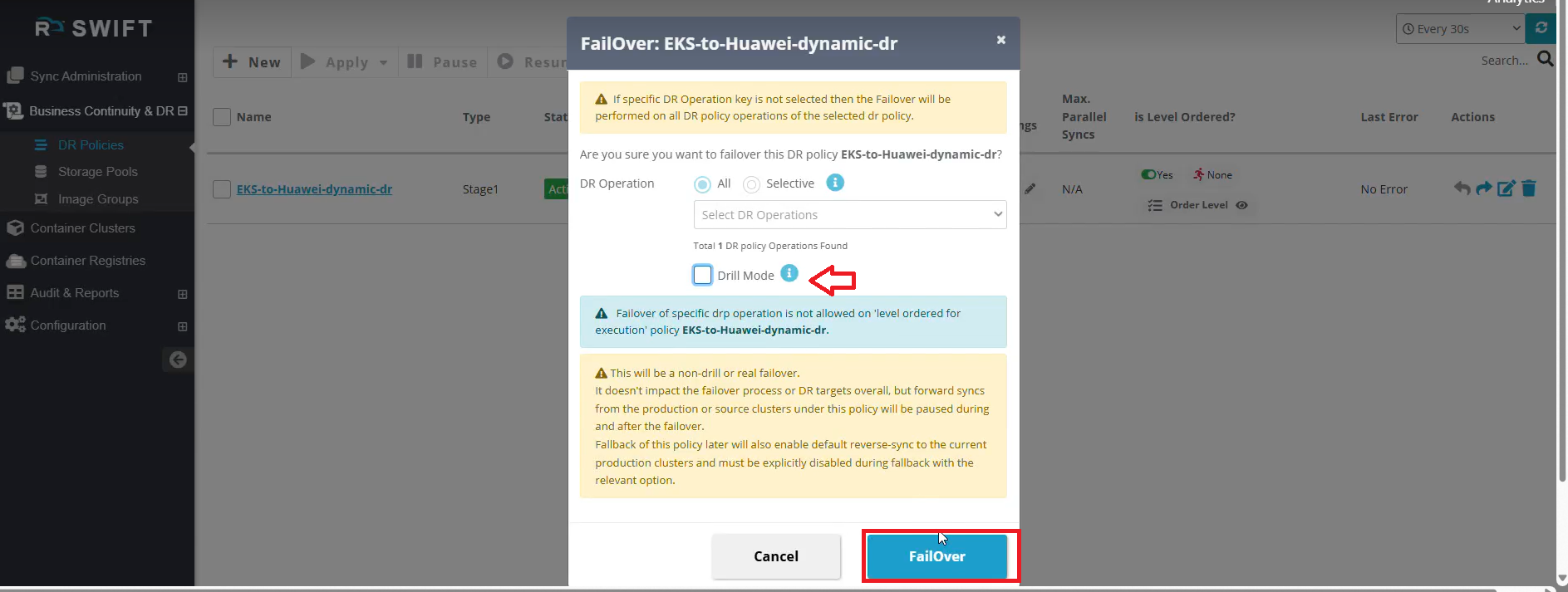
6. Make sure DR Drill is unchecked, and then click the Failover button to perform an actual failover.
7. Once you click Failover, Stage2 is automatically triggered to provision a dynamic DR cluster on Huawei through SWIFT.
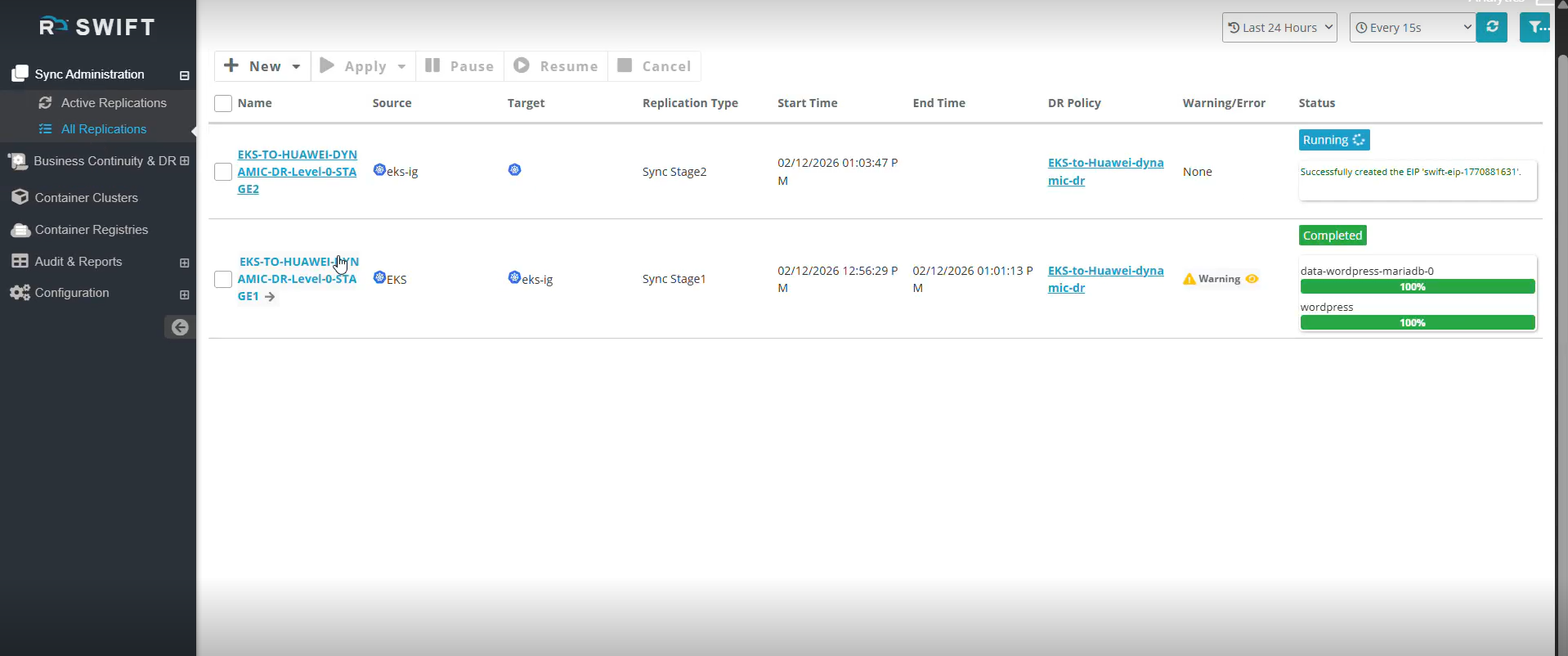
8. Additionally, you can monitor the sync progress by opening the job details, which will show the ongoing backend activities.
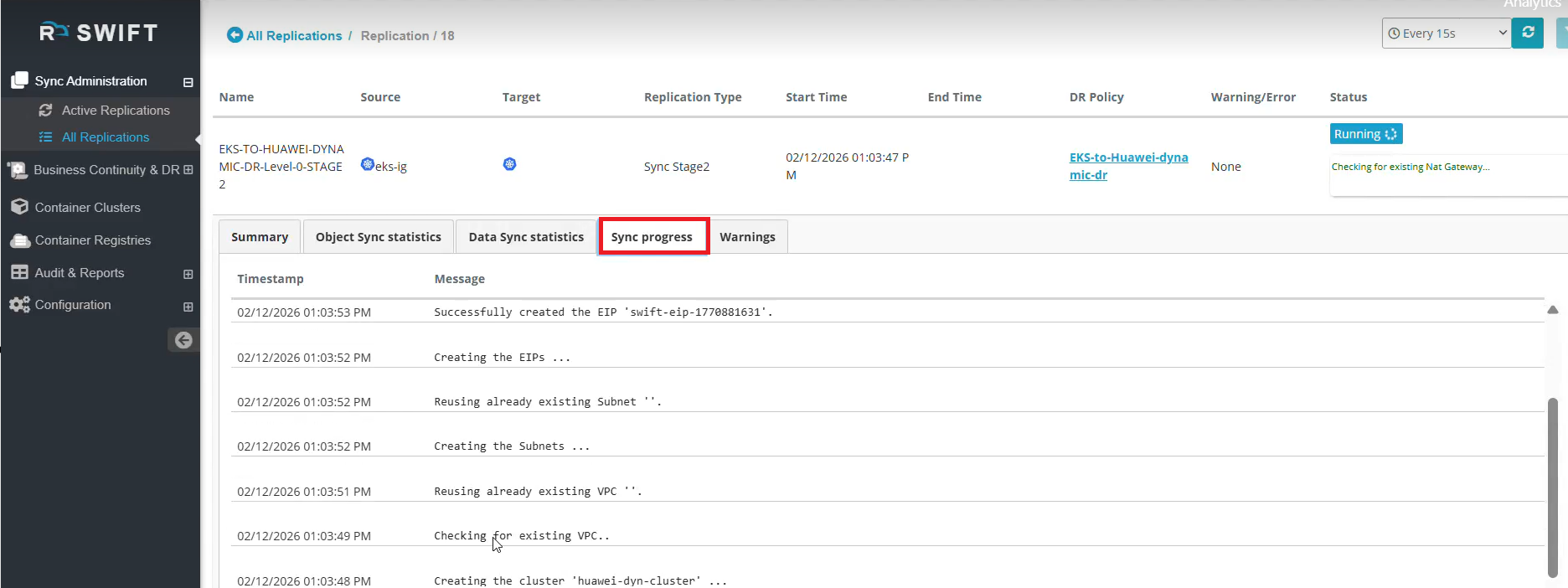
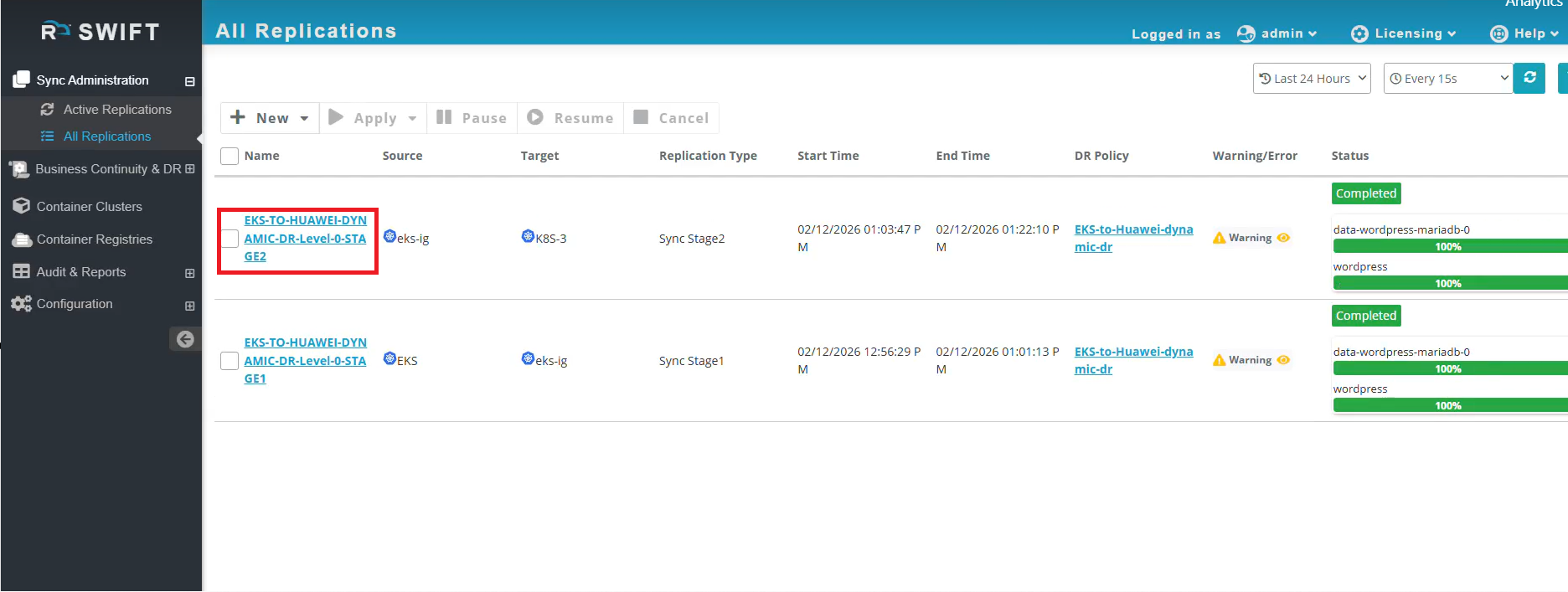
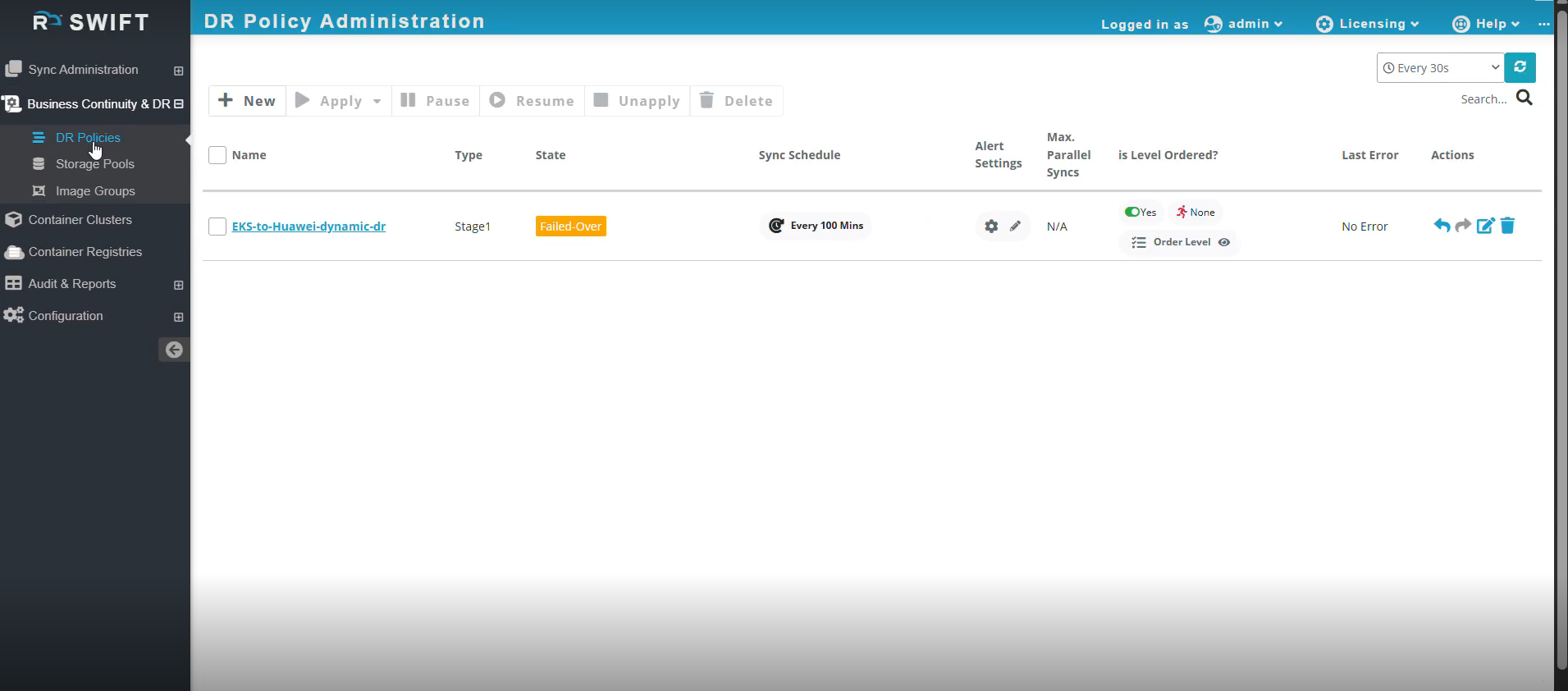
9. Stage2 is now complete, and the DR Policy has successfully failed over.
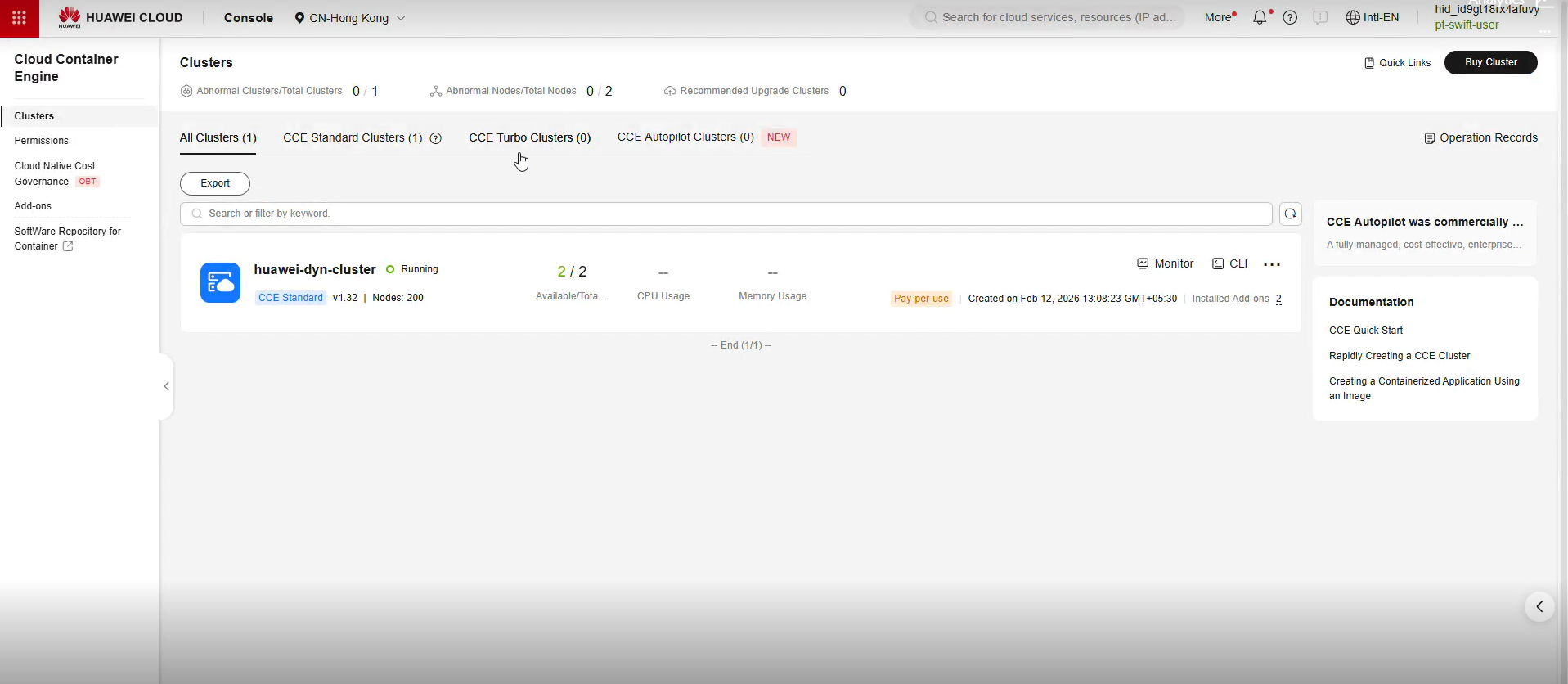
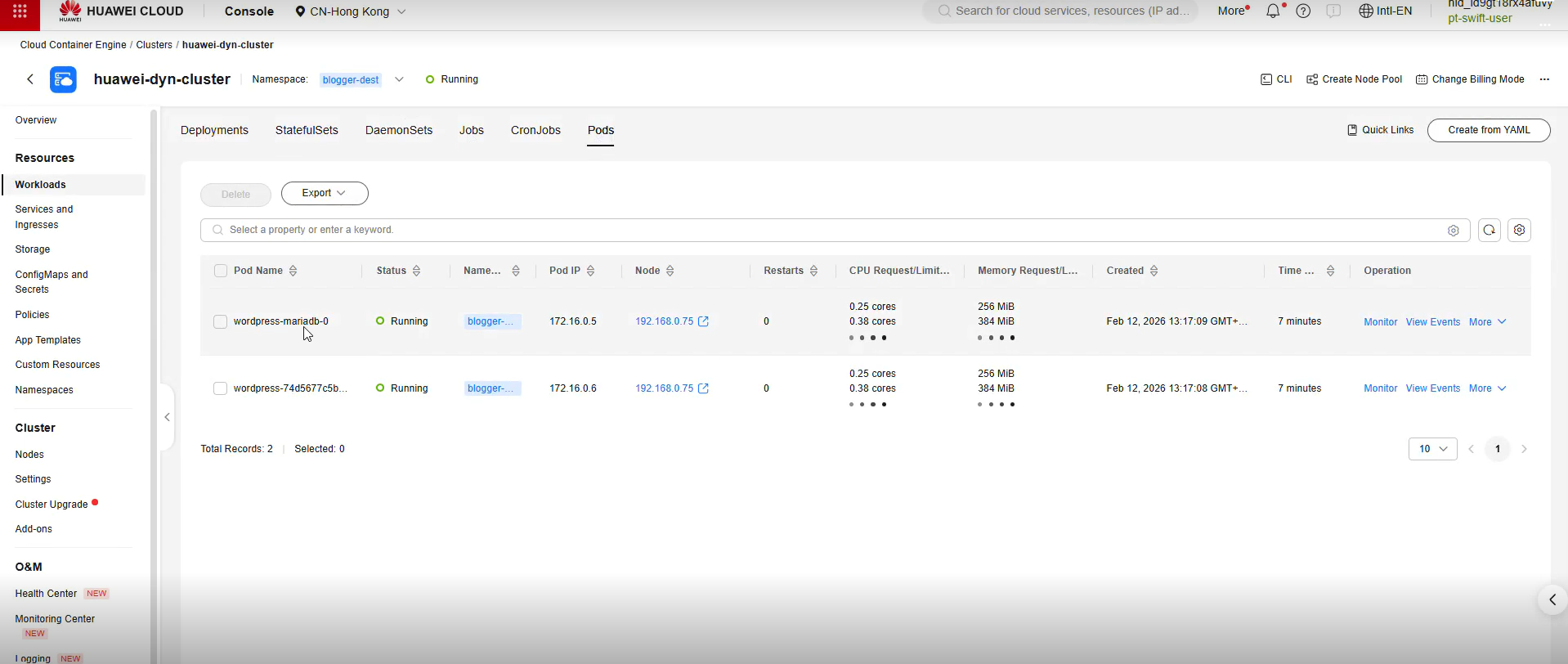
10. You can now see that the dynamic DR cluster has been provisioned successfully.
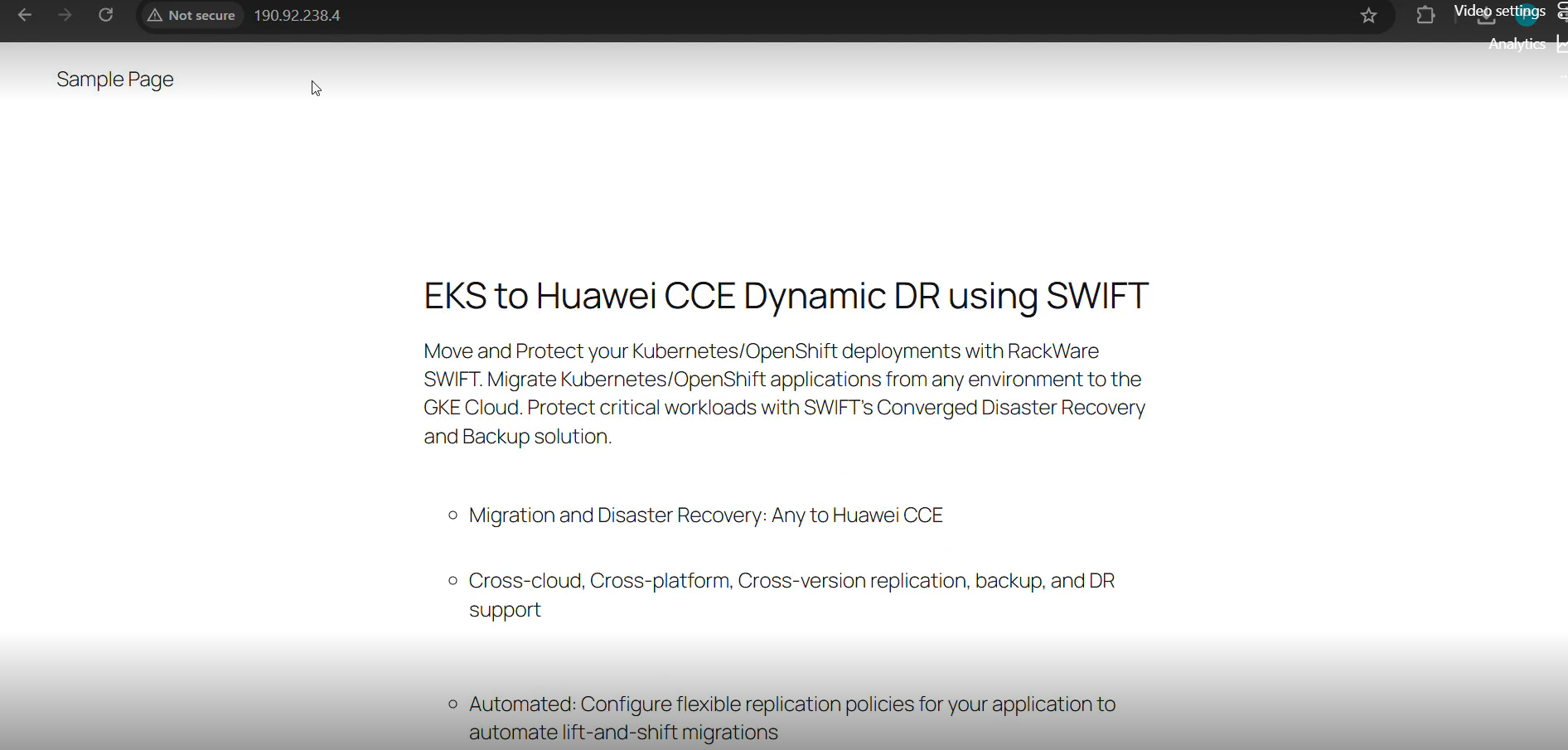
11. You can now access the application and confirm that they have been provisioned in the correct namespace specified during the dynamic cluster configuration.
12. You can now access the application and verify the post.
How to do Fallback
If you want to delete the dynamically created cluster, you will first need to perform a fallback of the failed-over DR Policy. Once a fallback is performed, all data from the target cluster is synchronized back to the source cluster. After the fallback process is completed successfully, the target cluster is automatically deleted.
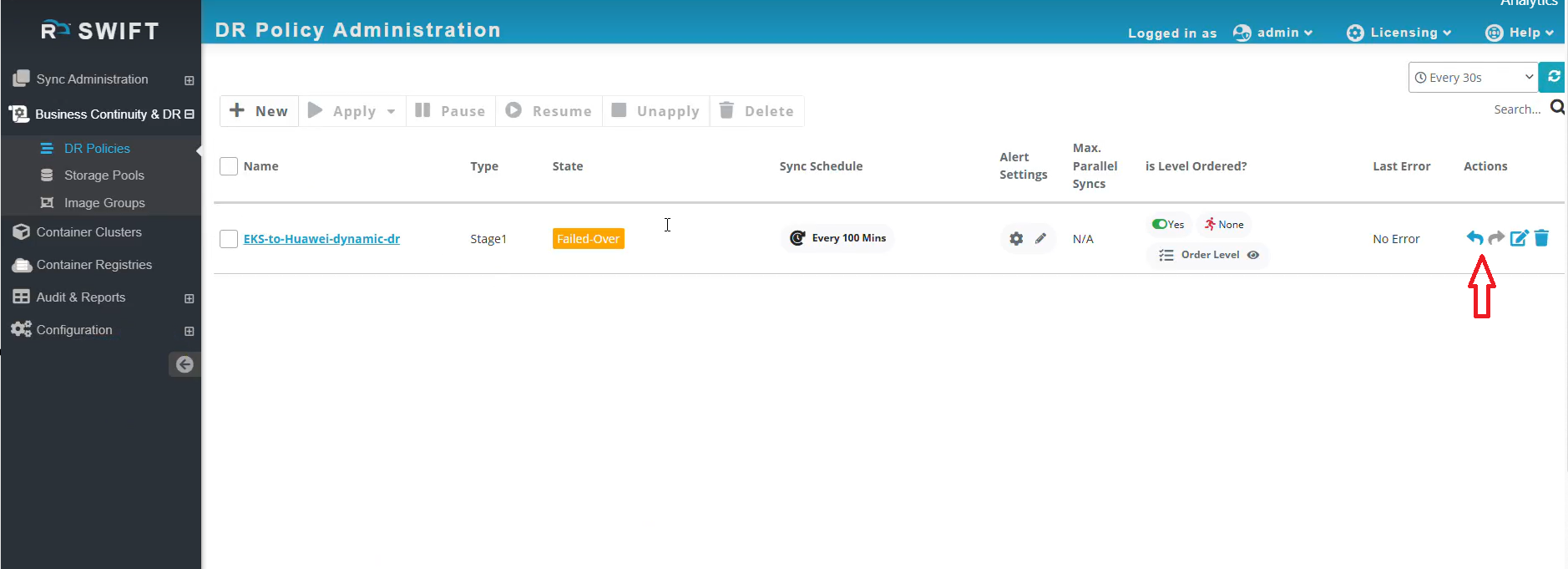
1. Navigate to DR Policies and click the left-tilted arrow to initiate the fallback.
2. You can then click the Fallback button to initiate the fallback process, which will automatically delete the dynamic cluster.
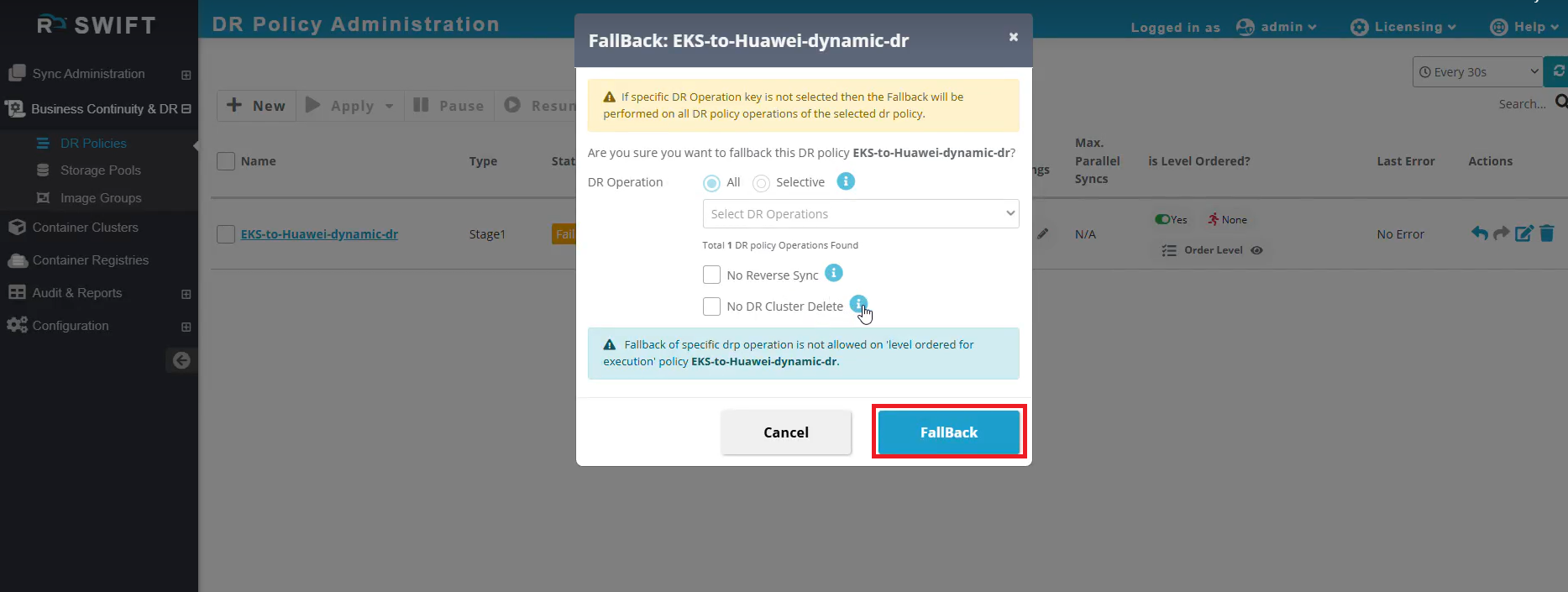
When you doing the fallback, then there will be two options,
No Reverse Sync
We can use this option when you don’t want data from the DR cluster to go back to the source during fallback.
If the source cluster had issues like data corruption or a security incident, the customer may prefer to rebuild or clean the source instead of copying data back from DR. In this case, enabling No Reverse Sync prevents any data from being pushed back to the source.
No Cluster Delete
If this option is selected, the target (DR) cluster will not be deleted after the fallback operation.
A customer may want to keep the DR cluster for testing, verification, or as a ready standby for future incidents. Selecting No Cluster Delete ensures the DR cluster is not automatically removed after fallback.
3. Stage1 will then be triggered, during which all updated data is first synchronized from the dynamic DR cluster to SWIFT (IG), and subsequently from SWIFT (IG) to the source cluster in Stage2.
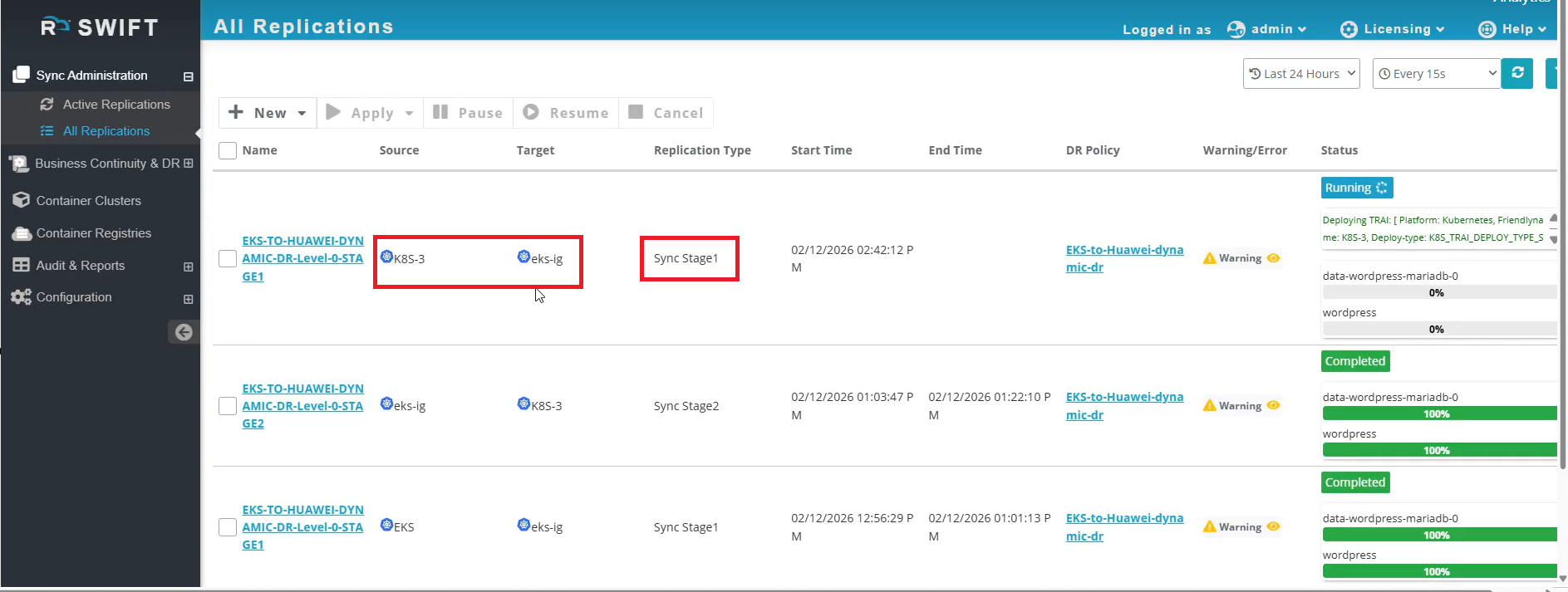
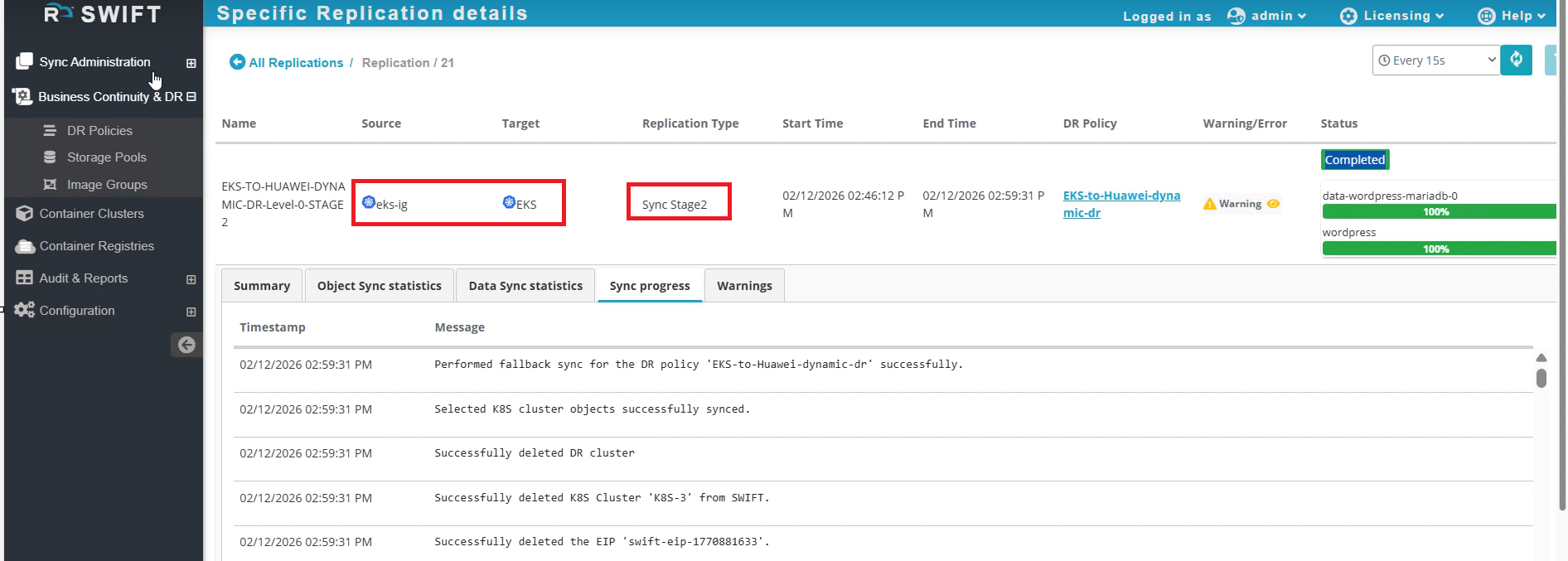
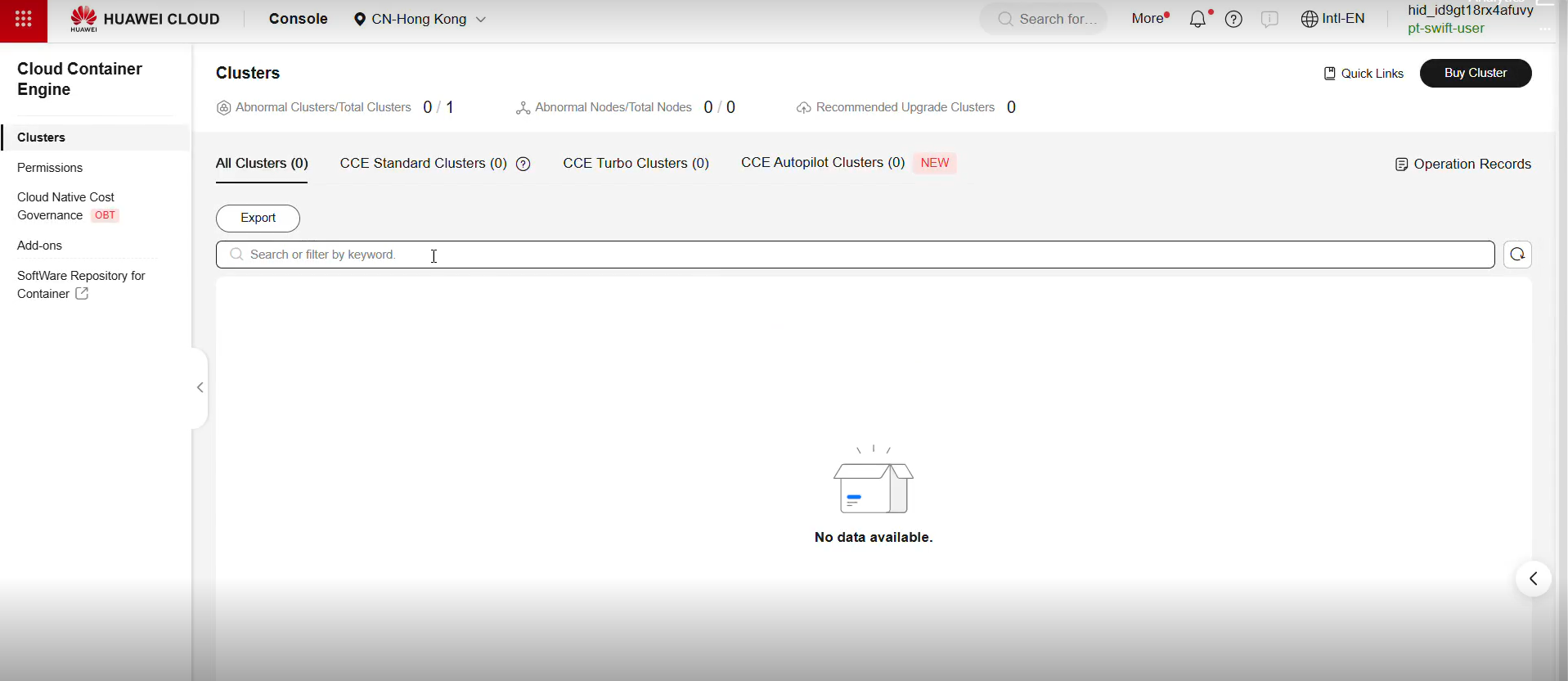
4. You can also confirm that the dynamic DR cluster has been deleted from the Huawei console.
5. The DR Policy fallback has completed successfully.