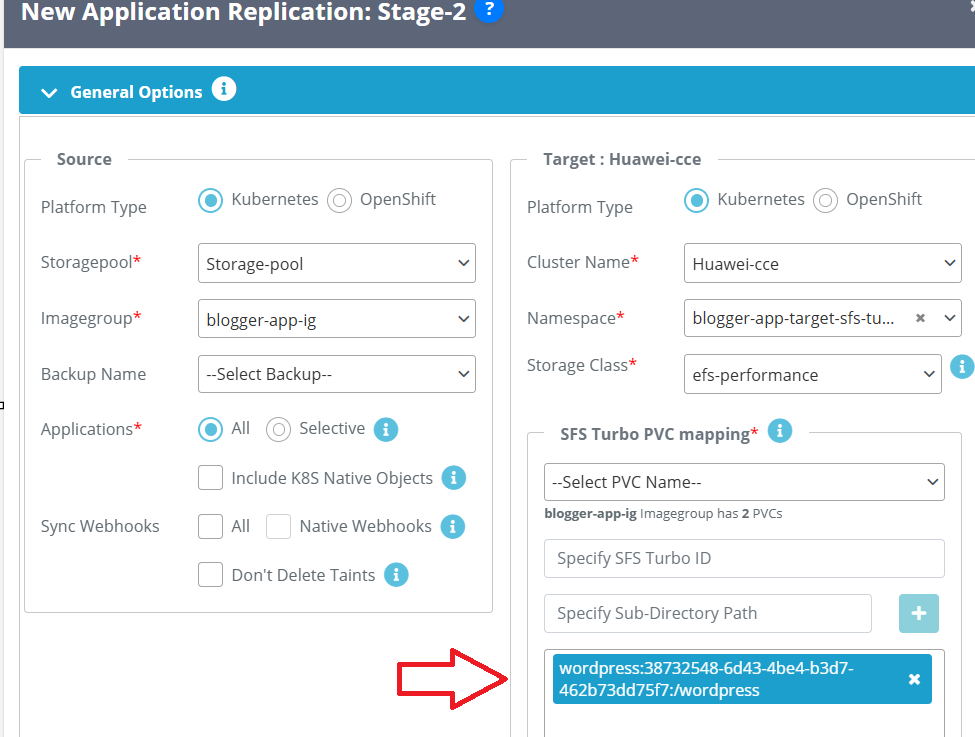
To use this storage class, first create the SFS Turbo file system on the cloud platform. During migration, the user must provide the SFS Turbo ID and the corresponding subdirectory path for proper PVC mapping. SWIFT supports this storage class on both the source and target clusters, enabling seamless data sync during migration.
Pre-requisite:
1. SFS turbo file system must be created on Huawei cloud.
2. Any source and Huawei cluster must be discovered.
3. Image registry should be added.
To sync with SFS turbo storage class follow below steps.
Steps to create SFS turbo file system. (SKIP these steps if SFS turbo file system already present)
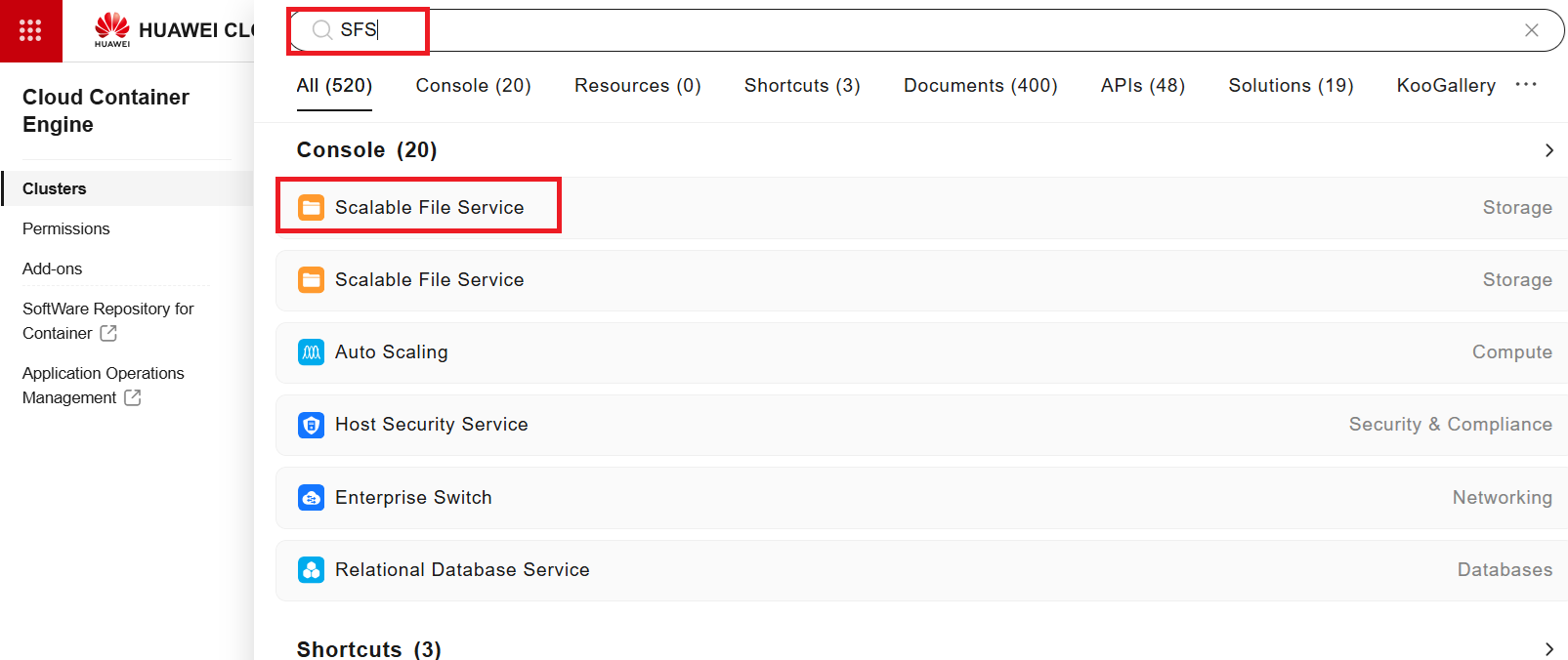
1. Create an SFS Turbo file system on Huawei Cloud if it has not already been created. Login to Huawei cloud > search SFS > Click on scalable file service.
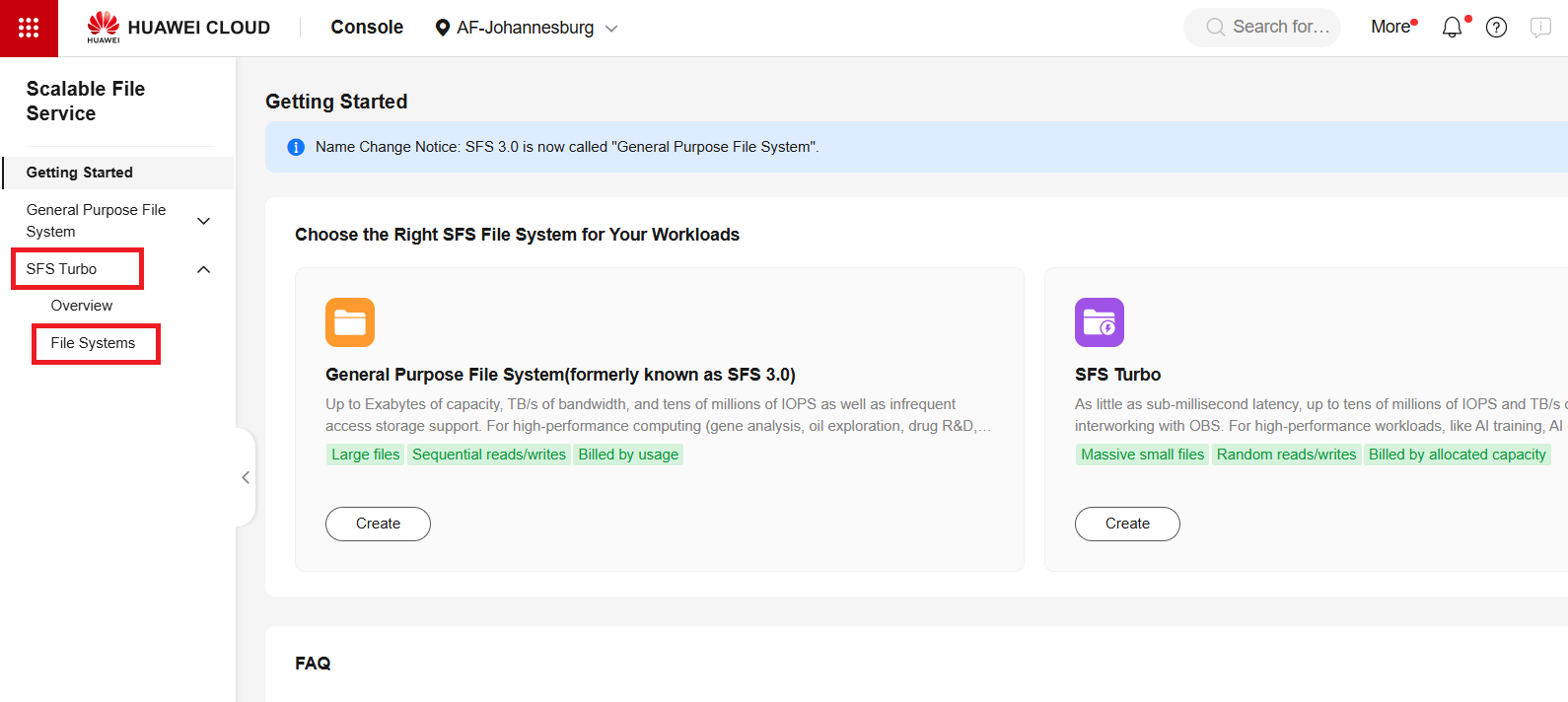
2. Then click on SFS turbo > select File system.
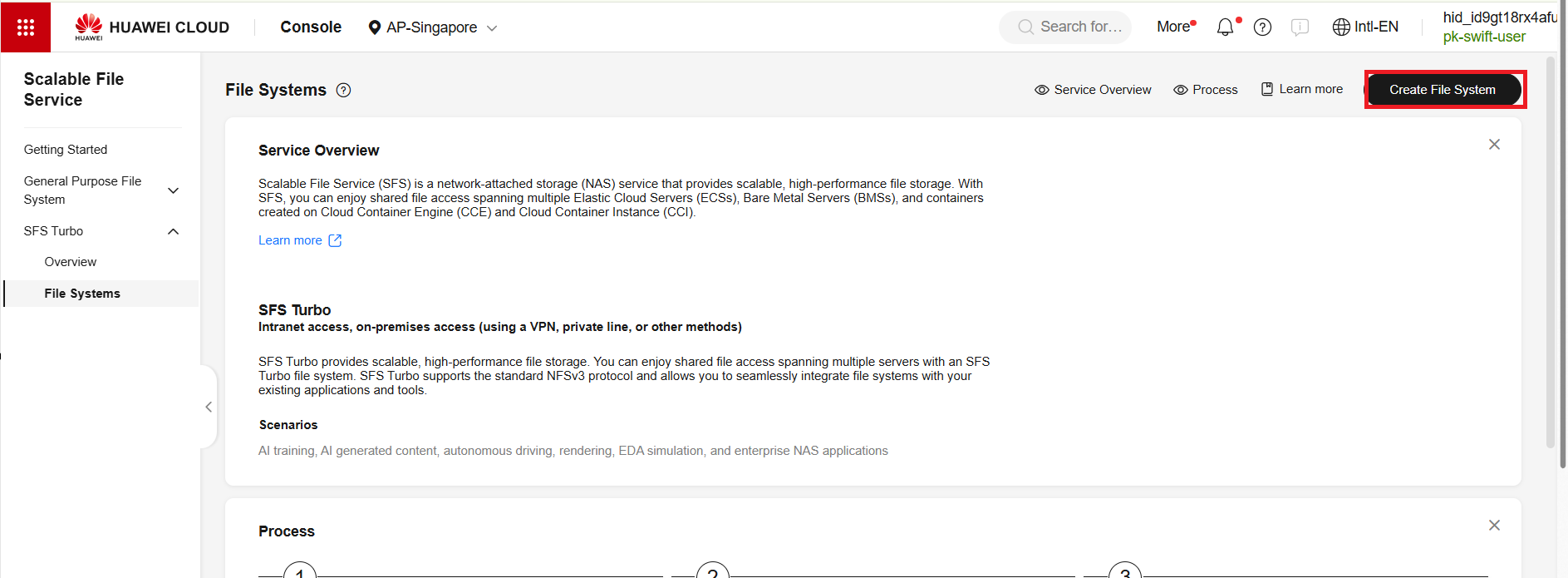
3. Click on Create a File system.
4. Select the Region and Project where the CCE cluster is running. Choose the required file system type and capacity. From the drop-down menus, select the CCE cluster’s VPC and node subnet. Enter a suitable name, then click Create Now to proceed.
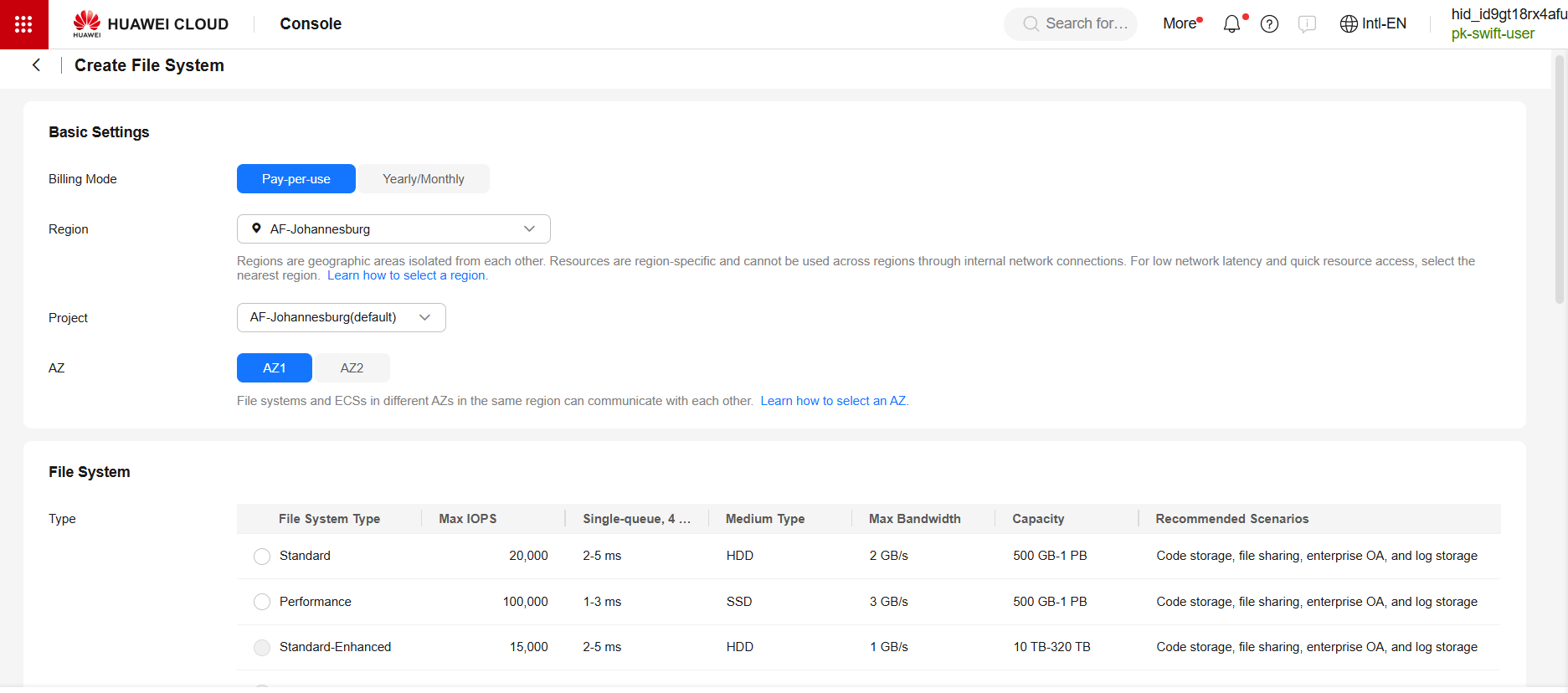
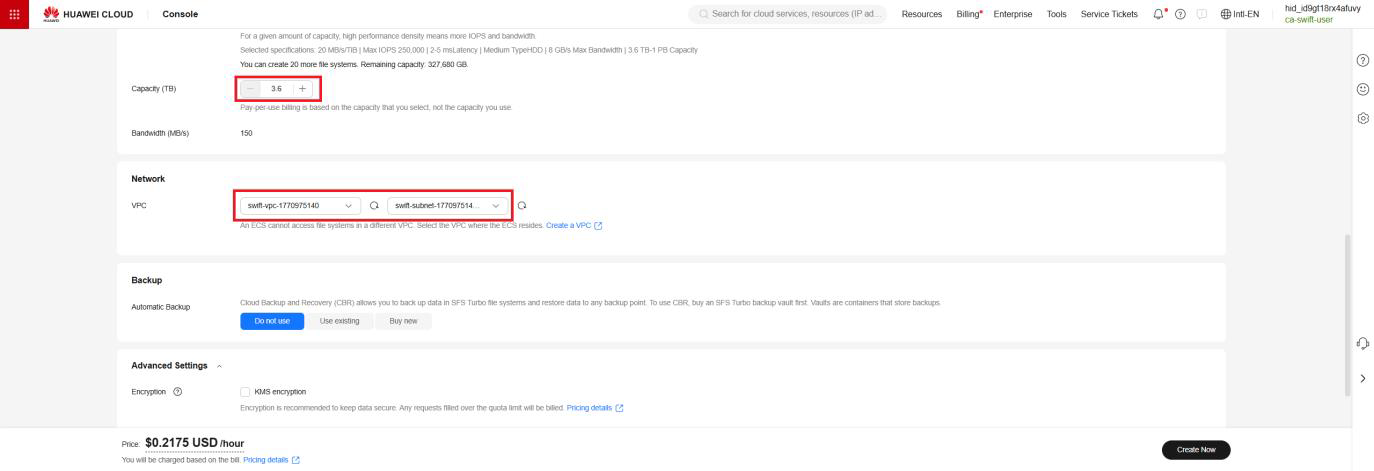
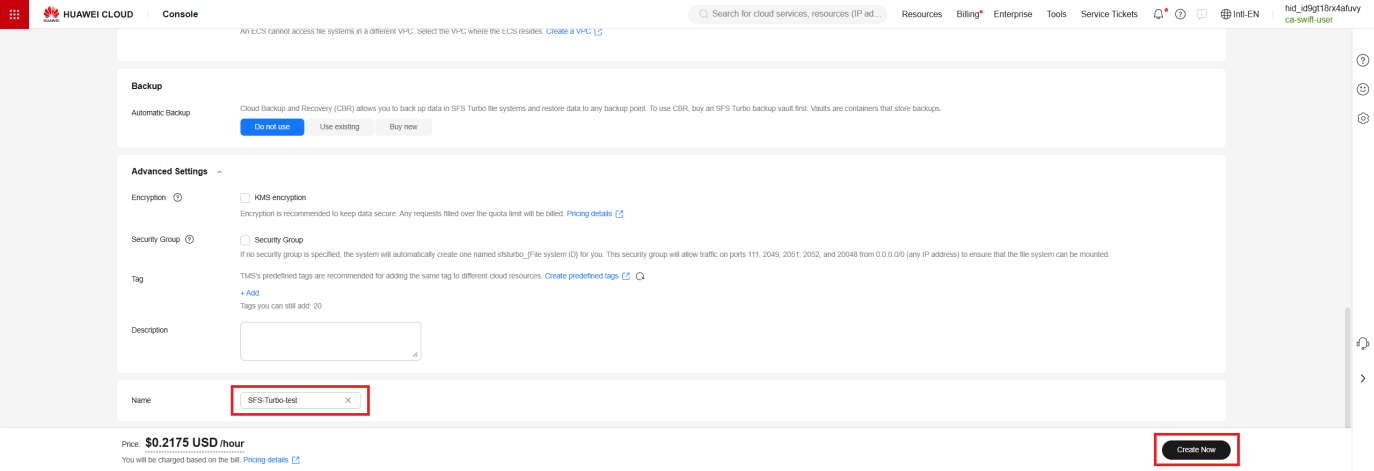
5. Verify the details and click on Submit.
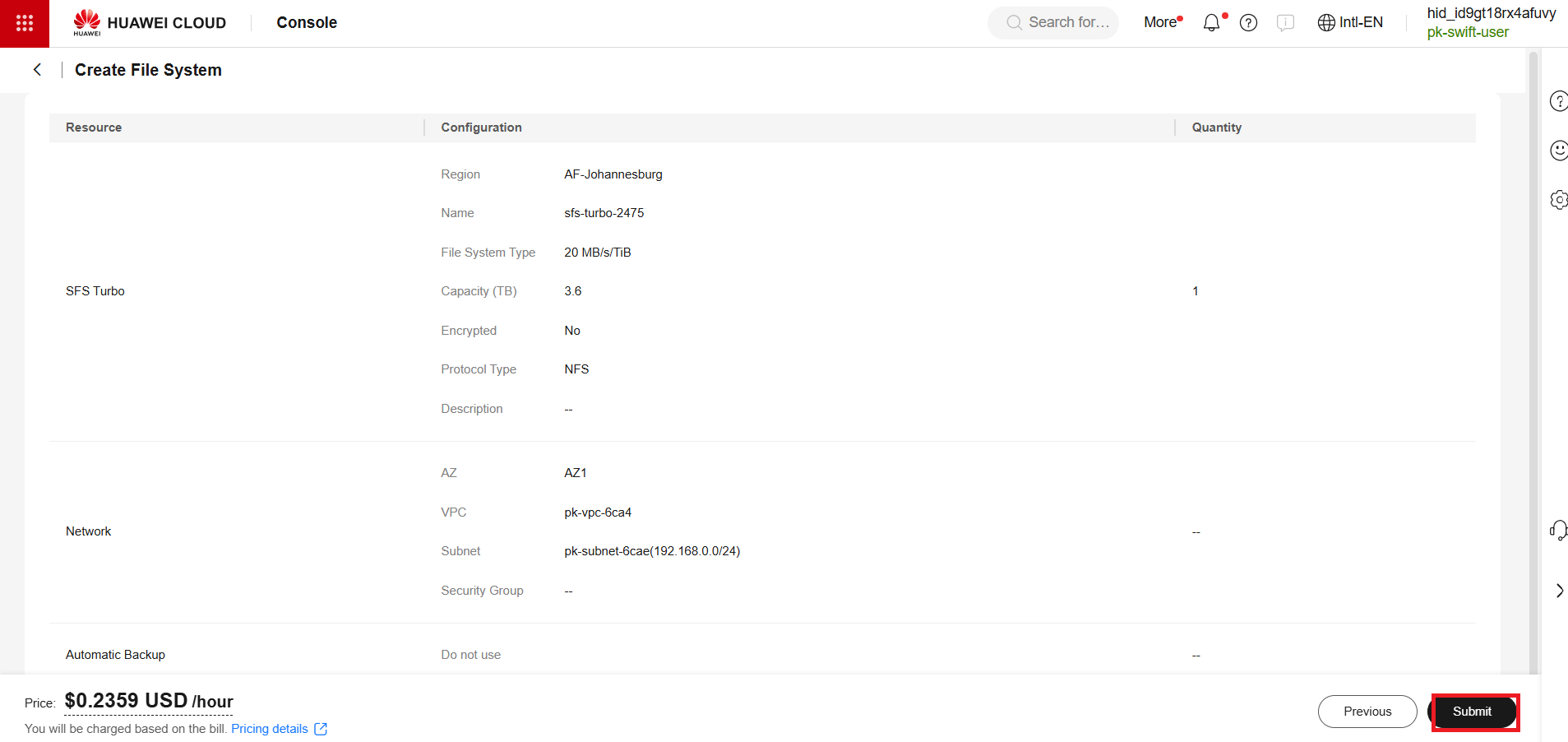
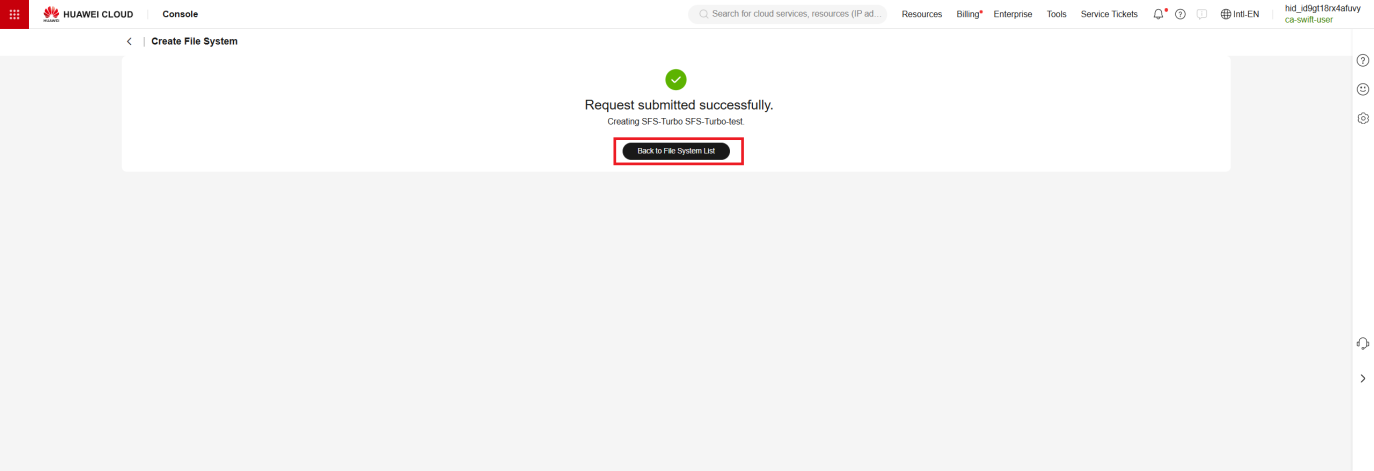
6. Copy the SFS turbo ID for future use to sync SFS turbo
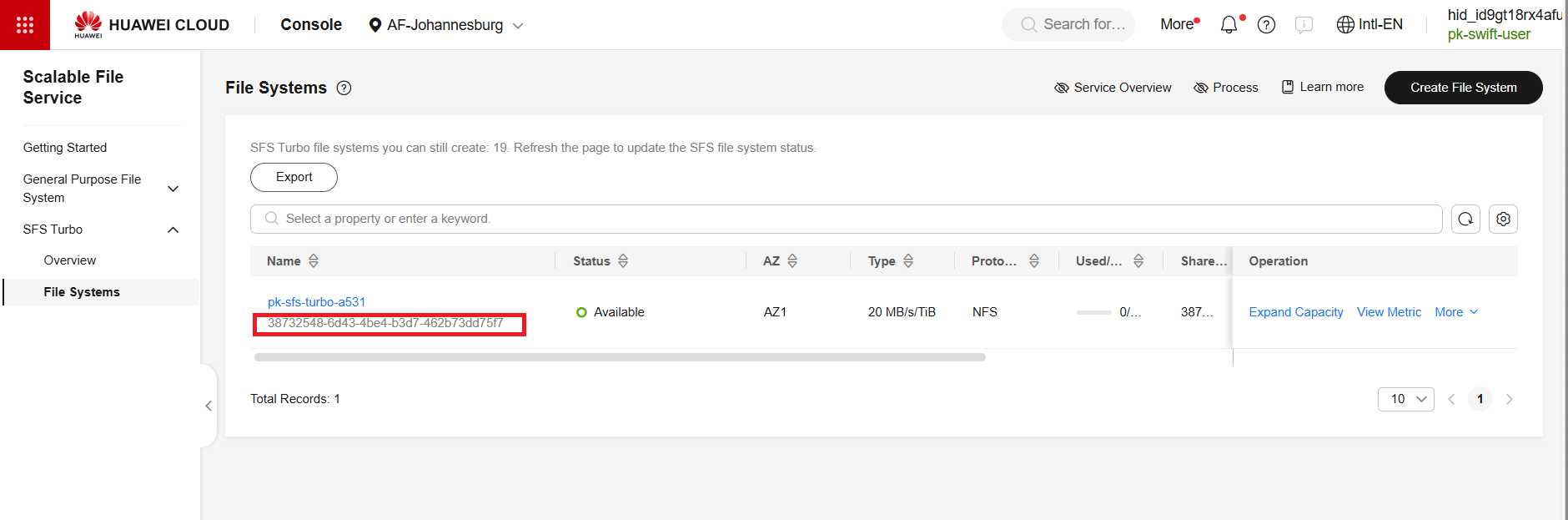
How to Perform sync with SFS turbo file system.
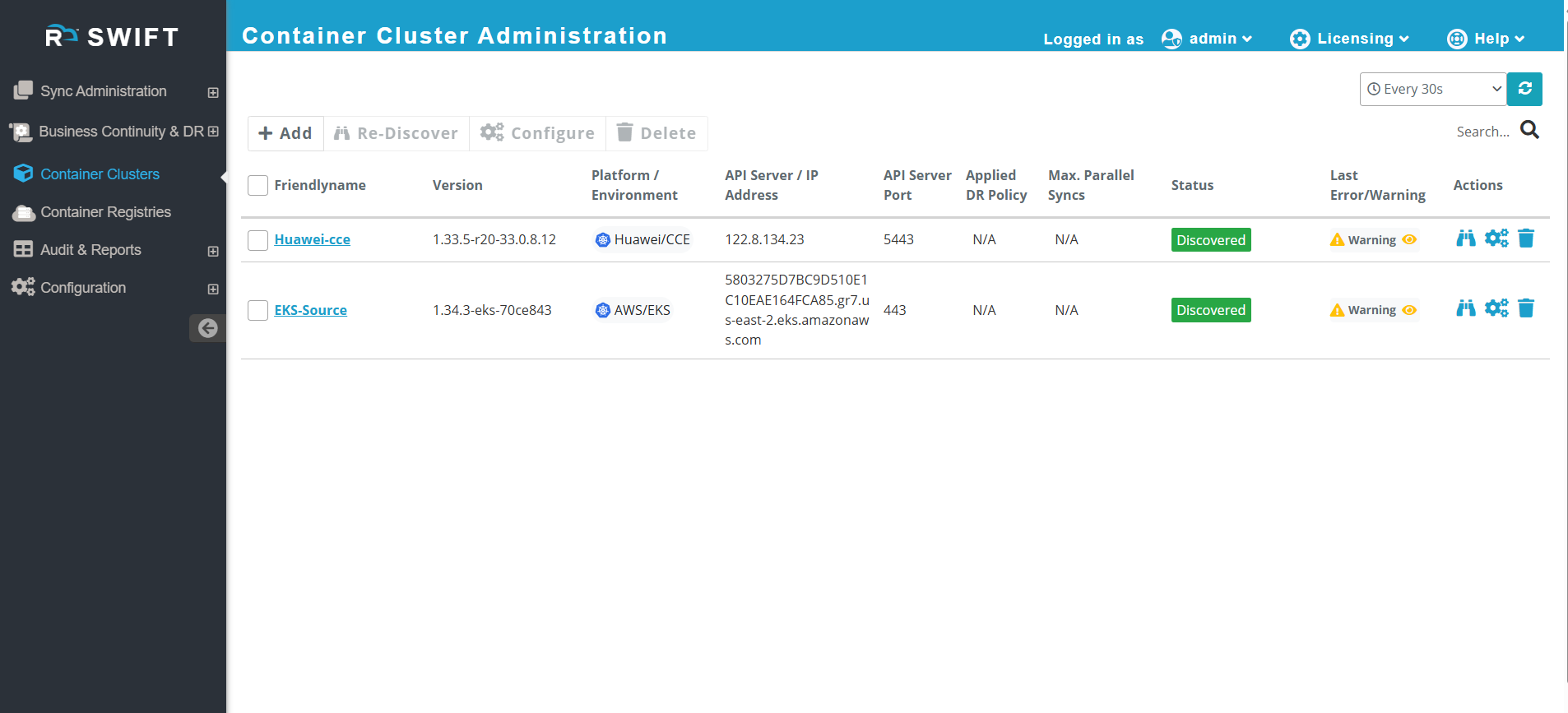
7. Login to SWIFT and start the migration as we have already added source and CCE cluster for migration with SFS turbo file system.
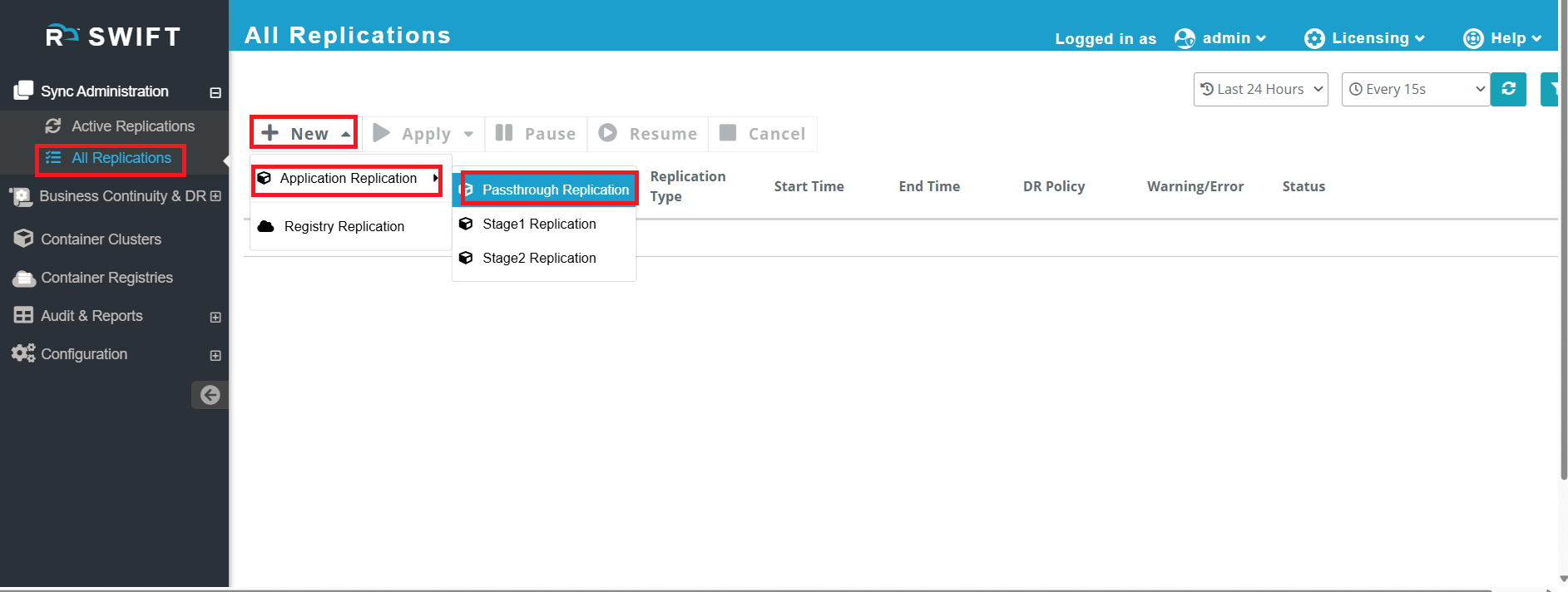
8. Go to sync administration > click on All replication> New > Application Replication > Passthrough Replication.
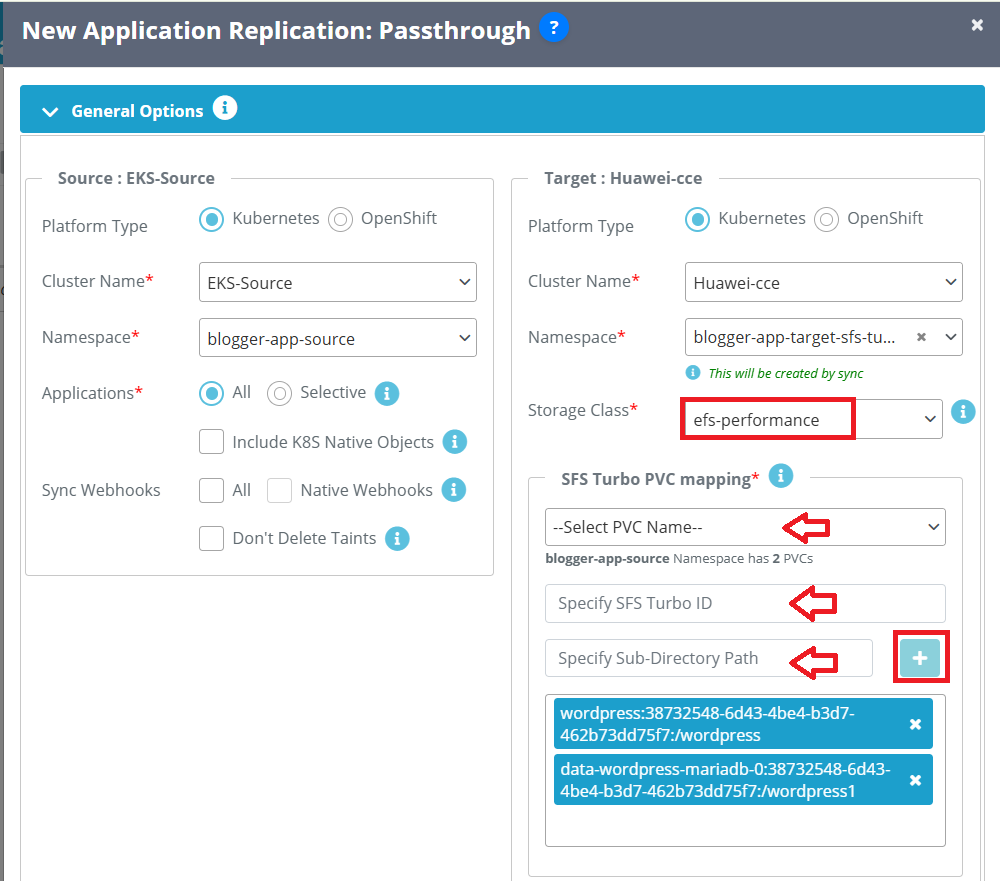
9. Select the clusters on both the source and target sides. On the target CCE side, choose the SFS Turbo storage class. When selecting an SFS Turbo storage class, you must map your PVCs by specifying the corresponding SFS Turbo ID and subdirectory path for each PVC. For this KB we will use efs-performance storage class.
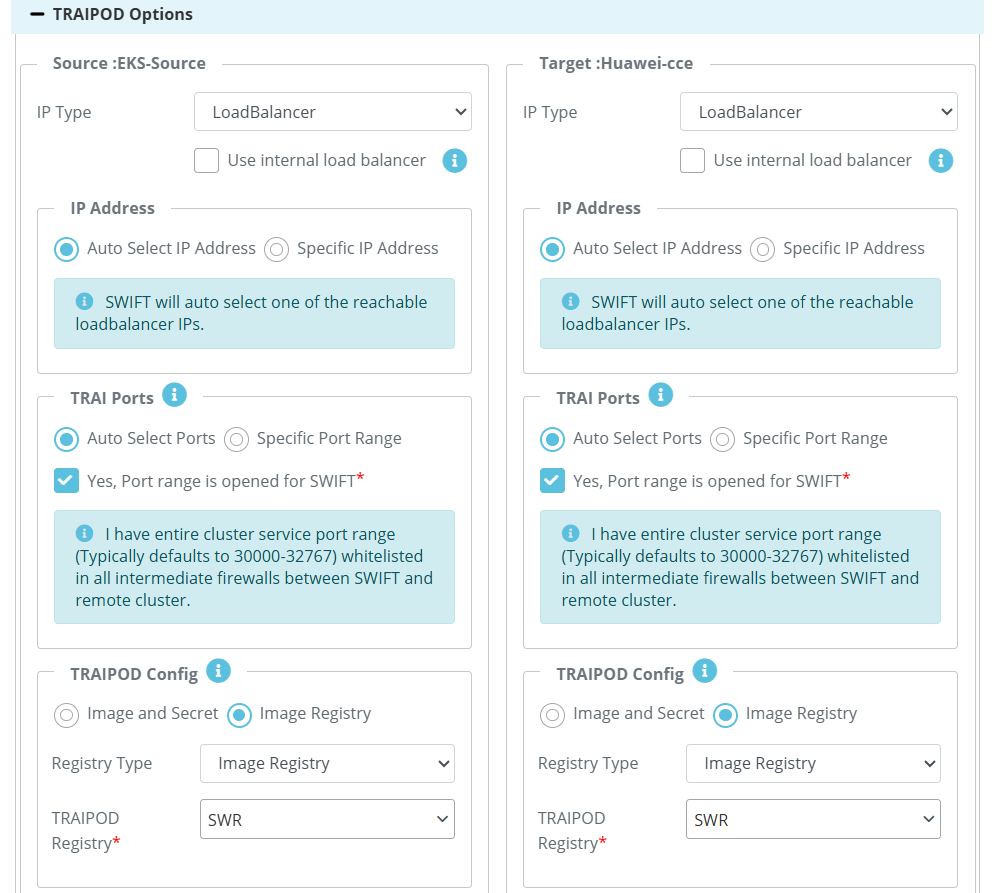
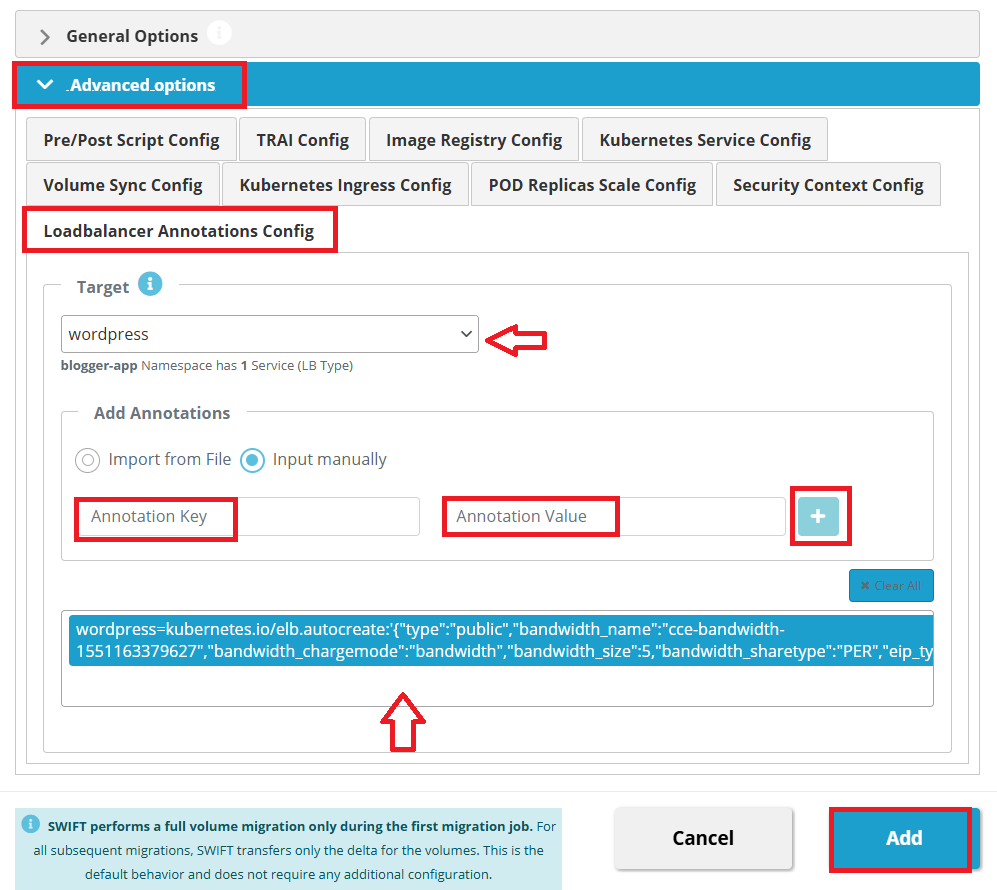
10. In Huawei Cloud, a Load Balancer is not created automatically for Kubernetes LoadBalancer type services. To provision a Load Balancer, you must add the required service annotations along with EIP details. This can be configured using SWIFT.
To do this, Navigate to Advanced Options > Select the LoadBalancer Annotation Config tab > Select the required service name from the dropdown list > Add annotations by either Uploading an annotation file, or Manually entering the annotation key and value, then clicking the Plus (+) button > Click Add to start the migration.
Example Annotation:
kubernetes.io/elb.autocreate: '{"type":"public","bandwidth_name":"cce-bandwidth-1551163379627","bandwidth_chargemode":"bandwidth","bandwidth_size":5,"bandwidth_sharetype":"PER","eip_type":"5_bgp","name":"james"}'Important Note:
Repeat this process for each LoadBalancer-type service that requires Load Balancer provisioning.
[If there is a load balancer on the source side and you require a load balancer on the target side after migration, follow these steps. If you do not need a load balancer on the target side, you can convert the service type using the alternative steps below.]
How to change service type to NodePort/ClusterIP
Use the following steps if you do not want the LoadBalancer (LB) service type after the sync.
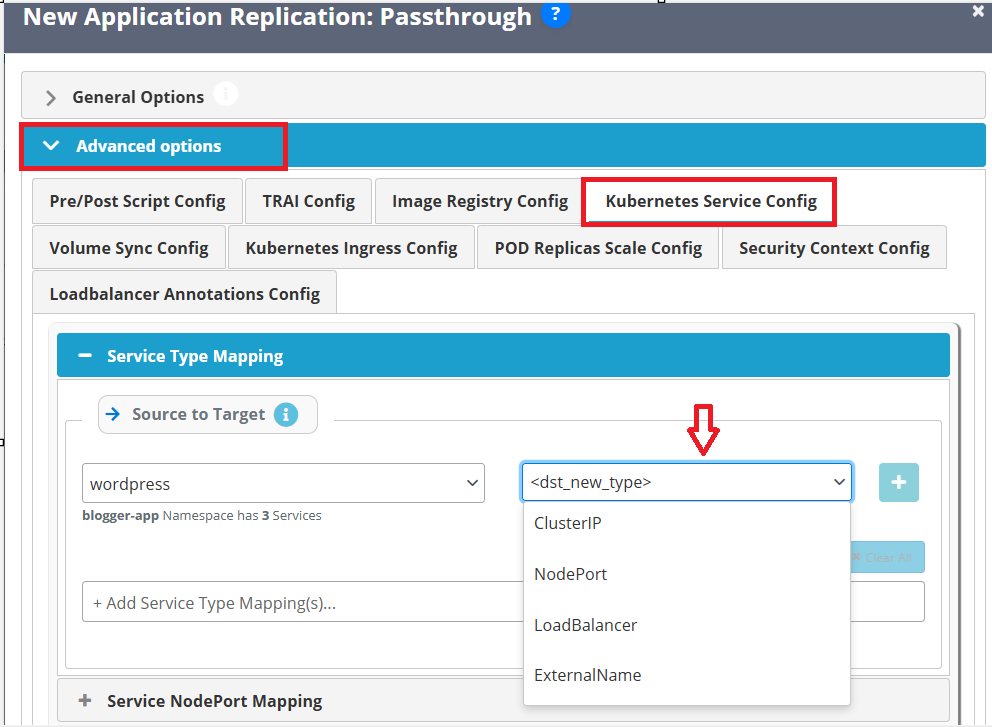
If a LoadBalancer is not required, you can modify the service type during migration using SWIFT:
Go to Advanced Options. > Open Kubernetes Service Type Config > Change the service type to NodePort or ClusterIP as needed.
11. Once you click on Add button it will kick off the sync.
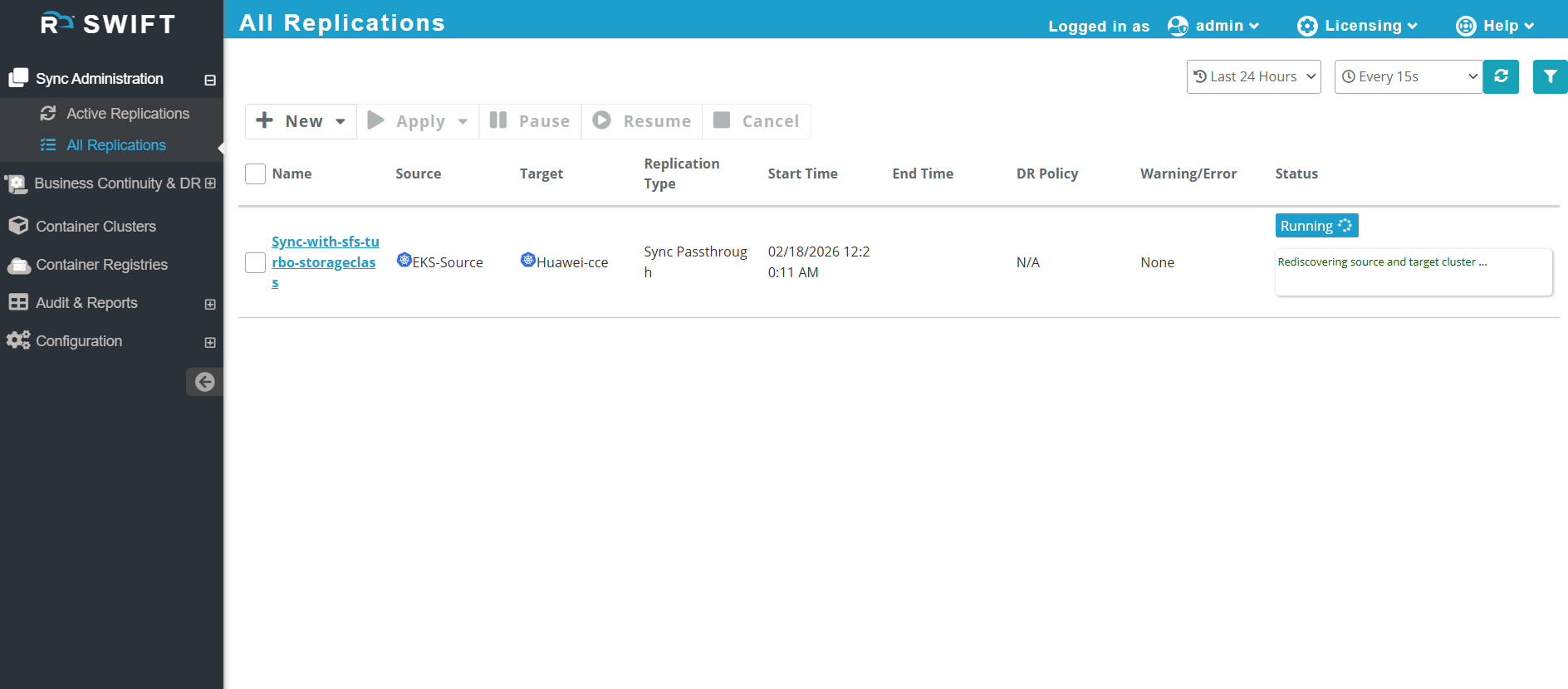
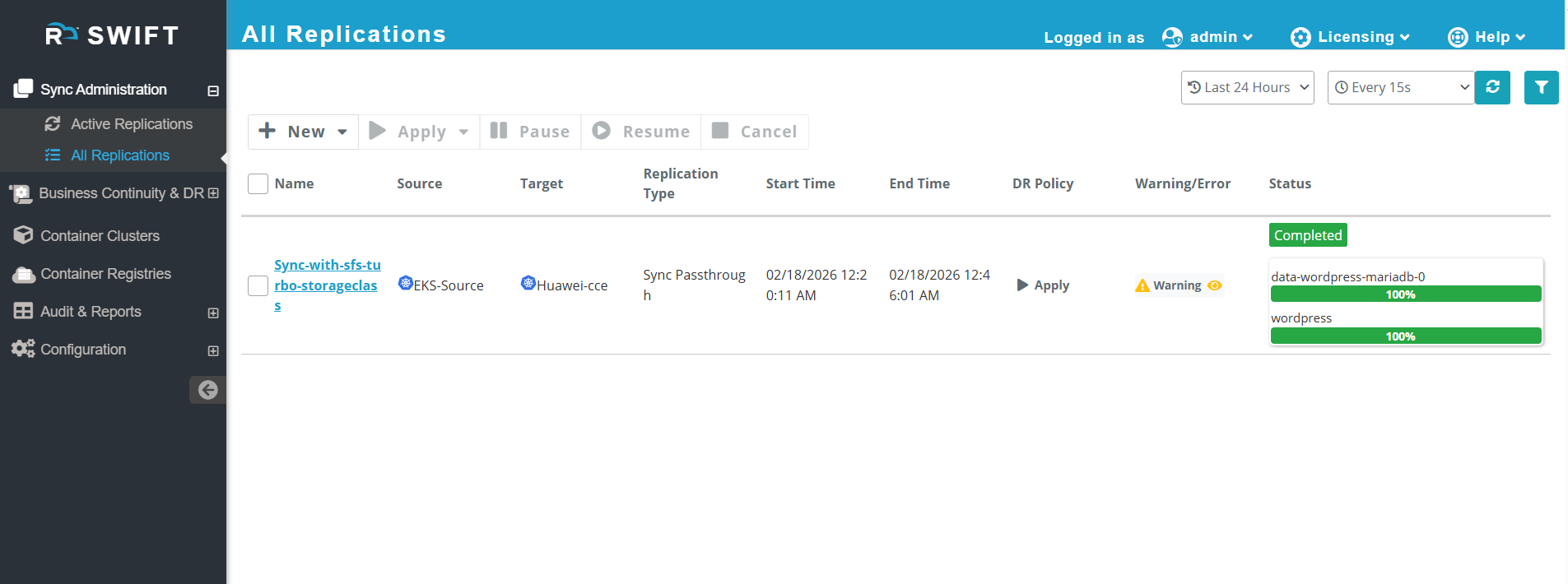
12. The sync has been completed.
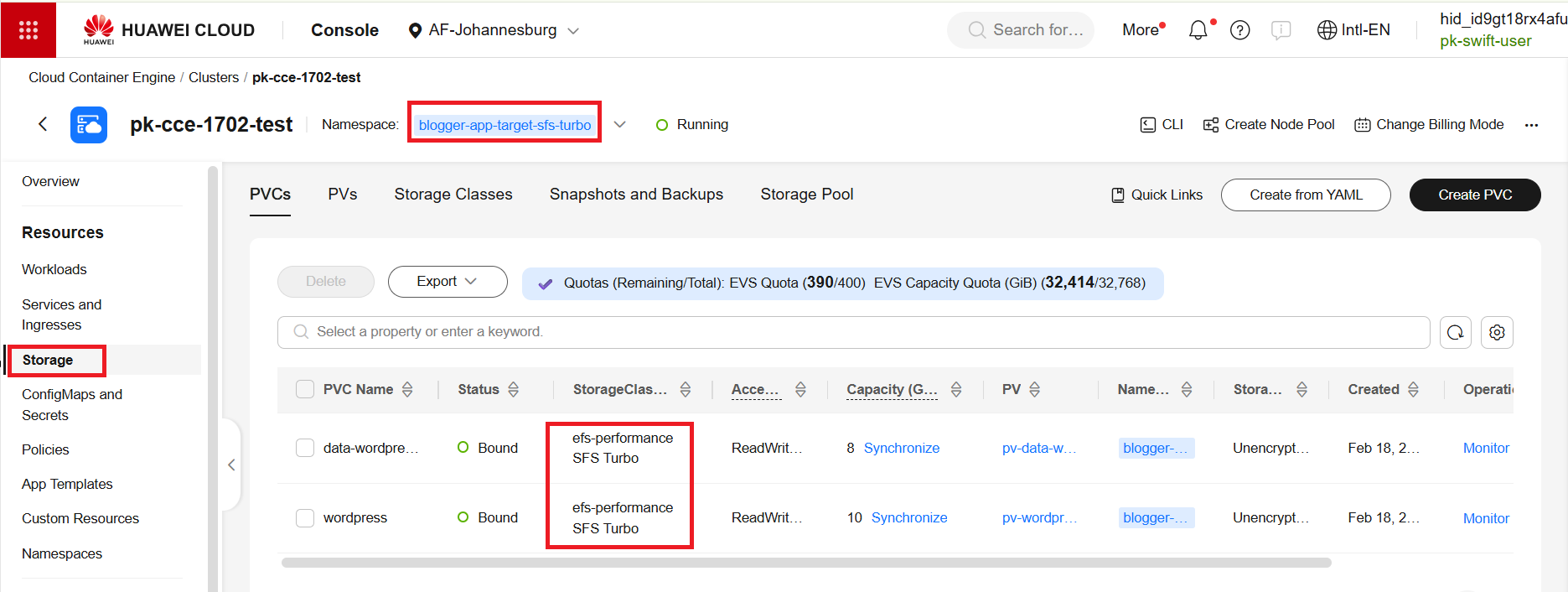
13. Go to the Huawei console and verify that the same Turbo storage class is being replicated.
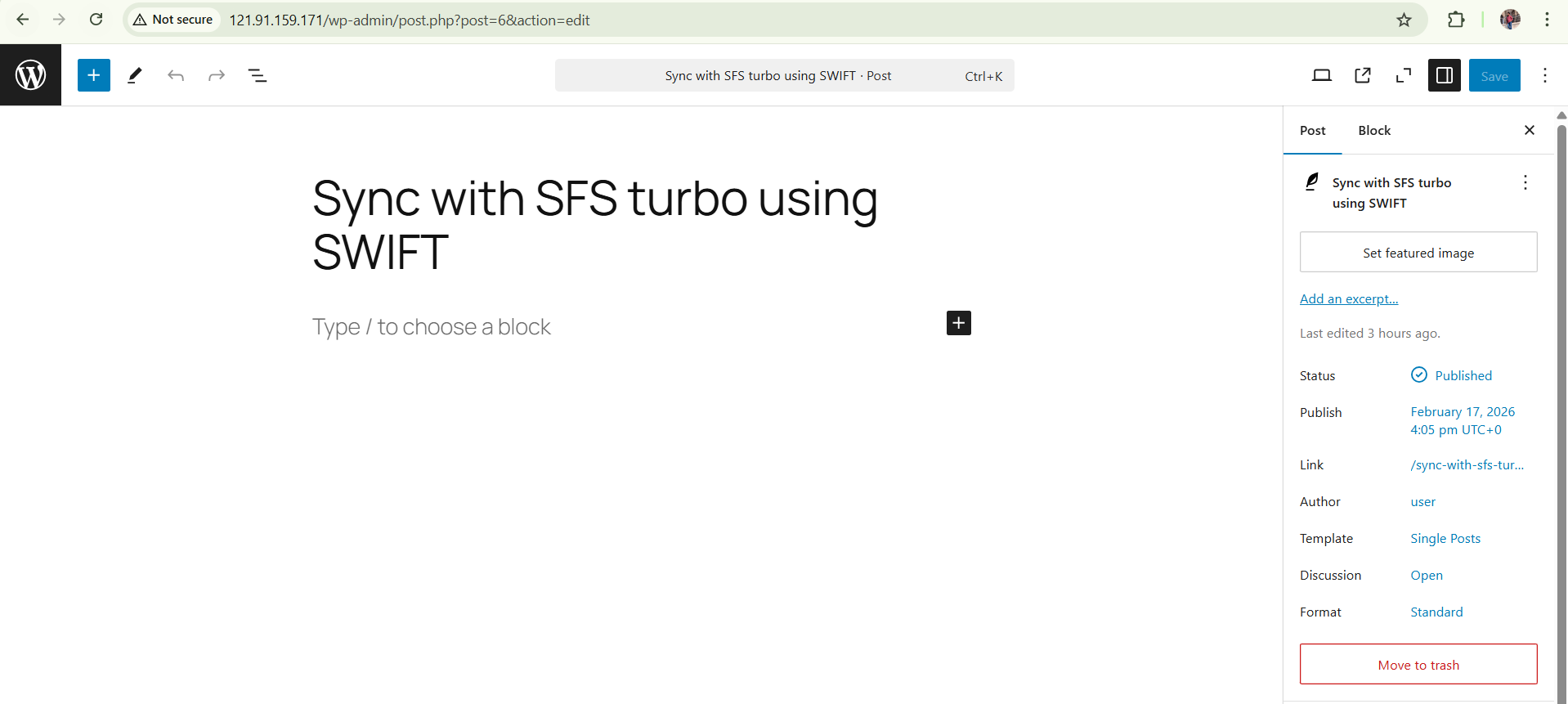
14. Lets access the app at target side and check post.
If you want to perform Stage 2 sync using the SFS Turbo (non-CSI) storage class on the Huawei target cluster, only one PVC can be sync at a time. There are two supported storage classes:
efs-performanceefs-standard
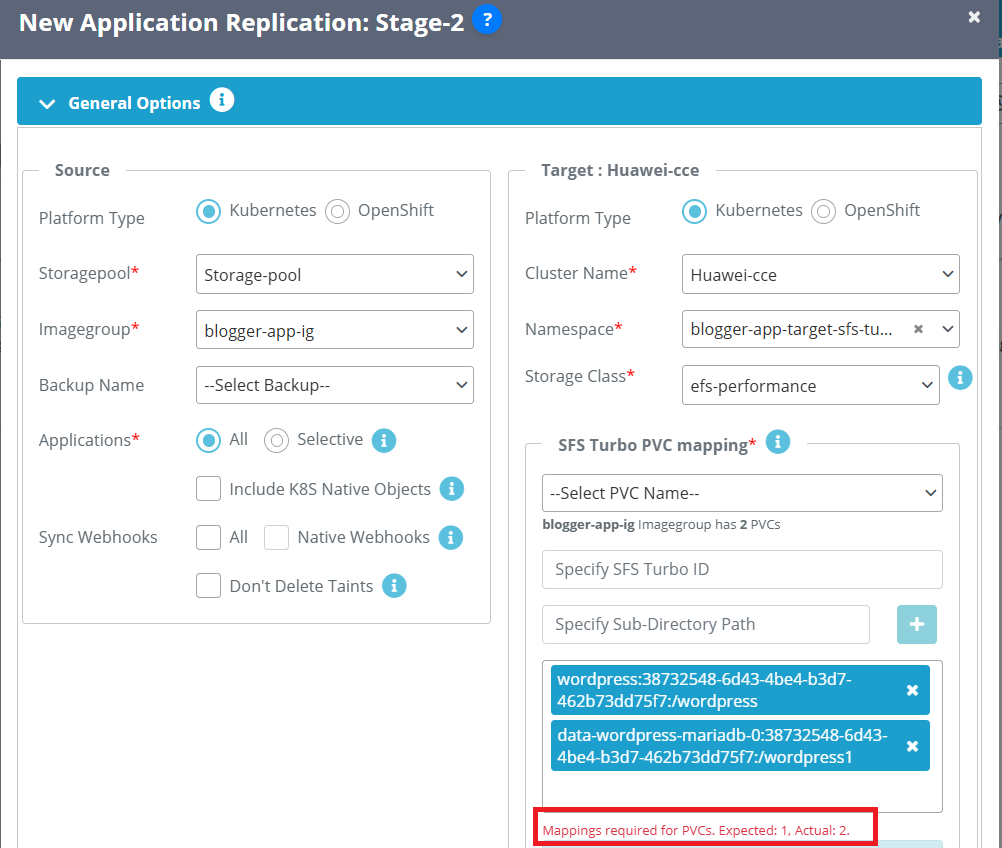
1. Go to All Replications > click New > click Application Replication > choose Stage 2. Then the prompt below will appear.
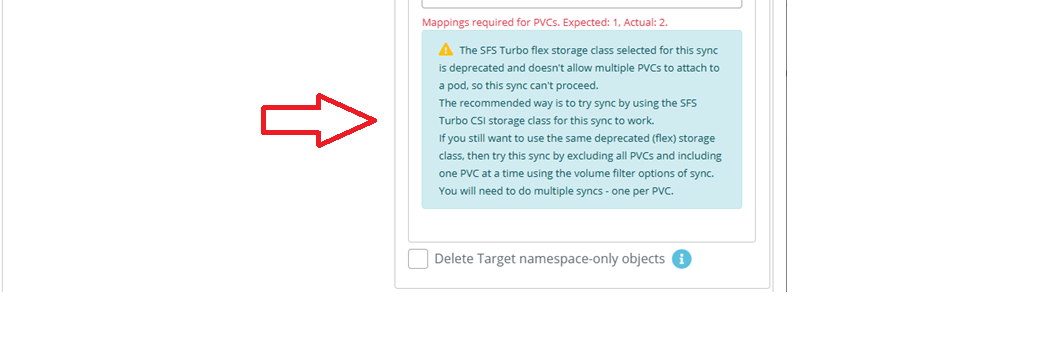
If you have selected the SFS Turbo (non-CSI) storage class on the Huawei target cluster, you can select only one PVC at a time. Don't select multiple PVCs simultaneously (Currently SWIFT does not support multi-TRAI pod support for stage2 syncs, so only a single PVC is allowed for stage2 sync and Stage12 drpolicy operation when SFS Turbo non-CSI storageclass is involved), If multiple PVCs are selected, a warning message will be displayed as shown below.
2. Select one PVC at a time to proceed with next step.