
Overview
PVC-to-StorageClass (PVC-SC) Mapping allows you to assign different target StorageClasses to individual Persistent Volume Claims (PVCs) during a single sync operation.
This feature enables each source PVC to be mapped to the appropriate target StorageClass, allowing applications that require multiple StorageClasses to be migrated in a single sync. SWIFT creates each target volume using the StorageClass defined in the mapping, simplifying the migration process and eliminating the need for multiple sync operations.
Use Cases
The PVC-to-StorageClass Mapping feature can be used in the following scenarios:
1. Assign different target Storage Classes to different PVCs during a single Passthrough (PT) or Stage-2 sync.
2. Map all PVCs to the same target Storage Class without configuring each PVC individually
3. Use glob patterns (wildcards) to map multiple PVCs that match a naming pattern to the same target StorageClass.
4. Configure PVC-to-StorageClass mappings when creating or applying a DR Policy (DRP).
Pre-Requisite:
1. Source and target cluster must be discovered in SWIFT.
2. Before starting the sync, ensure that all target StorageClasses referenced in the PVC-to-StorageClass mapping are already created and available on the target cluster.
You can see that all source PVCs are using the same StorageClass. In this example, we will map each PVC to a different StorageClass on the target cluster.
Follow the steps below to configure PVC-to-StorageClass (PVC-SC) mapping.
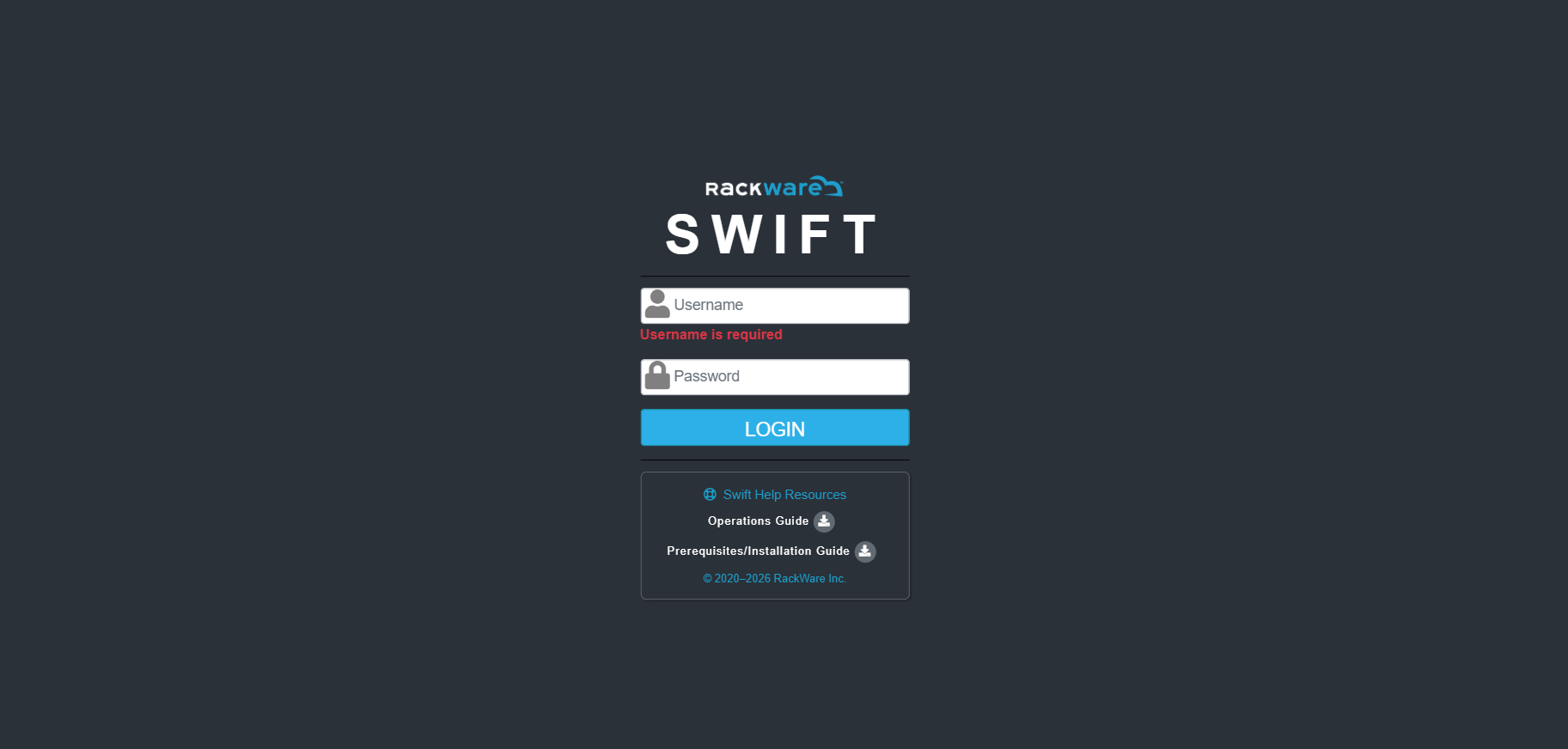
1. Login to the SWIFT.
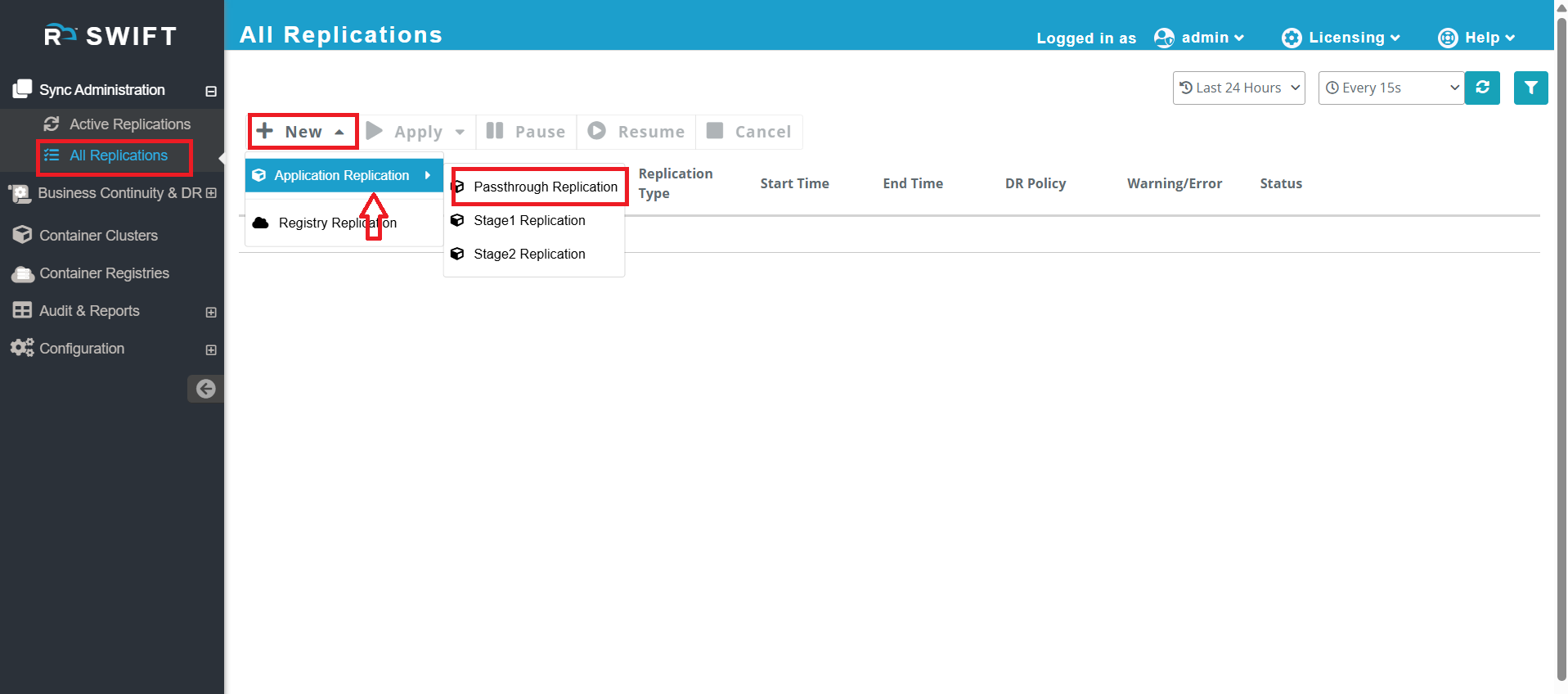
2.Once logged in, go to Sync Administration > All Replications, then click New > Application Replication > Passthrough Replication.
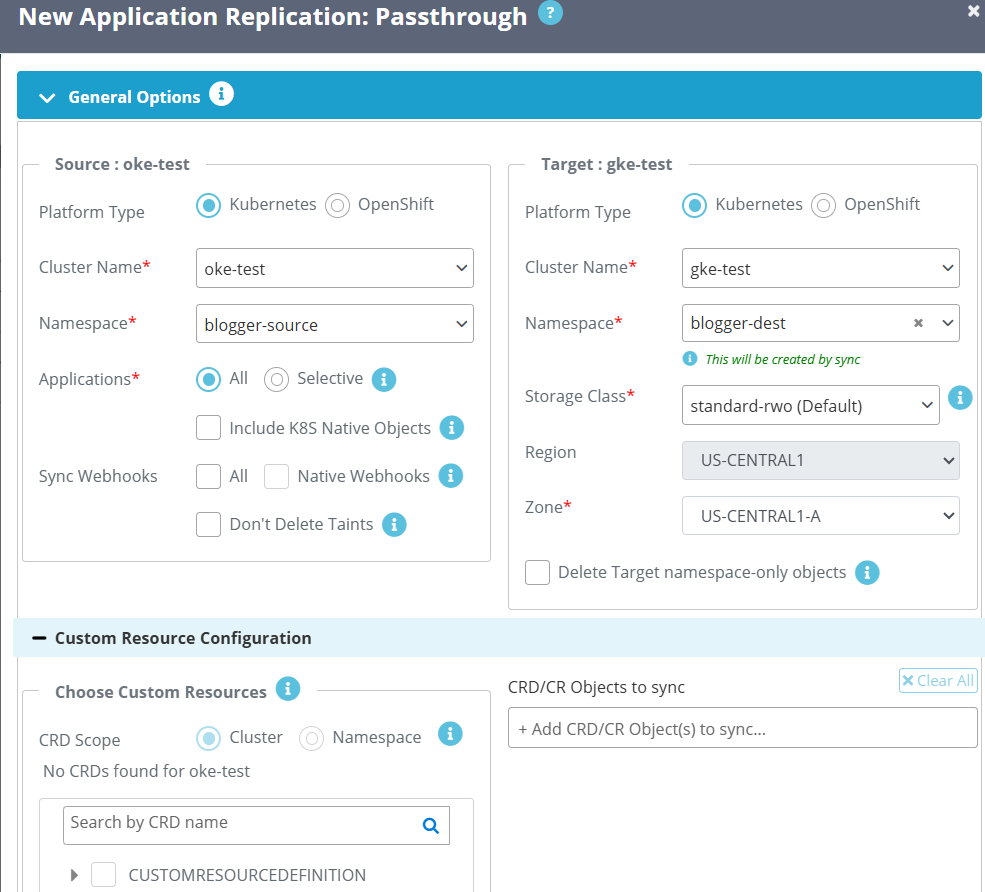
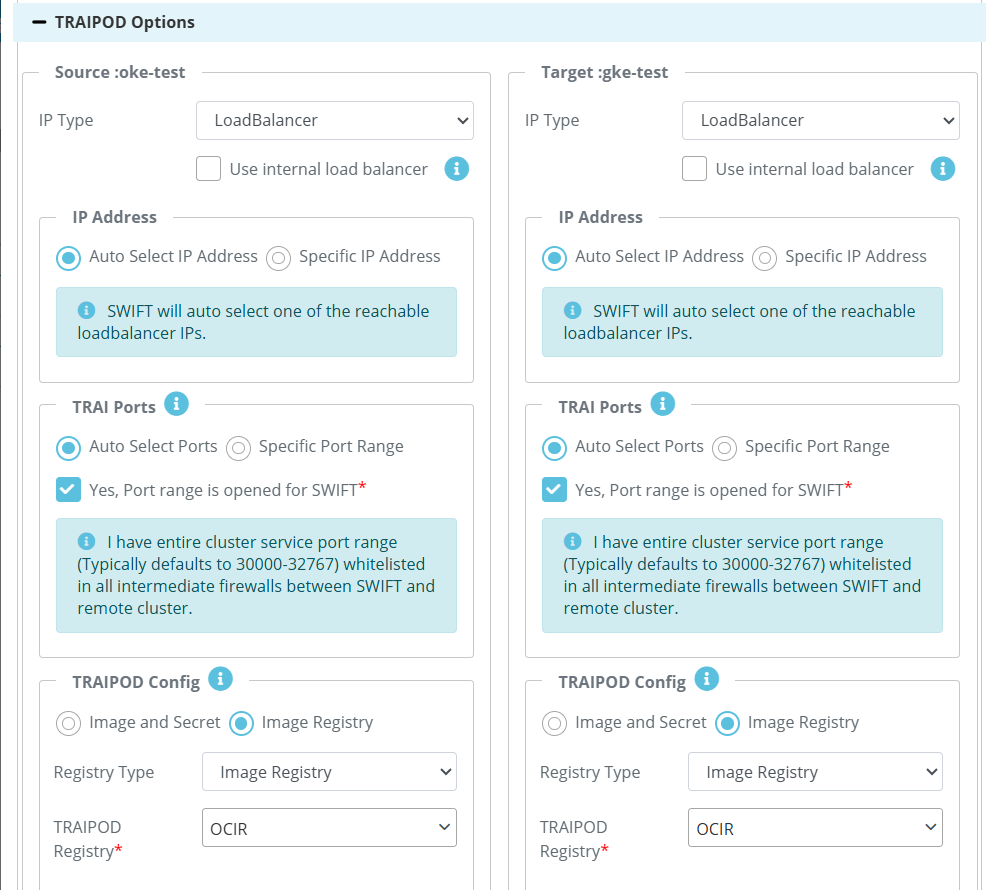
3.Once you select Passthrough Replication, the following screen appears. Enter the source and target details.
4.Go to Advanced Options, expand Volume Sync Config, and select Volume-to-StorageClass Mapping.
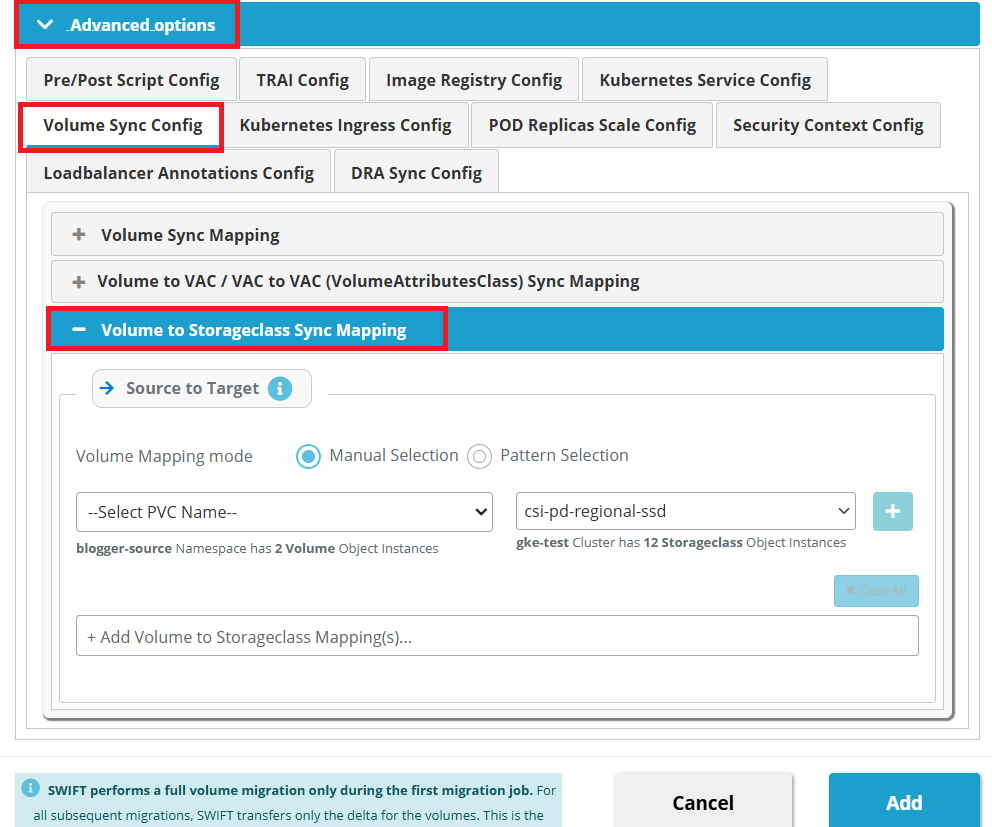
5.In the Volume-to-StorageClass Sync Mapping section, assign the required target StorageClass to each PVC. You can configure the mapping using either Manual Selection or Pattern Selection.
#Manual Selection
5A. In the Volume-to-StorageClass Sync Mapping section, select Manual Selection as the Volume Mapping mode. Choose the PVC(s) you want to map, Choose the desired target StorageClass from the StorageClass drop-down, and click the + icon to add the mapping.
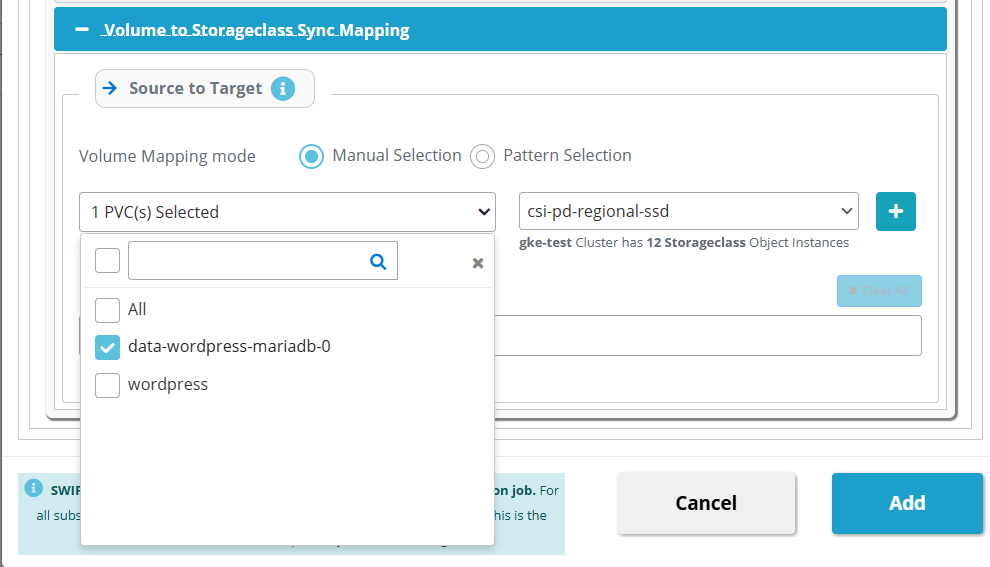
In the below example, the data-wordpress-mariadb-0 PVC is mapped to the csi-pd-regional-ssd StorageClass, and the wordpress PVC is mapped to the standard-rwo StorageClass
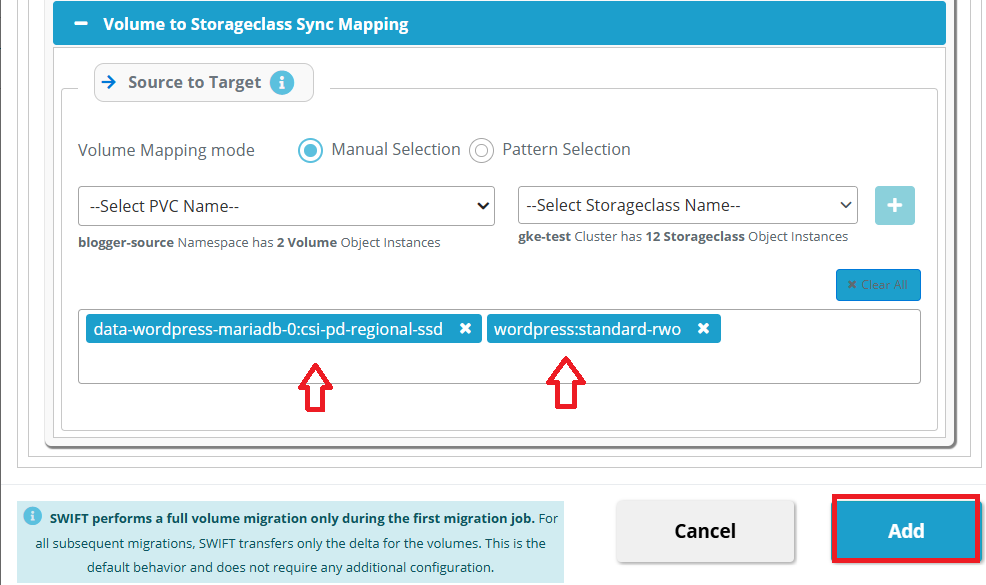
#Pattern Selection
5B. Pattern Selection allows you to map multiple PVCs to the same target StorageClass using a wildcard pattern. This is useful when multiple PVCs follow a similar naming convention and need to use the same StorageClass.
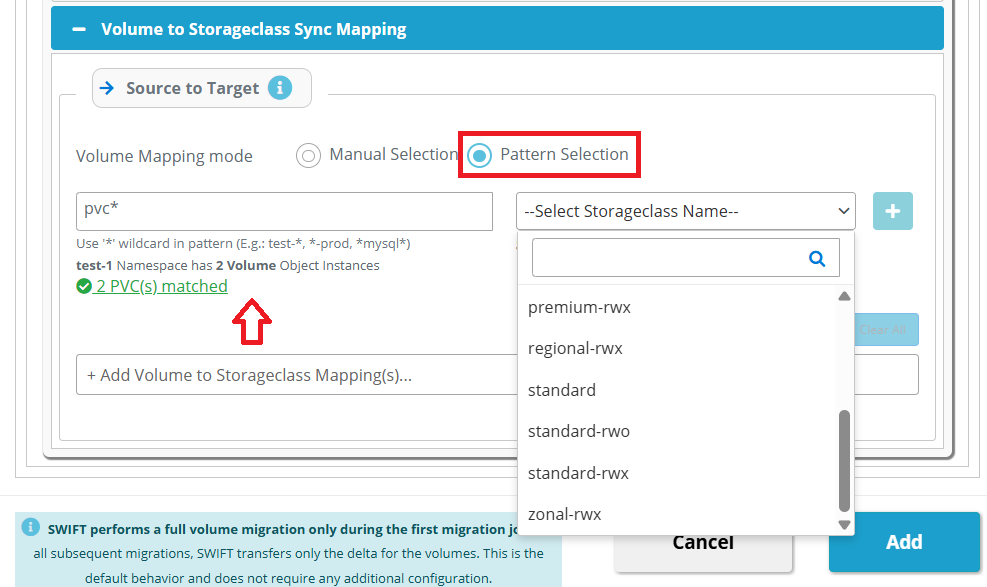
For this example, use the pattern *. This pattern matches all PVCs, so all PVCs will be mapped to the selected StorageClass. After verifying the mappings, click Add to start the migration.
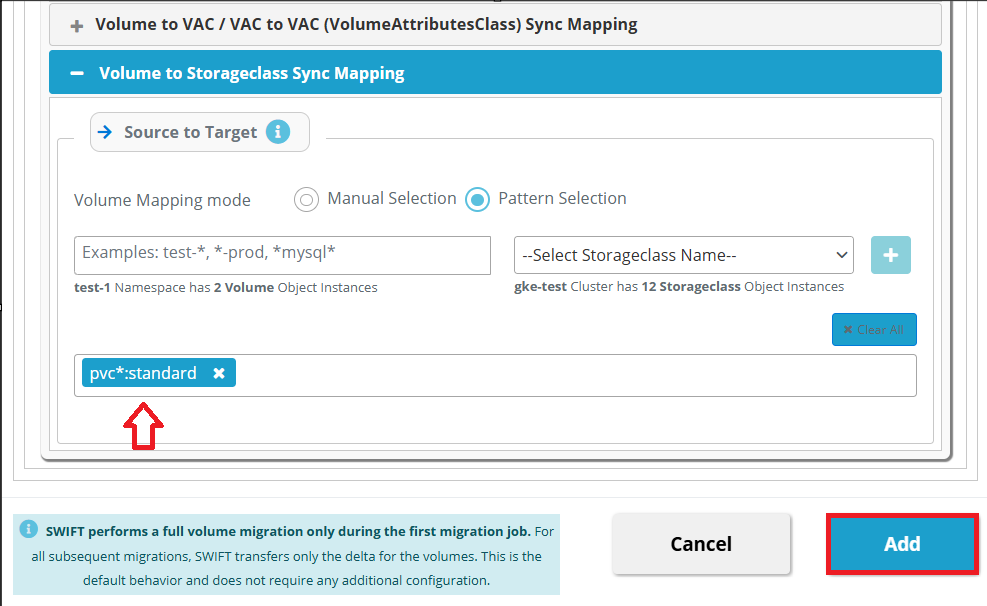
6.Once the mappings are configured, click Add to start the migration. Monitor the sync until it completes.
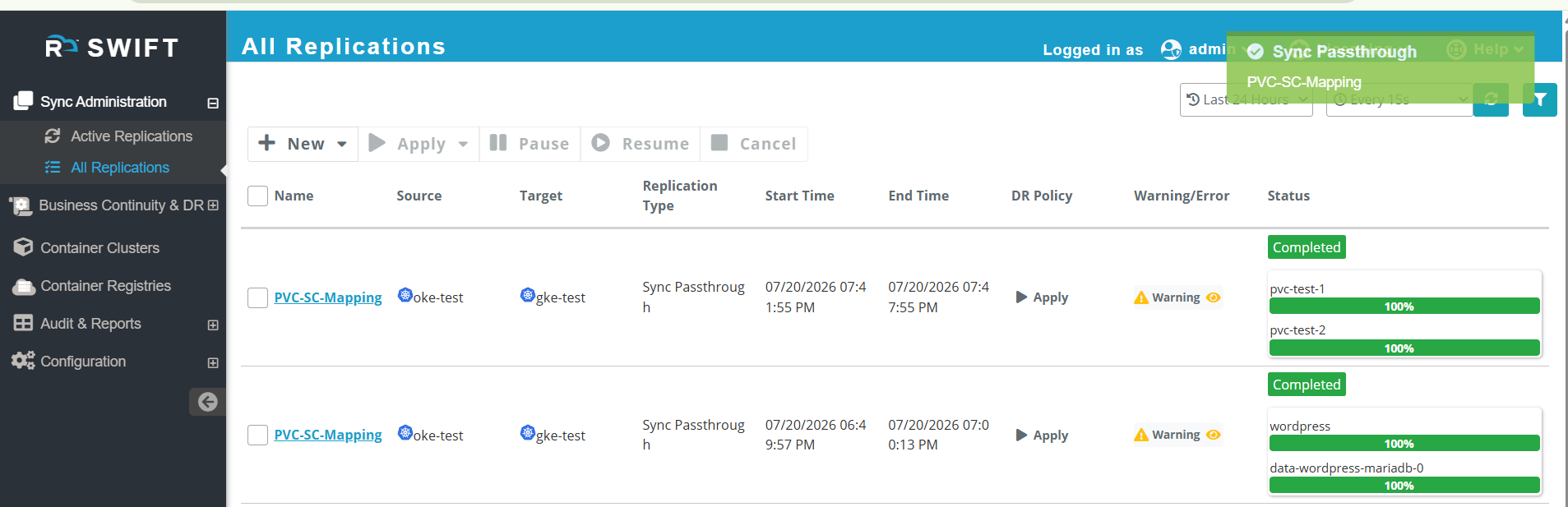
7. After the sync completes:
- Verify that the PVC is created successfully on the target cluster.
- Confirm that the target PVC is associated with the expected VolumeAttributesClass.
- Validate the mapping using below command on cluster:
kubectl get pvc -n <namespace>
kubectl describe pvc <pvc-name>