
Overview
This article describes the prerequisites required to configure Google Kubernetes Engine (GKE), Google Artifact Registry (GAR), and GCP OpenShift in RackWare SWIFT. It covers the required Google Cloud resources, IAM permissions, service accounts, cluster requirements, and Artifact Registry configuration needed to successfully add these resources to SWIFT.
Note: The Google Cloud service account must be created in the same project where the GKE cluster is provisioned. The service account credentials will be used later to configure GKE and GAR in SWIFT.
Topics Covered
- Common Pre-requisite
- Prerequisite for adding GKE cluster
- Prerequisites to add GAR
- Prerequisite for dynamic DR cluster creation
- Prerequisites for Adding GCP OpenShift cluster to SWIFT
This article covers only the prerequisites required before configuring GKE, GAR, and GCP OpenShift in SWIFT. For configuration and discovery procedures, refer to the corresponding platform-specific KB articles.
Following API needs to be enabled for your project to do this follow below steps.
1. Common Pre-requisite
- Create a Project.
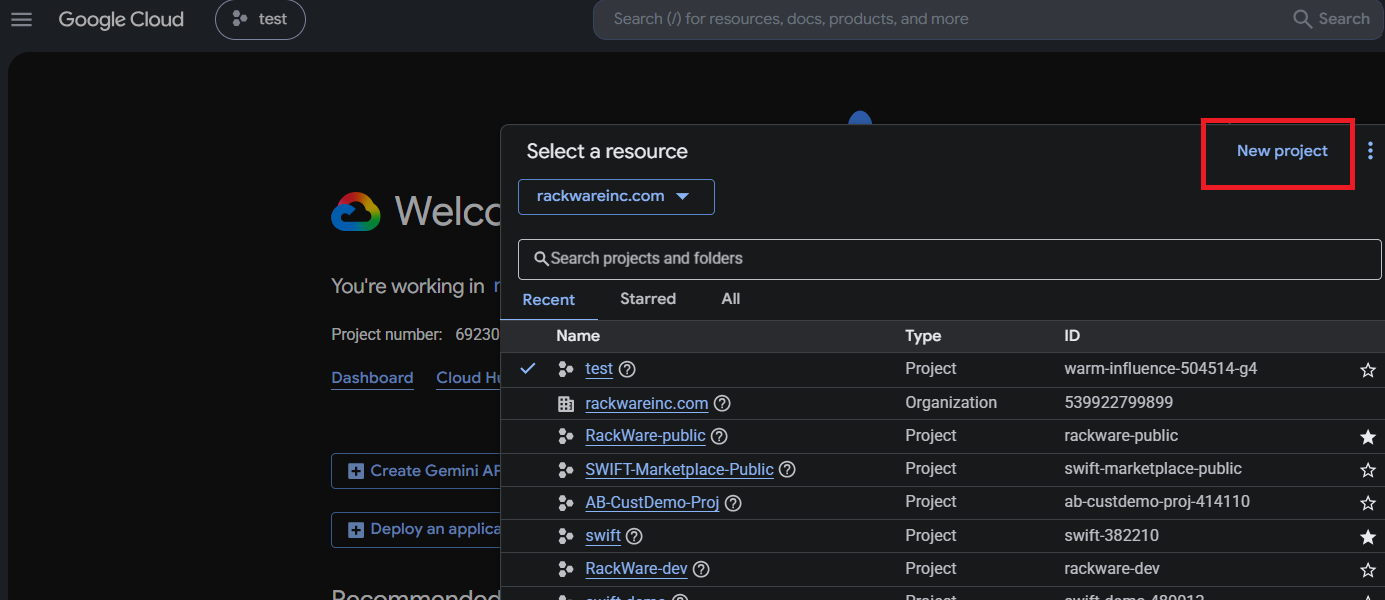
1. Create a Project. To do that Click on New project.
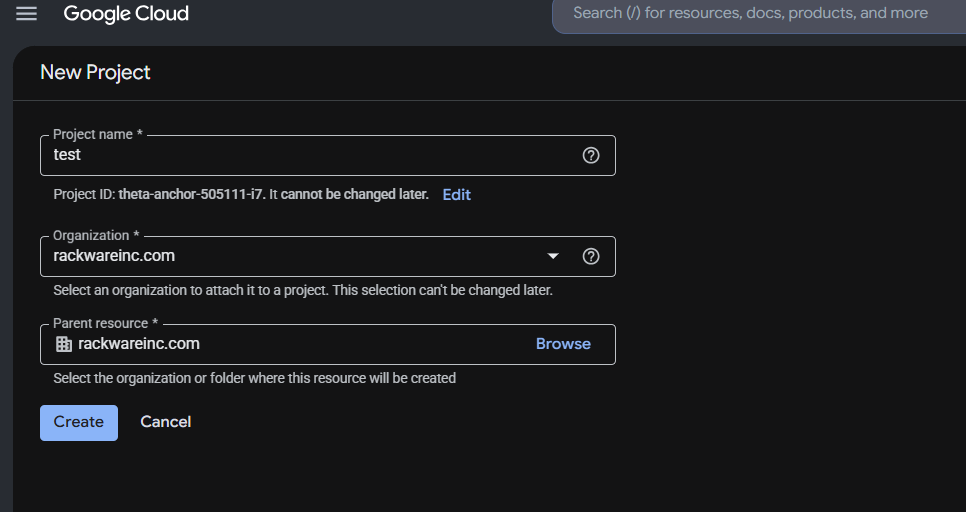
2. Provide the name and click on create.
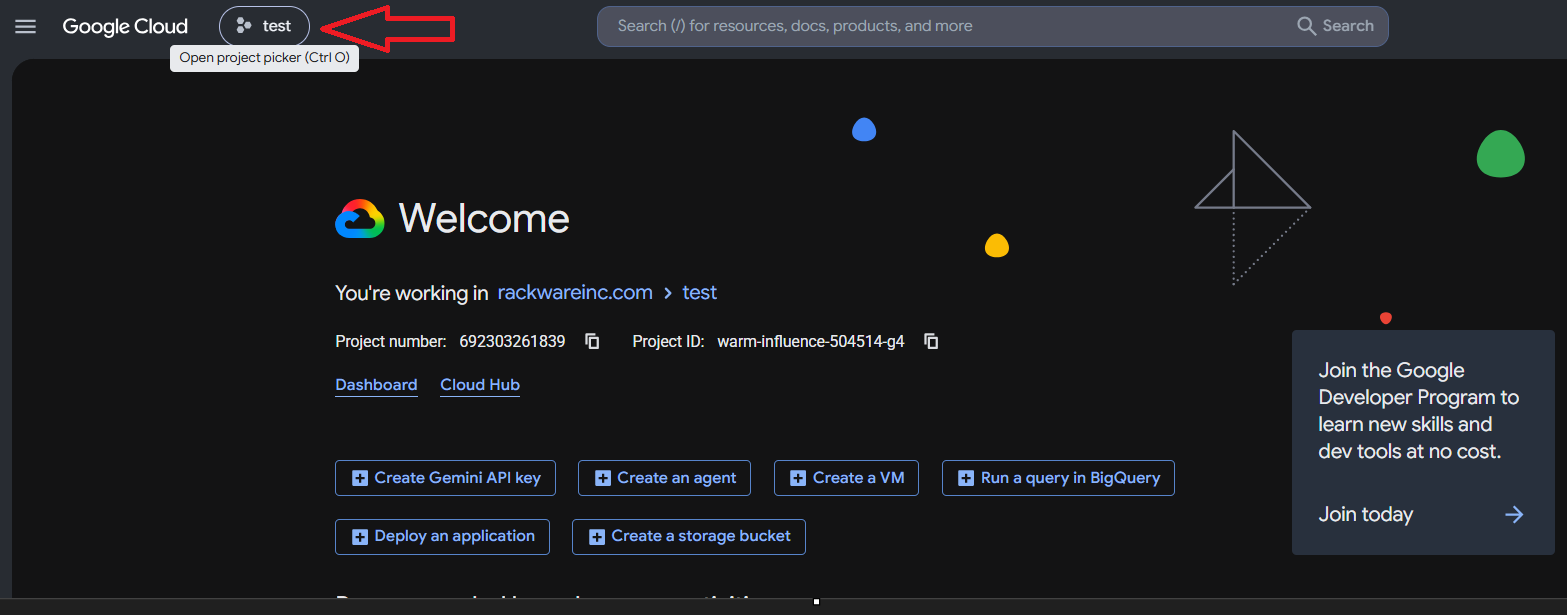
3. And then select the Project.
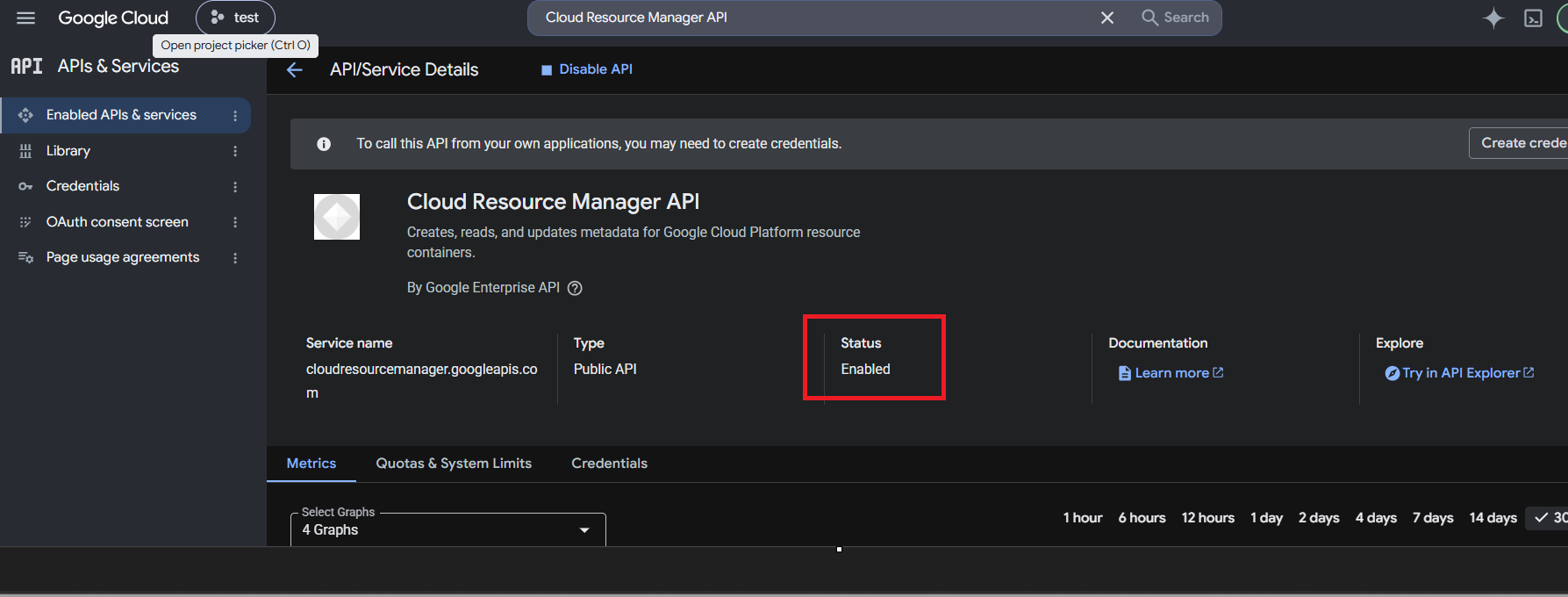
- Enable Cloud Resource Manager API
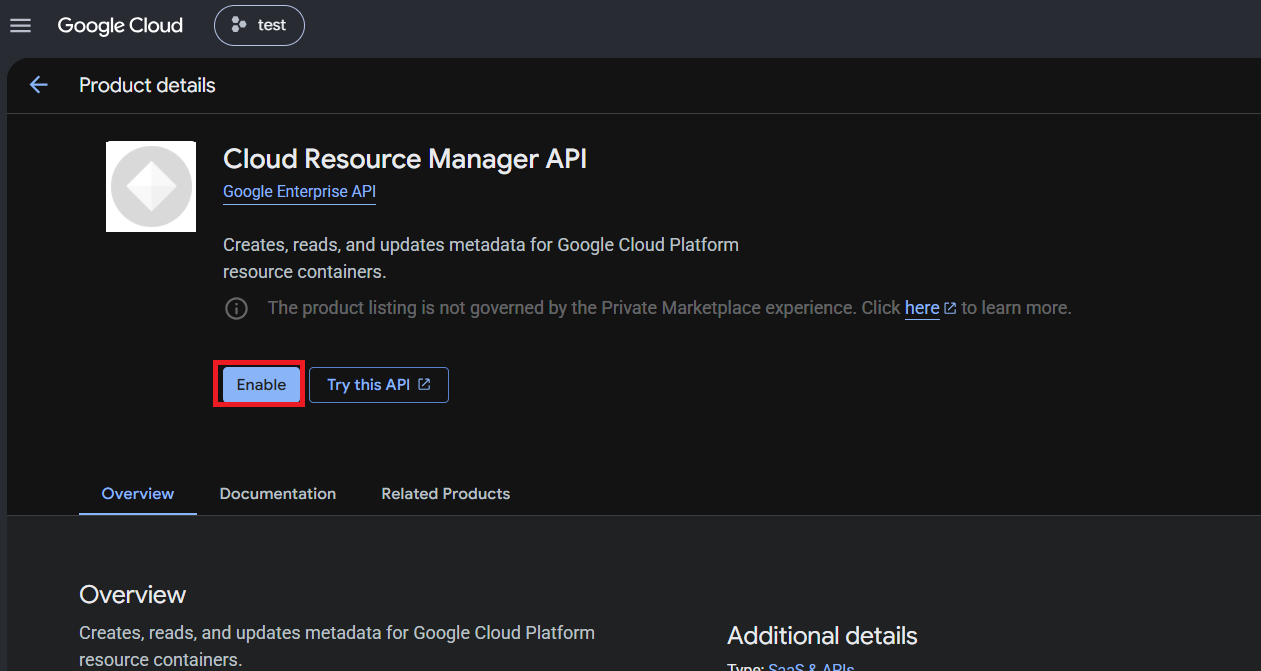
1. Search enable cloud resource manager API in search tab and click on Enable.
2. Verify the status.
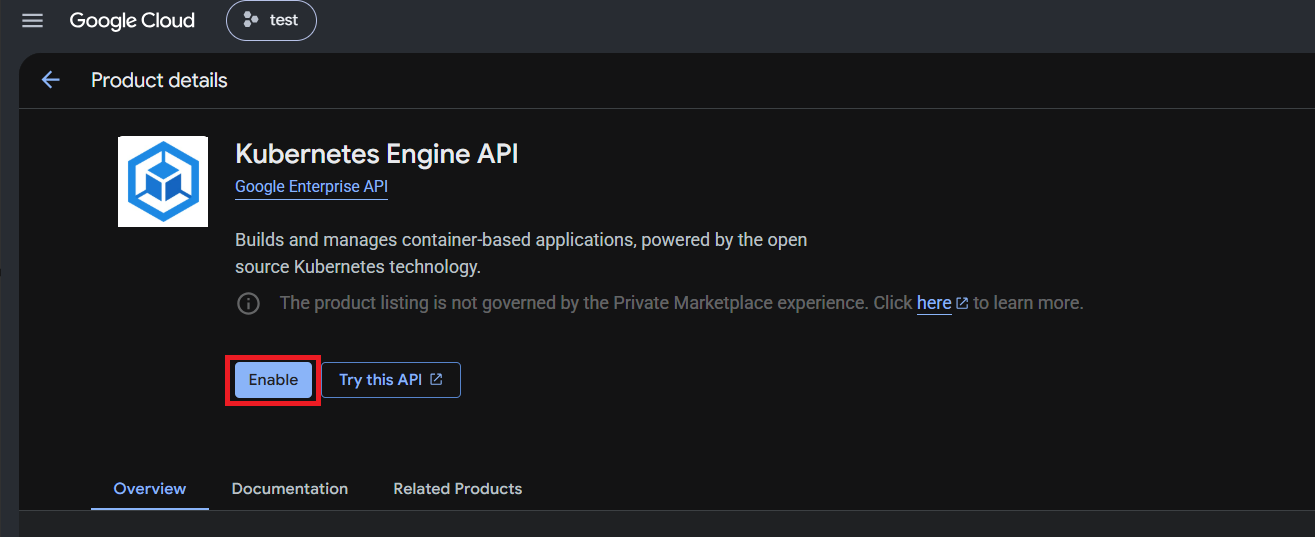
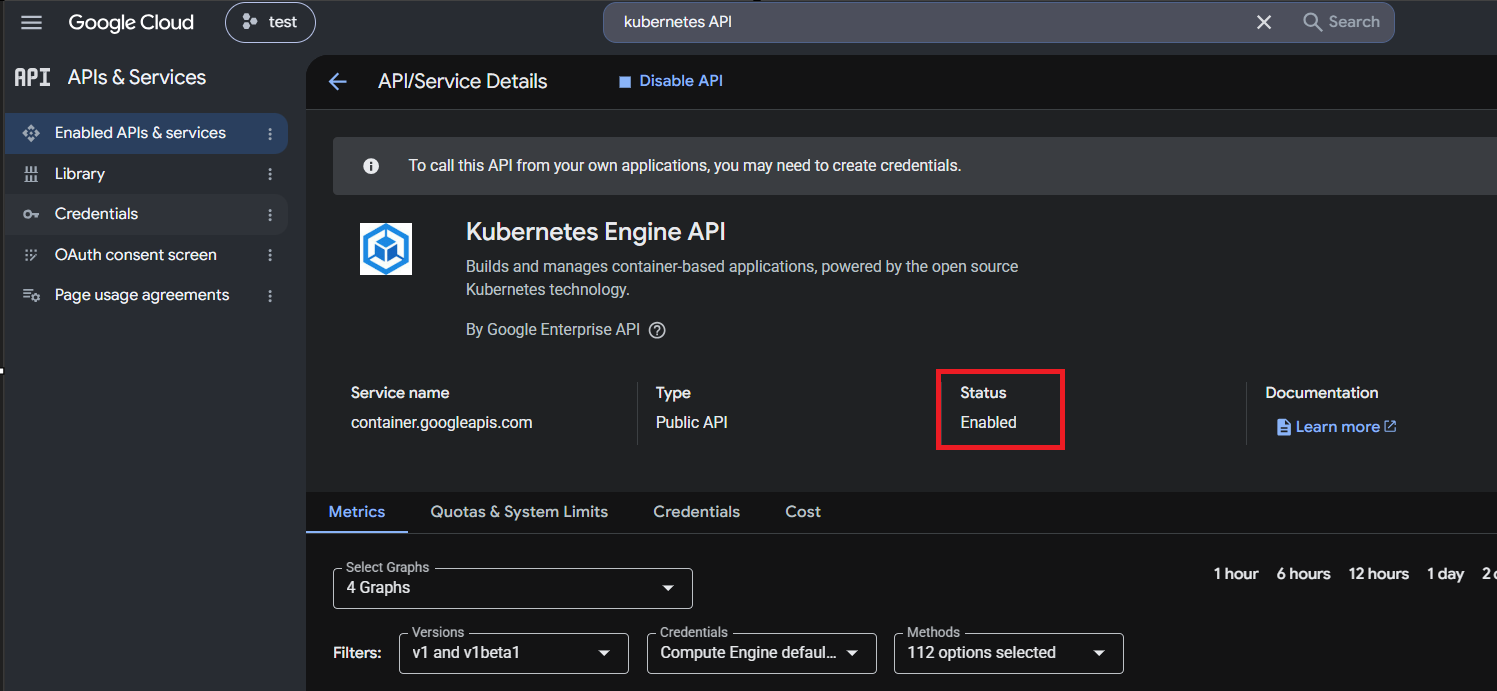
- Enable Kubernetes API
1. Search Kubernetes API in search bar.
2. Verify status.
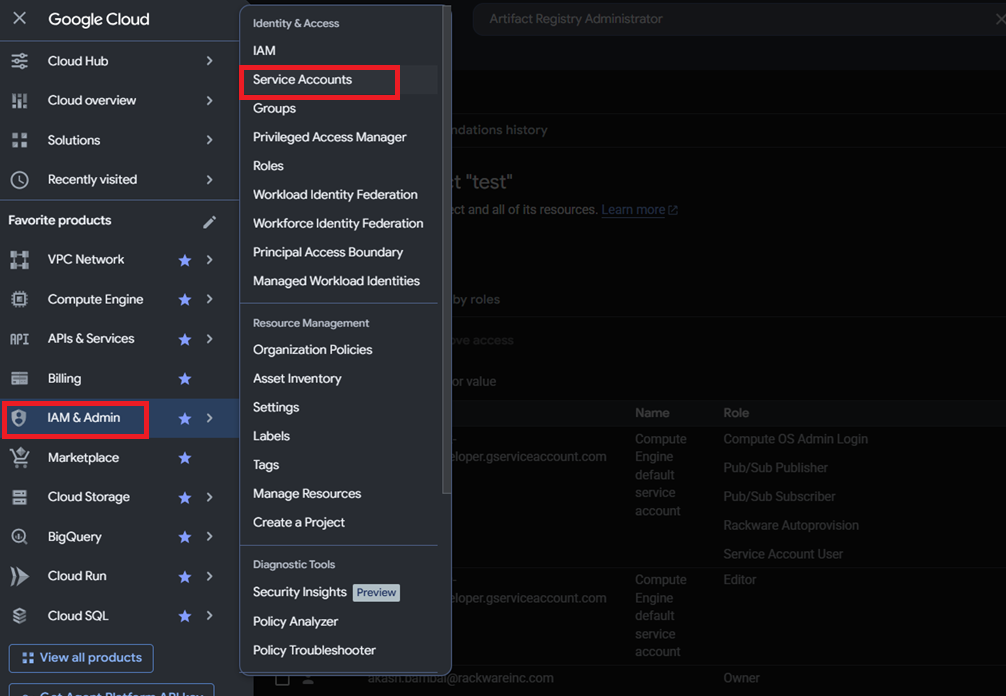
Create a Service Account
To do that follow below steps.
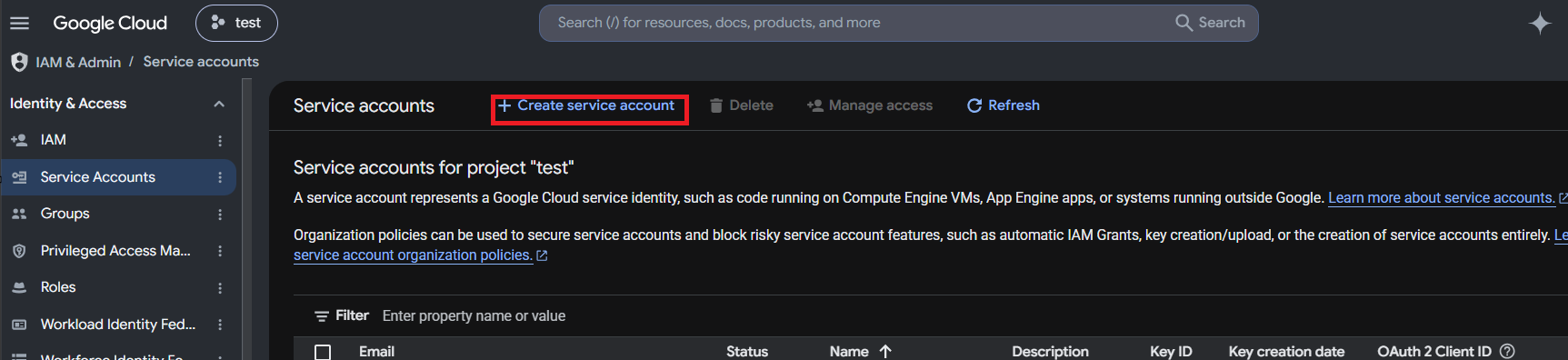
1. Go to IAM and User > Service account
2. Click on Create Service Account.
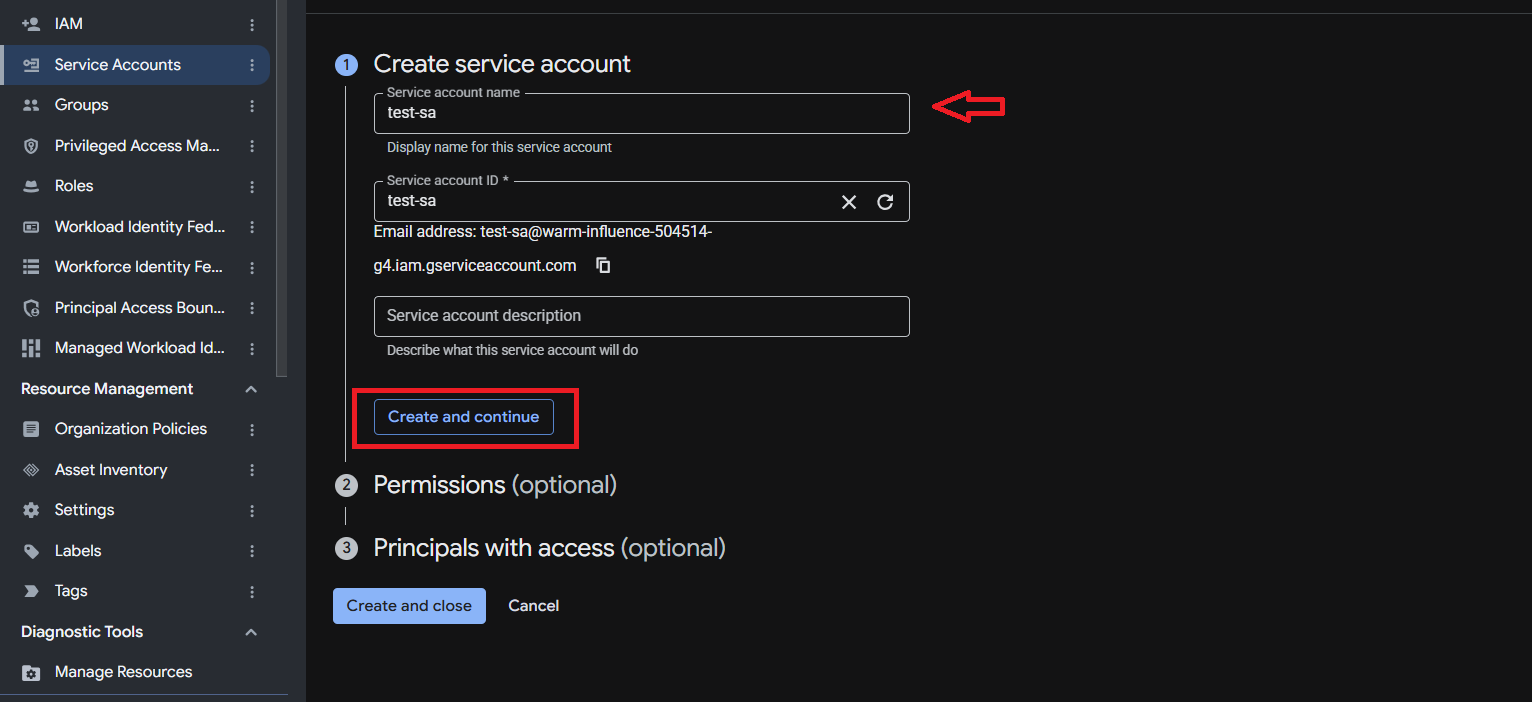
3. Fill out the necessary account name and description details and click ‘Create and continue’
2. Prerequisite for adding GKE cluster
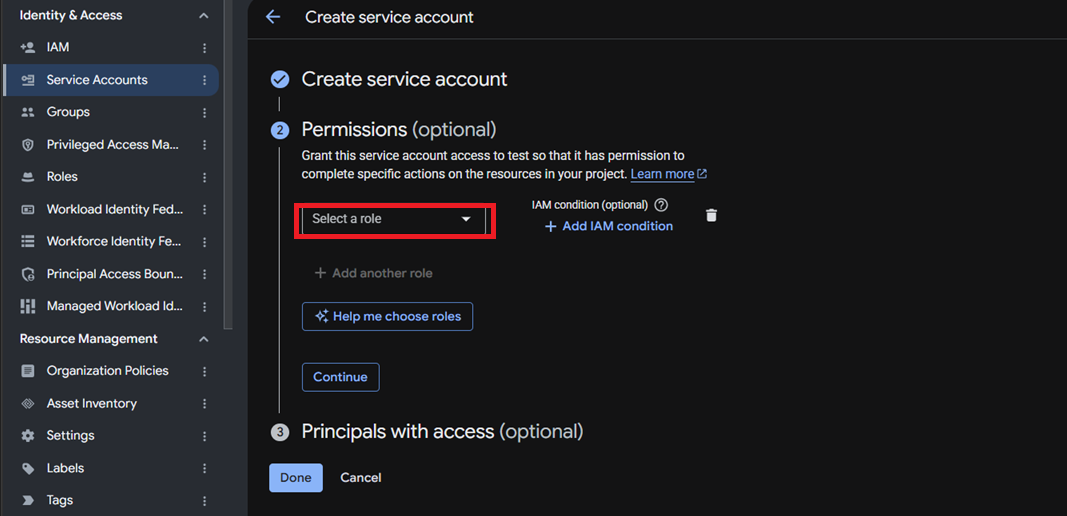
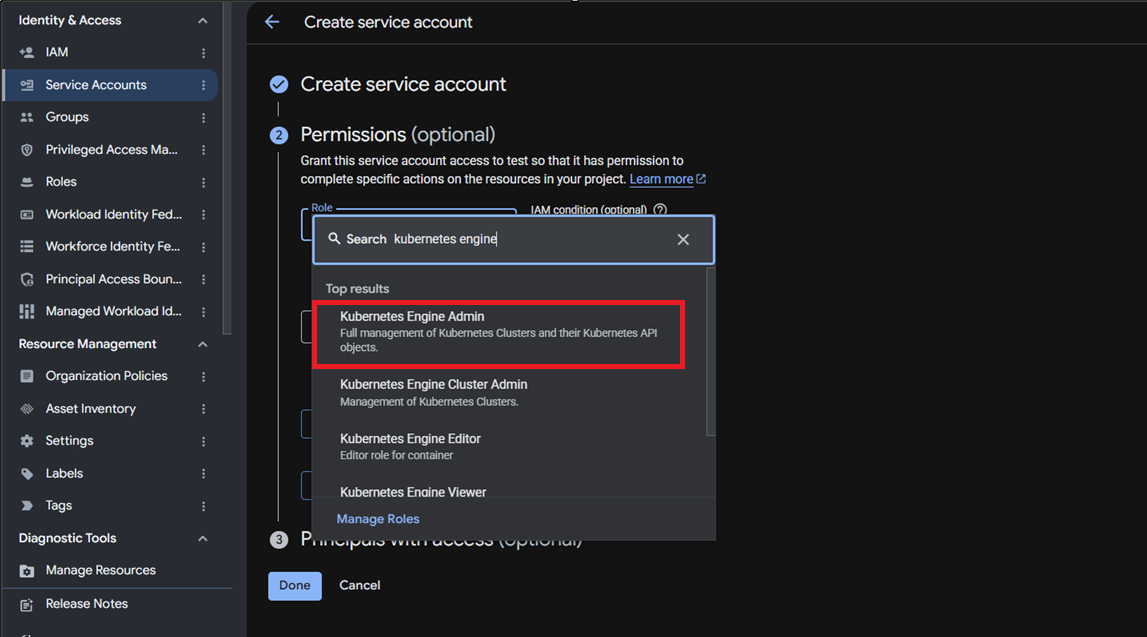
1. After the account is created, select roles to add for the new account, as shown below. You need to add Kubernetes engine developer, Kubernetes Engine admin, Compute Instance Admin (beta) and Compute Instance Admin (v1).
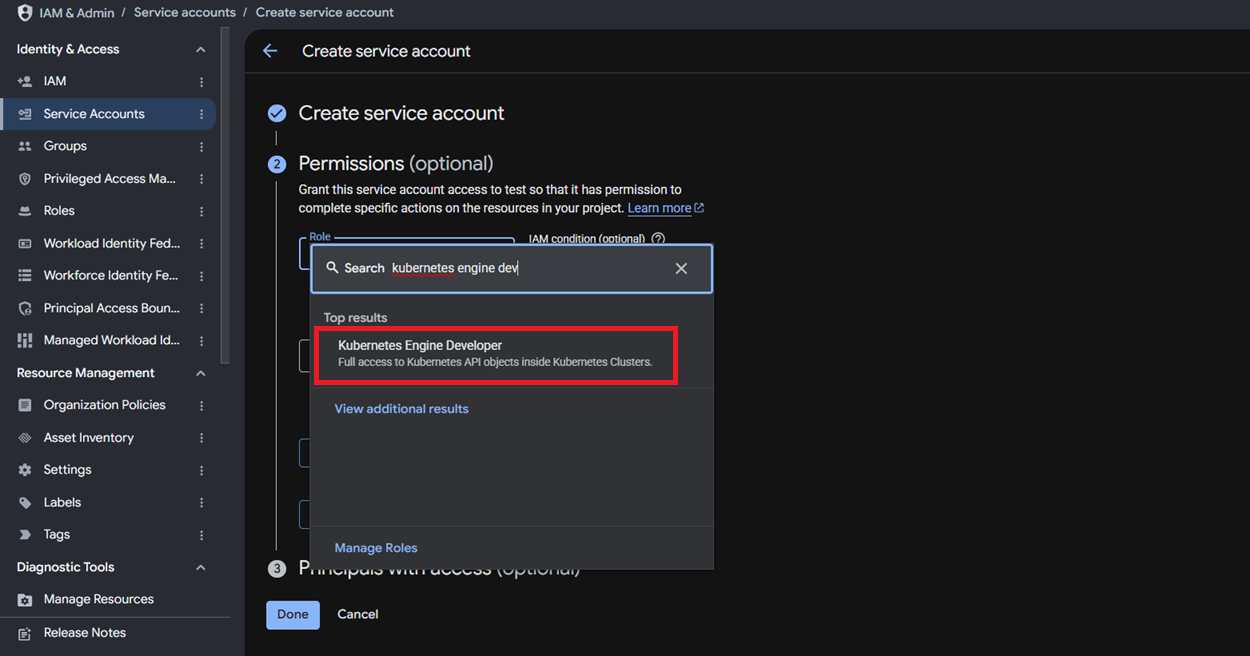
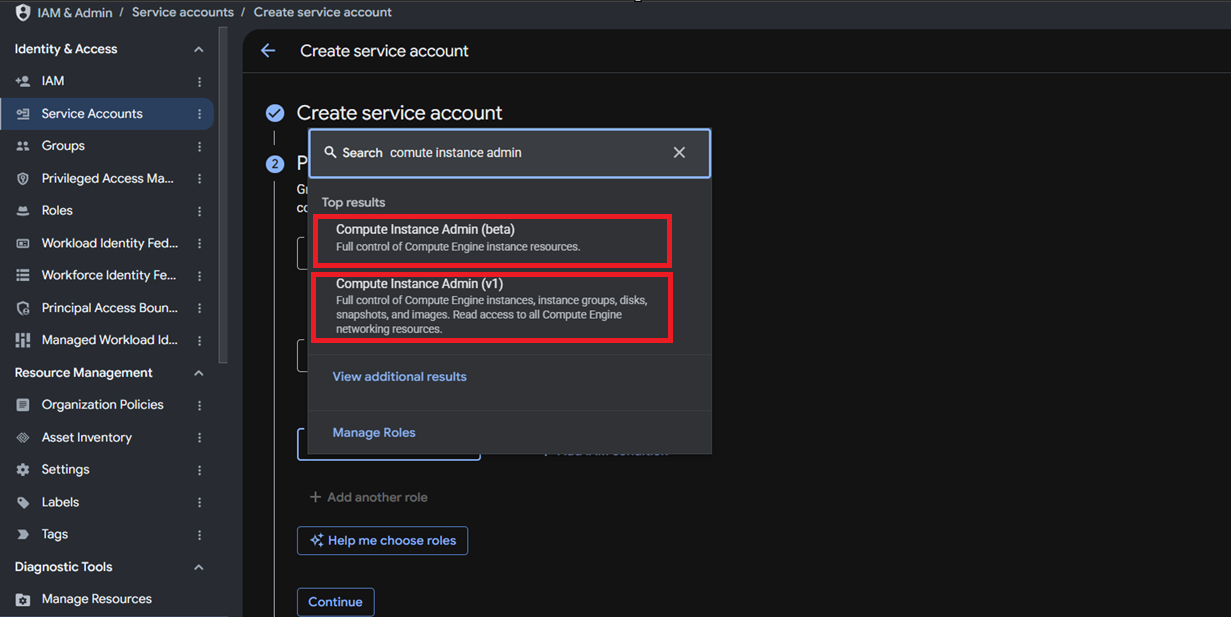
3. Prerequisites to add GAR
1. Add Artifact Registry Administrator and Artifact Registry Create-on-push Repository Administrator
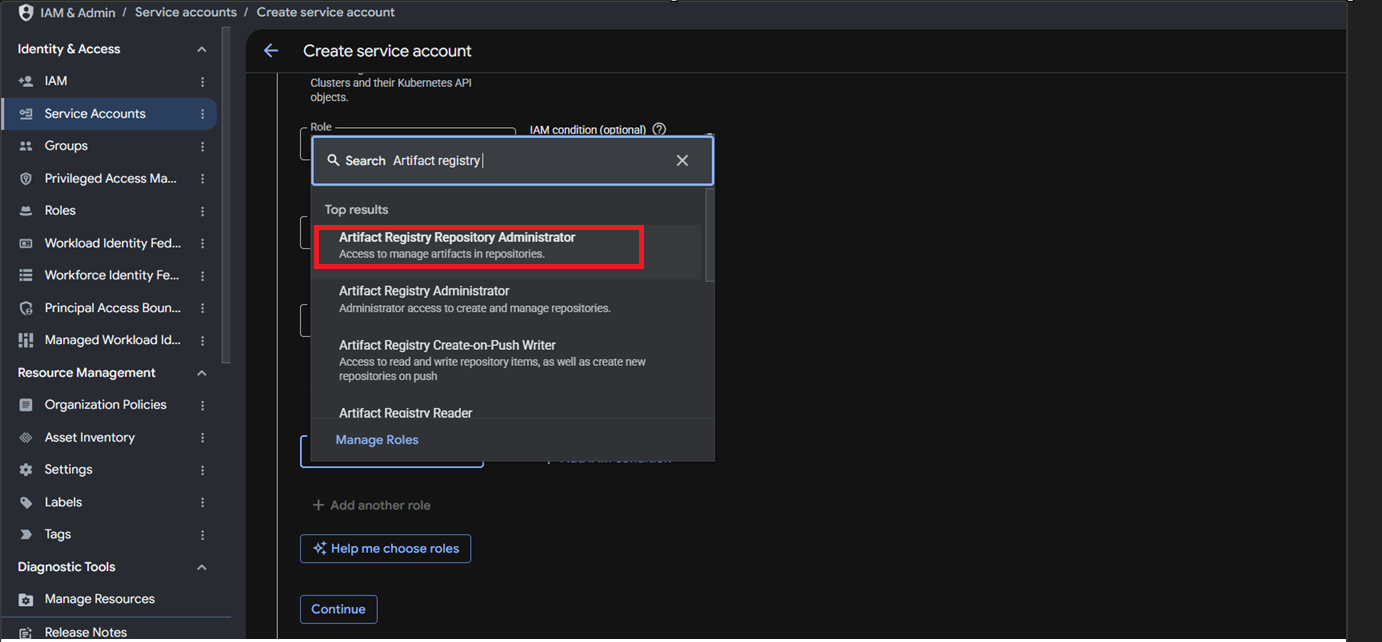
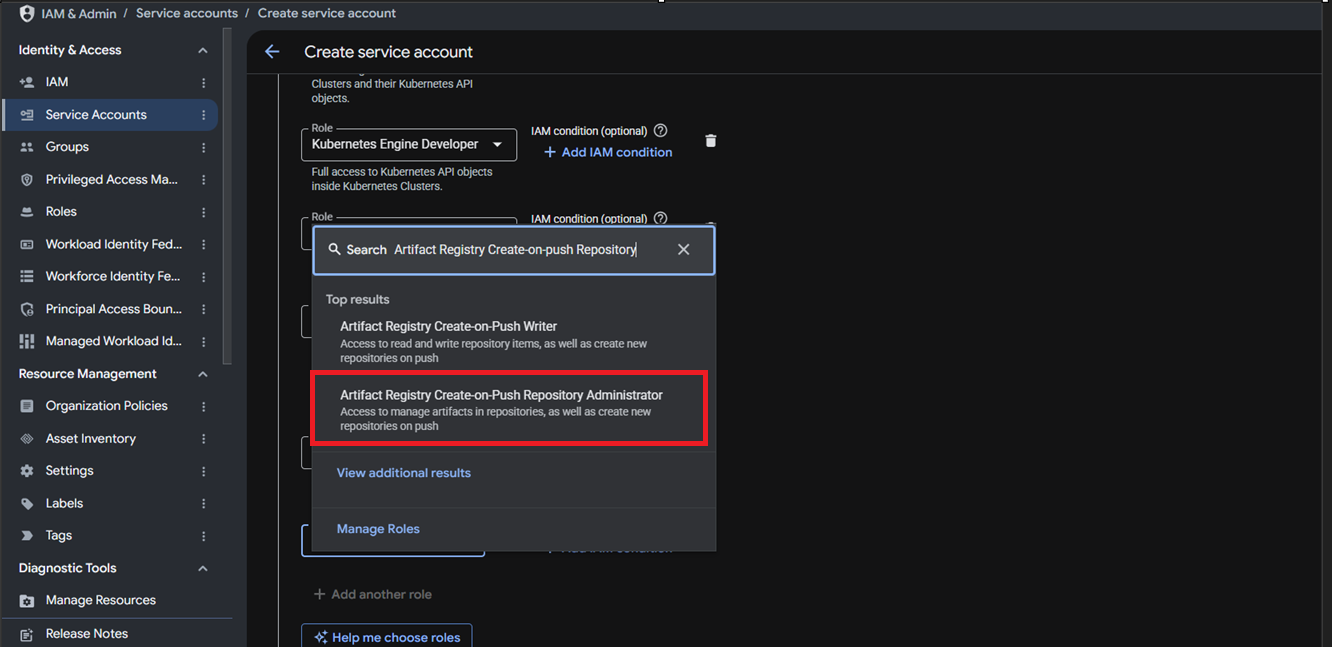
4. Prerequisite for dynamic DR cluster creation
1. Artifact Registry Repository Administrator , Compute Instance Admin (beta) , Compute Instance Admin (v1) , Kubernetes Engine Admin , Kubernetes Engine Developer, Compute Network Admin , Storage Admin, Service Account User
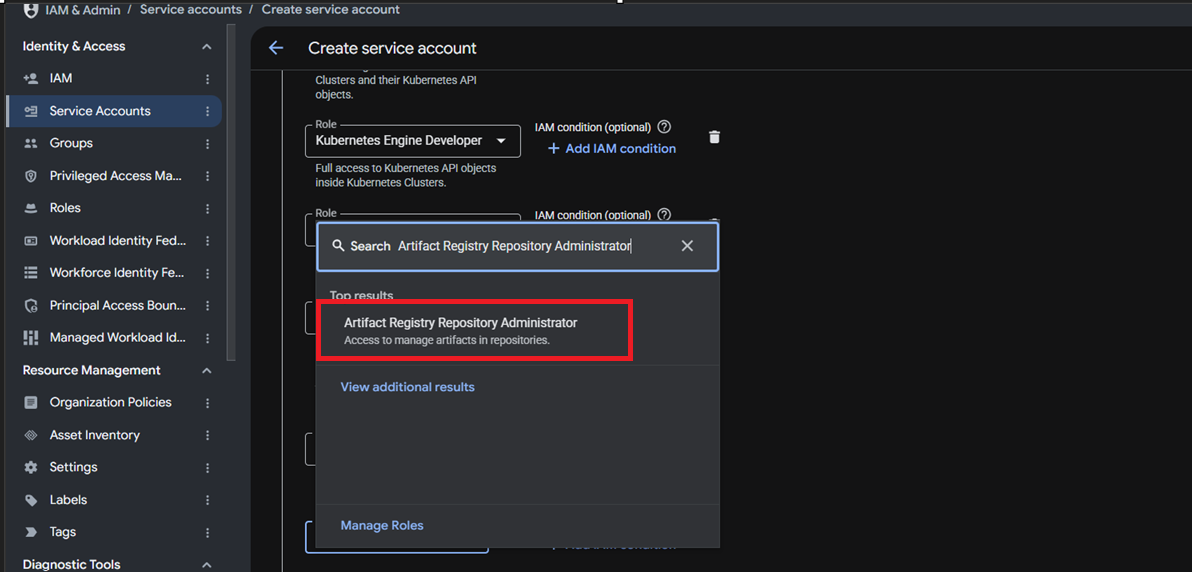
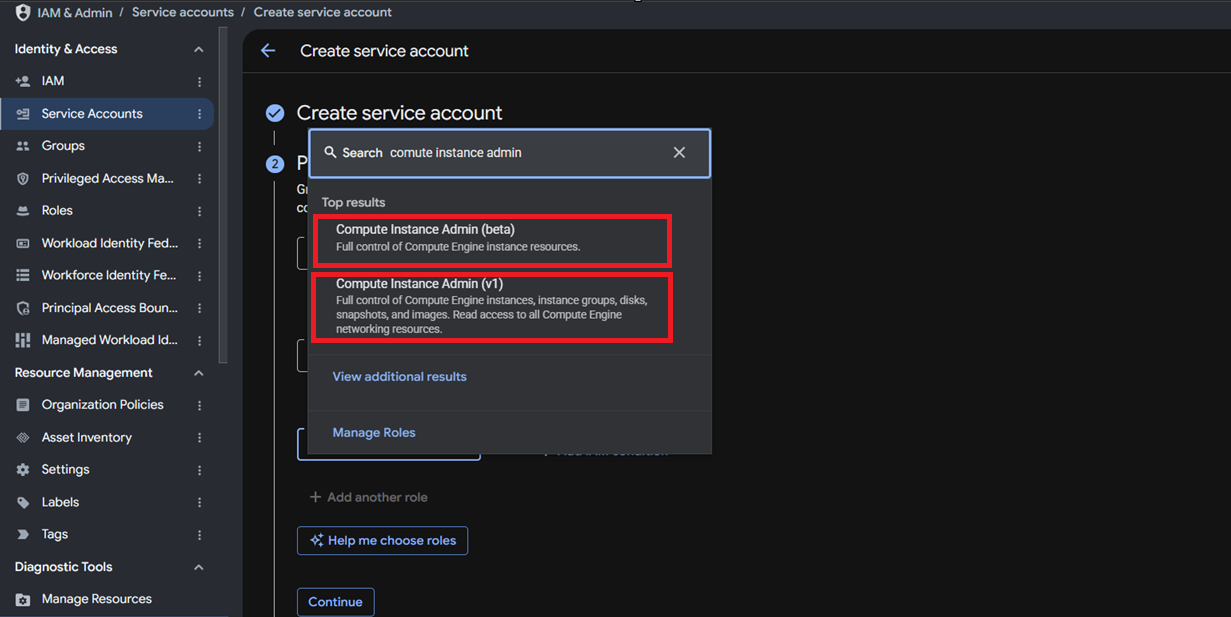
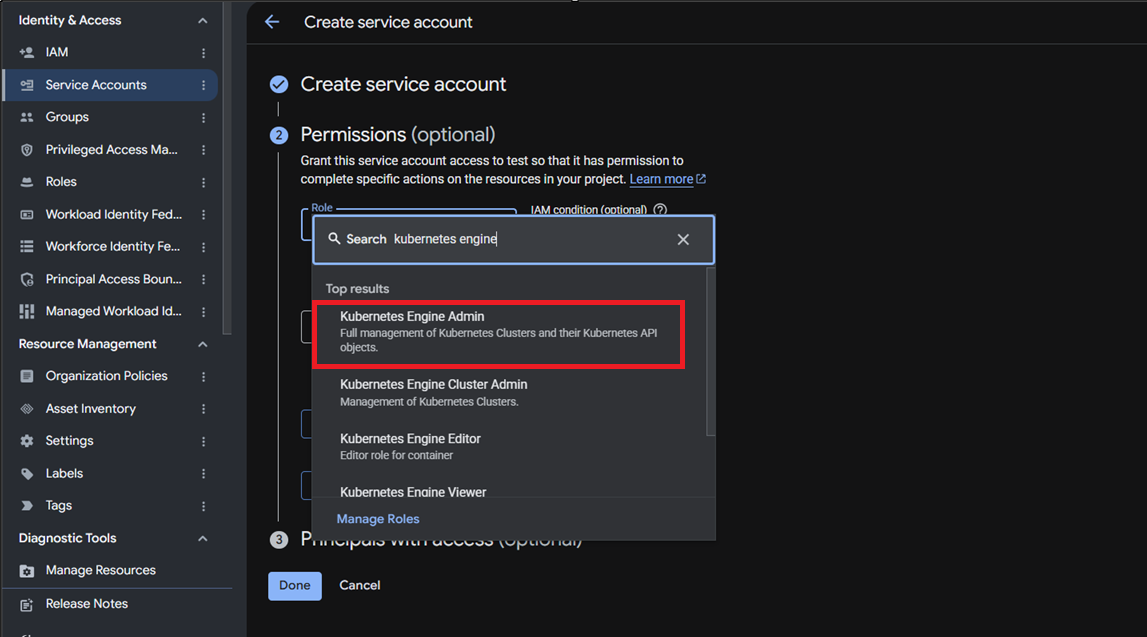
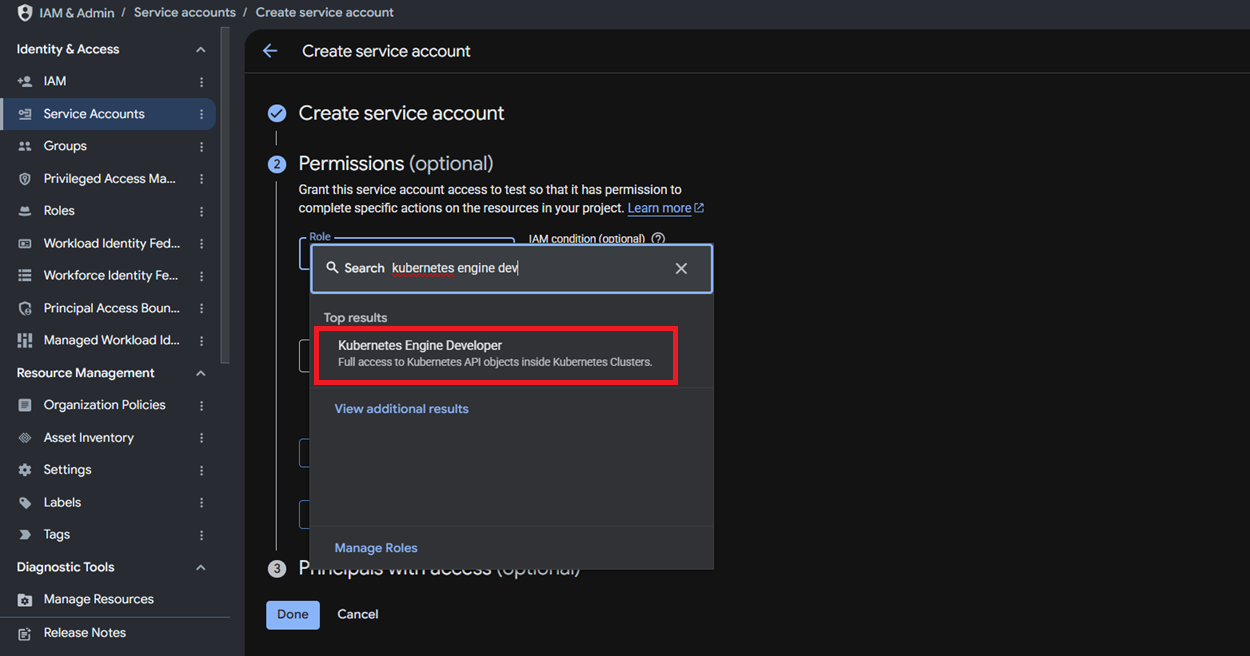
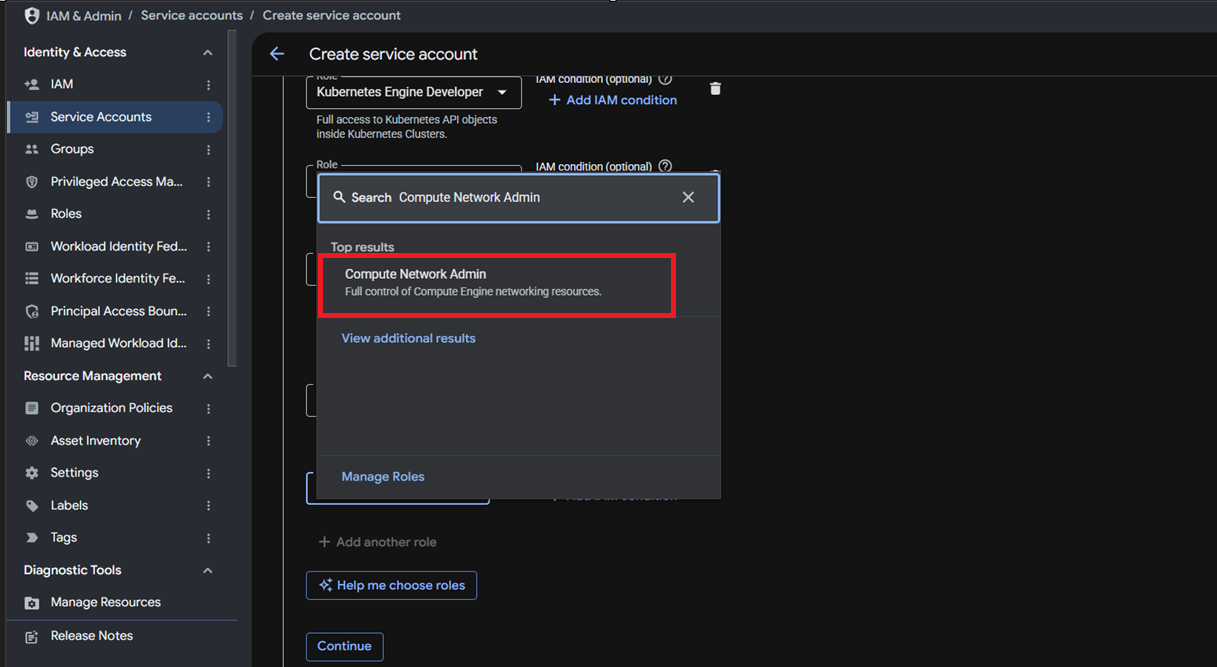
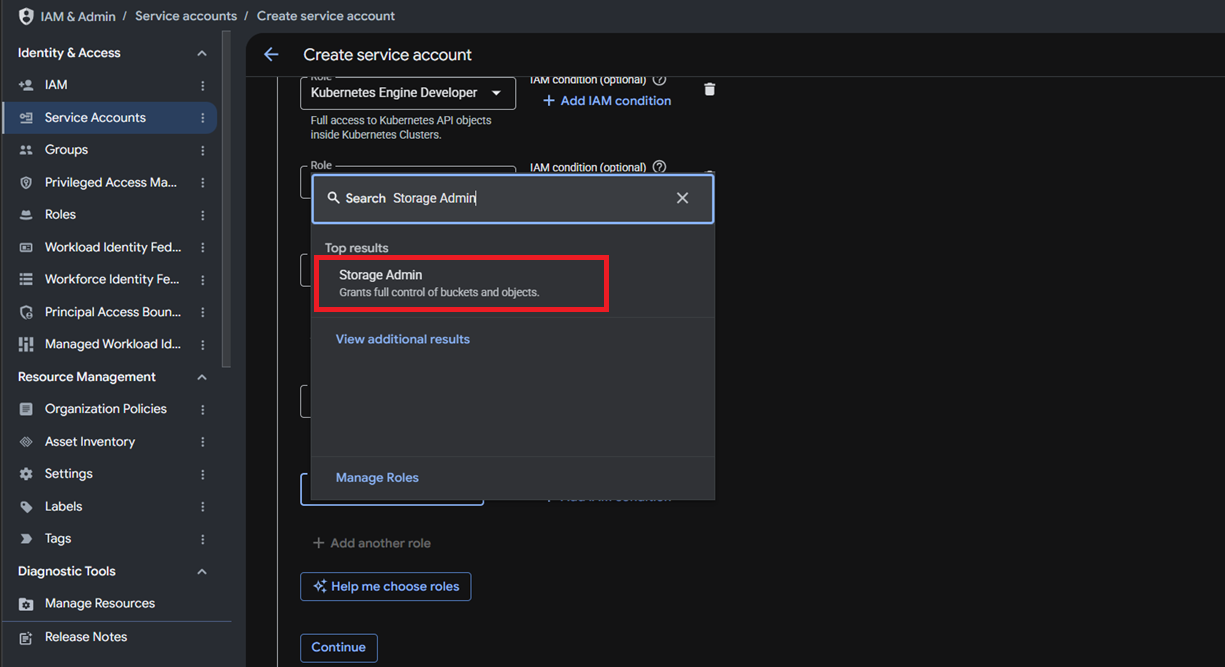
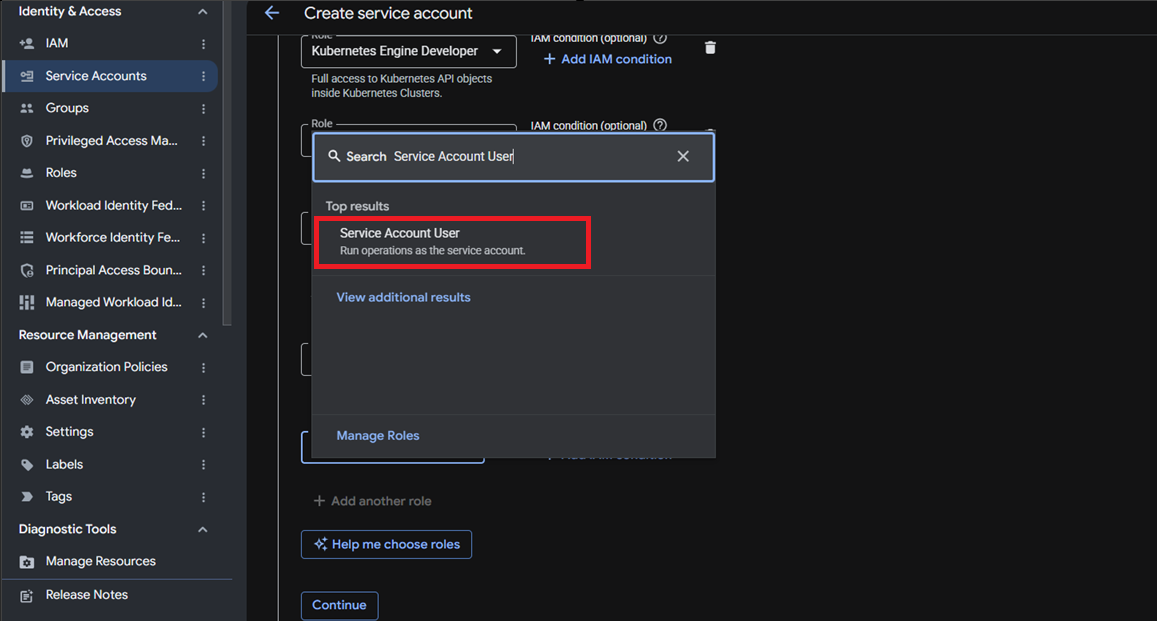
1. Once required roles/permission has been added, then click on Done.
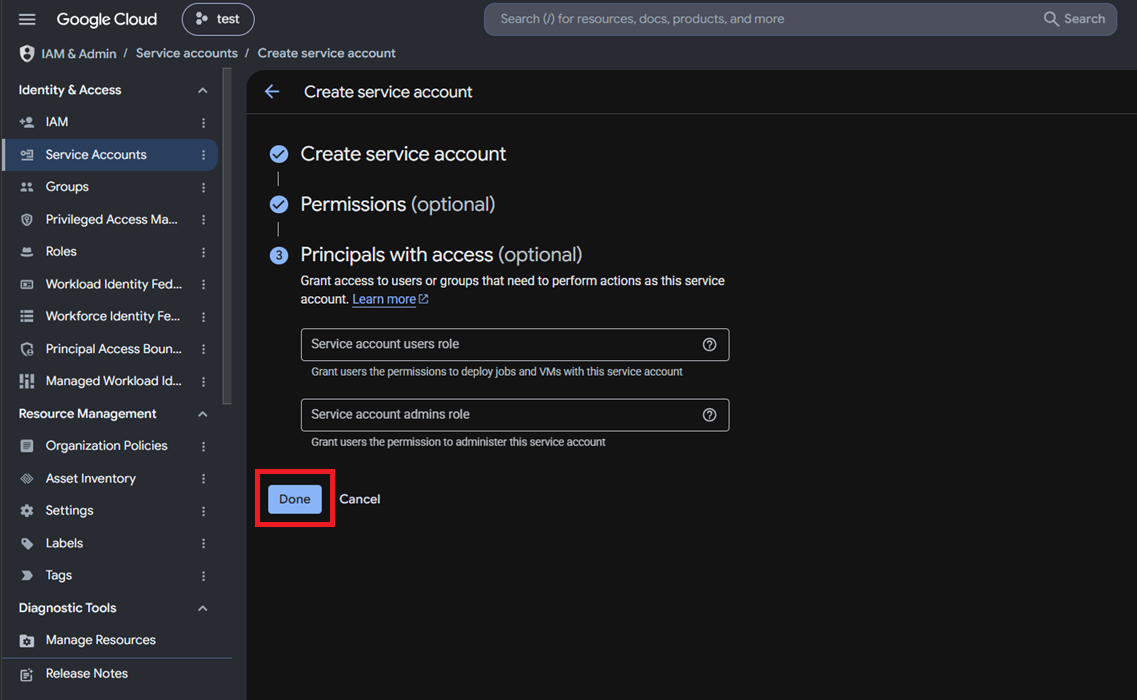
2. Now the new account will appear on the service accounts page.
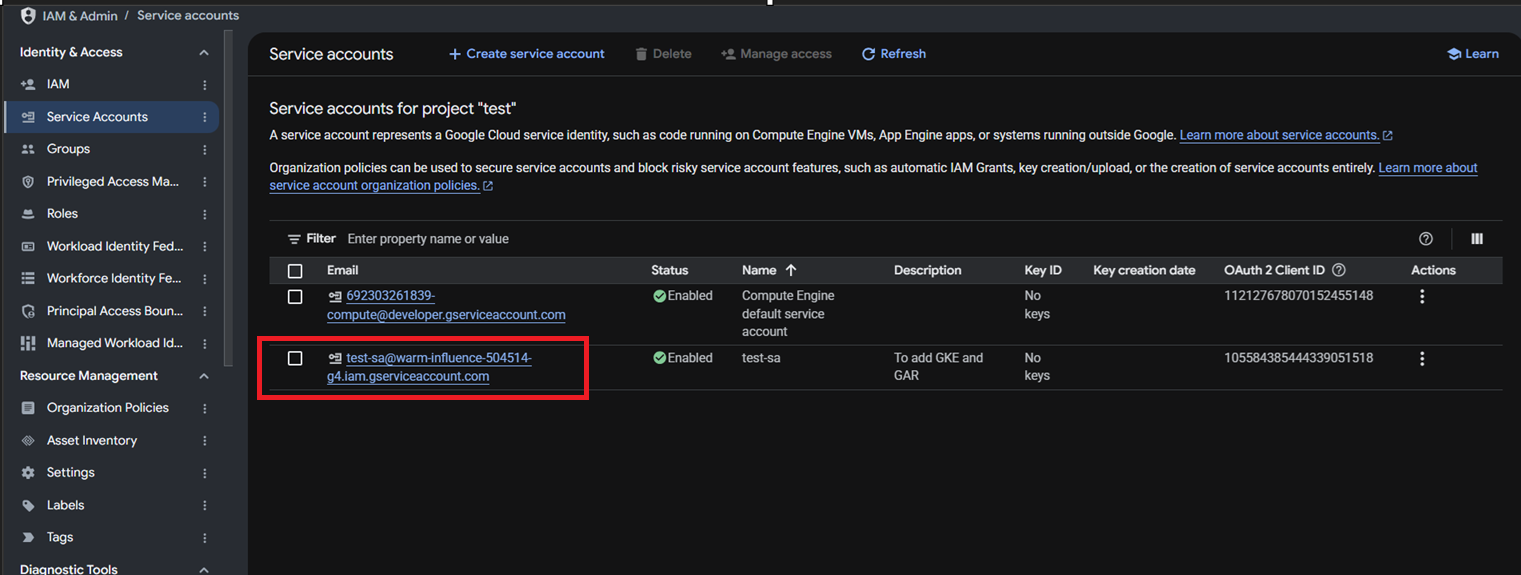
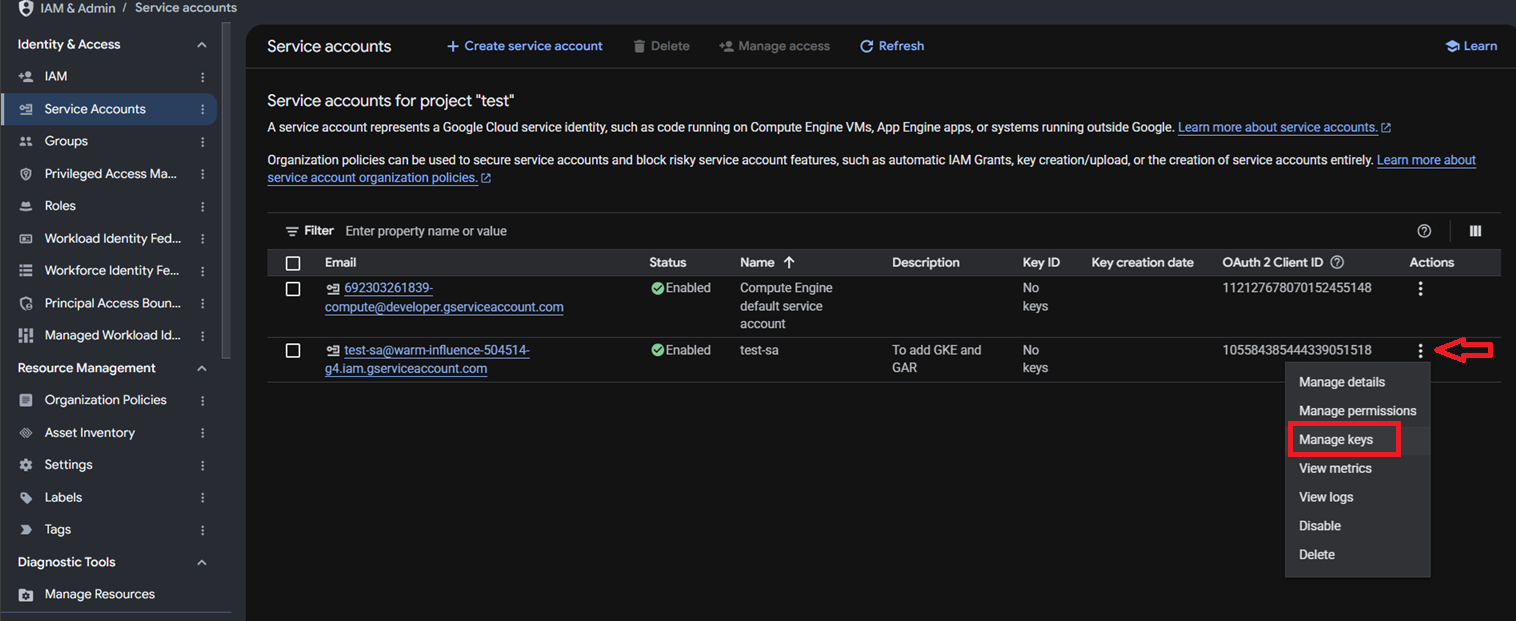
3. To create a key, click the three vertical dots next to the service account and select Manage keys.
4. Click Add key and select Create new key. Select the recommended key type, and then click Create.
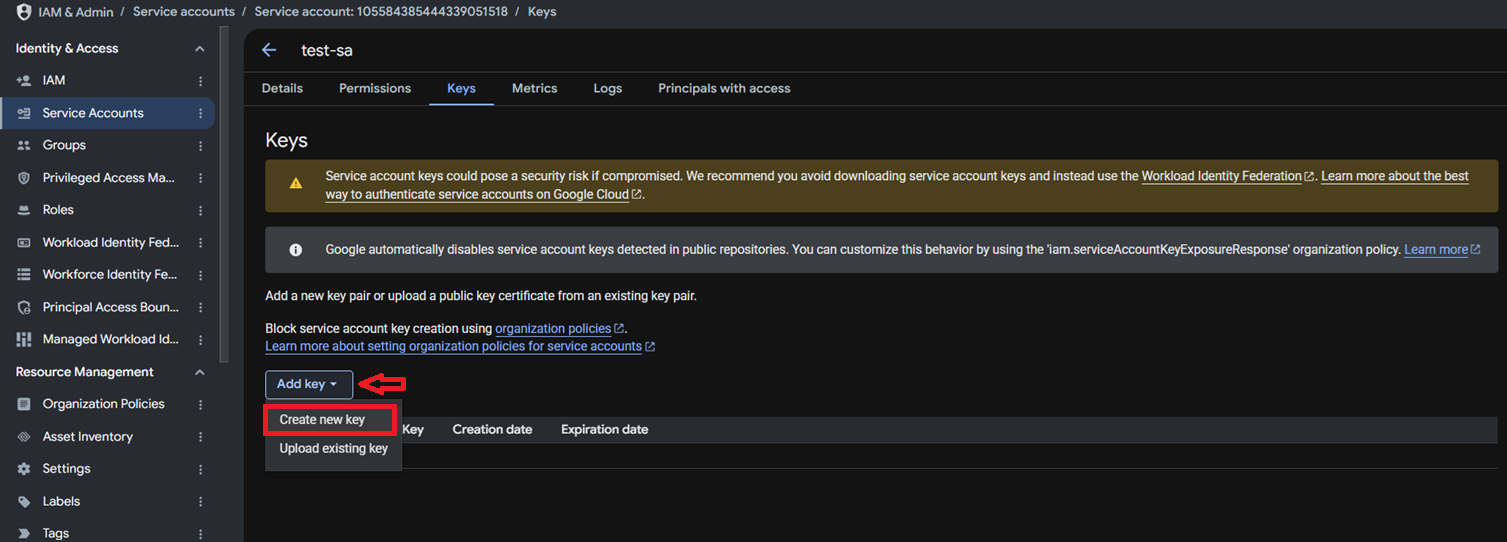
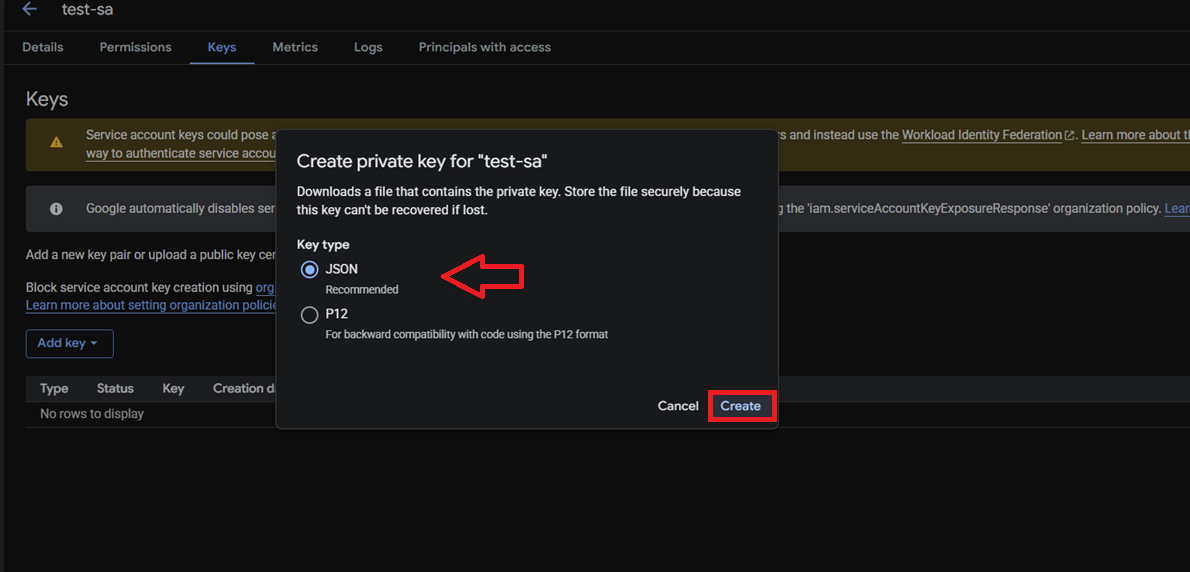
5. Save the key file securely on your local machine. You will use this key when adding the GKE cluster and GAR to SWIFT.
Prerequisites for Adding GCP OpenShift cluster to SWIFT
The following prerequisites are required before adding a Google Cloud OpenShift cluster to SWIFT:
1. Google Cloud Service Account
Use the existing Google Cloud service account key created during the prerequisite configuration. No separate Google Cloud credentials are required to configure the OpenShift cluster in SWIFT
2. OpenShift Service Account
Create the required service account on the OpenShift cluster and obtain the service account credentials. For detailed instructions, refer to the How to create Service Account KB for detailed steps.
3. OpenShift API Server Port
Ensure that the OpenShift API server is accessible on port 6443. Port 6443 is the default port used by the OpenShift API server.
Next Steps
After completing the prerequisites, the required Google Cloud resources, service accounts, IAM roles, APIs, and credentials are ready for use in SWIFT.
Continue with the appropriate configuration and discovery KB for: