
Overview
This knowledge base (KB) describes the prerequisites required to configure Azure Kubernetes Service (AKS), Azure Container Registry (ACR), and Azure Red Hat OpenShift (ARO) in RackWare SWIFT. Before adding these Azure resources to SWIFT, ensure that the required Azure resources, permissions, authentication credentials, and access policies are configured correctly.
Topics Covered
- Prerequisites for Azure Kubernetes Service (AKS) and Azure Container Registry (ACR)
- Prerequisites for Azure Container Registry (ACR)
- Prerequisites for Adding Azure Red Hat OpenShift (ARO)
1. Prerequisites for Azure Kubernetes Service (AKS) and Azure Container Registry (ACR)
- Create a Microsoft Entra ID Application for SWIFT use.
Create a Microsoft Entra ID application in your Azure cloud environment. The application credentials generated during this process are required to configure AKS and ACR in SWIFT. The same credentials can also be used for Azure Object Storage discovery.
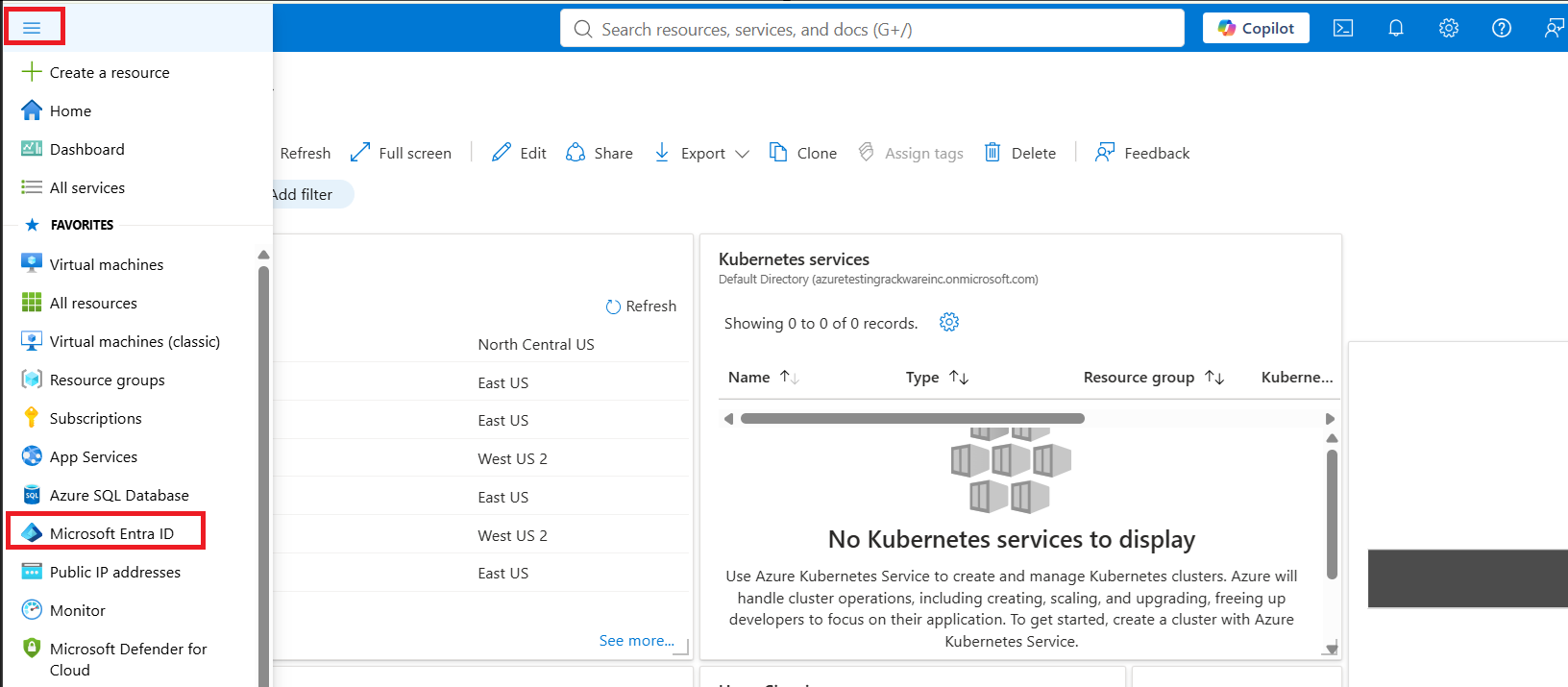
1. To do this go to the azure portal > and from menus on the left, select the ‘Microsoft Entra ID’ menu option.
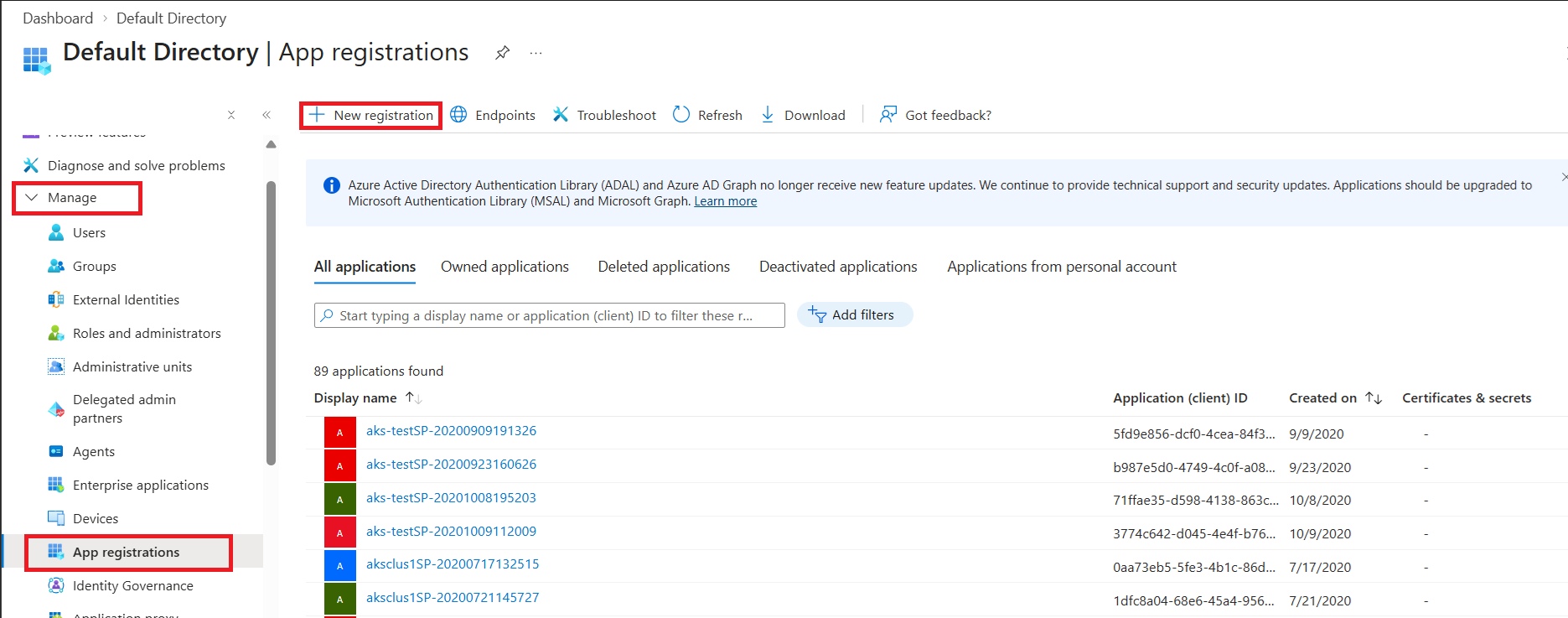
2. Click on the ‘App Registrations’ menu and then the ‘New Registration’ option.
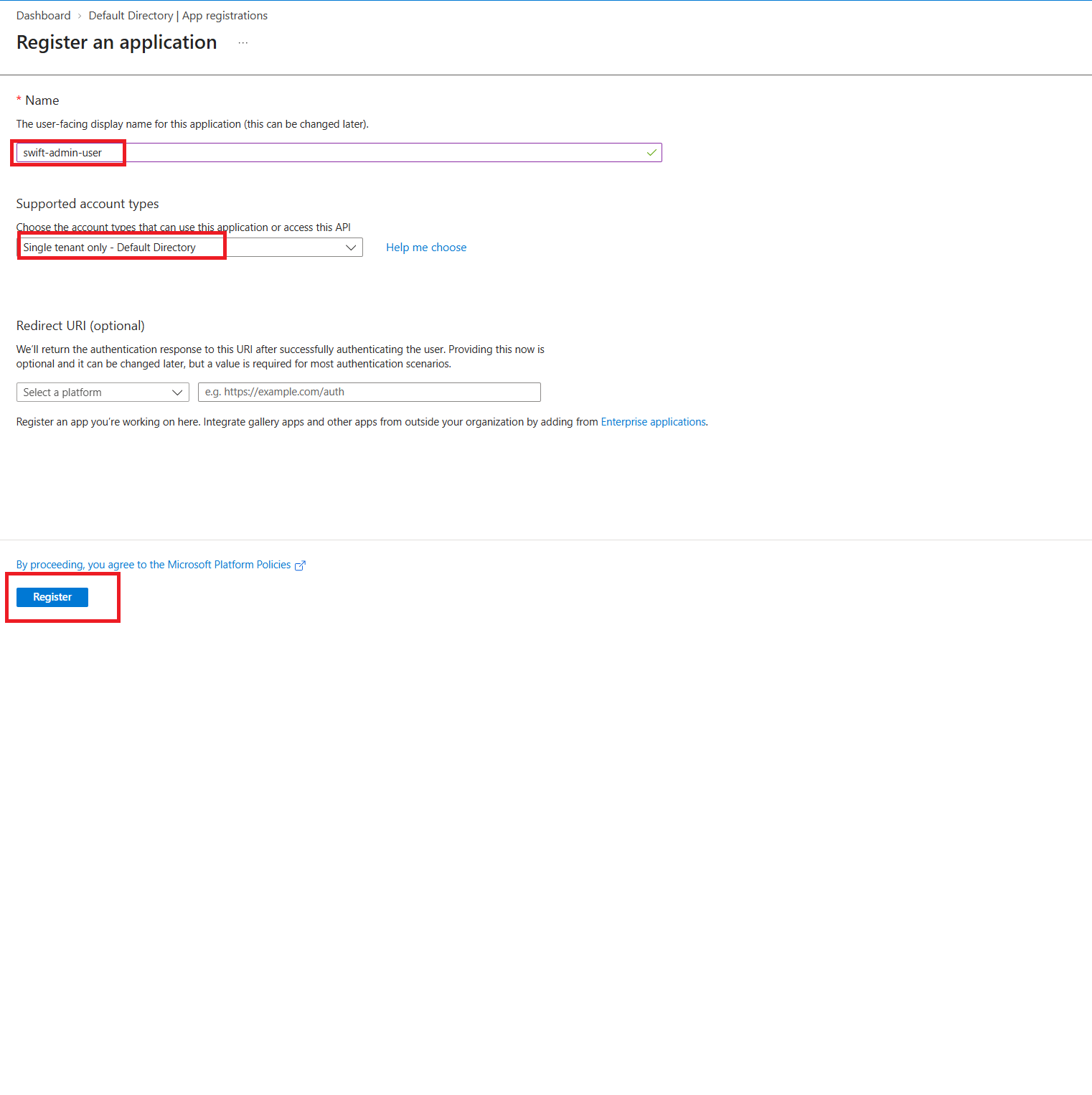
3. On the Register an application page, provide a descriptive Name for the application and select Single tenant – Default Directory under Supported account types. Leave Redirect URI blank and click Register.
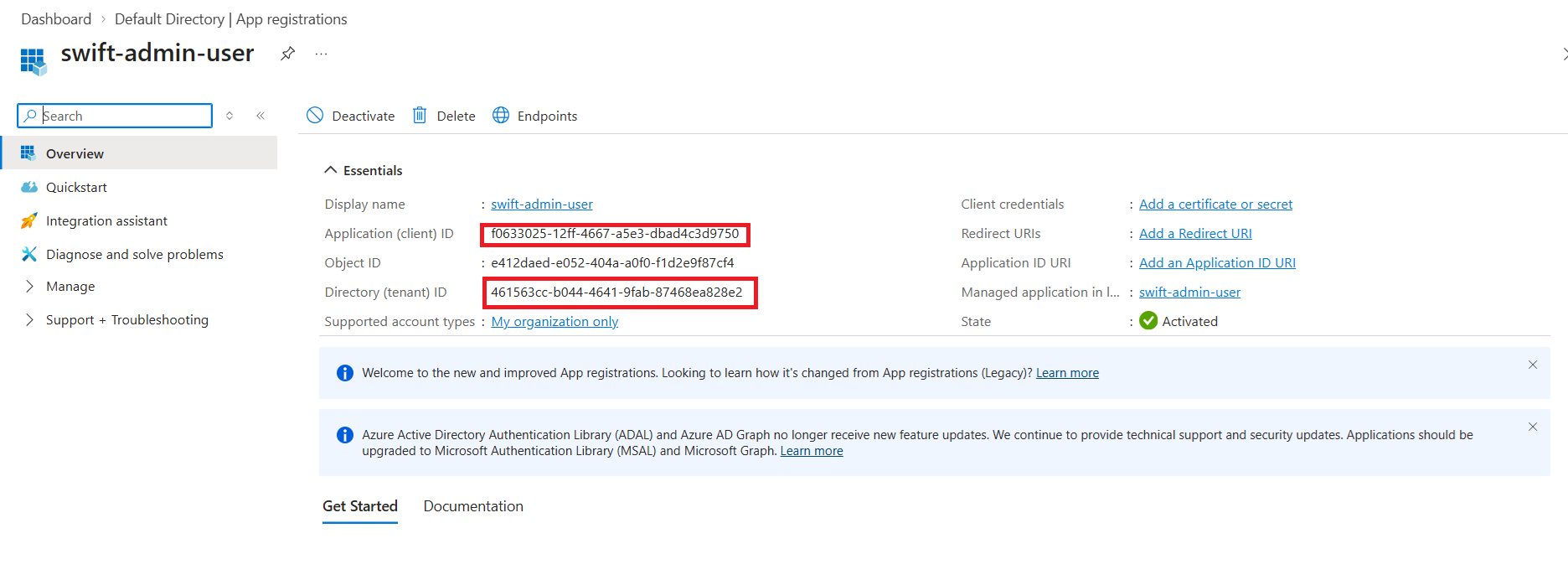
4. Once the Microsoft Entra ID application is created, note the Application (client) ID and Directory (tenant) ID from the application Overview page. You will need these details later when configuring the AKS cluster in SWIFT.
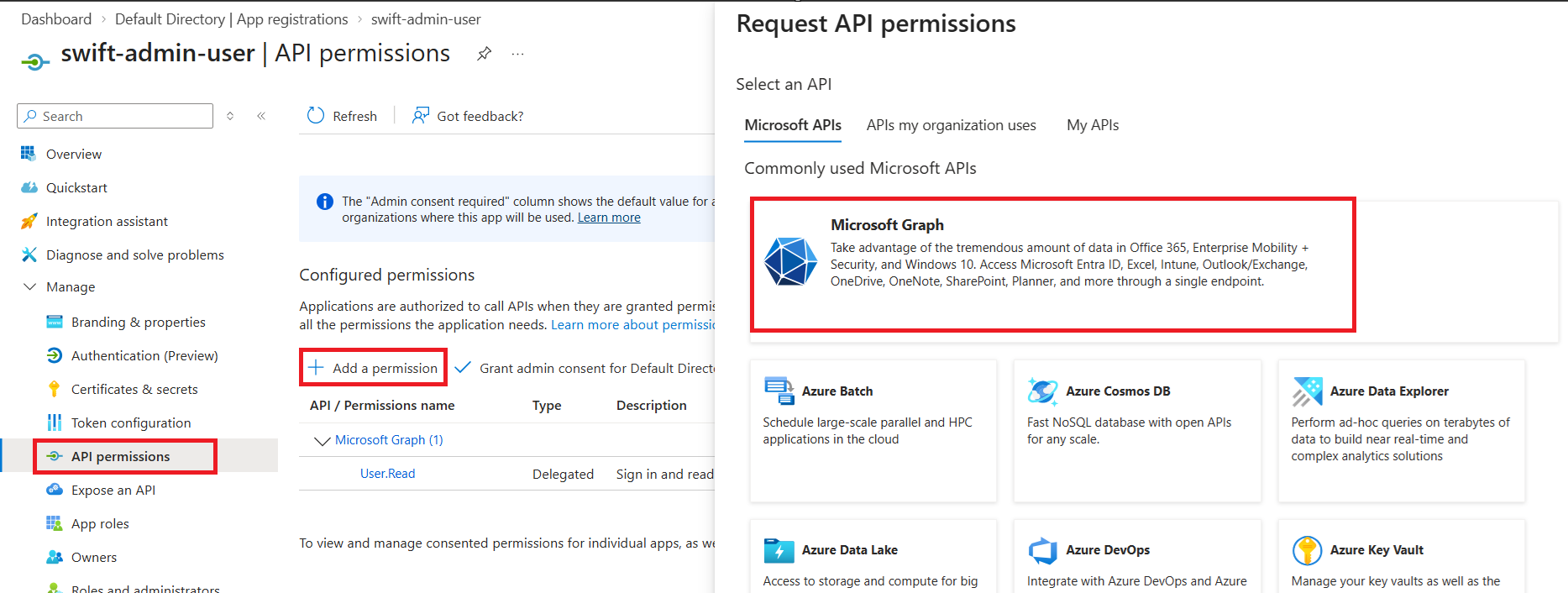
5. For the newly created application, select API permissions from the left navigation pane. Click Add a permission, and then select Microsoft Graph under Microsoft APIs.
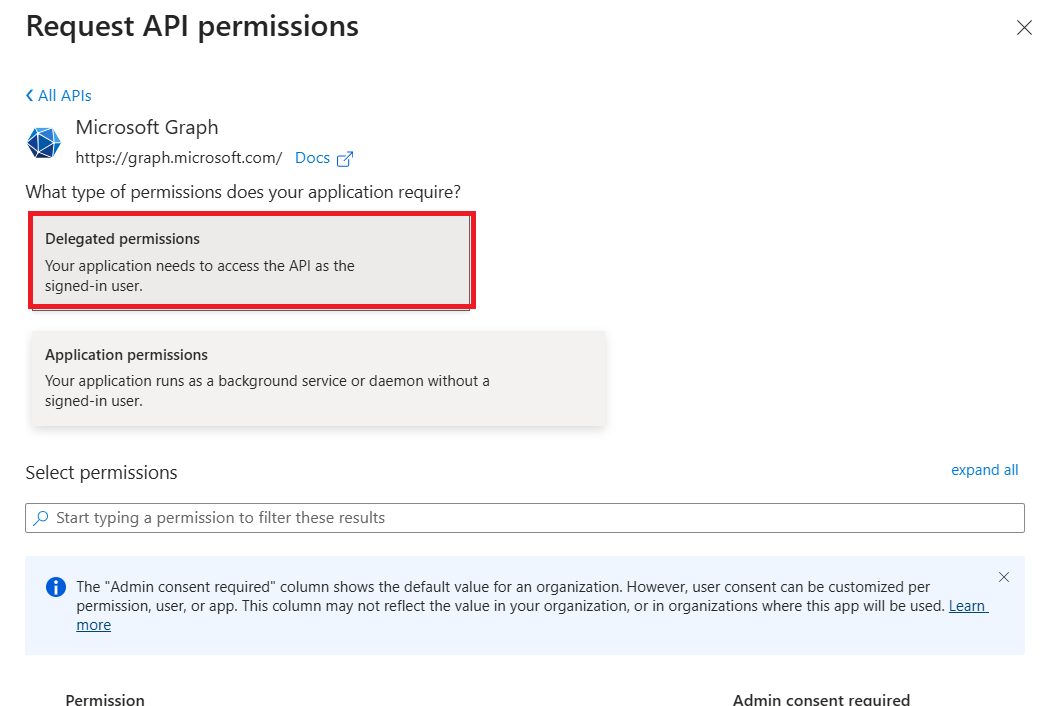
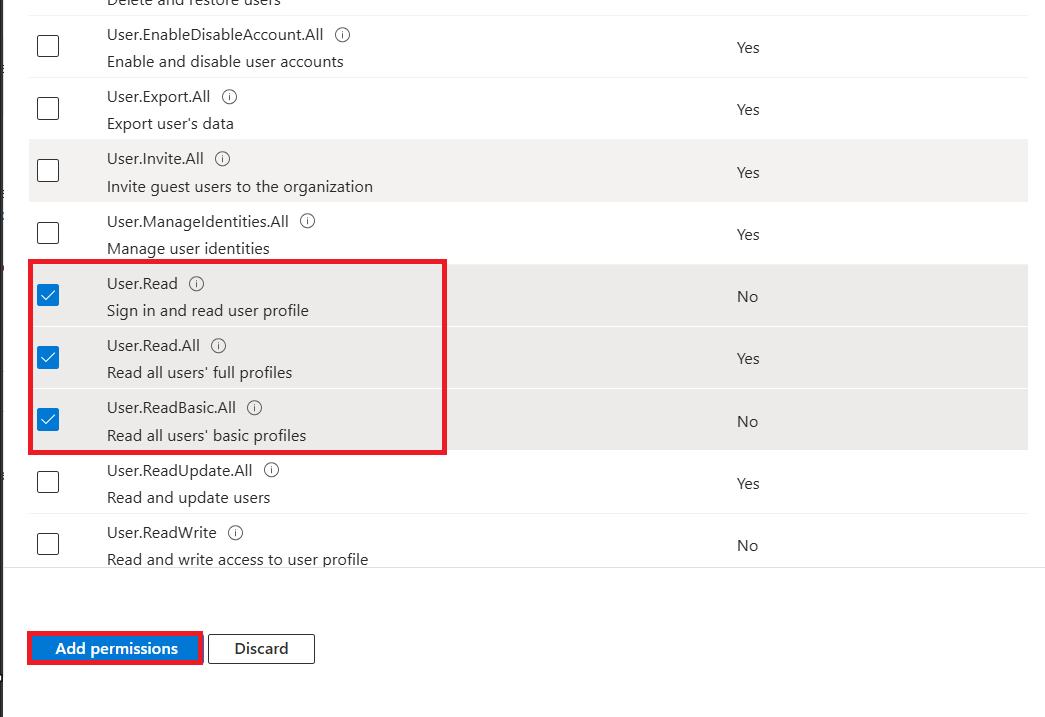
6. After selecting Microsoft Graph, under the Request API permissions section, select Delegated permissions and select all the required Read permissions as shown in the screenshot. Click Add permissions to complete the configuration.
7. Select ‘Add a permission’ again and this time select ‘Azure Storage’ category.
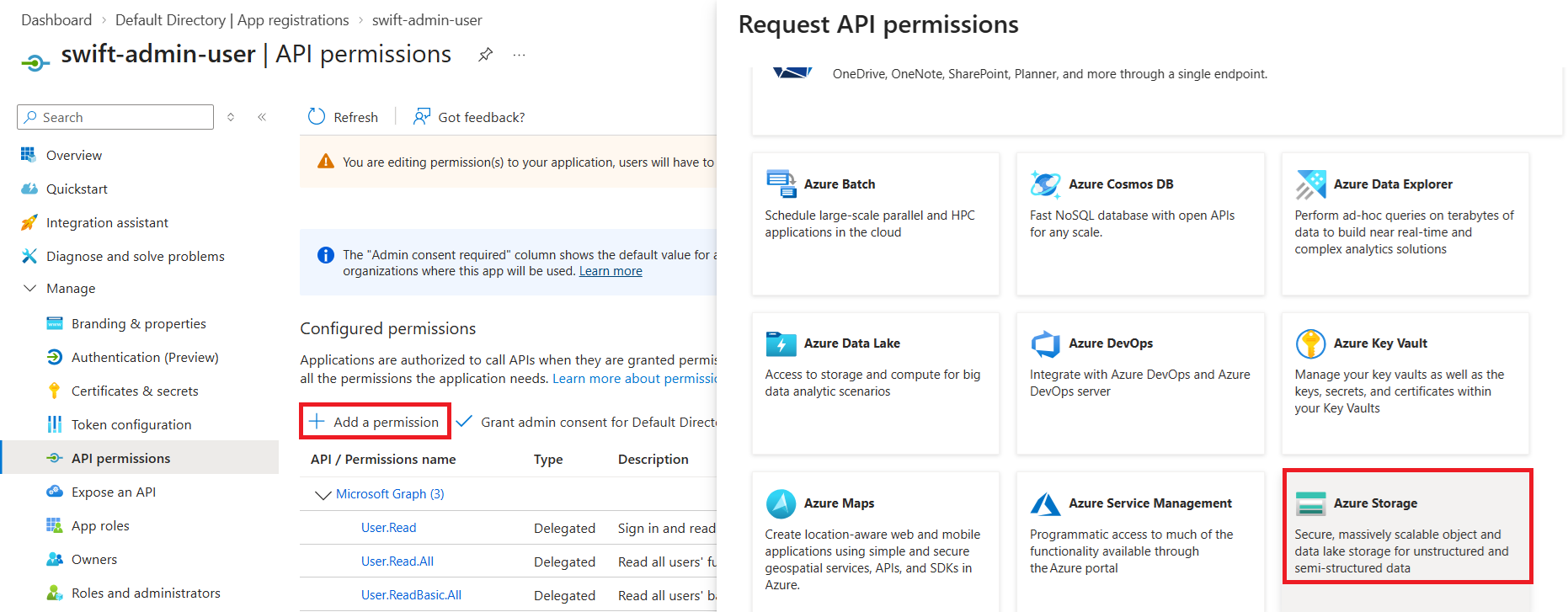
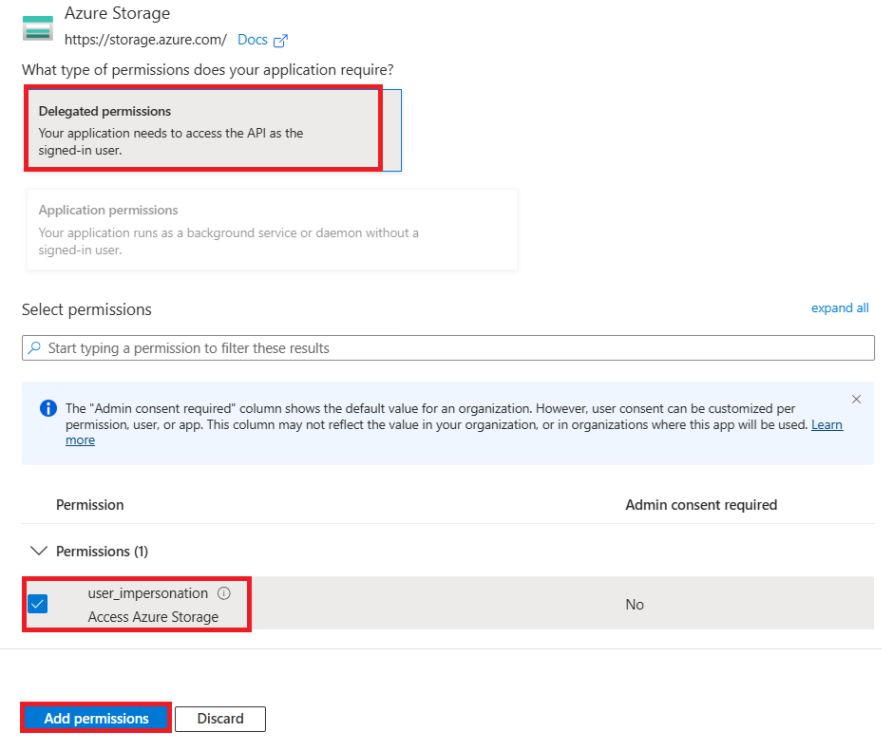
8. After selecting Azure Storage, choose Delegated permissions. Under Select permissions, select user_impersonation – Access Azure Storage. Click Add permissions to complete the configuration.
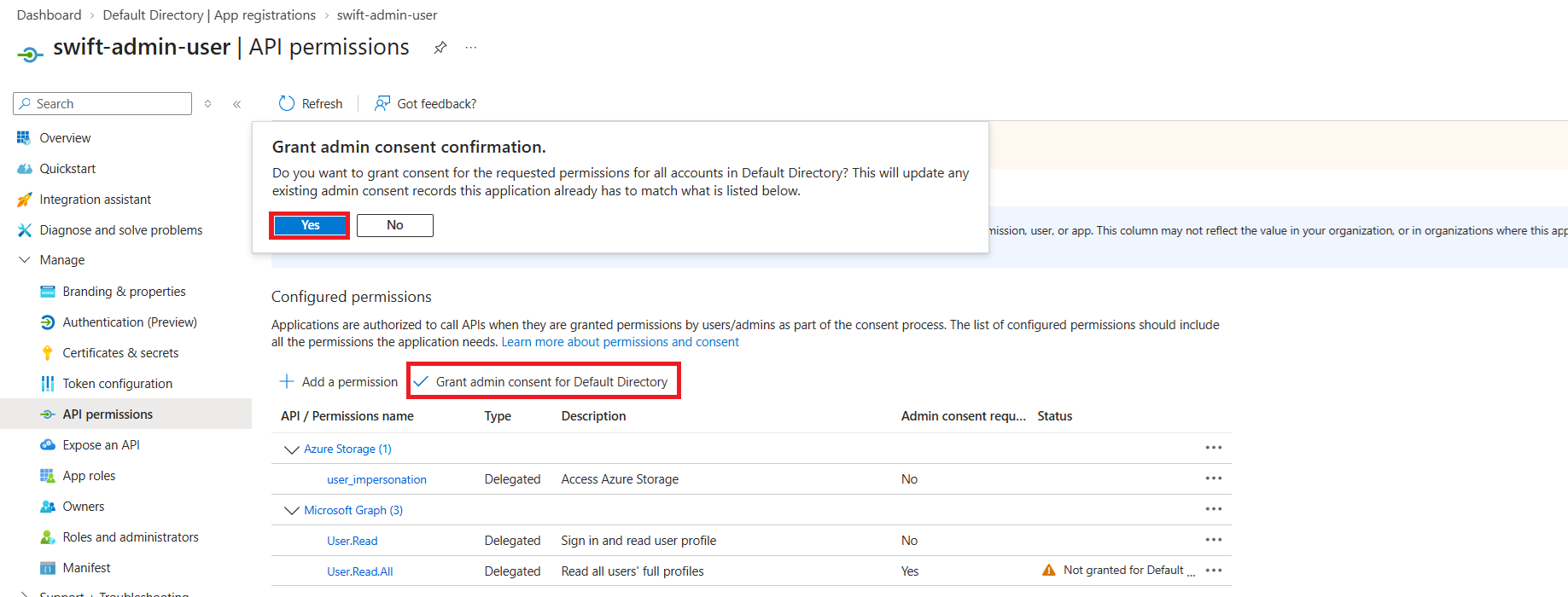
9. Once the required permissions are added, click Grant admin consent and confirm the action to grant admin consent for the configured permissions.
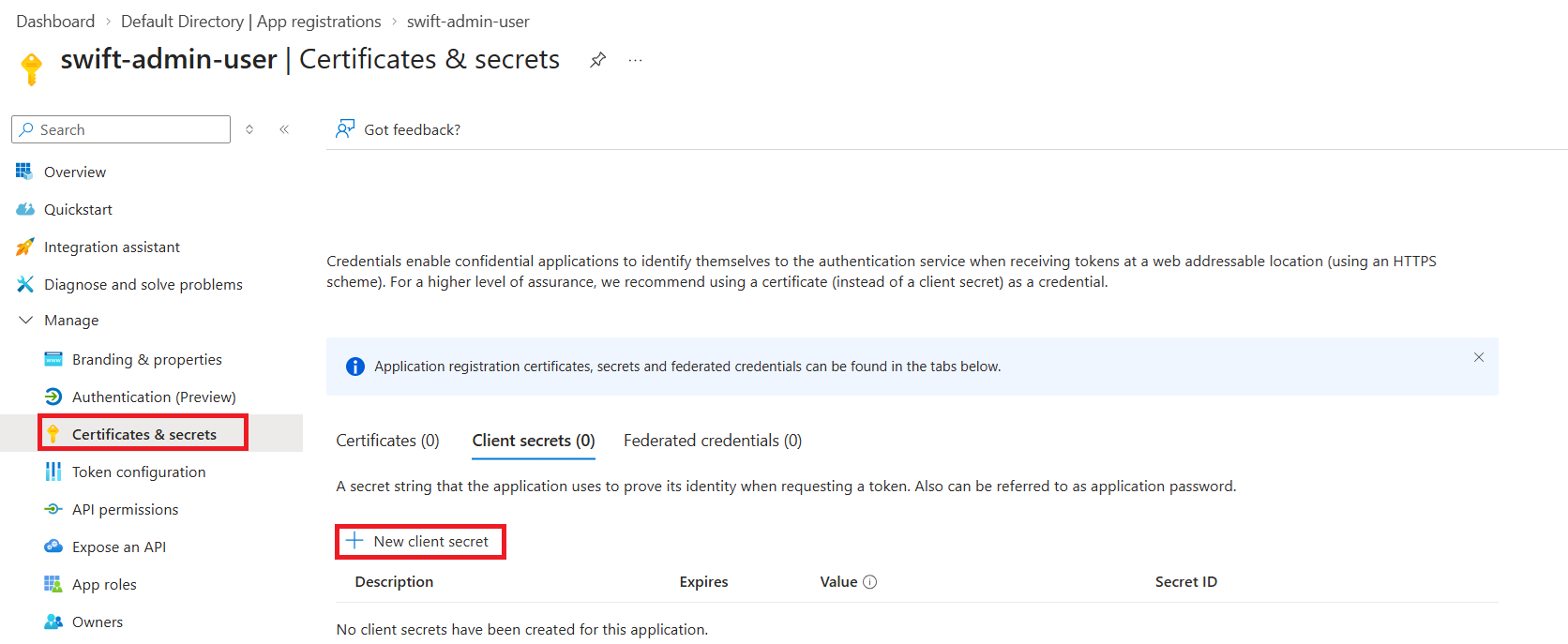
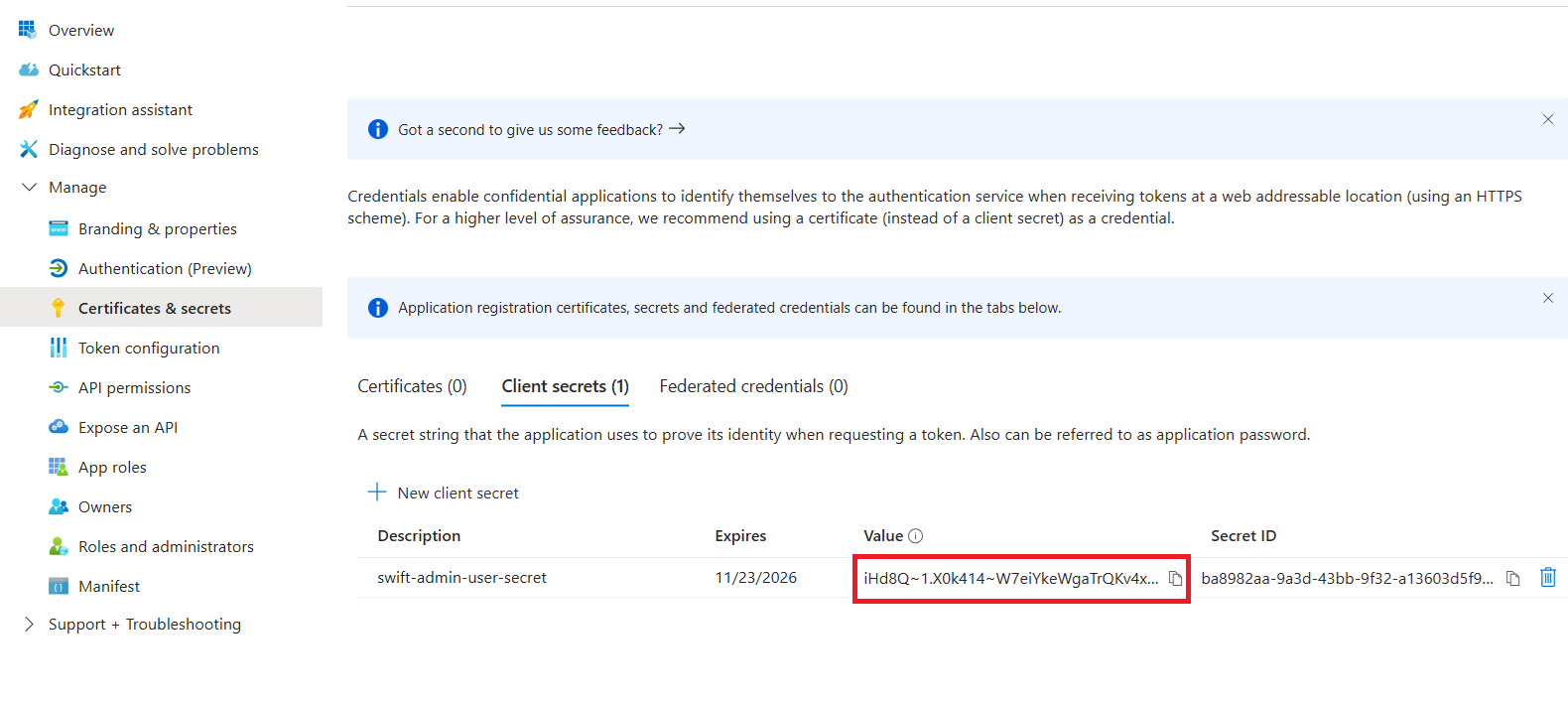
10. Select Certificates & secrets from the left navigation pane, and then click New client secret.
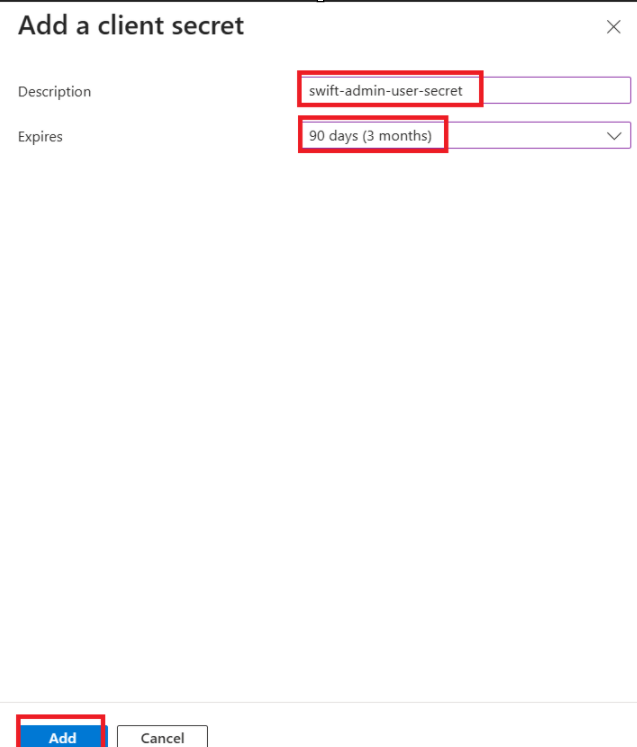
11. After clicking New client secret, enter a Description for the client secret and select the required Expiry period. Click Add to create the client secret.
12. Copy the generated client secret Value and store it securely. The secret value is displayed only once and cannot be retrieved later. You will need this value when configuring the AKS cluster, ACR registry, or Azure Object Storage in SWIFT.
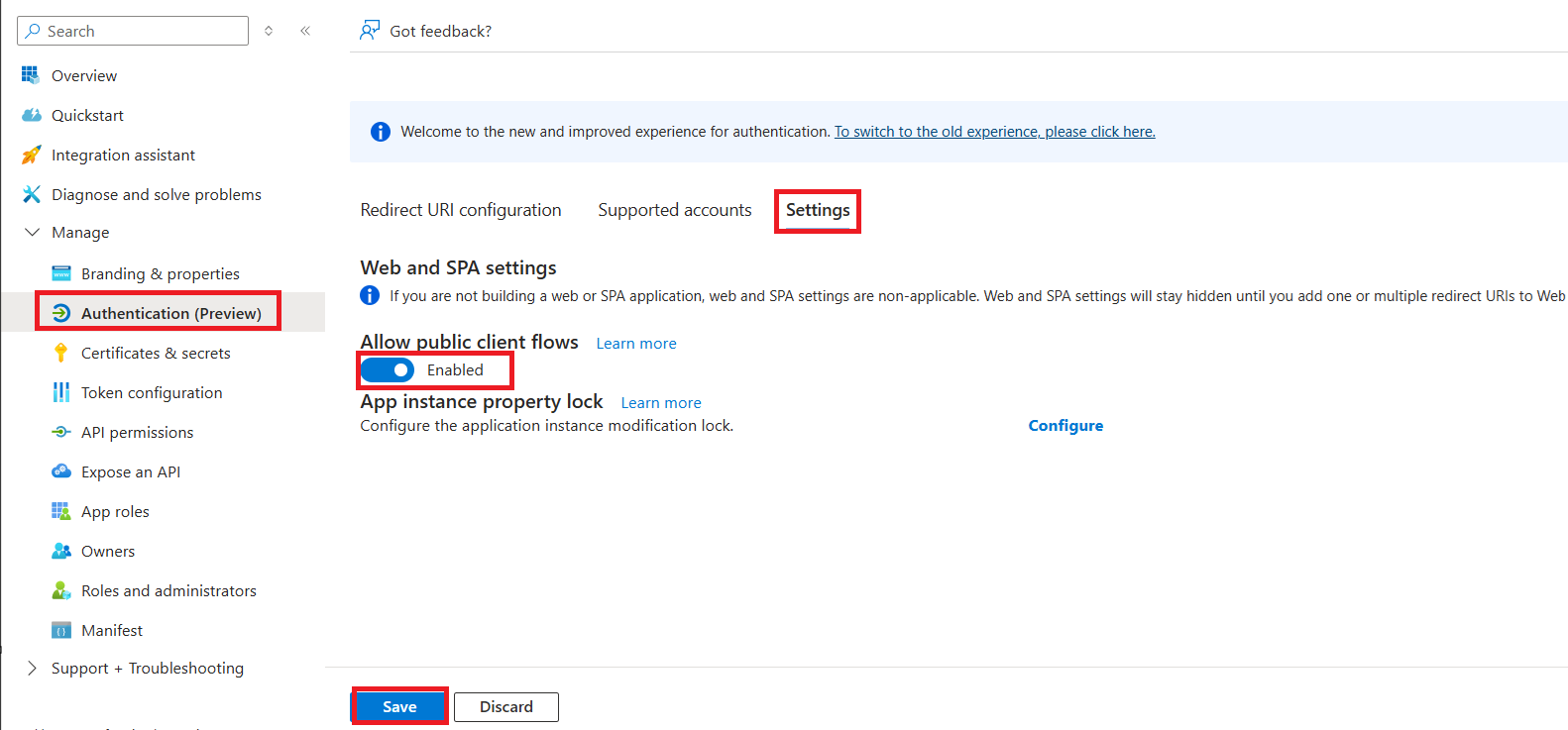
13. Navigate to Authentication (Preview) from the left navigation pane. Under Settings, enable Allow public client flows and click Save.
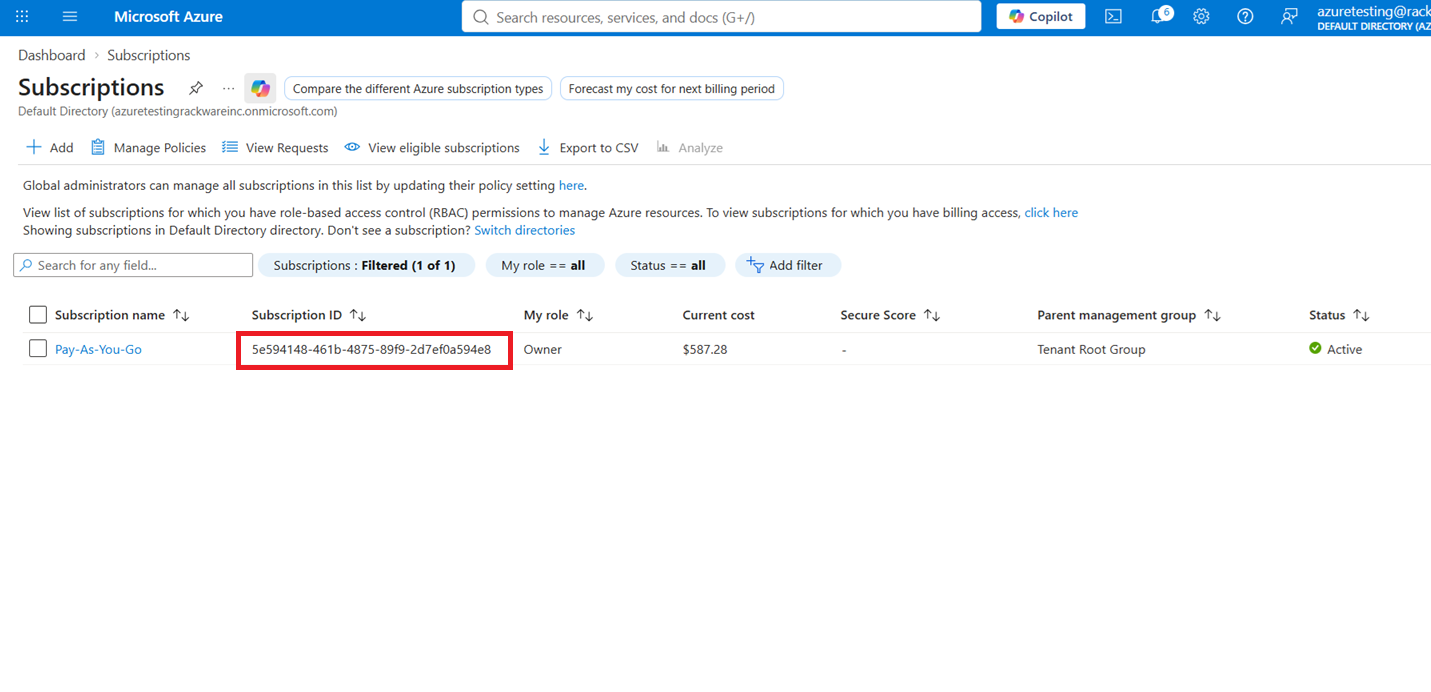
14. Navigate to Subscriptions in the Azure portal and select the subscription where your AKS clusters are provisioned. Note the Subscription ID, as it will be required later when configuring the AKS cluster in SWIFT.
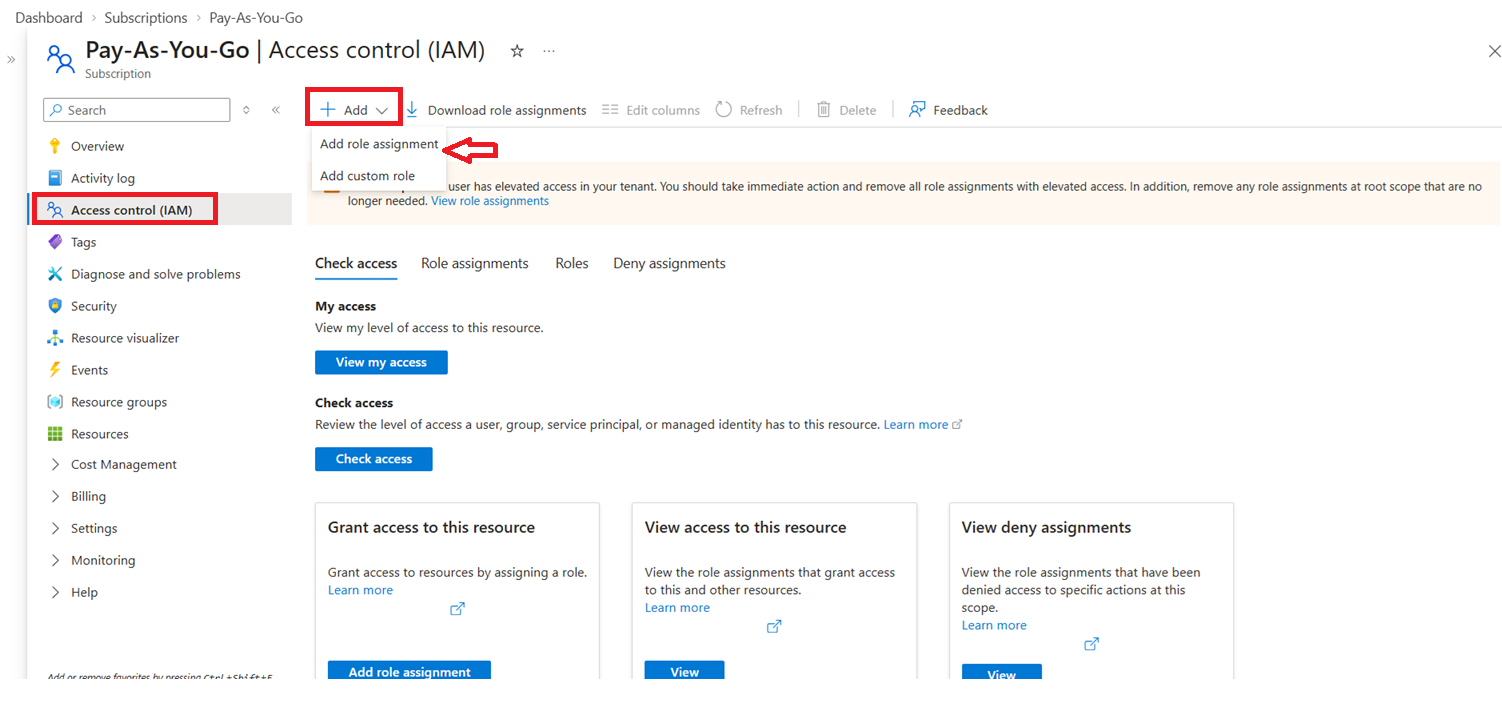
15. Select Access control (IAM) from the left navigation pane, and then click Add > Add role assignment.
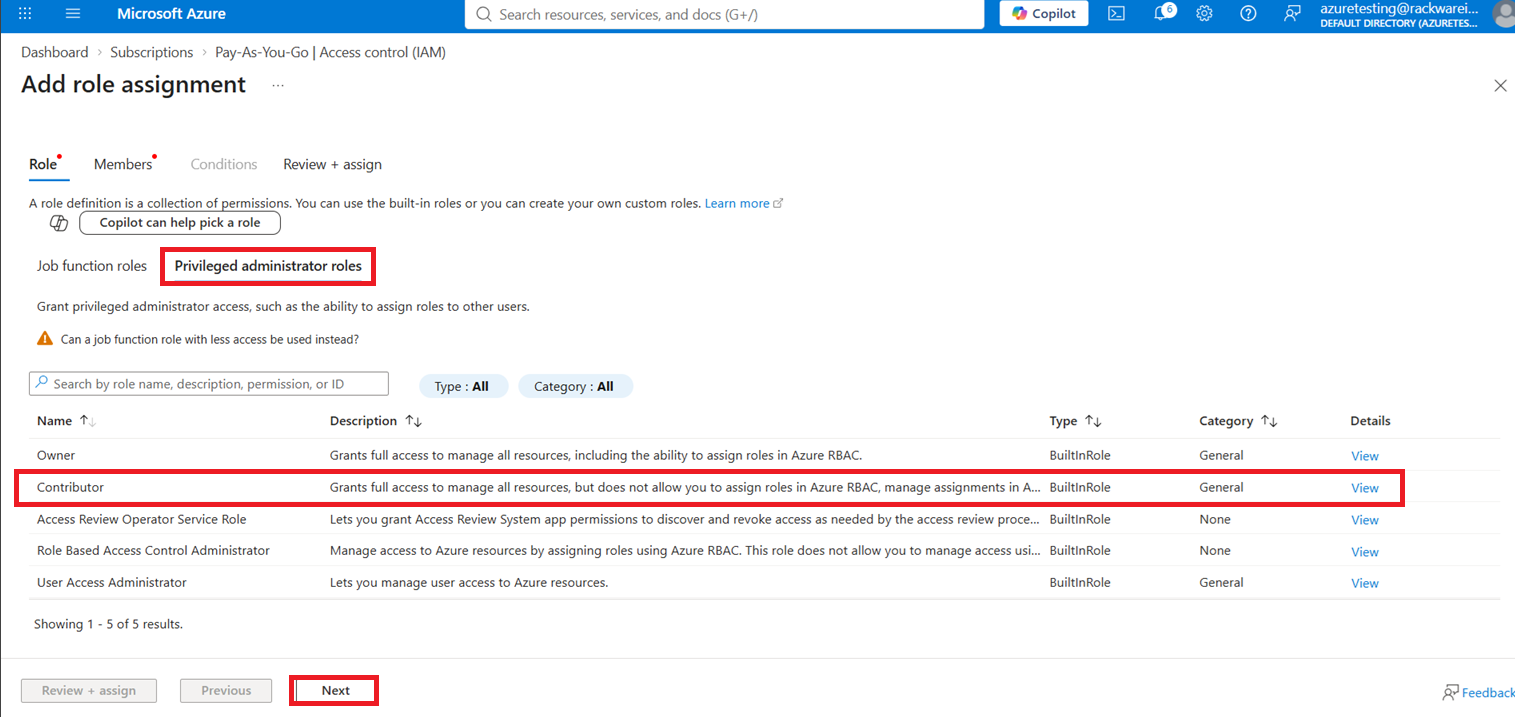
16. On the Role assignment page, select Privileged administrator roles and choose the Contributor role. Click Next to continue.
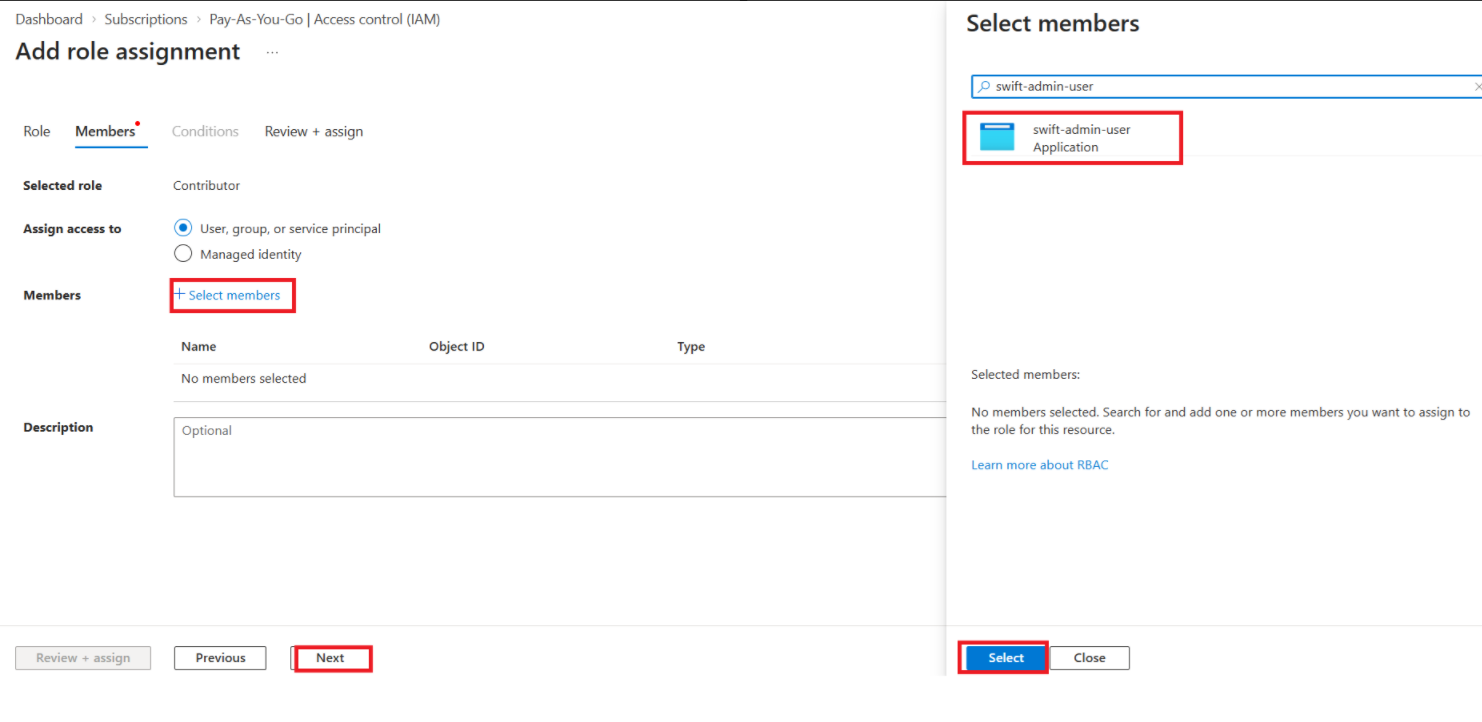
17. Under the Members tab, click Select members. Search for and select the newly created Microsoft Entra ID application. Click Select to add the application as a member, and then click Next to continue.
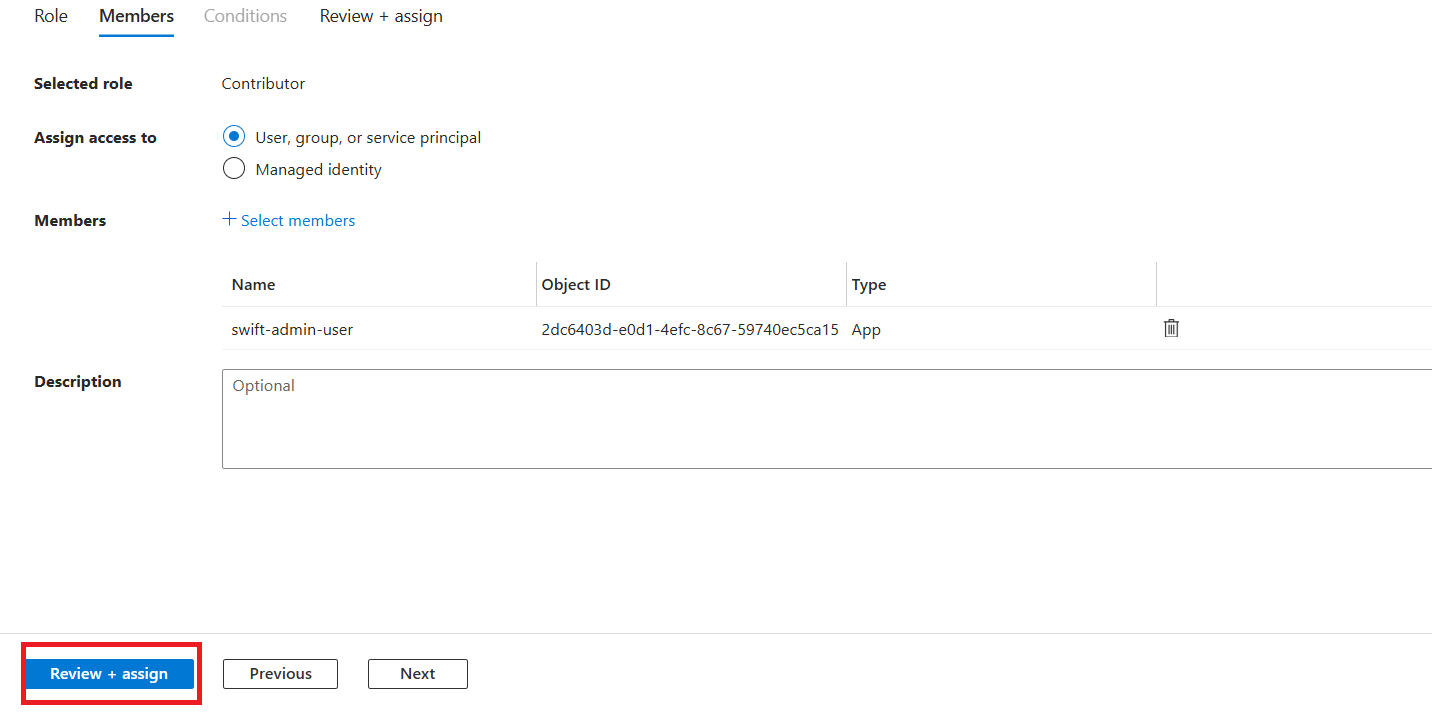
18. Verify that the correct application is selected, and then click Review + assign to complete the role assignment.
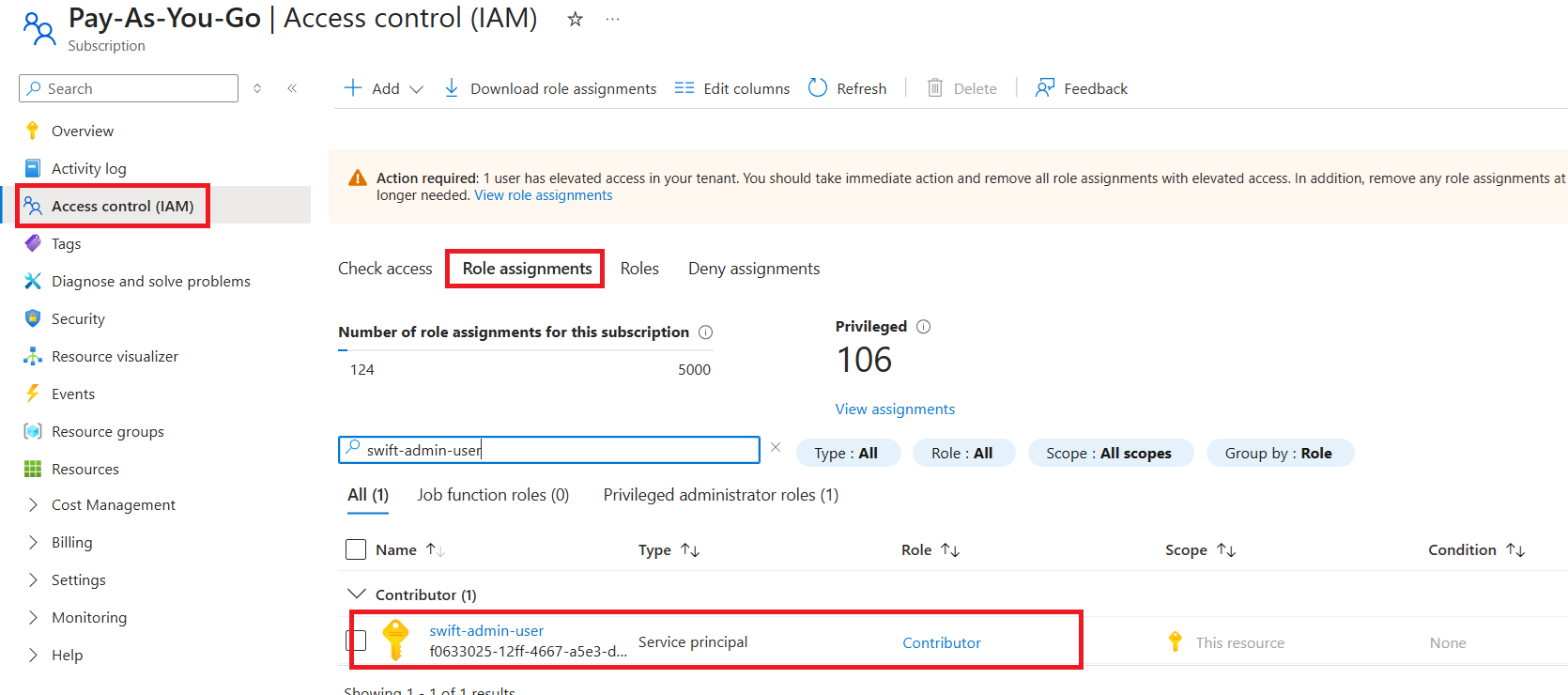
19. Verify that the newly added Contributor role assignment for the application is listed under Access control (IAM) for the subscription.
20. To get the Azure registry password to add ACR. Store the password securely as it is required for ACR.
Navigate to Azure Container Registry > Settings > Access keys. Enable Admin user and note the Username and Password. These credentials can be used when configuring the ACR registry in SWIFT
2. Prerequisites for Azure Container Registry (ACR)
Lastly, you need to assign ‘Storage Blob Data Contributor’ role to the new app or client we created above at all resource group levels where you have either cloud object storage created or want SWIFT to use those resource groups for longer term backups. Note that this is optional step if you do not want SWIFT to use Azure object storage for backups.
1. Select ‘Resource Group’ from the menu.
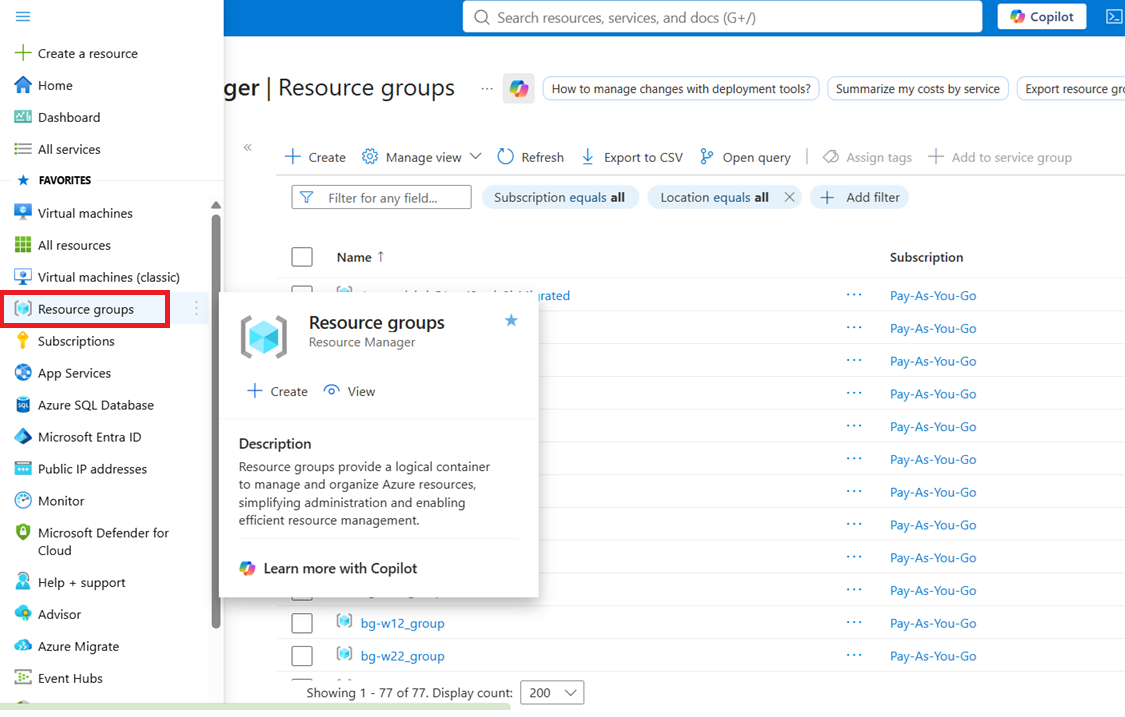
2. Select required resource group from list.
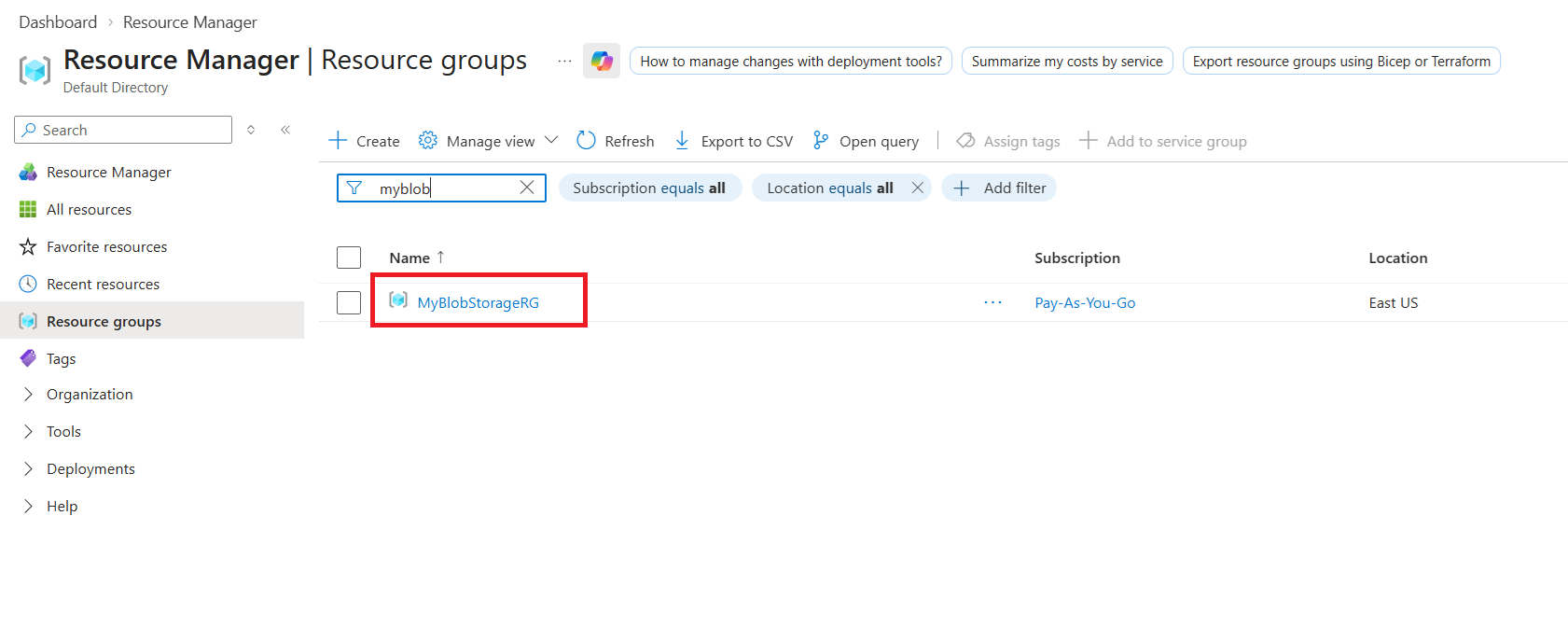
3. Select the Resource Group containing your AKS cluster, and then select Access control (IAM). Click Add and select Add role assignment.
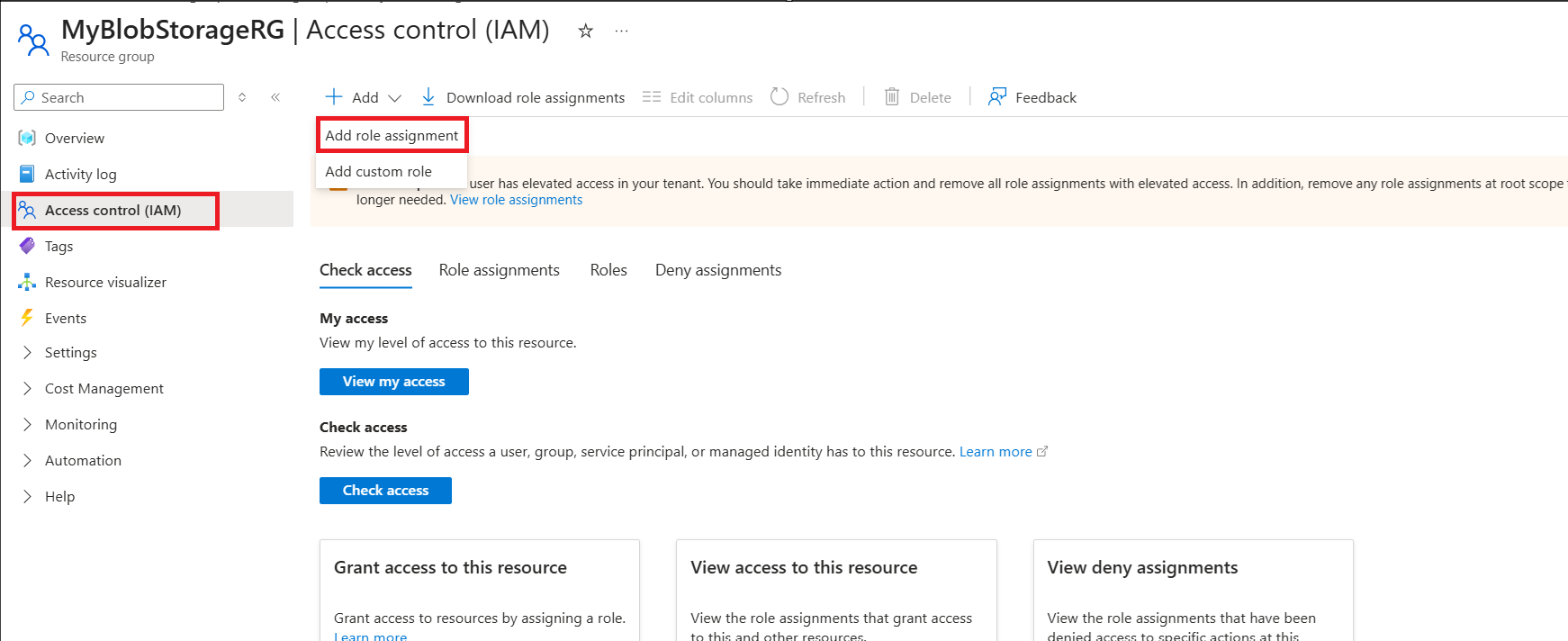
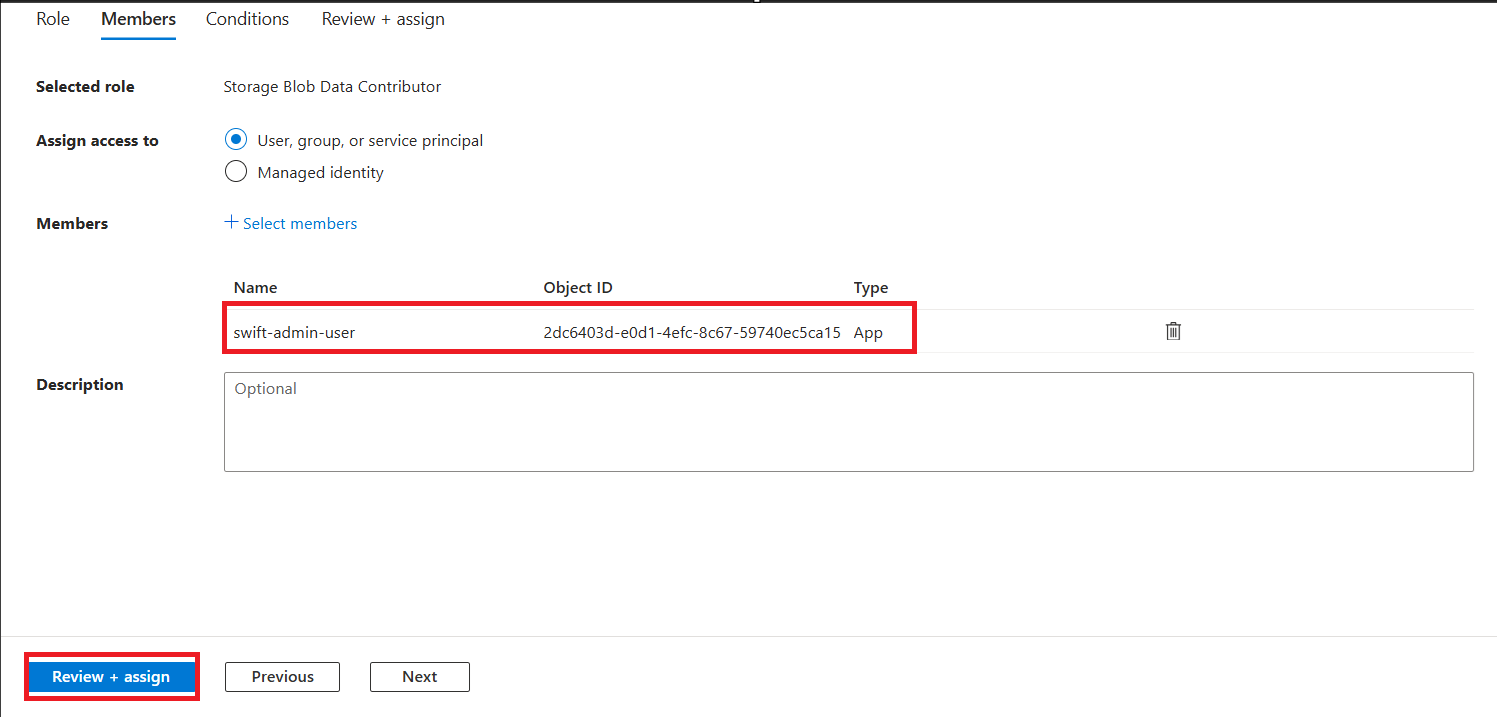
4. Select the ‘Storage Blob Data Contributor’ role. And click on Next.
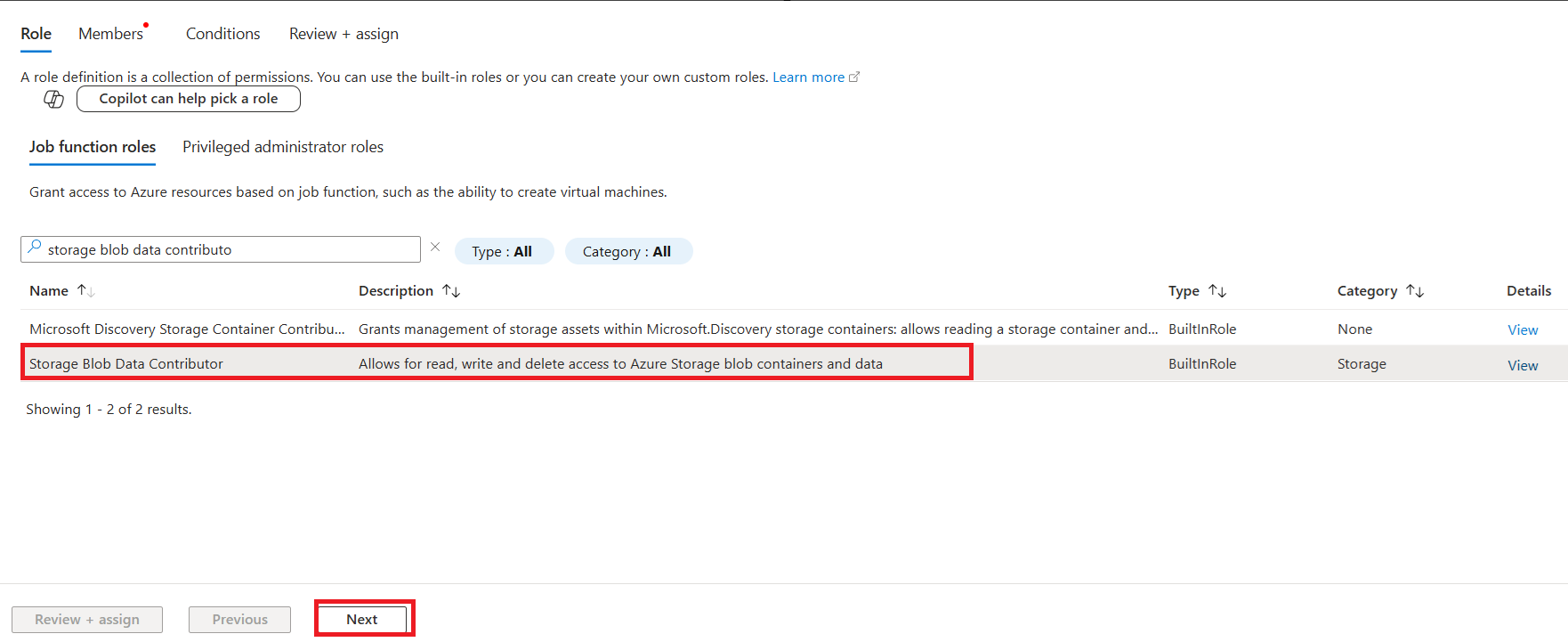
5. Select the Microsoft Entra ID application created in the previous steps. In this example, select the swift-admin-user application.
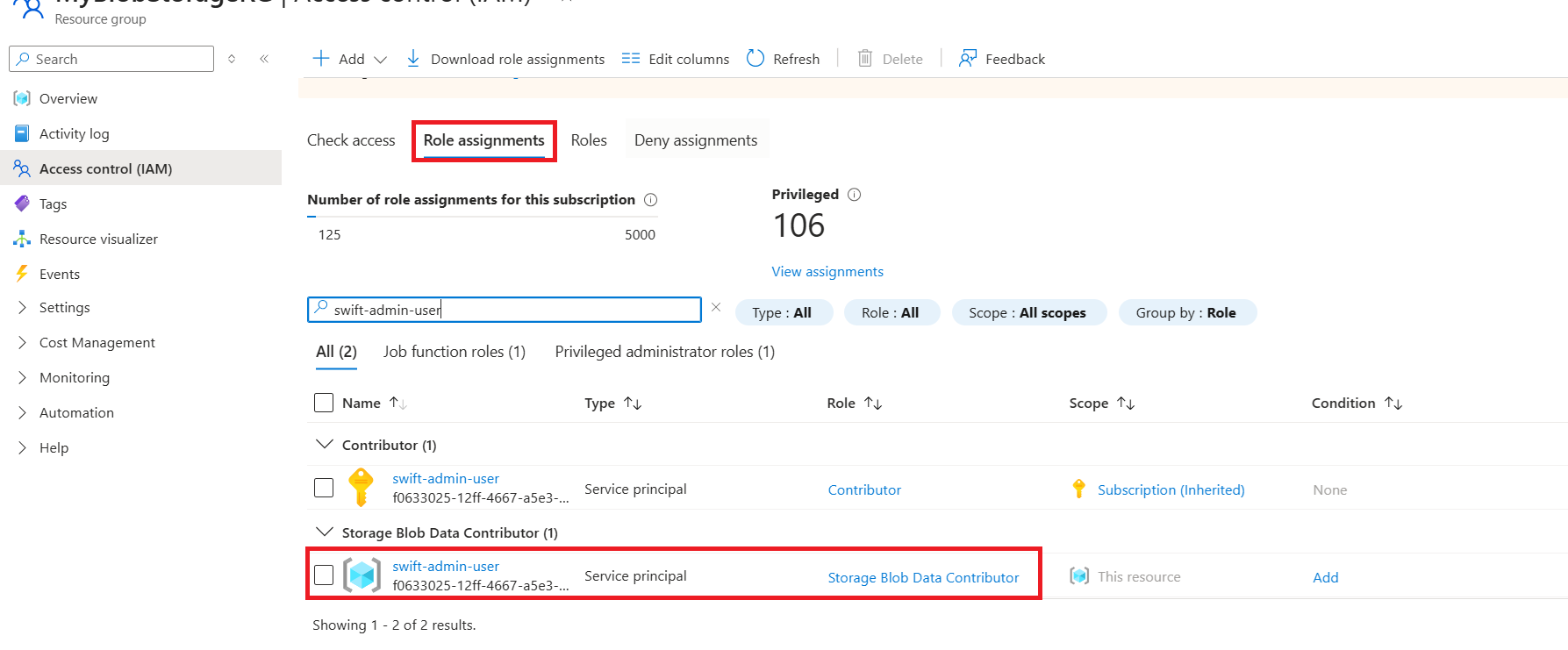
6. Verify the Role Assignment: Navigate to Access control (IAM) > Role assignments for the Azure Storage resource. Search for the application name and verify that the Storage Blob Data Contributor role is assigned to the application with the correct resource scope.
7. Record the Required Azure Details
After completing the configuration, note the following details. These details are required when configuring AKS clusters, Azure Object Storage, or Azure Container Registry (ACR) in SWIFT:
- Subscription ID
- Tenant ID (Directory ID)
- Application (Client) ID
- Client Secret Value
- Azure Registry Password (For ACR)
3. Prerequisites for Adding Azure Red Hat OpenShift (ARO)
Before adding an ARO cluster to SWIFT, ensure the following prerequisites are completed:
1. Microsoft Entra ID Application
Use the same Microsoft Entra ID application and Azure configuration created in the previous sections. Ensure that the required permissions and role assignments are already configured.
2. ARO Service Account
Create the required service account on the ARO cluster and obtain the service account credentials. For instructions, refer to How to create Service Account
3. OpenShift API Server Port
Ensure that the OpenShift API server is accessible on port 6443. Port 6443 is the default port used by the OpenShift API server.
Next Steps
After completing the above prerequisites, the AKS, ACR, and ARO resources are ready to be configured in SWIFT. Use the respective discovery/configuration KBs to add these resources to SWIFT.
- Configure an AKS cluster in SWIFT: Refer to [Discover AKS in SWIFT].
- Configure an ACR registry in SWIFT: Refer to [Discover ACR in SWIFT].
- Configure an ARO cluster in SWIFT: Refer to [Discover ARO in SWIFT].