
The Image Group Summary shows key information about your application backup in one place, such as cluster details, storage pool name, number of backups, current status, images present, Kubernetes object details, backup snapshot details and etc.
1. Go to Business Continuity & DR > Image Groups and click on the required image group. 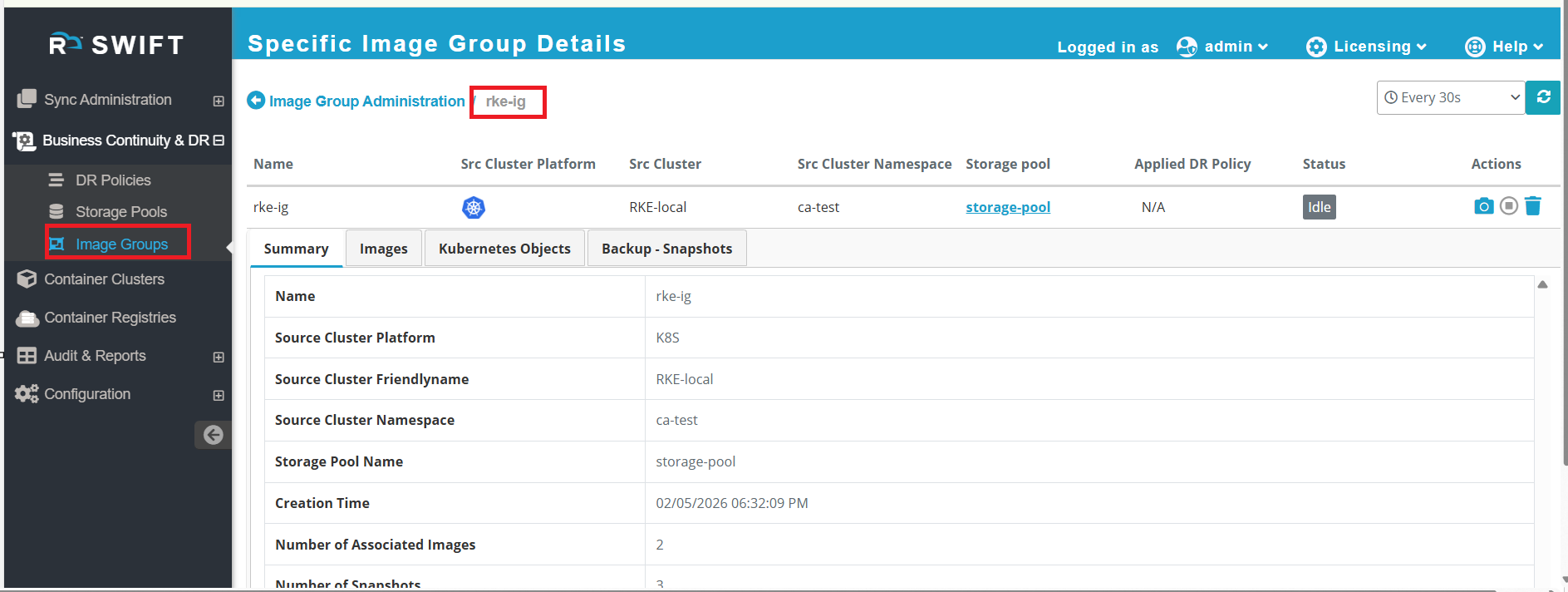
| Field | Field Information |
| Summary | On the Summary tab, you can see details like source platform, source cluster friendly name, storage pool name, cluster namespace, number of images, and number of snapshots. All this information is available in the Summary tab. |
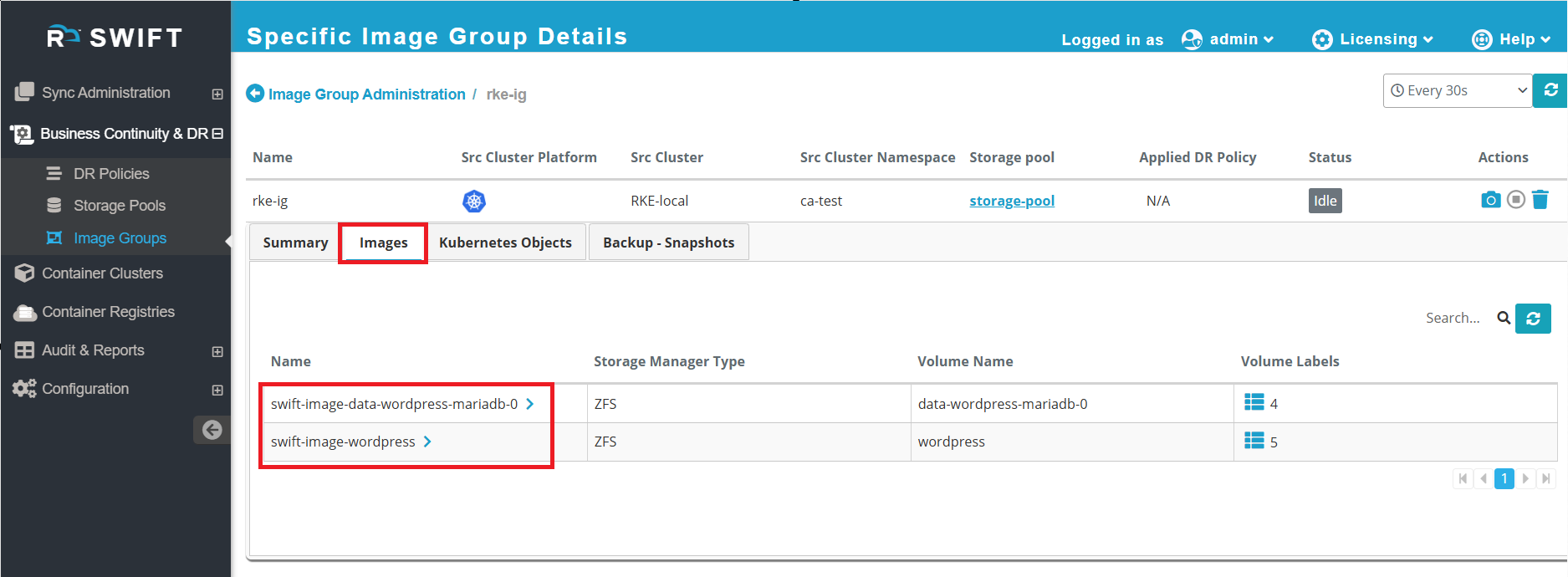
2. When you click on the Images tab, you will see the related image details.
| Field | Field Information |
| Images | On the Images tab, you can see the list of backed-up images with details like image name, storage manager type, volume name, and volume labels. This helps you know about application volumes that are backed up. |
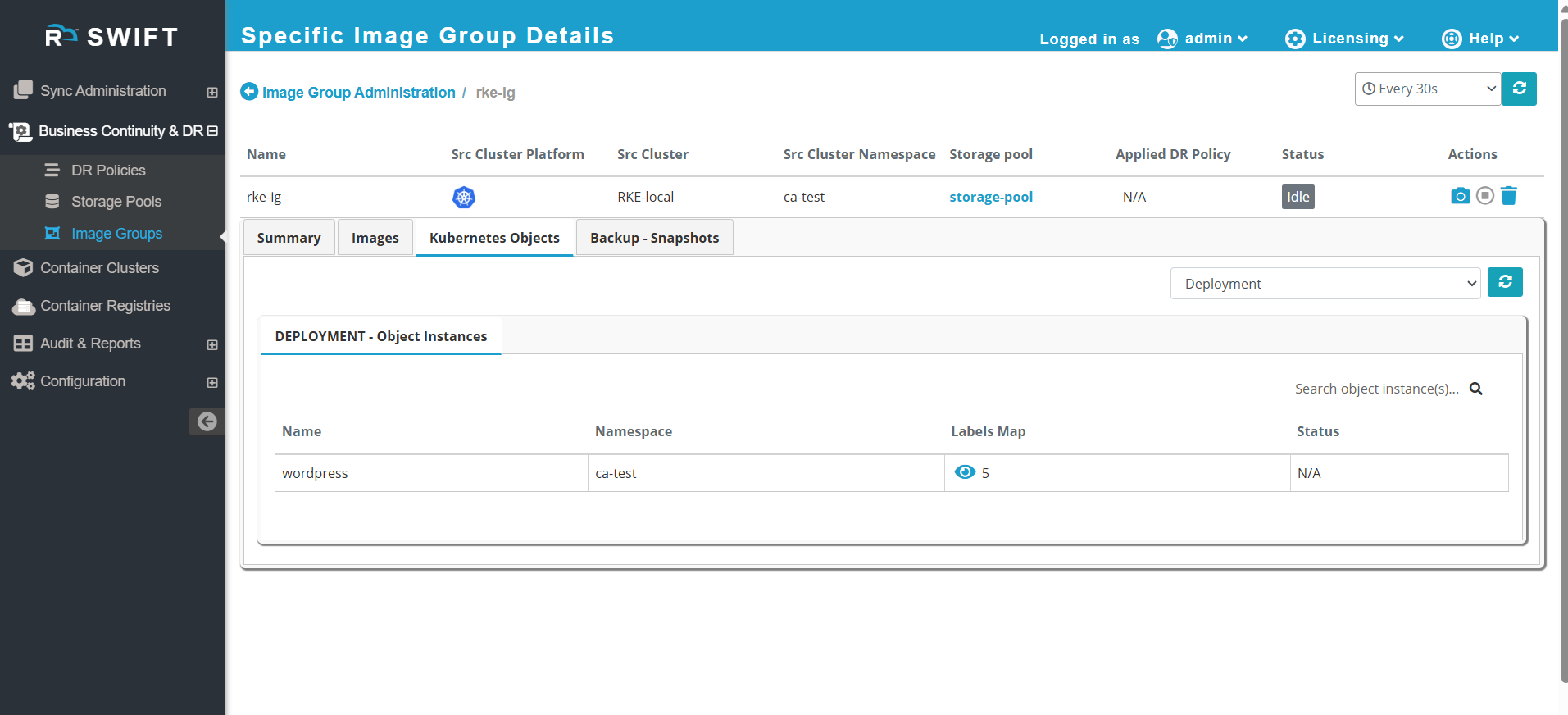
3. When you click on the Kubernetes Objects tab, you can see different types of Kubernetes objects deployed on the source cluster. You can select the object type from the dropdown on the right side to know the details about specific object.
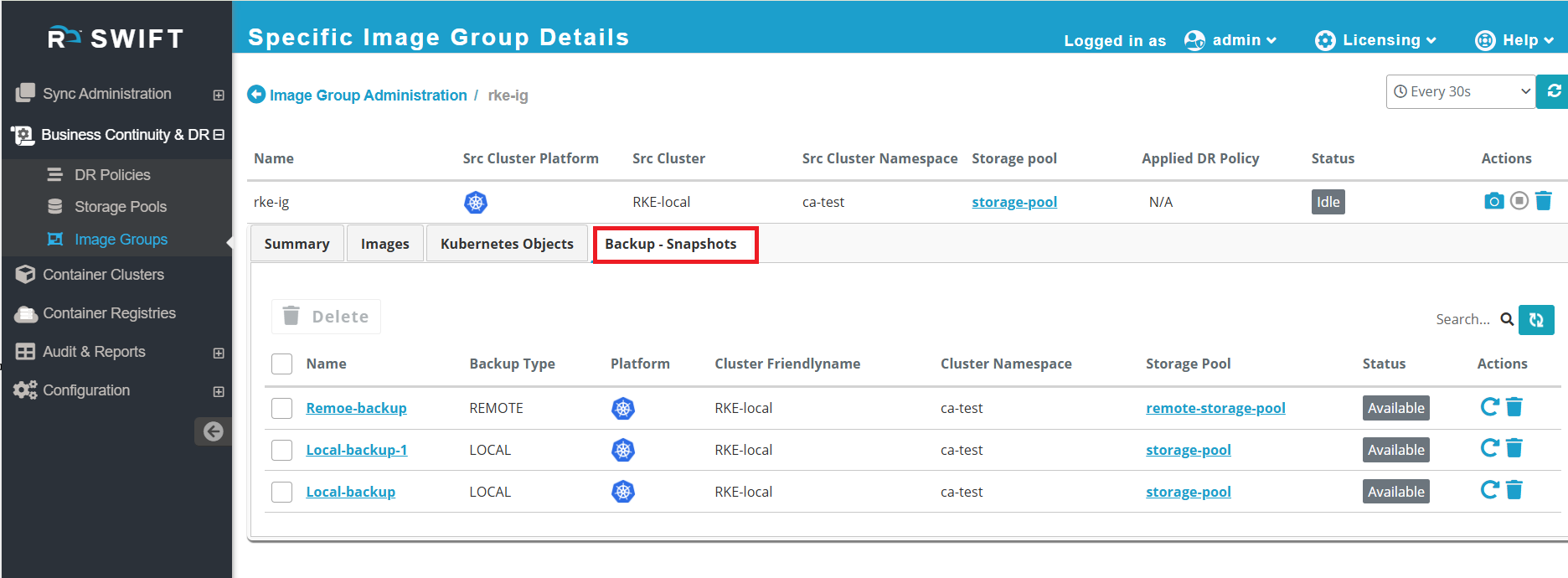
4.When you click on Backup - Snapshots, you can see all backups, including local and remote backup
| Field | Field Information |
| Backup -Snapshot |
Related KB's
How to create/clone image group